
You’re watching YouTube, streaming Netflix, and hearing every incoming call perfectly. But when you try to speak during a call, the other person hears nothing. Your Samsung Galaxy speaker works flawlessly, yet your microphone is completely silent.
This happens because your phone’s audio output (speaker) and audio input (microphone) are separate hardware systems. The speaker can function perfectly while the primary call microphone at the bottom of your device is blocked by debris, hijacked by voice assistant apps like Bixby or Google Assistant, or disabled through permission conflicts. Software glitches, Bluetooth profile loops, or a hardware failure in the dedicated input mic can also cause this selective failure.
The good news? Most cases stem from fixable software conflicts or physical blockages. This guide walks you through targeted diagnostics and fixes to isolate the input failure and restore your microphone fast.

Key Takeaways
- Your Samsung microphone not working while the speaker functions normally indicates a separate input pathway issue, which is often fixable through software adjustments or physical cleaning of the microphone pinhole.
- Run Samsung’s diagnostic test (*#0*# or Samsung Members app) and test in Safe Mode to quickly determine whether your microphone failure is hardware-based or caused by a third-party app blocking audio input.
- Clean the primary microphone opening at the bottom edge of your phone with a soft brush or wooden toothpick, and remove your case to check if physical obstruction or case pressure is muffling the mic.
- Verify microphone permissions in Settings → Privacy → Permission manager and ensure the Phone app has explicit access; also disable Bluetooth to rule out Hands-Free Profile conflicts hijacking call audio.
- Update your Samsung software and clear the system cache partition to eliminate driver bugs and corrupted files that commonly cause selective microphone failures without affecting speaker output.
- If all software fixes fail, a factory reset is your last resort before seeking professional repair; persistent hardware failure requires component-level service that typically costs $50–$120 through authorized Samsung centers or independent repair shops.
Why Your Samsung Microphone Fails While the Speaker Works Fine
Your Samsung phone uses distinct hardware for audio output and input. The speaker (earpiece and loudspeaker) handles all outgoing sound, calls, music, notifications. Meanwhile, your device has multiple microphones: the primary call mic at the bottom edge, a secondary noise-canceling mic near the camera, and sometimes a receiver mic at the top.
When callers hear nothing but your speaker plays audio perfectly, the issue lies exclusively in the input pathway. The speaker system and microphone system don’t share components. A blocked primary mic pinhole, app permission denial, or software grabbing mic resources can silence your voice while leaving playback untouched.
Common culprits include voice assistants (Bixby Voice Wake-up or Google Assistant hotword detection) that monopolize mic access, Android Privacy Manager blocking app permissions, debris clogging the tiny bottom microphone hole, or Bluetooth headsets creating profile conflicts where media routes correctly but call mic input freezes. Understanding this separation helps you target fixes to the input side only.
Quick Diagnostic Test: Confirm Your Microphone Issue
Before diving into fixes, confirm which microphone is failing. Open your Samsung Voice Recorder app and record a 10-second clip. Play it back. If you hear your voice clearly, the primary mic hardware works, pointing to a software or permission issue in the Phone or calling apps.
Next, dial *#0*# to enter Samsung’s diagnostic menu (available on most Galaxy models). If the menu doesn’t appear, open the Samsung Members app, tap Get Help → Interactive checks → Microphone. Speak into the bottom mic, then the top mic. The diagnostic tool shows which mic is active and whether it detects sound input.
Finally, test a regular phone call on speakerphone versus normal mode. If the speakerphone mic works but the standard call mic fails, the issue is with the bottom primary microphone or how the Phone app accesses it. This targeted testing isolates hardware from software failures in under two minutes.
Restart Your Samsung Device and Test Safe Mode
A simple restart clears temporary memory conflicts and resets active processes that may be hogging microphone access. Hold the Power button, tap Restart, and wait for the phone to reboot. Immediately test a call afterward.
If the problem persists, boot into Safe Mode to disable all third-party apps temporarily. Press and hold the Power button, then tap and hold Power off on-screen until you see “Reboot to Safe Mode.” Tap OK. Your phone restarts with only stock Samsung apps active.
Make a test call in Safe Mode. If your microphone suddenly works, a third-party app, often a call recorder, voice changer, or even a security app, is blocking or redirecting mic input. Exit Safe Mode by restarting normally, then uninstall recently added apps one by one until you identify the culprit.
Clean the Microphone Openings and Remove Obstructions
The primary call microphone is a tiny pinhole at the bottom edge of your Samsung Galaxy, usually next to the USB-C port. Pocket lint, dust, and adhesive residue from phone cases can completely block this opening, silencing your voice while the speaker grille remains clear.
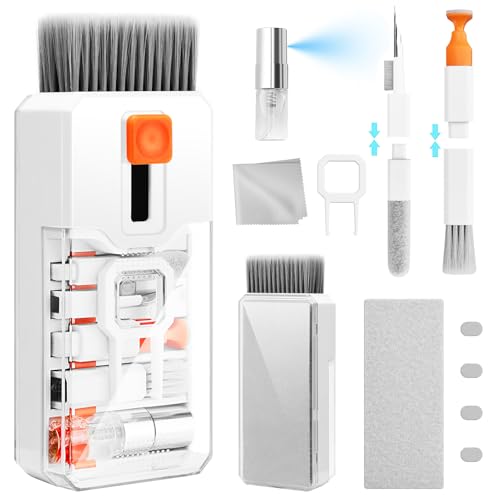
Inspect the bottom edge under bright light. Use a wooden toothpick or a soft-bristle brush to gently dislodge debris from the mic hole. Avoid metal pins or needles, they can puncture the internal mesh and cause permanent damage. Compressed air (short, gentle bursts) also works well.
“Cleaned the bottom mic hole with a toothpick and suddenly callers could hear me again, case was forcing lint into the pinhole.” via r/GalaxyS21
Remove your phone case and screen protector temporarily. Some thick cases press against the mic opening, muffling or blocking sound. Test a call without the case. If the mic works, the case design is incompatible with your device’s mic placement.
Check and Adjust App Permissions for Microphone Access
Android’s Privacy Manager can silently block microphone access for the Phone app or calling apps like WhatsApp, Telegram, or Google Meet. Navigate to Settings → Privacy → Permission manager → Microphone. Scroll through the list and ensure Phone, Contacts, and your preferred calling apps are set to Allow or Allow only while using the app.
If Phone is set to Deny or Ask every time, tap it and switch to Allow. Some Samsung devices also have a separate App permissions menu under Settings → Apps → [App name] → Permissions. Double-check both locations.
Also, Samsung’s Privacy Dashboard (Settings → Privacy → Privacy Dashboard) shows which apps recently accessed your microphone. If you see unexpected apps or none at all during calls, permissions are misconfigured. Granting explicit mic access to the Phone app resolves most software-based silence issues.
Update Software and Clear System Cache
Outdated firmware can introduce mic driver bugs or calling app conflicts. Go to Settings → Software update → Download and install. If an update is available, install it over Wi-Fi and restart your phone. Samsung regularly patches audio routing bugs in One UI updates.
Next, clear the system cache partition to remove corrupted temporary files. Turn off your Samsung phone. Press and hold Volume Up + Power together until the Samsung logo appears, then release. Use Volume Down to highlight Wipe cache partition, press Power to select, then confirm with Yes. Select Reboot system now.
This process doesn’t delete personal data, it only clears system-level cache that can interfere with microphone initialization. After the reboot, test your microphone immediately. Cache corruption is a common hidden cause of selective audio failures.
Disable Bluetooth and Disconnect External Audio Devices
Bluetooth profile loops are notorious for routing media audio correctly while leaving mic input stuck on a disconnected or out-of-range headset. Open Quick Settings (swipe down twice) and tap Bluetooth to turn it off completely. Test a call immediately.
If your microphone works with Bluetooth disabled, the issue is a Hands-Free Profile (HFP) conflict. Your phone is trying to route call audio to a paired device (car, earbuds, smartwatch) that’s either off or too far away. Navigate to Settings → Connections → Bluetooth, tap the gear icon next to each paired device, and select Unpair for devices you’re not actively using.
“Turned off Bluetooth and my mic came back instantly, my Galaxy Buds were connected but in the case, silently hijacking call audio.” via Samsung Community
Also disconnect wired earbuds or USB-C adapters. Sometimes the phone fails to switch back to the internal mic after you unplug an accessory, leaving the input pathway stuck on the absent external device.
Reset App Preferences and Network Settings
Resetting app preferences restores default permissions and clears disabled apps or background restrictions without deleting data. Go to Settings → Apps → Menu (three dots) → Reset app preferences. Tap Reset to confirm. This re-enables any apps you may have accidentally restricted and resets all permission grants to default.
If the microphone fails only on calls (not recordings), reset network settings to fix carrier or VoLTE conflicts. Navigate to Settings → General management → Reset → Reset network settings. Enter your PIN and confirm. This clears saved Wi-Fi networks, Bluetooth pairings, and mobile network configurations, then reconnects you to your carrier.
Wi-Fi Calling and VoLTE (Voice over LTE) can conflict with traditional call routing, especially if your carrier recently pushed a settings update. After resetting network settings, toggle Wi-Fi Calling off under Settings → Connections → More connection settings → Wi-Fi Calling and test a standard cellular call.
Test Hardware Using Samsung Members and Diagnostic Tools
Samsung’s built-in diagnostics can definitively confirm hardware failure. Open the Samsung Members app, tap Get Help → Interactive checks, then select Microphone. Follow the on-screen prompts to test the bottom (primary), top (receiver), and rear (secondary) microphones individually.
If the diagnostic reports “Microphone failed” or you see no waveform when speaking, you have a hardware defect, likely a damaged flex cable, disconnected internal connector, or a failed MEMS microphone module. This requires professional repair or warranty service.
Alternatively, dial *#0*# and tap MIC in the diagnostic menu (layout varies by model). Speak loudly into each mic opening. A functioning mic displays a moving sound wave or changes the on-screen indicator. No response means hardware failure. Cross-reference with the Samsung Members test to rule out false positives.
When to Factory Reset Your Samsung Phone
If all software fixes fail and hardware tests pass, a factory reset can resolve deep system conflicts, but it erases all data. Before proceeding, back up photos, contacts, and files to Samsung Cloud or Google Drive. Navigate to Settings → General management → Reset → Factory data reset.
Tap Reset and enter your PIN. The phone wipes everything and restarts as if new. Set it up, skip app installations initially, and test the microphone on a call immediately. If it works, reinstall apps one by one, testing after each batch to identify any app that breaks mic functionality.
Factory reset should be your last resort before hardware repair. If the microphone still fails post-reset with zero apps installed, you have a confirmed hardware defect, a blown mic component, damaged motherboard trace, or faulty audio codec IC.
Professional Repair Options and Warranty Coverage
Hardware microphone failures require component-level repair. If your Samsung Galaxy is under manufacturer warranty (typically 12 months from purchase) and you haven’t caused physical or water damage, Samsung covers the repair at no cost. Contact Samsung Support or visit an authorized service center.
Out of warranty, microphone module replacement costs $50–$120 USD depending on the model. Independent repair shops like uBreakiFix (Asurion) specialize in Samsung repairs and often complete mic replacements same-day. Always request OEM (original equipment manufacturer) parts to ensure compatibility.
For severe damage, like a corroded motherboard from liquid exposure, repair costs can exceed $200. At that point, consider upgrading to a newer Galaxy model or replacing the phone. Before paying, ask the technician to demonstrate the mic failure using Samsung’s diagnostic menu to confirm the issue isn’t software-based.
Preventing Future Microphone Problems on Samsung Devices
Regular maintenance prevents 80% of microphone failures. Clean the bottom mic pinhole monthly using a soft brush or compressed air. Avoid using your phone in dusty or sandy environments without a case that has proper microphone cutouts.
Disable Bixby Voice Wake-up (Settings → Advanced features → Bixby Routines → Voice wake-up) and Google Assistant hotword detection (Google app → Settings → Voice → Voice Match) when not needed. These features constantly monitor the mic, increasing wear and potential software conflicts.
Keep your phone updated with the latest One UI patches via Settings → Software update. Samsung frequently releases firmware that fixes audio routing bugs. Enable Auto download over Wi-Fi to receive updates passively.
Use high-quality Bluetooth devices and unpair unused accessories regularly. Avoid cheap USB-C adapters or third-party earbuds that don’t properly signal disconnection to the phone’s audio subsystem. Finally, invest in a precision electronics cleaning kit for safe, regular maintenance of all device ports and openings.
Frequently Asked Questions
Why is my Samsung microphone not working even though the speaker works?
Samsung phones have separate hardware for audio output (speaker) and input (microphone). When your speaker works but the microphone fails, the issue is isolated to the input pathway—often caused by a blocked mic hole, software permission conflicts, or app interference rather than a speaker-related problem.
How can I quickly diagnose a Samsung microphone problem?
Open Samsung Voice Recorder and record a 10-second clip. If you hear your voice, the hardware works—it’s a software issue. Next, dial #0# to access diagnostics and test each microphone opening. Finally, test a speakerphone call versus normal mode to isolate which microphone is failing.
What’s blocking my Samsung microphone—hardware or software?
Boot into Safe Mode by holding Power, tapping Power off, then selecting ‘Reboot to Safe Mode.’ If your mic works in Safe Mode, a third-party app is blocking it. If it still fails, check for debris in the bottom mic pinhole or test using Samsung Members diagnostics to confirm hardware failure.
Can a phone case block my Samsung microphone?
Yes. The primary microphone is a tiny pinhole at the bottom edge of your Galaxy. Thick cases or screen protectors can muffle or block sound completely. Remove your case temporarily and test a call. If the mic works, your case design may be incompatible with your device’s mic placement.
How do I fix microphone permission issues on Android?
Go to Settings → Privacy → Permission manager → Microphone and ensure Phone and calling apps (WhatsApp, Google Meet) are set to ‘Allow.’ Check Settings → Apps → [App name] → Permissions as well. Samsung’s Privacy Dashboard also shows which apps accessed your mic recently.
Why does my Samsung microphone fail on calls but work during voice recordings?
Call mic failure while recordings work suggests a calling app permission issue or VoLTE/Wi-Fi Calling conflict. Reset network settings under Settings → General management → Reset → Reset network settings, then disable Wi-Fi Calling in Settings → Connections → More connection settings and test a standard cellular call.
Read More:
- MacBook Microphone Not Working (Here’s the Quick Fixes to Try First)
- Tesla Microphone Not Working (Fast Fixes to Restore Hands-Free Calls)
- USB Microphone Not Working (Causes and Quick Fixes Explained)
- Zoom Microphone Not Working Windows 11 (Expert Fixes Inside)
- Sonos One Microphone Not Working (Quick Fixes that Always Work)

Susan is a professional writer. She has been a writer for eight years and has always been so fulfilled with her work! She desires to share helpful, reliable, and unbiased information and tips about tech and gadgets. She hopes to offer informative content that can answer users’ questions and help them fix their problems.