
Muted during a critical Zoom meeting? Your Windows 11 microphone suddenly failing can disrupt work, gaming, and online classes. The problem usually stems from privacy permissions, driver conflicts, or hidden settings changes introduced in Windows 11’s redesigned audio architecture.
Windows 11 microphone not working is typically caused by disabled privacy permissions under Settings > Privacy & security > Microphone, incorrect default input device selection, outdated audio drivers, or physical connection issues. Enabling system and app-level microphone access, updating Realtek or manufacturer drivers via Device Manager, and setting the correct default input device in System > Sound resolves most cases within minutes.
This guide walks you through twelve diagnostic steps, from verifying physical connections and privacy toggles to advanced driver reinstalls and audio service resets, so you can restore clear voice input fast.

Key Takeaways
- Windows 11 microphone not working is typically caused by disabled privacy permissions, outdated drivers, or incorrect default input device settings—most issues resolve within minutes by enabling microphone access and updating audio drivers.
- Test if your microphone is truly broken by opening Settings > System > Sound and watching the blue volume bar move while speaking; a flat bar indicates a hardware or driver issue requiring deeper troubleshooting.
- Check Windows 11’s strict privacy settings under Settings > Privacy & security > Microphone to ensure system-level and app-level microphone access are both enabled, especially for desktop apps like Zoom, Discord, and OBS.
- Set your microphone as the default recording device in mmsys.cpl and adjust volume levels to 80–100, optionally boosting by +10 to +20 dB if input remains too quiet, while disabling audio enhancements that may conflict with input.
- If your Windows 11 microphone works in system settings but fails in specific apps, restart the application and manually select your microphone from the audio settings dropdown, as apps may incorrectly default to built-in device alternatives.
- Inspect physical connections for loose cables or mute switches, verify you’re using the correct jack port (pink for mic-in), and try alternative USB ports or adapters; if all software solutions fail, hardware replacement or professional repair may be necessary.
Quick Diagnostics: How to Test If Your Microphone Is Really Broken
Before diving into settings, confirm whether your mic hardware actually works. Press Win + I, navigate to System > Sound, and scroll to Input. Speak normally and watch the blue volume bar beneath your microphone’s name.
If the bar moves, your mic is picking up sound, your issue is app permissions or configuration. If it stays flat, the problem is hardware, driver, or system-level. Test a different USB port or headset jack. For USB mics, try another device to rule out cable or connector failure.
You can also launch the legacy Sound Control Panel by pressing Win + R, typing mmsys.cpl, and hitting Enter. Under the Recording tab, speak into your mic and watch the green level indicator. This cross-checks whether Windows 11 detects input at the driver level.
“My mic worked fine in Windows 10, then after the 11 upgrade it went silent. Turned out the new privacy settings blocked everything by default.” via r/Windows11
Check Windows 11 Microphone Privacy Settings
Windows 11 enforces strict app-level and system-level microphone permissions. Even if your hardware is perfect, apps can’t access the mic unless you explicitly grant permission.
Open Settings > Privacy & security > Microphone. Ensure the Microphone access toggle at the top is On. Below that, confirm Let apps access your microphone is also enabled. Scroll down to Let desktop apps access your microphone and turn it on, this is critical for Zoom, Discord, OBS, and other Win32 applications.
If any toggle is greyed out, your system administrator or a group policy has restricted microphone access. Contact your IT department if you’re on a managed device. For personal PCs, check Settings > System > About to verify you’re running Windows 11 Home or Pro, not an Enterprise edition with locked-down policies.
Set Your Microphone as the Default Recording Device
Windows 11 might be listening to the wrong input device, especially if you’ve plugged in multiple USB headsets, webcams, or array mics. Navigate to Settings > System > Sound and click More sound settings under the Advanced section (or press Win + R, type mmsys.cpl, and hit Enter).
In the Recording tab, locate your active microphone. Right-click it and select Set as Default Device and Set as Default Communication Device. You’ll see a green checkmark icon appear. If your mic is listed as Disabled, right-click and choose Enable.
Speak into the mic and watch the level bars. If you see movement here but not in apps, the issue is app-specific permissions or exclusive mode conflicts.
Update or Reinstall Your Audio Drivers
Outdated or corrupted Realtek, Intel Smart Sound Technology, or manufacturer-specific audio drivers cause silent microphones, crackling, or complete input failure. Press Win + X and select Device Manager. Expand Audio inputs and outputs and Sound, video and game controllers.
Right-click your microphone or audio device and choose Update driver > Search automatically for drivers. If Windows finds nothing, visit your laptop or motherboard manufacturer’s support page, Dell, HP, Lenovo, ASUS, MSI, and Gigabyte publish Windows 11-certified audio driver packages.
If updates don’t help, uninstall the driver: right-click the device, select Uninstall device, check Attempt to remove the driver for this device, and restart. Windows will reinstall a fresh driver on boot. For Realtek codecs, download the latest High Definition Audio driver directly from Realtek’s website.
Run the Windows Audio Troubleshooter
Windows 11 includes a built-in diagnostic tool that automatically detects and repairs common microphone configuration errors. Open Settings > System > Troubleshoot > Other troubleshooters and click Run next to Recording Audio.
The wizard scans for disabled devices, incorrect default selections, and service failures. Follow on-screen prompts, it may re-enable your mic, restart audio services, or reset permissions. According to Microsoft’s official support documentation, the troubleshooter resolves roughly 60% of microphone issues automatically.
If the troubleshooter completes without finding problems yet your mic still doesn’t work, the fault lies in app-specific settings or hardware.
Adjust Microphone Levels and Boost Settings
Your mic might be active but set to near-zero volume. Press Win + R, type mmsys.cpl, and open the Recording tab. Right-click your microphone, select Properties, and navigate to the Levels tab.
Set the main volume slider to 80–100. If your voice is still too quiet, increase the Microphone Boost slider to +10 dB or +20 dB. Be cautious, excessive boost introduces background hiss and distortion.
Test your input in the Listen tab by checking Listen to this device. You’ll hear yourself in real time. Uncheck it after testing to avoid feedback loops during calls.
Disable Audio Enhancements That May Cause Conflicts
Audio enhancements, noise suppression, echo cancellation, spatial processing, sometimes block mic input entirely on Windows 11. In mmsys.cpl, open your microphone’s Properties > Enhancements tab.
Check the box labeled Disable all enhancements (or Disable all sound effects depending on your driver). Click Apply and OK, then test. If your manufacturer’s driver lacks this tab, open Settings > System > Sound > More sound settings, right-click your input device, and verify under Advanced that Exclusive mode options are unchecked.
Disabling exclusive mode prevents applications from taking total control of the mic, which can lock out system-level recording and other apps.
Check for Windows 11 Updates and Known Issues
Microsoft occasionally ships buggy audio stack updates that break microphone input. Open Settings > Windows Update and click Check for updates. Install any pending cumulative updates, driver firmware, or optional quality patches.
If your mic stopped working immediately after a recent update, search the Windows 11 known issues page or the Windows Release Health dashboard for your build number. Microsoft publishes workarounds or rollback guidance when widespread audio bugs are confirmed.
You can also roll back a driver in Device Manager: right-click your audio device, select Properties > Driver > Roll Back Driver if the button is active.
Fix App-Specific Microphone Problems
If your mic works in Windows Sound settings but fails in Zoom, Teams, Discord, or Chrome, the issue is app permissions or in-app audio device selection. Restart the app and check its audio settings, most let you manually pick the input device from a dropdown.
For Zoom: Go to Settings > Audio and select your mic under Microphone. Test using the built-in meter.
For Discord: Navigate to User Settings > Voice & Video and choose your input device. Enable Automatically determine input sensitivity or adjust the slider manually.
For browsers (Chrome, Edge, Firefox): Visit a site like webcammictest.com and grant microphone permission when prompted. Check Site settings (lock icon in the address bar) to verify the mic isn’t blocked.
“Teams picked my monitor’s built-in mic instead of my headset. Had to manually switch the input device in app settings.” via r/MicrosoftTeams
Resolve Hardware Connection and Physical Issues
Loose cables, damaged jacks, and hardware mute switches cause silent mics. Inspect your headset’s inline remote or earcup for a physical mute button or slider. Many gaming headsets feature a flip-to-mute boom arm, extend it fully.
For 3.5 mm analog mics, ensure you’ve plugged into the pink mic-in port, not the green headphone-out jack. Some laptops use combo jacks (TRRS), you may need a splitter adapter like the Sabrent USB External Stereo Sound Adapter to separate mic and headphone signals.

USB mics and headsets sometimes fail on USB 3.0 ports due to power or compatibility issues. Try a USB 2.0 port. For wireless headsets (Bluetooth), confirm they’re paired in Settings > Bluetooth & devices and set as the default recording device.
Advanced Solutions: Registry Edits and Clean Boots
If standard fixes fail, a third-party app or service may be blocking audio input. Press Win + R, type msconfig, and select Services > Hide all Microsoft services > Disable all. Restart in clean boot mode and test your mic. Re-enable services one by one to isolate the culprit.
For registry-level permission errors, press Win + R, type regedit, and navigate to HKEY_LOCAL_MACHINE\SOFTWARE\Microsoft\Windows\CurrentVersion\CapabilityAccessManager\ConsentStore\microphone. Ensure the Value key is set to Allow. Edit only if you’re comfortable with registry changes, incorrect edits can destabilize Windows.
When to Replace Your Microphone or Seek Professional Help
If every software fix fails and your mic remains silent across multiple devices, the hardware is likely defective. Internal laptop mics can fail due to loose ribbon cables or water damage, repair costs often exceed $100 for ultrabooks.
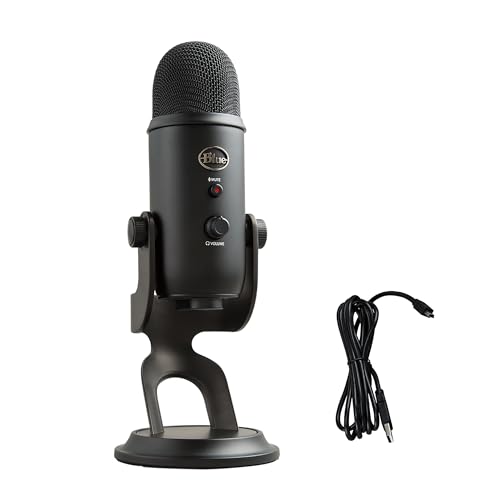
For a reliable USB upgrade, the Blue Yeti USB Microphone offers plug-and-play functionality with zero driver hassles. If you need portable troubleshooting tools, consider a USB-C to 3.5mm Audio Adapter to bypass potentially faulty onboard audio chipsets.
For persistent issues on corporate or school-managed PCs, escalate to your IT helpdesk, they may need to adjust group policies or deploy updated audio drivers centrally.
Frequently Asked Questions
Why is my Windows 11 microphone not working?
Windows 11 microphone issues stem from disabled privacy permissions, outdated audio drivers, incorrect default input device selection, or physical connection problems. Check Settings > Privacy & security > Microphone to ensure access is enabled, update drivers via Device Manager, and verify your mic is set as the default recording device in System > Sound.
How do I test if my microphone is actually broken?
Go to Settings > System > Sound and speak normally while watching the blue volume bar beneath your microphone’s name. If the bar moves, your hardware works and the issue is app permissions or configuration. If it stays flat, you have a hardware, driver, or system-level problem. Test a different USB port or headset jack to confirm.
What should I do if my microphone stopped working after a Windows 11 update?
Open Settings > Windows Update and check for pending updates. If your mic failed after a recent update, visit the Windows 11 known issues page or Windows Release Health dashboard for your build number. You can roll back the driver in Device Manager: right-click your audio device, select Properties > Driver > Roll Back Driver if available.
Can privacy settings block my microphone in Windows 11?
Yes, Windows 11 enforces strict app-level and system-level microphone permissions by default. Open Settings > Privacy & security > Microphone and ensure the top toggle is On, plus ‘Let apps access your microphone’ and ‘Let desktop apps access your microphone’ are enabled. Disabled toggles indicate administrator restrictions on managed devices.
Why does my microphone work in Windows settings but not in Zoom or Discord?
This is an app-specific permission or device selection issue. Restart the app and manually select your microphone from its audio settings. For Zoom, go to Settings > Audio and choose your mic. For Discord, navigate to User Settings > Voice & Video and select your input device. Verify the app has microphone permission in Windows settings.
How do I fix audio enhancements that might be blocking my microphone?
Open the legacy Sound Control Panel (Win + R, type mmsys.cpl), right-click your microphone under the Recording tab, select Properties > Enhancements tab, and check ‘Disable all enhancements.’ Also disable Exclusive mode in Advanced settings to prevent apps from taking total control of your mic and blocking system-level or other app access.
Read More:
- Samsung A12 Microphone Not Working (Here’s the Expert Fixes)
- Siri Microphone Not Working on iPhone, iPad & Mac (Quick Fix)
- SteelSeries Microphone Not Working (Before Replace It, Try These Fixes)
- ThinkPad Microphone Not Working (Here’s What Usually Fixes It)
- Ubuntu Microphone Not Working (What’s Wrong? Here’s How to Fix It)
- Virtual Desktop Microphone Not Working (Here’s the Proven Solutions)

Susan is a professional writer. She has been a writer for eight years and has always been so fulfilled with her work! She desires to share helpful, reliable, and unbiased information and tips about tech and gadgets. She hopes to offer informative content that can answer users’ questions and help them fix their problems.