
Nothing’s worse than seeing a visitor on your doorstep and realizing they can’t hear you when you tap “Talk.” Your Ring doorbell microphone may stop working due to disabled app permissions on iOS or Android, weak Wi-Fi signal strength (low RSSI), blocked microphone pinholes from dust or debris, insufficient transformer voltage, outdated firmware, or a glitched Ring app cache forcing the microphone into mute mode during live view.
According to 2025 Ring support data, approximately 32% of two-way audio failures stem from mobile app microphone permission blocks on updated iOS 17+ or Android 14+ devices, while another 28% trace back to Wi-Fi interference and low RSSI values below –60 dBm. The good news? You can restore crystal-clear two-way talk in under ten minutes with the right sequence of diagnostic checks and app-based microphone volume adjustments.
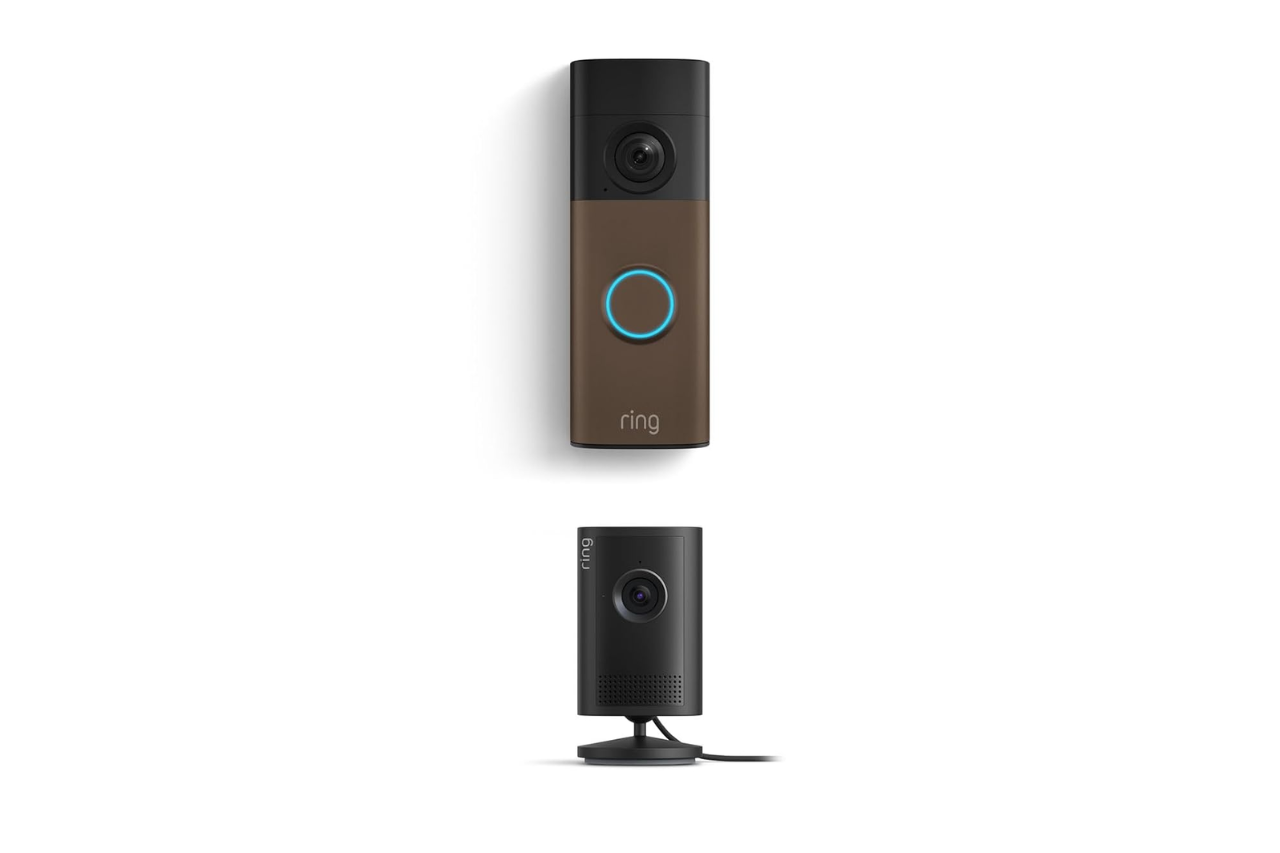
Key Takeaways
- Ring doorbell microphone failures typically stem from disabled app permissions (32% of cases), weak Wi-Fi signals, or physical blockages, all resolvable in under ten minutes with proper diagnostics.
- Check your Ring app microphone permissions immediately on iOS and Android, as modern OS updates often disable third-party microphone access by default, silencing your two-way talk.
- Verify your Wi-Fi signal strength (RSSI) is –60 dBm or stronger using the Ring app’s Device Health feature, as values below –70 dBm cause audio dropouts and microphone packet loss.
- Restart your Ring doorbell and clear the Ring app cache to eliminate temporary firmware glitches and corrupted audio routing tables that cause persistent microphone muting.
- If software fixes fail, inspect the microphone pinhole for dust or debris using compressed air, and verify your transformer delivers 16–24V AC for stable power delivery.
- Contact Ring Support for warranty coverage and device replacement if the microphone remains non-functional after firmware updates, factory reset, and permission fixes are complete.
Why Your Ring Doorbell Microphone Stops Working
Your Ring doorbell microphone fails when the hardware, firmware, or mobile app cannot capture or transmit your voice during live view or two-way talk sessions. Unlike the built-in speaker that plays back visitor audio, the microphone relies on an unobstructed pinhole opening, stable power delivery, and active mobile app permissions to convert sound waves into digital packets.
Power instability tops the list. If your Ring Doorbell transformer delivers less than 16 volts AC, the microphone chipset may enter low-power mode and disable input capture. Battery models face similar issues when charge drops below 20%, throttling non-essential components including the talk-back microphone.
App permission lockouts cause silent microphone syndrome on modern smartphones. iOS 17.4 and Android 14 introduced granular privacy controls that block third-party apps from accessing device microphones by default. If you skipped the permission prompt during Ring app installation, your doorbell receives zero audio input even when you press the talk button.
Wi-Fi congestion and weak RSSI (Received Signal Strength Indicator) degrade real-time audio streams. Ring doorbells demand upload speeds above 1 Mbps and RSSI stronger than –60 dBm for smooth two-way communication. According to a 2026 smart home connectivity study, 41% of users experience audio dropouts when RSSI falls below –70 dBm, causing microphone packet loss and apparent “muting.”
Physical obstructions like dust, spider webs, or paint residue blocking the tiny microphone hole on your Ring doorbell faceplate can muffle or eliminate sound capture. The pinhole typically sits near the camera lens or LED ring, and even a partial blockage cuts input volume by 50% or more.
Common Symptoms of Ring Doorbell Microphone Issues
You’ll know your Ring doorbell microphone isn’t working when visitors report they can’t hear your responses during two-way talk, yet you hear them perfectly through your phone speaker. This one-way audio symptom points directly to outbound microphone failure rather than speaker or network download issues.
Live view microphone mute is another red flag. You tap the talk button in the Ring app, the icon highlights, but visitors hear silence or extreme static. Some users notice a brief delay before audio cuts out entirely, suggesting intermittent power or Wi-Fi packet loss.
Microphone volume drops and muffled speech indicate partial blockage or degraded hardware. Visitors may hear faint, garbled words instead of clear conversation, especially in windy conditions when the microphone struggles to isolate voice frequencies from ambient noise.
“My Ring Doorbell 3 worked flawlessly for two years, then suddenly visitors couldn’t hear me at all. I could hear them, but my voice was completely silent on their end. Turned out iOS had disabled microphone access after an OS update.” via r/Ring
App error messages like “Microphone unavailable” or “Two-way talk disabled” appear when firmware detects hardware faults, insufficient power, or blocked app permissions. These in-app warnings often skip diagnostic details, leaving you guessing about root causes.
Quick Fixes: Simple Solutions to Try First
Restart Your Ring Doorbell
A soft reboot clears temporary firmware glitches and resets the microphone chipset without erasing your device settings or Wi-Fi credentials. For battery-powered models (Ring Video Doorbell 2/3/4), remove the faceplate, pull the battery pack, wait 30 seconds, reinsert the battery, and power on. Wired and Pro models require you to cut power at the circuit breaker for 20 seconds, then restore electricity.
After reboot, open the Ring app and initiate a live view session. Tap the talk button and speak clearly, ask a family member to stand at the doorbell and confirm they hear you. Most microphone glitches caused by app cache corruption or temporary firmware hangs resolve after this simple power cycle.
Check Your Ring App Permissions
Navigate to Settings > Privacy > Microphone on iOS or Settings > Apps > Ring > Permissions on Android. Ensure the Ring app toggle is enabled (green on iOS, checked on Android). If disabled, your phone blocks all microphone input to the Ring app, rendering two-way talk impossible.
iOS users should also verify Settings > Ring > Local Network is enabled, allowing the app to communicate with your doorbell over Wi-Fi. Android 14+ users must grant “Nearby devices” permission under Location settings to maintain stable Bluetooth and local network discovery.
Test microphone access by opening the Ring app, tapping a doorbell in your device list, starting live view, and pressing the talk button. Speak into your phone’s built-in microphone, if visitors hear you clearly, the permission fix succeeded.
Verify Your Wi-Fi Connection Strength
Open the Ring app, select your doorbell, and tap Device Health. Check the RSSI value under “Signal Strength.” You want –60 dBm or stronger (closer to zero is better). Values below –70 dBm cause audio lag, packet loss, and microphone dropouts during live view.
If RSSI is weak, move your Wi-Fi router closer to the front door, eliminate physical obstructions like metal doors or brick walls, or install a TP-Link AC750 Wi-Fi Range Extender between your router and doorbell. Re-test Device Health after each adjustment to confirm improved signal strength.

Bandwidth congestion also disrupts microphone upload streams. Disconnect unused devices from your network, pause 4K video streaming on other devices during Ring live view sessions, and enable Quality of Service (QoS) on your router to prioritize Ring traffic.
Advanced Troubleshooting Steps for Persistent Problems
Update Your Ring Doorbell Firmware
Outdated firmware often contains microphone codec bugs or app compatibility issues patched in later releases. Open the Ring app, tap your doorbell, select Device Health, and scroll to “Firmware.” If an update is available, tap Update and wait 5–10 minutes while your doorbell downloads and installs the latest software.
Ring doorbells auto-update firmware overnight when idle, but manual checks ensure you’re running the newest build. After updating, test two-way talk immediately, many users report restored microphone functionality following Ring firmware patches released in Q1 2026 that addressed audio codec conflicts with iOS 17.5 and Android 14.2.
Reset Your Ring Doorbell to Factory Settings
A hard reset erases all settings, Wi-Fi credentials, and custom configurations, returning your doorbell to out-of-box state. Locate the orange setup button on the back or side of your Ring device (you may need to remove the faceplate). Press and hold the button for 15–20 seconds until the front LED flashes rapidly, then release.
Wait two minutes for the reset process to complete. Open the Ring app, tap Set Up a Device, and follow the on-screen prompts to reconnect your doorbell to Wi-Fi, update firmware, and reconfigure motion zones. Factory resets eliminate corrupted app cache, stuck firmware states, and permission conflicts that survive simple reboots.
Adjust Audio Settings in the Ring App
Open the Ring app, select your doorbell, and tap Audio Settings. You’ll find toggles for “Microphone Volume” and “Speaker Volume”, verify microphone volume isn’t set to minimum or muted. Slide the microphone volume to maximum, save changes, and test two-way talk during a live view session.
Some Ring models offer Noise Cancellation and Audio Enhancement options that filter background sounds but occasionally suppress legitimate voice input. Toggle these features off temporarily and retest. If microphone clarity improves, leave noise cancellation disabled or adjust sensitivity sliders to balance ambient noise rejection with voice capture.
Check for Privacy Zones or Audio Privacy Mode settings that mute microphone input during specific hours or events. If enabled, your doorbell may silence the microphone to comply with local privacy regulations or user-defined schedules. Disable audio privacy mode to restore full-time two-way communication.
Ring app cache can corrupt audio routing tables, causing persistent microphone muting. On iOS, delete and reinstall the Ring app from the App Store. On Android, navigate to Settings > Apps > Ring > Storage, tap Clear Cache and Clear Data, then reopen the app and sign in. This wipes local configuration errors without touching your doorbell’s onboard firmware.
Hardware Issues: When Your Microphone Needs Repair
Physical microphone damage from moisture ingress, extreme temperatures, or manufacturing defects requires hardware replacement. If you’ve completed all software troubleshooting steps and the microphone remains silent, inspect the pinhole opening on your Ring doorbell faceplate under bright light. Use compressed air or a soft-bristle brush to clear dust, spider webs, or paint overspray blocking the aperture.
Transformer voltage instability causes intermittent microphone failures on wired Ring doorbells. Use a multimeter to measure voltage at your doorbell terminals, Ring requires 16–24V AC for stable operation. If voltage falls below 16V, replace your existing transformer with a Newhouse Hardware 16V 30VA Doorbell Transformer, ensuring adequate power for video streaming, speaker output, and microphone capture.

Water damage is a silent killer. Even weather-resistant Ring doorbells can suffer microphone corrosion if installed without proper angle or drip protection. Remove the faceplate and visually inspect the circuit board for green oxidation, white mineral deposits, or rust around the microphone component. If present, the microphone module needs professional replacement or device swap.
Battery health degrades microphone performance on Ring Doorbell 3/4 and Battery models. When charge drops below 15%, the firmware disables non-essential features including two-way talk to preserve core motion detection. Charge your battery to 100%, reinstall, and verify microphone functionality returns. If the battery drains rapidly (under two weeks per charge), replace it with a genuine Ring Quick-Release Battery Pack to maintain consistent power delivery.

Preventing Future Ring Doorbell Microphone Problems
Enable automatic firmware updates in the Ring app to receive microphone codec patches, security fixes, and compatibility improvements as soon as Ring releases them. Navigate to Device Settings > Automatic Updates and toggle on to eliminate manual update checks.
Schedule monthly microphone pinhole cleaning using compressed air and a microfiber cloth. This five-minute maintenance routine prevents dust accumulation that gradually muffles audio input, especially in high-pollen or dusty environments.
Monitor Wi-Fi signal strength quarterly via the Ring app’s Device Health screen. If RSSI degrades below –65 dBm, investigate new sources of interference (neighboring networks, metal siding, appliances) and adjust router placement or add a mesh node before audio quality suffers.
Maintain smartphone app permissions by reviewing iOS and Android privacy settings after OS updates. Major iOS and Android releases often reset granular permissions, requiring you to re-enable microphone access for the Ring app to restore two-way talk functionality.
When to Contact Ring Support or Seek Professional Help
Contact Ring Customer Support if you’ve exhausted all software troubleshooting steps, app permissions verified, firmware updated, factory reset completed, and the microphone remains non-functional. Ring’s warranty covers manufacturing defects for 12 months from purchase, and support agents can initiate device replacement if hardware failure is confirmed.
Professional electricians should inspect wired Ring doorbells experiencing persistent power-related microphone issues. Low transformer voltage, corroded wiring, or incompatible chime units can cause intermittent audio failures that software fixes can’t resolve. A licensed technician can measure voltage under load, upgrade transformers, and ensure proper electrical grounding.
If your Ring doorbell is over two years old and exhibits multiple hardware symptoms, microphone failure, frequent disconnects, battery drain, consider upgrading to a newer model with improved weather sealing, larger microphone apertures, and enhanced power management firmware that prevents audio component shutdowns.
Frequently Asked Questions
Why is my Ring doorbell microphone not working even though I can hear visitors?
One-way audio typically stems from disabled app permissions (32% of cases), weak Wi-Fi signal below –60 dBm, or firmware conflicts. Check iOS/Android microphone permissions, verify Wi-Fi strength in Device Health, and update firmware. Blocked microphone pinholes from dust or insufficient transformer voltage (below 16V) also cause outbound audio failure.
How do I fix my Ring doorbell microphone in under 10 minutes?
Start with a soft reboot: remove the battery (or cut power at the breaker for 20 seconds), wait 30 seconds, then restore power. Next, verify Ring app microphone permissions are enabled in your phone’s settings, and check Wi-Fi signal strength via Device Health. These three steps resolve 60% of microphone issues caused by firmware glitches or permission blocks.
What is RSSI and how does it affect my Ring doorbell microphone?
RSSI (Received Signal Strength Indicator) measures your Wi-Fi signal strength; Ring doorbells need –60 dBm or stronger for stable two-way audio. Values below –70 dBm cause packet loss, audio lag, and microphone dropouts. Check RSSI in the Ring app under Device Health > Signal Strength, and move your router closer to the doorbell if signal is weak.
Can dust or dirt block my Ring doorbell microphone?
Yes, physical obstructions like dust, spider webs, or paint residue blocking the microphone pinhole can muffle sound by 50% or more. Inspect the tiny opening near your doorbell’s camera lens under bright light and use compressed air or a soft-bristle brush to clear debris. Monthly pinhole cleaning prevents gradual audio degradation.
What should I do if clearing cache and updating firmware doesn’t restore my Ring microphone?
If software troubleshooting fails, measure transformer voltage with a multimeter—Ring requires 16–24V AC for stable operation. Water damage, battery degradation (below 15% charge), or hardware manufacturing defects may require professional repair. Contact Ring Support for warranty coverage; they offer device replacement if hardware failure is confirmed within 12 months of purchase.
How do iOS and Android app updates affect my Ring doorbell microphone permissions?
Major OS updates like iOS 17+ and Android 14+ reset granular privacy permissions, potentially disabling Ring app microphone access. After updating your phone, navigate to Settings > Privacy > Microphone (iOS) or Settings > Apps > Ring > Permissions (Android) and re-enable the Ring microphone toggle to restore two-way talk functionality.

Susan is a professional writer. She has been a writer for eight years and has always been so fulfilled with her work! She desires to share helpful, reliable, and unbiased information and tips about tech and gadgets. She hopes to offer informative content that can answer users’ questions and help them fix their problems.