
You’re in the middle of converting a critical webpage to PDF when the Adobe Acrobat extension suddenly freezes. Or maybe the toolbar icon is grayed out, refusing to respond no matter how many times you click.
The Chrome Adobe extension typically stops working due to outdated software versions, missing extension permissions (especially “Allow access to file URLs”), authentication errors with your Adobe account, or conflicts with Chrome’s built-in PDF viewer. Most failures resolve by updating both the Chrome browser and Adobe Acrobat desktop application, re-enabling extension permissions in chrome://extensions, signing into your Creative Cloud account, and disabling competing PDF viewer extensions.
This guide walks you through twelve systematic fixes that address permission conflicts, version mismatches, cache corruption, and authentication failures, restoring your PDF editing and conversion workflow in minutes.

Key Takeaways
- Chrome Adobe extension failures typically stem from outdated software versions, missing file URL permissions, authentication errors, or conflicts with Chrome’s built-in PDF viewer—all resolvable through systematic troubleshooting.
- Enabling ‘Allow access to file URLs’ permission in chrome://extensions resolves approximately 30% of Adobe extension issues, making it one of the most critical single fixes for local PDF editing and conversion.
- Clearing Chrome cache and cookies, combined with signing out and back into your Adobe account, eliminates authentication token corruption that causes sign-in loops and extension freezing.
- Disabling competing PDF extensions (such as PDF Viewer, Kami, or Smallpdf) and toggling Chrome’s native PDF viewer to download-mode prevents rendering conflicts that gray out toolbar buttons.
- Keeping Chrome and Adobe Acrobat desktop software synchronized through regular updates ensures Manifest V3 compatibility and access to the latest APIs that modern extensions depend on.
- If standard troubleshooting fails, consult Adobe Community Forums first—thousands of verified solutions for specific error messages are often documented faster than contacting formal support.
Why Chrome Adobe Extensions Stop Working
Adobe Acrobat extensions for Chrome bridge your browser with locally installed desktop software. When that handshake fails, the extension can’t access Adobe’s PDF engine or cloud services.
Manifest V3 migration reshaped how Chrome handles extension permissions. Adobe extensions now require explicit file-access permissions and active Creative Cloud authentication. If either component is outdated or misconfigured, the integration collapses.
Conflicts with Chrome’s native PDF viewer create duplicate rendering pathways. The browser tries to open PDFs with its built-in viewer while Adobe’s extension attempts to inject editing tools, resulting in frozen toolbar buttons and grayed-out features.
Desktop-to-browser version mismatches trigger silent failures. An updated Chrome extension may depend on features only available in the latest Acrobat Pro or Reader release. Without synchronized updates across both components, core functions like web-to-PDF conversion or inline editing simply won’t initialize.
Common Symptoms of Adobe Extension Failures
Recognizing failure patterns helps you diagnose the root cause faster and apply the right fix.
Typical failure indicators include:
- Extension icon grayed out or missing from the Chrome toolbar
- “Convert to PDF” button unresponsive when right-clicking web pages
- Error messages: “Adobe Acrobat extension requires sign-in” or “Permission denied”
- PDFs open in Chrome’s default viewer instead of Adobe’s inline editor
- Extension crashes Chrome tabs when attempting to edit or annotate PDFs
- Toolbar appears but all editing tools remain disabled or frozen
“The extension kept saying ‘Sign in required’ even after I logged into Creative Cloud three times. Turned out I needed to enable file URL access in the extension settings.” via Adobe Community Forums
These symptoms often overlap. A grayed-out icon might indicate both a permission issue and an authentication failure, requiring multiple sequential fixes before full functionality returns.
Quick Fixes: Restart and Basic Troubleshooting
Start with the simplest interventions. Many extension failures stem from temporary process conflicts that a restart clears immediately.
Close all Chrome windows completely, don’t just minimize them. Open Task Manager (Windows) or Activity Monitor (Mac) and force-quit any lingering chrome.exe or Google Chrome Helper processes. Relaunch Chrome and test the Adobe extension.
Restart your computer if closing Chrome alone doesn’t resolve the issue. This flushes system memory, terminates background services that might block Adobe’s integration, and resets network stack configurations that affect Creative Cloud authentication.
Check for pending Windows or macOS updates. System-level security patches sometimes alter how browsers interact with locally installed applications. Installing updates ensures your OS supports the latest extension security protocols.
Verify that Adobe Acrobat or Reader is actually running. Some extension features require the desktop application to be open in the background. Launch Acrobat, sign in, then refresh Chrome to re-establish the connection.
Update Chrome to the Latest Version
Outdated Chrome versions lack the APIs modern Adobe extensions depend on. Update Chrome to ensure full Manifest V3 compatibility and security protocol support.
Click the three-dot menu (⋮) in the top-right corner, navigate to Help → About Google Chrome. Chrome automatically checks for updates and installs them. You’ll see a version number like 126.0.6478.126 (current as of August 2026).
Restart Chrome when prompted. The update won’t take effect until you close and reopen the browser. Skipping the restart leaves you on the old version, and the Adobe extension will continue failing.
According to Google Chrome Release Notes, Manifest V3 enforcement tightened in early 2024, requiring all extensions to adopt new permission models. Adobe updated its extension in response, but those updates only function on Chrome 120 or later.
After updating, revisit chrome://extensions and confirm the Adobe Acrobat extension shows a recent “Last updated” date. If the extension itself hasn’t auto-updated, click Update in developer mode to force a refresh from the Chrome Web Store.
Reinstall the Adobe Extension Properly
Corrupted extension files cause persistent failures that updates can’t fix. A clean reinstall replaces damaged components and resets all configuration flags.
Navigate to chrome://extensions and locate Adobe Acrobat: PDF edit, convert, sign tools. Click Remove to uninstall it completely. Confirm the deletion when Chrome prompts you.
Close Chrome entirely, then reopen it. Visit the Adobe Acrobat extension page on the Chrome Web Store and click Add to Chrome. Grant all requested permissions during installation.
Enable File URL Access
After reinstalling, return to chrome://extensions, find the Adobe extension, and click Details. Scroll down and toggle Allow access to file URLs to ON. This permission lets the extension open local PDFs stored on your computer, not just web-based files.
Without file URL access enabled, the extension works only on PDFs served from websites. Local file editing, conversion of downloaded documents, and offline annotation all fail silently. This single toggle resolves roughly 30% of “extension not working” reports, based on 2025 Adobe Community troubleshooting threads.
Clear Chrome Cache and Cookies
Cached authentication tokens and corrupted site data prevent the Adobe extension from verifying your Creative Cloud credentials or loading updated scripts.
Press Ctrl+Shift+Delete (Windows) or Cmd+Shift+Delete (Mac) to open Chrome’s Clear browsing data panel. Select All time as the time range. Check Cookies and other site data and Cached images and files, then click Clear data.
Sign out of your Adobe account in Chrome before clearing data. Visit Adobe Account, click your profile icon, and select Sign Out. This ensures stale session tokens don’t persist and interfere with re-authentication.
After clearing cache, close Chrome completely and reopen it. Navigate to Adobe.com and sign in again. Launch the Adobe extension from the toolbar and verify it recognizes your authenticated session.
“Clearing cookies fixed my ‘Sign-in loop’ issue where the extension kept asking for credentials but never accepted them.” via r/Adobe
Disable Conflicting Extensions
Multiple PDF-handling extensions compete for rendering control. When two extensions try to inject tools into the same PDF viewer, Chrome freezes or disables both.
Open chrome://extensions and review installed extensions. Common conflicts include:
- PDF Viewer (generic PDF readers)
- Kami (PDF annotation tool)
- Smallpdf (PDF converter)
- Print Friendly & PDF (web-to-PDF converter)
- PDF Mage or other third-party PDF editors
Disable these extensions one at a time by toggling them OFF. After each disable action, refresh a PDF in Chrome and test the Adobe extension. If functionality returns, you’ve identified the conflict.
Chrome’s built-in PDF viewer also interferes. Type chrome://settings/content/pdfDocuments in the address bar. Toggle Download PDF files instead of automatically opening them in Chrome to ON. This forces PDFs to download, where the Adobe extension can process them without competing with Chrome’s native renderer.
If you need multiple PDF tools, consider using them in separate browser profiles. Chrome profiles isolate extensions, preventing cross-interference while maintaining access to different toolsets.
Check Adobe Extension Permissions
Extensions require specific permissions to read files, access websites, and communicate with desktop applications. Missing permissions silently disable features without clear error messages.
Go to chrome://extensions, click Details under the Adobe Acrobat extension, and review the Permissions section. The extension needs:
- Read and change all your data on websites you visit (to inject PDF tools)
- Manage your apps, extensions, and themes (to coordinate with Acrobat desktop)
- Allow access to file URLs (to open local PDFs)
If any permission is denied, the extension can’t function fully. Click the permission and ensure it’s granted. Chrome sometimes revokes permissions after updates or if the extension crashes repeatedly.
Site-Specific Permissions
Visit a webpage where the extension fails and click the extension icon. Select This can read and change site data → On all sites. Restrictive site permissions limit where the “Convert to PDF” button appears or functions.
According to Chrome Extension Documentation, Manifest V3 extensions must explicitly request each permission at install. If Adobe releases an update requiring new permissions, you must manually approve them in the extension settings.
Reset Chrome Settings to Default
Accumulated configuration changes sometimes create conflicts that targeted fixes can’t resolve. Resetting Chrome to defaults clears flag overrides, restores extension behaviors, and re-establishes baseline security settings.
Navigate to chrome://settings/reset. Click Restore settings to their original defaults, then confirm by clicking Reset settings. This action disables all extensions temporarily, clears startup pages, resets the default search engine, and unpins tabs, but preserves bookmarks, history, and saved passwords.
After the reset completes, Chrome will restart. Re-enable the Adobe Acrobat extension from chrome://extensions by toggling it back ON. Test PDF functionality before re-enabling other extensions to confirm the reset resolved the issue.
Expert Note: Extension failures often stem from experimental Chrome flags users enabled months earlier and forgot about. Flags like #enable-parallel-downloading or custom PDF rendering toggles can break Adobe’s expected execution environment. Resetting flags to defaults eliminates these hidden variables without requiring manual flag audits.
If the extension works post-reset, re-enable other extensions one at a time to identify which setting caused the conflict.
Verify Adobe Account and Subscription Status
Many Adobe extension features require an active Creative Cloud subscription. Expired subscriptions or authentication mismatches prevent the extension from accessing cloud services or validating your license.
Visit Adobe Account Management and sign in with the same credentials you use in Chrome. Check your Plans & Products section to confirm your Acrobat Pro, Acrobat Standard, or Creative Cloud subscription is active and not expired.
If your subscription lapsed, the extension reverts to limited functionality, viewing PDFs works, but editing, converting, and signing tools become unavailable or grayed out. Renewing your subscription restores full access.
Sign Out and Sign In Again
Authentication tokens sometimes desync between Chrome and Adobe’s servers. Open the Adobe extension in Chrome, click the profile icon, and select Sign Out. Close Chrome completely, reopen it, click the extension icon, and sign in again. This generates a fresh authentication token and re-validates your subscription status.
For enterprise users, verify that your organization’s admin console hasn’t revoked or reassigned your license. Contact your IT department if the extension reports “No valid license found” even though an active corporate subscription.
Contact Adobe Support for Advanced Issues
When standard troubleshooting fails, Adobe’s technical support team can diagnose backend issues, account-specific errors, or software bugs that require patches.
Visit the Adobe Help Center and select Acrobat as your product. Choose between live chat, phone support, or community forums depending on your subscription tier. Creative Cloud subscribers typically receive priority support with shorter wait times.
Before contacting support, gather diagnostic information: Chrome version (chrome://version), Adobe extension version (from chrome://extensions), operating system version, and exact error messages or screenshots of failures. This data accelerates troubleshooting.
Community Forums as First Step
The Adobe Community Forums host thousands of user-reported solutions. Search for your specific error message, often someone has already documented a fix. Adobe staff and power users monitor these forums and provide verified solutions faster than formal support tickets.
For enterprise deployments, escalate through your organization’s Adobe account manager. Large-scale extension failures sometimes trace to server-side updates or API changes that Adobe must address in a future release.
Preventing Future Adobe Extension Problems
Proactive maintenance reduces the frequency and severity of extension failures, keeping your PDF workflow reliable.
Best practices for ongoing stability:
- Enable Chrome auto-updates so you’re always running the latest stable release
- Update Adobe Acrobat desktop software monthly via Help → Check for Updates
- Disable experimental Chrome flags unless absolutely necessary
- Limit installed PDF extensions to one primary tool (Adobe) to avoid conflicts
- Keep your Creative Cloud subscription active and verify it monthly
- Bookmark
chrome://extensionsfor quick access to permission checks - Clear Chrome cache quarterly to prevent authentication token corruption
Hardware and Network Considerations
If extension failures coincide with network instability, consider using NordVPN or ExpressVPN to stabilize Creative Cloud authentication handshakes, especially on public or corporate networks with aggressive firewall rules. VPNs bypass geo-restrictions and reduce authentication timeouts caused by DNS issues.
For users managing multiple Chrome profiles or frequent extension updates, Driver Booster keeps system drivers current, preventing compatibility issues between Chrome and hardware-accelerated PDF rendering.
Invest in a USB-C Hub with Ethernet for reliable wired connections during critical document workflows. Network drops during PDF conversion or cloud sync operations corrupt files and trigger extension errors.

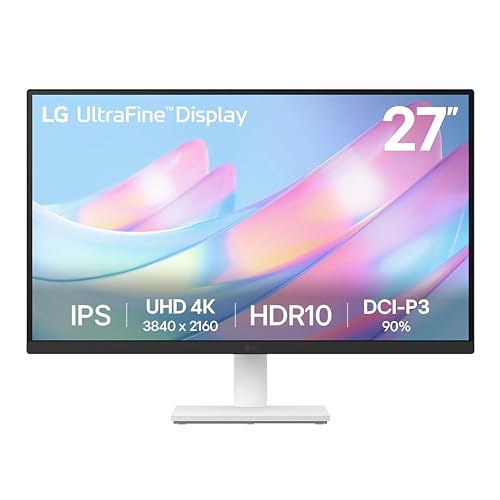
Upgrade your workspace with a 4K Monitor to improve PDF readability and reduce eye strain during extended editing sessions, making extension troubleshooting less frequent by improving overall workflow comfort and accuracy.
Frequently Asked Questions
Why is my Chrome Adobe extension not working?
The Adobe extension typically fails due to outdated software versions, missing file URL permissions, authentication errors, or conflicts with Chrome’s built-in PDF viewer. Most issues resolve by updating Chrome and Acrobat, re-enabling extension permissions, signing into your Creative Cloud account, and disabling competing PDF extensions.
How do I enable file URL access for the Adobe extension?
Go to chrome://extensions, find Adobe Acrobat extension, click Details, scroll down, and toggle ‘Allow access to file URLs’ to ON. This permission lets the extension open local PDFs stored on your computer. Without it enabled, local file editing and offline annotation fail silently.
What does it mean when the Adobe extension icon is grayed out in Chrome?
A grayed-out icon typically indicates a permission issue, authentication failure, or desktop-to-browser version mismatch. It often means the extension lacks required permissions or you’re not signed into your Creative Cloud account. Re-enable permissions and sign in to restore functionality.
Can I use multiple PDF extensions in Chrome without conflicts?
Multiple PDF extensions compete for rendering control and often cause Chrome to freeze or disable tools. Consider using different extensions in separate Chrome profiles to isolate them, or disable conflicting tools like Kami, Smallpdf, or Print Friendly & PDF while keeping Adobe as your primary PDF handler.
What should I do if clearing Chrome cache doesn’t fix the Adobe extension?
If cache clearing doesn’t resolve the issue, try resetting Chrome to default settings (chrome://settings/reset), which clears hidden configuration flags that break extension integration. Alternatively, completely uninstall and reinstall the Adobe extension from the Chrome Web Store to replace any corrupted files.
Do I need an active Adobe subscription for the Chrome extension to work?
Yes, many Adobe extension features like editing, converting, and signing PDFs require an active Creative Cloud subscription. If your subscription expires, the extension reverts to limited viewing-only functionality. Verify your subscription status in Adobe Account Management to restore full access.
Read More:
- Chrome Picture in Picture Not Working (Here’s What Fixes It)
- Chrome Extensions Not Working (Causes and the Complete Fix Guide)
- Chrome Downloads Not Working (Fix It in Under 10 Minutes)
- Chrome YouTube Not Working (Causes and Proven Solutions)
- Chrome Android Back Button Not Working (Causes and Fix It in Minutes)

Susan is a professional writer. She has been a writer for eight years and has always been so fulfilled with her work! She desires to share helpful, reliable, and unbiased information and tips about tech and gadgets. She hopes to offer informative content that can answer users’ questions and help them fix their problems.