
You start typing a familiar website into your address bar, but nothing happens. No suggestions. No history. Just a blank drop-down where your shortcuts used to appear. That’s Chrome autocomplete failing you.
Chrome autocomplete stops working when the “Autocomplete searches and URLs” setting is disabled, browser cache becomes corrupted, conflicting extensions interfere with prediction data, Chrome Sync fails to sync your browsing history, or your user profile gets damaged. You can fix it by enabling autocomplete in Privacy and Security settings, clearing cached prediction data, disabling problematic extensions, updating Chrome to the latest version, or creating a fresh user profile.
This guide walks you through twelve systematic fixes that restore instant URL and search predictions in your Omnibox. You’ll get your address bar working exactly how it should.
Key Takeaways
- Chrome autocomplete not working is commonly caused by disabled autocomplete settings, corrupted cache, conflicting extensions, or failed Chrome Sync—all fixable with systematic troubleshooting.
- Enable the ‘Autocomplete searches and URLs’ toggle in Chrome Privacy and Security settings and ensure ‘Preload pages for faster browsing’ is turned on to restore address bar suggestions.
- Clear your browsing data, cache, and corrupted autocomplete entries by pressing Ctrl+Shift+Delete, then restart Chrome to rebuild its Omnibox database from scratch.
- Disable conflicting extensions one by one—particularly VPNs and ad blockers that block Google’s prediction API—to identify which is interfering with autocomplete functionality.
- Update Chrome to the latest version and reset Chrome settings to defaults if autocomplete remains broken, as corrupted configuration files or hidden experiments can permanently disable the feature.
- On mobile devices, ensure Chrome Sync is enabled and History is checked in your sync settings to allow Android and iOS to pull browsing history for autocomplete suggestions.
Understanding Chrome’s Autocomplete Feature
Chrome’s autocomplete, officially called Omnibox suggestions, predicts what you’re typing before you finish. It pulls from your browsing history, bookmarks, search queries, and popular websites. When you type “face,” it suggests Facebook. When you type “you,” YouTube appears instantly.
The feature uses local cache, Chrome Sync data, and your default search engine’s prediction API. Google’s servers analyze your partial input and return real-time suggestions based on trending searches and your personal history. This makes navigation 3–4x faster for repeat visits.
Autocomplete works differently than autofill. Autofill completes forms and passwords. Autocomplete completes URLs and search queries in the address bar. Both rely on stored data, but they operate through separate Chrome subsystems.
Why Chrome Autocomplete Stops Working
Several system-level issues disrupt Omnibox predictions. The most common culprit is a disabled setting. Chrome’s “Autocomplete searches and URLs” toggle sits buried in Privacy and Security, and updates or profile syncs can turn it off without warning.
Corrupted cache files also break predictions. Chrome stores suggestion data in local SQLite databases. If these files get damaged during a crash or improper shutdown, the address bar stops pulling history.
“I noticed my Chrome autocomplete stopped working after the latest update. Turned out sync was paused and my history wasn’t being saved.” via r/chrome
Extensions that modify search behavior, VPNs, ad blockers, or SEO tools, can intercept address bar queries and block Google’s prediction API. Chrome Sync failures prevent your browsing history from propagating across devices, leaving the Omnibox without data to suggest.
Check If Autocomplete Is Enabled in Chrome Settings
Open Chrome and type chrome://settings/syncSetup/advanced into the address bar. Scroll down to “Use a prediction service to help complete searches and URLs typed in the address bar.” Make sure the toggle is blue (enabled).
If it’s off, Chrome won’t contact Google’s servers for suggestions. You’ll only see local history, which may be empty if you recently cleared data or use Incognito heavily.
Next, visit chrome://settings/privacy and confirm “Preload pages for faster browsing and searching” is on. This setting primes the prediction engine. Without it, autocomplete slows down or disappears entirely.
Clear Browsing Data and Cache
Press Ctrl+Shift+Delete (Windows/Linux) or Cmd+Shift+Delete (Mac) to open the Clear Browsing Data dialog. Select “All time” from the time range dropdown.
Check these boxes:
- Browsing history
- Cookies and other site data
- Cached images and files
Click “Clear data.” This wipes corrupt suggestion cache and forces Chrome to rebuild its Omnibox database from scratch. You’ll lose saved suggestions temporarily, but they’ll repopulate as you browse.
After clearing, restart Chrome completely. Type a few familiar URLs to test. Autocomplete should begin suggesting within 10–15 seconds of active browsing.
Remove Corrupted Autocomplete Entries
Sometimes a single bad entry crashes the entire suggestion system. Type a letter in the address bar to trigger suggestions. Use the arrow keys to highlight any broken or garbled URL.
Press Shift+Delete (Windows/Linux) or Shift+Fn+Delete (Mac) to remove that entry. Repeat for any other suspicious suggestions. This prunes the SQLite database without clearing all history.
If you see repeated crashes after deleting entries, the database file itself is corrupt. You’ll need to reset Chrome settings (covered later) to rebuild it from defaults.
Disable Conflicting Browser Extensions
Extensions can hijack address bar queries. VPNs like NordVPN or ExpressVPN sometimes block Google’s prediction API to prevent DNS leaks. Ad blockers and privacy tools can interfere too.
Type chrome://extensions/ and toggle off all extensions. Test autocomplete. If it works, re-enable extensions one by one to identify the culprit.
“Disabling my VPN extension immediately brought back autocomplete. I had to whitelist Google APIs in the VPN settings.” via Google Chrome Help
Once you find the problem extension, check its settings for “DNS protection” or “search privacy” options and disable them. Alternatively, use IObit Driver Booster to ensure your network drivers are current, outdated drivers can cause extension conflicts.
Update Chrome to the Latest Version
Chrome updates fix Omnibox bugs and patch sync issues. Click the three-dot menu (top right), then Help → About Google Chrome. Chrome checks for updates automatically and installs them.
You’ll see a version number like “122.0.6261.95.” If an update is available, Chrome downloads and prompts you to relaunch. Click “Relaunch” to apply the update.
According to Chrome Release Notes, version 121 in early 2026 patched several autocomplete sync failures affecting users with multiple profiles. Keeping Chrome current prevents known bugs from disrupting your workflow.
Reset Chrome Settings to Default
Navigate to chrome://settings/reset. Click “Restore settings to their original defaults.” This disables all extensions, clears temporary data, and resets your homepage and search engine, but it preserves bookmarks and passwords.
Click “Reset settings” to confirm. Chrome restarts and rebuilds its configuration files. Autocomplete settings revert to enabled by default.
This fix works when corrupt flags or hidden experiments break the Omnibox. You’ll need to reconfigure your homepage and re-enable extensions afterward, but autocomplete should return immediately.
Create a New Chrome User Profile
A corrupted user profile can permanently disable autocomplete. Click the profile icon (top right) and select “Add.” Choose “Continue without an account” or sign in with a different Google account.
Type a few URLs in the new profile’s address bar. If autocomplete works here, your original profile is damaged. You’ll need to migrate bookmarks and passwords manually using Chrome’s export tools at chrome://settings/passwords and chrome://bookmarks.
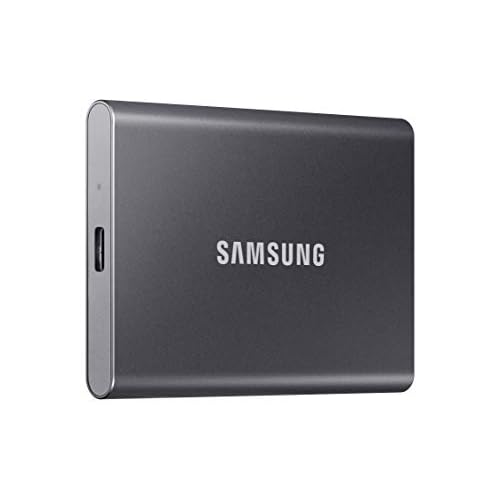
ProfileData corruption often happens after forced shutdowns or disk errors. Using a Samsung T7 Portable SSD for Chrome profile backups prevents data loss during system crashes.
Fix Autocomplete Issues on Mobile Devices
On Android, open Chrome and tap the three-dot menu → Settings → Privacy and security → Use prediction service. Ensure it’s toggled on.
iOS users should open Chrome → Settings → Privacy → Preload Webpages and set it to “Always.” Then enable “Search and site suggestions” under Search engine.
Mobile autocomplete also depends on Chrome Sync. Tap Settings → Sync and Google services → Manage sync and confirm History is checked. Without sync, mobile Chrome can’t pull desktop browsing history for suggestions.
Advanced Troubleshooting for Persistent Problems
Check Chrome Flags for Omnibox Experiments
Type chrome://flags and search for “omnibox.” Disable any experimental flags like “Omnibox UI Hide Steady-State URL” or “Rich Autocompletion.” These can conflict with standard autocomplete behavior.
Flush DNS and Clear Host Cache
Navigate to chrome://net-internals/#dns and click “Clear host cache.” Then go to chrome://net-internals/#sockets and click “Flush socket pools.” This clears Chrome’s internal DNS resolver, which can block prediction API calls.
Test in Incognito Mode
Press Ctrl+Shift+N to open Incognito. If autocomplete works here, a regular-mode extension or setting is at fault. Use Incognito as a diagnostic tool to isolate the problem.
Expert Note: Chrome’s Omnibox prediction engine relies on a local SQLite database (History) and real-time API calls to Google’s suggest servers. When network middleware, such as aggressive firewall rules or DNS filtering, blocks google.com/complete/search, the entire autocomplete chain fails. This explains why VPN users often see autocomplete break until they whitelist Google’s domains.
Preventing Future Autocomplete Issues
Enable Chrome Sync to back up your history and suggestion data continuously. Go to chrome://settings/syncSetup and confirm History, Bookmarks, and Settings are syncing.
Avoid force-closing Chrome during active downloads or sync operations. This corrupts profile databases. Use the three-dot menu → Exit to shut down cleanly.
Regularly update Chrome and audit extensions for conflicts. Remove any you don’t actively use. For a reliable typing experience, consider a Logitech MX Keys Advanced Wireless Keyboard, its low-latency input reduces the chance of mistyped URLs triggering suggestion cache errors.
Finally, bookmark chrome://settings/clearBrowserData and clear cache monthly to prevent bloat. A lean cache keeps autocomplete fast and reliable.
Frequently Asked Questions
Why is my Chrome autocomplete not working in the address bar?
Chrome autocomplete stops working when the ‘Autocomplete searches and URLs’ setting is disabled, browser cache becomes corrupted, extensions interfere with predictions, Chrome Sync fails, or your user profile is damaged. Enable the setting in Privacy and Security, clear cached data, and disable conflicting extensions to restore it.
How do I enable autocomplete in Chrome settings?
Open chrome://settings/syncSetup/advanced and toggle on ‘Use a prediction service to help complete searches and URLs.’ Also enable ‘Preload pages for faster browsing’ in chrome://settings/privacy. Both settings must be enabled for full autocomplete functionality.
What’s the difference between autocomplete and autofill in Chrome?
Autocomplete completes URLs and search queries in the address bar, while autofill completes web forms and passwords. Both rely on stored data but operate through separate Chrome subsystems and serve different purposes.
Can a Chrome extension cause autocomplete to stop working?
Yes, extensions like VPNs, ad blockers, and privacy tools can block Google’s prediction API or intercept address bar queries. Disable all extensions via chrome://extensions/ to test. If autocomplete returns, re-enable them one by one to identify the problematic extension.
How do I fix Chrome autocomplete by clearing cache?
Press Ctrl+Shift+Delete (Windows/Linux) or Cmd+Shift+Delete (Mac). Select ‘All time,’ check Browsing history, Cookies, and Cached images/files, then click ‘Clear data.’ Restart Chrome, and autocomplete suggestions will repopulate within 10–15 seconds of active browsing.
Will resetting Chrome settings delete my bookmarks and passwords?
No. Resetting Chrome via chrome://settings/reset disables extensions, clears temporary data, and resets defaults, but preserves bookmarks and passwords. You’ll need to reconfigure your homepage and re-enable extensions afterward.
Read More:
- Chrome Extensions Not Working (Causes and the Complete Fix Guide)
- Chrome Downloads Not Working (Fix It in Under 10 Minutes)
- Chrome YouTube Not Working (Causes and Proven Solutions)
- Chrome Android Back Button Not Working (Causes and Fix It in Minutes)
- Chrome Adobe Extension Not Working (Quick DIY Fixes that Works)
- Chrome Autofill Not Working on Some Sites (Causes and How to Fix It)

Susan is a professional writer. She has been a writer for eight years and has always been so fulfilled with her work! She desires to share helpful, reliable, and unbiased information and tips about tech and gadgets. She hopes to offer informative content that can answer users’ questions and help them fix their problems.