
You’re working on something important when your computer suddenly freezes. Task Manager reveals the culprit: Google Chrome is consuming 4GB, 6GB, or even 8GB of your RAM. Fans start spinning louder, other apps slow to a crawl, and you wonder why a browser needs more memory than video editing software.
Chrome’s high RAM usage stems from its multi-process architecture, each tab, extension, and background process runs independently to improve stability and security, but this design consumes significant memory. You can reduce Chrome’s RAM footprint by disabling unnecessary extensions, enabling Memory Saver mode, managing tabs strategically, clearing cache regularly, and using Chrome’s internal Task Manager (Shift + Esc) to identify and end memory-hungry processes.
This guide walks you through eleven practical techniques to reclaim your system memory. You’ll learn how to diagnose runaway processes, optimize Chrome’s settings, and decide when high RAM usage actually protects your workflow rather than harming it.

Key Takeaways
- Chrome using too much RAM is caused by its multi-process architecture, where each tab, extension, and background process runs independently to improve stability and security.
- Disabling unnecessary extensions, enabling Memory Saver mode, managing tabs strategically, and clearing cache regularly can significantly reduce Chrome’s RAM footprint by 30–70%.
- Use Chrome’s Task Manager (Shift + Esc) to identify memory-hungry tabs and extensions consuming over 300MB, then end problematic processes to reclaim resources instantly.
- Adopting a 5-tab rule and using native Memory Saver mode can reduce Chrome’s memory usage by 30–40% on systems with 16GB or less RAM without sacrificing functionality.
- High RAM usage by Chrome isn’t always a problem if your total system memory stays below 80% capacity and other applications remain responsive; focus optimization only when freezing or crashes occur.
- Updating Chrome regularly, disabling hardware acceleration if you have limited GPU memory, and organizing tabs with Tab Groups can further optimize memory efficiency.
Why Does Chrome Use So Much RAM?
Understanding Chrome’s architecture helps you make informed decisions about memory management. Chrome wasn’t designed to be lightweight, it prioritizes speed, security, and crash resistance over minimal resource consumption.
How Chrome’s Multi-Process Architecture Works
Chrome isolates each tab in a separate process. When one tab crashes, others keep running. This site isolation model prevents malicious code in one tab from accessing data in another. The trade-off? Each process carries overhead, memory allocated for rendering engines, JavaScript virtual machines, and security sandboxes.
Your 12 open tabs aren’t just duplicating websites. They’re spawning dedicated processes for the main page, iframes, and background scripts. A single complex web app like Google Sheets can launch four or five processes. Multiply that across tabs, and you’re looking at 50+ processes consuming 200–500MB each.
Modern Chrome also pre-renders pages you might visit, keeps GPU processes active for smooth scrolling, and runs utility processes for audio, networking, and plugins. According to Google’s engineering blog, this design improves responsiveness by 15–20% compared to single-process browsers, but it demands abundant RAM.
Extensions and Their Hidden Memory Cost
Extensions run continuously in the background. Each one spawns its own process, and poorly coded extensions leak memory over time. Ad blockers scan every page element, password managers inject scripts into login forms, and productivity tools sync data every few minutes.
A 2026 study from Chromium performance metrics revealed that users with 10+ extensions averaged 1.2GB higher memory consumption than users with three or fewer. Extensions like Grammarly, Honey, and video downloaders can each consume 150–400MB after a few hours of browsing.
Some extensions never release memory even when you close tabs. They maintain persistent connections, store cached data, and monitor DOM changes across all your tabs. This accumulation turns a modest 200MB extension into a 600MB memory hog by the end of your workday.
Check Which Tabs and Extensions Are Using the Most Memory
Chrome’s internal Task Manager shows real-time memory and CPU usage for every tab and extension. Press Shift + Esc (or find it under More Tools > Task Manager in Chrome’s menu). You’ll see a detailed list sorted by memory footprint.
Look for processes consuming over 300MB. Common culprits include:
- Video streaming tabs (YouTube, Netflix)
- Web apps with live data (Gmail, Slack, Trello)
- Extensions running background scripts
- Google Drive or cloud storage tabs
Click the Memory Footprint column header to sort by RAM usage. Right-click memory-hungry processes and select End Process to free up resources instantly. Don’t worry, your tab will reload if you click it again, but you’ll reclaim the memory immediately.
Monitor the Task Manager while browsing. If an extension’s memory usage climbs steadily over 20–30 minutes, you’ve found a memory leak. Extensions that maintain high usage even when idle should be disabled or replaced with lighter alternatives.
Disable or Remove Unnecessary Extensions
Navigate to chrome://extensions and audit every installed extension. Ask yourself: “Have I used this in the past week?” If not, toggle it off or click Remove. Even disabled extensions sometimes run background processes, so complete removal is better.
Prioritize removing these extension types:
- Duplicate ad blockers (one is enough)
- Unused VPN extensions (use a dedicated VPN client like NordVPN instead for better performance)
- Browser toolbars and shopping assistants
- Old theme packs and customization tools
- Outdated extensions that haven’t updated in 12+ months

Stay Private. Stay Secure.
Browse the internet with greater privacy and security with NordVPN. Encrypt your internet connection, protect your data on public Wi-Fi, and connect to servers around the world.
Get NordVPNFor essential extensions, check their permissions. Extensions requesting access to “all websites” run scripts on every page you visit, multiplying their memory impact. Replace them with privacy-focused alternatives that operate only on specific sites.
“I had 18 extensions installed and wondered why Chrome ate 9GB on my 16GB laptop. Removed 12 unused ones and memory dropped to 3.5GB with the same tabs open.” via r/chrome
Consider using browser bookmarks or web app shortcuts instead of keeping extensions active. You’ll accomplish the same tasks without persistent memory overhead.
Manage Your Tabs More Effectively
Tab hoarding kills available RAM. If you’re keeping 30+ tabs open “for later,” you’re running 30+ active processes. Close tabs you don’t need right now. Use bookmarks, reading lists, or tools like OneTab to save tab sessions without keeping them loaded.
Adopt the 5-tab rule: keep only five active work tabs open. Everything else goes into bookmarks or a dedicated “read later” folder. This habit alone can reduce Chrome’s memory usage by 60–70% on systems with 8GB RAM.
Pin essential tabs (right-click tab > Pin). Pinned tabs reload faster and use slightly less memory because Chrome prioritizes them differently. Unpin tabs you check only occasionally, they’ll survive browser restarts in your tab bar but won’t consume resources when inactive.
Set up tab suspender workflows. Extensions like The Great Suspender (or Chrome’s native features) automatically unload tabs inactive for 20+ minutes. The tab remains visible but releases memory until you click it. This approach works perfectly for reference documents and background research tabs.
Enable Memory Saver Mode
Chrome’s native Memory Saver mode automatically discards inactive tabs when your system runs low on RAM. Navigate to chrome://settings/performance and toggle on Memory Saver. Chrome will free up memory from tabs you haven’t used in a while, reloading them only when you click.
You can customize which sites never get discarded. Click Add next to “Always keep these sites active” and enter domains you need constantly available, your email client, work dashboard, or cloud storage. This prevents important tabs from unloading mid-task.
Memory Saver mode works invisibly. You won’t notice performance changes except that your computer stops freezing when RAM hits 90% capacity. According to Google’s 2025 performance updates, Memory Saver reduces Chrome’s footprint by 30–40% on systems with 16GB or less RAM.
Combine Memory Saver with the Energy Saver toggle below it. Energy Saver limits background activity and visual effects when your battery drops below 20%, further reducing Chrome’s resource consumption on laptops.
Clear Browsing Data and Cache Regularly
Accumulated cache, cookies, and site data consume hundreds of megabytes. Navigate to chrome://settings/clearBrowserData and select Cached images and files. Set the time range to All time and click Clear data.
Clearing cache forces Chrome to rebuild stored assets, which temporarily slows page loads but frees significant memory. Do this weekly if you browse heavily, monthly for lighter users. Cached data for complex sites like Facebook or LinkedIn can reach 200–300MB after a few weeks.
Don’t clear passwords or autofill data unless necessary, those don’t significantly impact RAM usage. Focus on:
- Cached images and files
- Cookies and site data from unfamiliar domains
- Hosted app data (if you don’t use Chrome apps)
Some sites store offline databases that persist even after you close tabs. Check chrome://settings/content/all to see which sites have stored data. Revoke storage permissions from sites you rarely visit. This prevents them from claiming memory for background sync processes.
Update Chrome to the Latest Version
Chrome’s development team ships memory optimization patches every 4–6 weeks. Navigate to chrome://settings/help to check for updates. Chrome usually updates automatically, but manual checks ensure you’re running the latest build.
Recent versions include V8 JavaScript engine improvements, better garbage collection algorithms, and tab throttling enhancements. The Chrome 120 release notes from early 2026 highlighted a 12% reduction in memory consumption for background tabs through improved renderer process management.
Restart Chrome completely after updates. Click the three-dot menu and select Exit (not just close windows). Relaunch to apply changes. Some memory optimizations require a full restart to initialize properly.
If you’re on an older Chrome version, you’re missing years of incremental memory improvements. Outdated builds lack modern compression algorithms, efficient process pooling, and adaptive resource allocation that newer versions provide automatically.
Adjust Chrome’s Hardware Acceleration Settings
Hardware acceleration offloads rendering tasks to your GPU, which usually improves performance. But on systems with limited GPU memory or older graphics cards, it can cause memory conflicts. Navigate to chrome://settings/system and toggle Use hardware acceleration when available.
Try disabling it if:
- You have integrated graphics (Intel UHD, AMD Vega)
- Your GPU has less than 2GB dedicated memory
- You notice screen tearing or rendering glitches
- Chrome’s GPU process consumes over 500MB in Task Manager
Disabling hardware acceleration shifts rendering back to your CPU, which might slightly slow animations but reduces overall memory footprint by 15–20%. You’ll notice smoother multitasking if your GPU was struggling to handle Chrome alongside other graphics-intensive apps.
Conversely, if you have a strong dedicated GPU (NVIDIA RTX, AMD Radeon RX series), keep hardware acceleration enabled. It delivers faster page rendering and smoother video playback without taxing your system RAM. Test both configurations and monitor memory usage in Task Manager to find your optimal setup.
Use Chrome’s Tab Groups and Tab Freezing Features
Tab Groups help you organize related tabs and collapse groups you’re not actively using. Right-click any tab, select Add tab to group, and assign a color and name. Collapse the group by clicking its label, Chrome reduces resource allocation to collapsed groups.
Collapsed groups remain loaded but receive lower priority in Chrome’s memory scheduler. Background tabs in collapsed groups get frozen faster, reducing their CPU and memory consumption by up to 40% compared to ungrouped tabs.
Combine Tab Groups with Chrome’s native freezing behavior. Tabs inactive for more than five minutes enter a frozen state where JavaScript execution pauses and rendering stops. The tab stays in memory but consumes minimal resources until you reactivate it.
Create permanent groups for recurring workflows:
- Work: Email, project management, communication tools
- Research: Documentation, articles, reference materials
- Personal: Social media, shopping, entertainment
This organization helps you close entire groups at once when switching contexts, instantly freeing memory without losing your place. It’s more efficient than hunting through 20+ tabs to figure out what’s safe to close.
Consider Lightweight Browser Alternatives
If Chrome’s memory usage remains excessive after optimizations, try browsers built on Chromium but with lighter resource profiles. Microsoft Edge offers similar features with better memory management, especially its Sleeping Tabs feature that aggressively frees resources from inactive tabs.
Brave Browser strips out Google services and runs a leaner process model. It blocks ads and trackers by default, eliminating memory overhead from ad-serving scripts and analytics tools that typically consume 100–200MB per session.
For extreme low-memory scenarios (4GB RAM systems), consider:
- Opera: Built-in ad blocker and VPN reduce external resource loading
- Vivaldi: Customizable resource limits and built-in tab management
- Firefox: Completely different engine with lower base memory requirements
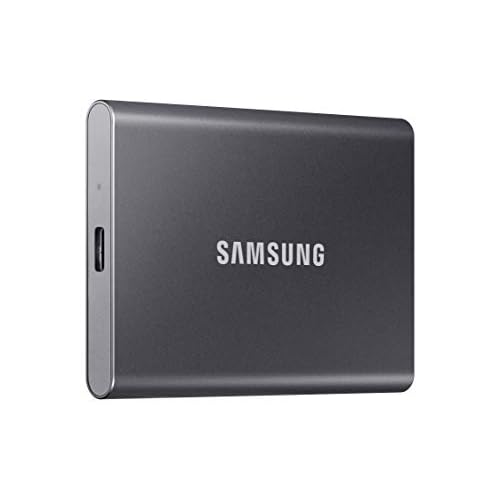
Alternatively, upgrade your RAM if your budget allows. An additional 8GB RAM stick costs $25–$40 and provides more headroom than any software optimization. For laptop users, a portable SSD with ReadyBoost can supplement system memory, though it’s slower than physical RAM.
“Switched to Edge after Chrome killed my 8GB laptop. Same tab setup, 2GB less memory usage. Chrome’s great but Edge handles low-RAM systems better.” via r/browsers
When High RAM Usage Might Actually Be Normal
Chrome’s high memory consumption isn’t always a problem. Modern operating systems manage RAM dynamically, unused RAM is wasted RAM. If Chrome uses 6GB on your 16GB system but leaves 8GB free for other apps, that’s efficient resource allocation.
RAM usage becomes problematic only when:
- Your system RAM hits 90%+ capacity consistently
- Other applications slow down or crash
- You receive “out of memory” warnings
- Your computer starts using disk swap space (pagefile), causing slowdowns
Chrome automatically releases memory when other applications need it. This intelligent memory management means high usage during browsing doesn’t necessarily hurt system performance. Your OS will signal Chrome to free resources if demand increases elsewhere.
Monitor your total system memory rather than Chrome’s individual footprint. Open Task Manager (Windows) or Activity Monitor (Mac) and check the Memory column. If overall usage stays below 80% and your system remains responsive, Chrome’s RAM consumption is within healthy limits. You’re benefiting from faster page loads and smoother browsing enabled by generous memory allocation.
Focus optimization efforts only when memory pressure causes tangible performance problems, freezing, stuttering, or application crashes. Otherwise, let Chrome use available resources to deliver the fast, stable browsing experience it’s designed for.
Frequently Asked Questions
Why does Chrome use so much RAM compared to other browsers?
Chrome uses more RAM because of its multi-process architecture—each tab, extension, and background process runs independently to improve stability and security. This design trade-off prioritizes speed and crash resistance over minimal resource consumption, with each process requiring 200–500MB of memory overhead.
How can I check which Chrome tabs and extensions are using the most memory?
Press Shift + Esc to open Chrome’s Task Manager, which shows real-time memory and CPU usage for every tab and extension. Click the Memory Footprint column to sort by RAM usage and identify processes consuming over 300MB. Right-click to end memory-hungry processes instantly.
What is Chrome Memory Saver mode and how does it work?
Memory Saver mode automatically discards inactive tabs when system RAM runs low, freeing 30–40% of Chrome’s footprint. Enable it at chrome://settings/performance and customize which sites stay active. Tabs reload instantly when you click them, preventing performance issues at 90% RAM capacity.
Which extensions consume the most memory, and should I remove them?
Ad blockers, password managers, and video downloaders like Grammarly can consume 150–400MB each after hours of browsing. Audit chrome://extensions and remove unused extensions, duplicate ad blockers, and outdated tools that haven’t updated in 12+ months to reduce overall memory usage.
Is high Chrome RAM usage always a problem I should fix?
Not necessarily. Modern operating systems manage RAM dynamically—unused RAM is wasted RAM. High Chrome usage (6GB on a 16GB system) is only problematic if overall system RAM exceeds 90% capacity, causing freezing or crashes. If your computer remains responsive, Chrome’s allocation is efficient.
What’s the fastest way to reduce Chrome’s memory footprint immediately?
Close unused tabs, disable unnecessary extensions, and enable Memory Saver mode at chrome://settings/performance. These three steps can reduce Chrome’s RAM usage by 60–70%. Clearing cached images and cookies at chrome://settings/clearBrowserData provides additional relief for heavy browsers.
Read More:
- Chrome Freezes When Printing (Why and Simple Quick Steps)
- Chrome Slow After Update (Common Causes and Expert Solutions)
- Chrome Is Slow (Here’s Why and the Steps to Speed It Up)
- Chrome Crashes When Closing (Here’s the Simple Fixes That Work)
- Chrome Slow on Windows 11 (Here’s the Proven Fixes That Work)

Susan is a professional writer. She has been a writer for eight years and has always been so fulfilled with her work! She desires to share helpful, reliable, and unbiased information and tips about tech and gadgets. She hopes to offer informative content that can answer users’ questions and help them fix their problems.