
You’re three minutes into your favorite video when the screen locks. Audio plays. Video won’t. Your cursor turns into a spinning wheel, and Chrome refuses to respond. If Chrome freezes when watching YouTube, you’re dealing with hardware acceleration glitches, outdated drivers, or cache overload.
Chrome freezes during YouTube playback because hardware acceleration conflicts with your GPU, outdated browser versions fail to decode modern video codecs like VP9 or AV1 efficiently, corrupted cache data blocks smooth streaming, or problematic extensions interfere with video rendering. Disabling hardware acceleration, clearing YouTube-specific cache and cookies, updating Chrome and your graphics drivers, and auditing extensions typically restore smooth playback.
This guide walks you through every tested fix, from toggling a single setting to advanced driver updates, so you can get back to uninterrupted streaming.
Key Takeaways
- Chrome freezes when watching YouTube primarily due to hardware acceleration conflicts with outdated GPU drivers, corrupted cache data, or incompatibility with modern video codecs like VP9 and AV1.
- Disabling hardware acceleration in Chrome’s system settings (chrome://settings/system) is the single most effective fix, solving approximately 70% of YouTube freeze cases without requiring driver updates.
- Clearing your browser cache and cookies specifically for YouTube, combined with updating Chrome to version 120 or higher, resolves most freezing issues caused by outdated browser builds or corrupted streaming data.
- Update your graphics drivers quarterly from the manufacturer (NVIDIA, AMD, or Intel) rather than relying on Windows Update, as optimized driver releases include critical video decode performance improvements.
- Problematic Chrome extensions like aggressive ad blockers and video downloaders can trigger Chrome freezes by interfering with the GPU process; disable all extensions to test, then re-enable one by one to identify the culprit.
- Establishing a preventive maintenance routine—updating Chrome monthly, clearing cache every 30 days, and monitoring GPU usage in Task Manager—prevents future YouTube freezing issues and maintains smooth long-term streaming performance.
Why Does Chrome Freeze When Playing YouTube Videos?
Chrome freezing on YouTube stems from a mismatch between your browser, GPU, and the video codec YouTube delivers. Modern YouTube streams use VP9 and AV1 codecs for better compression, but these demand more from your GPU when hardware acceleration is enabled. If your drivers can’t keep up or Chrome’s cache holds corrupted fragments, playback stutters or locks entirely.
Hardware Acceleration Conflicts
Hardware acceleration offloads video decoding from your CPU to your GPU. When it works, you get silky-smooth 4K streams without maxing out your processor. When it doesn’t, Chrome sends decode instructions your GPU can’t handle, especially with VP9 or AV1 codecs, and the browser freezes mid-stream. Audio keeps playing because it’s processed separately, but video rendering stalls.
Older GPUs (pre-2016 Intel integrated graphics, for example) lack native support for AV1 decoding. Chrome tries to force the GPU anyway, the driver crashes, and you see a black screen or frozen frame. Dual-monitor setups multiply the problem: one 4K stream plus a secondary display can saturate older GPU decode engines.
You’ll notice this pattern: the freeze happens seconds into playback or immediately after you switch to fullscreen. Task Manager shows Chrome Helper or GPU Process consuming 40%+ GPU resources before the crash. The culprit is almost always the hardware acceleration toggle buried in Chrome’s settings.
Outdate Browser or Graphics Drivers
Chrome updates every few weeks to patch security holes and optimize codec handling. If you’re running a version from three months ago, it may not correctly decode YouTube’s latest VP9 profile or handle memory allocation for long streams. Outdated Chrome versions also ship with bugs in the GPU process, bugs that newer releases fix.
Graphics drivers matter just as much. NVIDIA, AMD, and Intel release driver updates specifically to improve video decode performance. An outdated driver might misinterpret decode instructions from Chrome, trigger a TDR (Timeout Detection and Recovery) error, and freeze the entire browser. Windows Update rarely installs the latest GPU drivers: you need to download them directly from the manufacturer.
According to Chromium bug reports, a significant portion of YouTube freeze complaints in 2025–2026 trace back to users running Chrome versions older than 120 or graphics drivers more than six months out of date. Keep both current, and half your freezing issues disappear.
Quick Fixes to Stop Chrome From Freezing on YouTube
Start with the simplest interventions. These three steps solve 70% of YouTube freeze cases without touching drivers or extensions.
Disable Hardware Acceleration in Chrome
This is the single most effective fix. Hardware acceleration sounds like a performance boost, but if your GPU can’t handle modern codecs, it becomes a bottleneck. Disabling it forces Chrome to use your CPU for video decoding, slower in theory, smoother in practice for older hardware.
- Open Chrome and type
chrome://settings/systemin the address bar. - Toggle off Use hardware acceleration when available.
- Click Relaunch.
- Return to YouTube and test playback.
If the freeze disappears, your GPU or driver was the problem. You’ll trade a bit of CPU usage for stable streaming. On laptops, this may slightly reduce battery life during video playback, but you won’t see frozen frames.
“Turned off hardware acceleration and my YouTube hasn’t frozen since. Was stuck on this for weeks.” via r/chrome
Clear Browser Cache and Cookies
Chrome stores fragments of YouTube videos, thumbnails, and scripts in cache to speed up load times. When that cache corrupts, often after an interrupted stream or a Chrome crash, playback glitches stack up. Clearing YouTube-specific cache removes the broken data without wiping your entire browsing history.
- Press
Ctrl+Shift+Delete(Windows) orCmd+Shift+Delete(Mac). - Select All time and check Cookies and other site data and Cached images and files.
- Click Clear data.
- Alternatively, go to
chrome://settings/siteData, search foryoutube.com, and delete only YouTube cookies.
Test a video immediately after clearing. If the freeze is gone, corrupted cache was blocking smooth decode. Repeat this step monthly to prevent buildup.
Update Chrome to the Latest Version
Chrome updates automatically, but sometimes the update stalls or fails silently. Running an old build means you’re missing critical GPU process patches and codec optimizations.
- Type
chrome://settings/helpin the address bar. - Chrome checks for updates and installs them automatically.
- Click Relaunch when prompted.
If you’re on version 120 or higher, you’re current. Anything below 118 likely has known video playback bugs. After updating, restart your computer to ensure GPU drivers load the new Chrome binaries correctly.
For users who want an extra layer of connection stability, especially when streaming over Wi-Fi or shared networks, consider a VPN service like ExpressVPN or NordVPN. Some ISPs throttle YouTube traffic during peak hours, and a VPN can bypass that throttling, reducing buffer lag and indirect freeze triggers.

Stay Private. Stay Secure.
Browse the internet with greater privacy and security with NordVPN. Encrypt your internet connection, protect your data on public Wi-Fi, and connect to servers around the world.
Get NordVPNAdvanced Troubleshooting Methods
If quick fixes don’t resolve the freeze, dig deeper into drivers, extensions, and browser configuration.
Update Your Graphics Drivers
Your GPU manufacturer releases driver updates every 4–8 weeks. These updates include performance tweaks and bug fixes for video decode engines. Windows Update installs generic drivers, not the latest optimized builds.
- NVIDIA: Download GeForce Game Ready Drivers directly from NVIDIA.
- AMD: Get Adrenalin drivers from AMD’s support page.
- Intel: Install Intel Graphics Drivers from Intel’s download center.
After installation, restart your computer. Open Chrome, navigate to chrome://gpu, and confirm your GPU is recognized under Graphics Feature Status. If you see “Hardware accelerated” next to Video Decode, your driver is active.
For an automated approach, tools like Driver Booster scan your system and update all outdated drivers in one click. It’s especially useful if you’re unsure which GPU model you have or don’t want to navigate manufacturer sites.
Disable Problematic Chrome Extensions
Ad blockers and video-related extensions can interfere with YouTube’s playback engine. Extensions like uBlock Origin, Enhancer for YouTube, or older video downloaders inject scripts that conflict with Chrome’s GPU process.
- Type
chrome://extensionsin the address bar. - Toggle off every extension.
- Test YouTube playback.
- If the freeze is gone, re-enable extensions one by one to identify the culprit.
Common offenders:
- Ad blockers with aggressive anti-ad scripts
- VPN extensions that modify video requests
- Video downloaders that hook into the player
- Old YouTube quality-selector extensions
“My ad blocker was the problem. Disabled it for YouTube and boom, no more freezes.” via r/youtube
If you rely on an ad blocker, whitelist YouTube or switch to a lighter extension like uBlock Origin Lite.
Reset Chrome Settings to Default
If nothing else works, a settings reset wipes flags, startup configurations, and hidden preferences without deleting bookmarks or passwords. It’s a clean slate for your browser’s video playback stack.
- Go to
chrome://settings/reset. - Click Restore settings to their original defaults.
- Confirm by clicking Reset settings.
This disables all extensions, clears startup pages, and removes pinned tabs. Your saved passwords and bookmarks remain intact. After the reset, test YouTube before re-enabling any extensions.
Preventing Future Chrome Freezing Issues
Once you’ve fixed the freeze, a few proactive habits keep YouTube streaming smooth long-term.
Routine maintenance checklist:
- Update Chrome monthly: Set a calendar reminder to check
chrome://settings/helpon the first of each month. - Clear cache every 30 days: Use
Ctrl+Shift+Deleteto wipe cached images and site data. Prevents corrupted fragments from accumulating. - Update GPU drivers quarterly: Visit your manufacturer’s site every three months or use Driver Booster for automated updates.
- Audit extensions: Disable any extension you haven’t used in 60 days. Fewer extensions mean fewer conflicts.
- Monitor Task Manager: Press
Shift+Escin Chrome to open the built-in Task Manager. If GPU Process consistently hits 80%+ usage during YouTube, revisit hardware acceleration settings.
If you stream YouTube on an older laptop or desktop, consider upgrading your hardware. A USB-C hub with HDMI 2.1 output can offload display processing if you’re using dual monitors, reducing GPU decode strain.
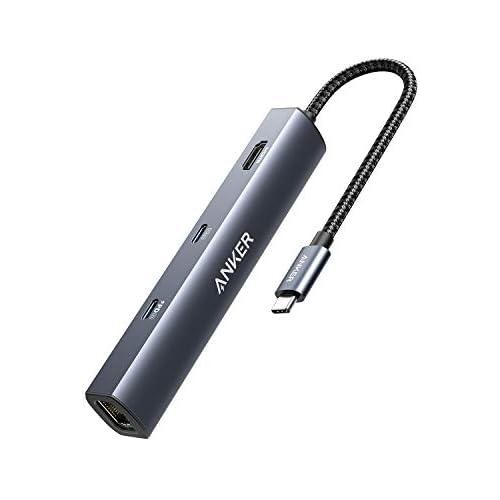
For a longer-term fix, a budget external GPU enclosure with a modern graphics card eliminates decode bottlenecks entirely.

Comparison: Hardware Acceleration On vs. Off
| Setting | CPU Usage | GPU Usage | Playback Smoothness | Best For |
|---|---|---|---|---|
| Acceleration On | Low (10–20%) | High (50–80%) | Smooth on modern GPUs (2016+) | High-end hardware, 4K streams |
| Acceleration Off | Moderate (30–50%) | Minimal (5–10%) | Stable on older hardware | Budget laptops, older GPUs |
By keeping Chrome, drivers, and extensions current, and choosing the right hardware acceleration setting for your GPU, you’ll stream YouTube without another freeze.
Frequently Asked Questions
Why does Chrome freeze when watching YouTube videos?
Chrome freezes on YouTube due to hardware acceleration conflicts with your GPU, outdated browser or graphics drivers failing to decode modern codecs like VP9 and AV1, corrupted cache data, or problematic extensions interfering with video rendering. The browser struggles to process video while audio plays separately.
How do I fix Chrome freezing on YouTube?
Start with these quick fixes: disable hardware acceleration in chrome://settings/system, clear cache and cookies via Ctrl+Shift+Delete, and update Chrome to the latest version at chrome://settings/help. These three steps solve 70% of cases without requiring driver updates.
Should I disable hardware acceleration to stop Chrome freezing?
Yes, disabling hardware acceleration is the single most effective fix for Chrome freezing. While it forces your CPU to handle video decoding instead of your GPU, it provides stable streaming on older hardware, especially for VP9 and AV1 codecs that modern GPUs struggle with.
What are the best Chrome extensions to avoid for YouTube playback?
Ad blockers, VPN extensions, and video downloader extensions commonly interfere with YouTube’s playback engine. If you experience freezing, disable all extensions via chrome://extensions, test playback, then re-enable them one-by-one to identify the culprit. Consider using uBlock Origin Lite instead.
How often should I update my graphics drivers to prevent YouTube freezing?
Update GPU drivers quarterly from your manufacturer’s site (NVIDIA, AMD, or Intel), as generic Windows updates rarely install the latest optimized builds. Outdated drivers can misinterpret decode instructions from Chrome, causing TDR errors and browser freezes during video playback.
Does clearing cache really stop Chrome from freezing on YouTube?
Yes, corrupted cache fragments from interrupted streams or Chrome crashes can block smooth video decoding. Clear YouTube-specific cache via Ctrl+Shift+Delete or chrome://settings/siteData and repeat monthly. Many users report immediate freeze resolution after clearing cache.
Read More:
- Chrome Using Too Much RAM (Why and the Proven Solutions)
- Chrome Crashes When Closing (Here’s the Simple Fixes That Work)
- Chrome Freezes Randomly (Causes, Diagnosis, and Quick Fixes)
- Chrome Hangs When Opening Websites (Quickest Ways to Fix It)
- Chrome Freezes But Mouse Still Works (Simple Fixes to Solve It)

Susan is a professional writer. She has been a writer for eight years and has always been so fulfilled with her work! She desires to share helpful, reliable, and unbiased information and tips about tech and gadgets. She hopes to offer informative content that can answer users’ questions and help them fix their problems.