
You click a tab, but nothing happens. Chrome’s white screen stares back at you, ignoring your mouse movements while your deadline ticks closer. That spinning cursor becomes your enemy when Chrome locks up mid-scroll or during video playback.
Chrome keeps freezing because it consumes excessive RAM from too many open tabs, resource-heavy extensions running in the background, corrupted cache files blocking smooth operation, outdated browser versions with unpatched bugs, hardware acceleration conflicts with your GPU drivers, or insufficient system memory causing the browser to become unresponsive to mouse clicks and keyboard input.
The good news: You don’t need to switch browsers or buy new hardware. Most Chrome freezing issues stem from fixable software configurations, bloated browsing data, or memory-management settings you can adjust in minutes. This guide walks you through twelve proven performance fixes that eliminate lag and restore responsive browsing.
Key Takeaways
- Chrome keeps freezing due to excessive RAM consumption from too many tabs, resource-heavy extensions, corrupted cache files, outdated browser versions, and GPU driver conflicts that are all fixable without switching browsers.
- Clear your browsing cache and cookies via chrome://settings/clearBrowserData, disable problematic extensions one by one, and update Chrome to the latest version to resolve most freezing issues in minutes.
- Use Chrome’s Task Manager (Shift+Esc) to identify memory-hogging tabs, enable Memory Saver mode to hibernate inactive tabs, and close unnecessary background applications to free up system resources.
- Check for malware using Chrome’s built-in cleanup tool or Malwarebytes, disable hardware acceleration if your GPU drivers are outdated, and update graphics drivers directly from manufacturer websites like NVIDIA or AMD.
- Create a new Chrome user profile to test if profile corruption is causing freezes, reset Chrome settings to defaults to neutralize hidden configuration conflicts, and consider adding RAM as a long-term solution for heavy multitaskers.
Why Does Chrome Keep Freezing?
Chrome freezes when it exhausts available system resources or encounters software conflicts. Each open tab runs as a separate process, eating RAM. Add extensions, cached scripts, and background sync tasks, and your 8GB laptop suddenly can’t keep up.
Three core culprits cause most freezes: memory overload from dozens of tabs, extension conflicts that clash with page scripts, and corrupted cache files that force Chrome to re-parse data repeatedly. According to Google’s own support documentation, outdated browser builds and disabled automatic updates leave critical performance patches unapplied.
Hardware acceleration, Chrome’s GPU rendering feature, can backfire if your graphics drivers are outdated or incompatible. Instead of speeding up page rendering, the GPU hands off broken frames back to the CPU, creating a freeze loop. You’ll notice this during YouTube playback or when scrolling image-heavy sites.
System-level issues compound browser problems. If Windows Task Manager shows 95% RAM usage before you even open Chrome, the browser has no breathing room. Low-end PCs with 4GB RAM struggle to juggle Chrome alongside background Windows processes, antivirus scans, and automatic updates.
Clear Browsing Data and Cache
Cached files accelerate repeat page loads by storing images, scripts, and stylesheets locally. But over weeks, corrupted cache entries pile up, forcing Chrome to validate broken data on every page load. This triggers hangs and stutters.
Navigate to chrome://settings/clearBrowserData or press Ctrl+Shift+Delete. Select All time from the time range dropdown to purge everything. Check these boxes:
- Browsing history
- Cookies and other site data
- Cached images and files
Click Clear data and wait for confirmation. For deeper cleaning, click the Advanced tab and enable Hosted app data and Media licenses. This wipes GPU shader caches Chrome stores for WebGL rendering, a common freeze trigger on AMD and Intel integrated graphics.
After clearing, close and restart Chrome completely. Your first page load will be slower as Chrome rebuilds its cache, but subsequent browsing should feel smoother. If freezes persist, cache corruption wasn’t the root cause, move to the next fix.
Disable or Remove Problematic Extensions
Extensions inject code into every page you visit. Ad blockers, VPN clients, and password managers all run background scripts that consume CPU cycles. When two extensions compete for the same page resources, Chrome hangs.
Open chrome://extensions/ and toggle off every extension. Restart Chrome. If freezing stops, you’ve confirmed an extension conflict. Re-enable extensions one by one, testing Chrome between each activation to identify the culprit.
Common freeze-inducing extensions include aggressive ad blockers with real-time filter updates, outdated VPN extensions that intercept network requests inefficiently, and Grammarly or similar writing tools that parse every text field. If you need a VPN, consider switching to a lightweight standalone client like NordVPN or Surfshark, which run outside the browser and avoid extension-layer conflicts.
For must-have extensions, check their Chrome Web Store pages for recent reviews mentioning freezes. Developers sometimes push buggy updates that cause widespread performance issues. You can roll back to an older version using third-party extension archives or wait for a patched release.
Update Chrome to the Latest Version
Chrome auto-updates in the background, but that mechanism fails if you rarely restart the browser. Outdated builds miss critical patches for memory leaks, rendering bugs, and V8 JavaScript engine optimizations.
Type chrome://settings/help into the address bar. Chrome immediately checks for updates and displays your current version. If an update is available, Chrome downloads and prompts you to Relaunch. Click it to apply the update.
Google’s Chrome release blog publishes detailed changelogs. Recent 2026 builds fixed a freeze bug tied to WebRTC video streams and patched a memory leak in the Tab Groups feature. Staying current eliminates known performance regressions.
If your IT department or enterprise policy locks Chrome to an older version, you’ll see a Managed by your organization message. Contact your admin to request the latest stable build, emphasizing the security and performance fixes you’re missing.
Close Unnecessary Tabs and Manage Memory Usage
Every open tab reserves RAM, even inactive ones. Gmail, Google Docs, and streaming sites run background sync scripts that refresh content when you’re not watching. Multiply that by 20 tabs, and Chrome consumes 4GB before you notice.
Press Shift+Esc to open Chrome’s built-in Task Manager. Sort by Memory footprint to see which tabs hog resources. Single tabs exceeding 500MB often contain memory leaks or auto-playing media. Close or reload them.
Enable Memory Saver mode at chrome://settings/performance. This feature hibernates inactive tabs, releasing their RAM while preserving tab state. When you revisit a hibernated tab, Chrome reloads it, a small delay that prevents system-wide freezes. You can exempt specific sites from hibernation by clicking Add under Always keep these sites active.
For heavy multitaskers, install the Great Suspender extension or use Chrome’s native tab groups to organize and collapse tabs. Grouping doesn’t save RAM directly, but it helps you visually audit which tabs you actually need open.
Reset Chrome Settings to Default
Months of tweaked flags, changed search engines, and modified permissions create hidden conflicts. Resetting Chrome restores factory defaults without deleting bookmarks, passwords, or history, a safe troubleshooting step.
Go to chrome://settings/reset and click Restore settings to their original defaults. Chrome warns you this will disable extensions, clear temporary data, and reset your homepage. Click Reset settings to confirm.
This fix neutralizes chrome://flags experiments you may have forgotten you enabled. Flags like Parallel downloading, Tab Freeze, and GPU rasterization sometimes cause instability on specific hardware configurations. Resetting disables all flags and returns you to Google’s tested baseline.
After reset, test Chrome with your most freeze-prone sites, YouTube, Google Sheets, or heavy web apps. If performance improves, the issue was configuration drift. You can selectively re-enable extensions and adjust settings, monitoring stability as you go.
Check for Malware and Unwanted Software
Browser hijackers, cryptominers, and adware inject scripts that run invisible background processes. These drain CPU and memory, causing Chrome to freeze under the added load. You won’t see them in Task Manager as “malware”, they disguise themselves as legitimate processes.
Chrome includes a basic cleanup tool at chrome://settings/cleanup. Click Find to scan for harmful software. Chrome uses technology from ESET to detect common browser threats. If it finds anything, follow the prompts to remove it.
For deeper scans, download Malwarebytes Free and run a full system check. Malwarebytes catches PUPs (potentially unwanted programs) that traditional antivirus misses, toolbars, registry hijackers, and background miners.
“Chrome was freezing every 30 seconds until I ran Malwarebytes. It found a cryptominer bundled with a ‘free’ video converter I downloaded. Removed it, freezes stopped immediately.” via r/chrome
After removal, restart your PC and clear Chrome’s cache again. Malware often leaves residual scripts in cached files that re-trigger even after the main infection is gone.
Disable Hardware Acceleration
Hardware acceleration offloads rendering tasks to your GPU, theoretically speeding up page display. But outdated or buggy graphics drivers cause the GPU to return corrupted frames, freezing Chrome during video playback or scrolling.
Navigate to chrome://settings/system and toggle off Use hardware acceleration when available. Click Relaunch to apply the change. Chrome will now render everything on the CPU, slower on paper, but stable if your GPU drivers are problematic.
You’ll notice the difference immediately on YouTube or Twitch. If video playback smooths out and scrolling no longer stutters, your GPU was the bottleneck. This is common on laptops with Intel UHD integrated graphics or older NVIDIA mobile GPUs.
Disabling acceleration costs you some performance on graphics-heavy sites like Google Maps 3D or WebGL games. If you need acceleration enabled, update your graphics drivers first (covered in the next section), then re-enable this setting and test.
Update Your Graphics Drivers
Outdated GPU drivers fail to support Chrome’s latest rendering APIs, causing display latency and freeze loops. Windows Update often skips graphics driver updates, leaving you on six-month-old builds.
Press Win+X and open Device Manager. Expand Display adapters, right-click your GPU, and select Update driver. Choose Search automatically first. If Windows finds nothing, visit your GPU manufacturer’s site directly:
- NVIDIA: nvidia.com/drivers
- AMD: amd.com/support
- Intel: intel.com/graphics-drivers
For hassle-free updates, consider Driver Booster Free, which scans all hardware and downloads the latest drivers in one click. This tool is particularly helpful if you’re unsure which GPU you have or which driver version is current.
After updating, restart your PC and re-enable hardware acceleration in Chrome. Test with a YouTube 4K video or a graphics-heavy site. If freezes return, your GPU hardware itself may be failing, disable acceleration permanently.
Create a New Chrome User Profile
Chrome stores settings, extensions, and cached data in user profiles. Profile corruption, from unclean shutdowns, failed sync, or buggy extensions, causes persistent freezes that survive cache clearing and resets.
Type chrome://settings/people and click Add person (or Add under Other people). Name the new profile and choose an icon. Chrome opens a fresh window with a clean profile, no extensions, no history, zero cached data.
Browse normally in the new profile for an hour. Visit your freeze-prone sites. If Chrome runs smoothly, your old profile is corrupted. You can migrate bookmarks by exporting them from the old profile (chrome://bookmarks → three-dot menu → Export bookmarks) and importing into the new one.
“Nothing worked until I created a new profile. Old one had two years of junk. New profile is fast and hasn’t frozen once.” via r/techsupport
Keep both profiles for a week. If the new one remains stable, delete the old profile from chrome://settings/people to reclaim disk space. Corruption doesn’t transfer between profiles, they’re isolated environments.
Check Your Computer’s System Resources
Chrome demands headroom. If your system runs at 90% RAM usage before Chrome launches, the browser will freeze when it requests more memory and finds none available.
Press Ctrl+Shift+Esc to open Windows Task Manager. Click the Memory column to sort by usage. Look for background processes hogging RAM, Windows Search Indexer, OneDrive sync, antivirus real-time scans, or third-party auto-updaters.
Disable or limit heavy background apps. Right-click OneDrive in the system tray and pause syncing. In Task Manager’s Startup tab, disable programs you don’t need immediately at boot, Spotify, Discord, or Adobe Creative Cloud helpers.
If you consistently max out 4GB or 8GB of RAM, hardware upgrades deliver the biggest performance leap. Adding RAM is the single most effective freeze fix for heavy tab users. The Crucial 16GB DDR4 RAM Kit runs $40–60 and transforms low-end PCs into smooth multitasking machines.

For users locked into non-upgradeable laptops, close resource-heavy applications before browsing. Discord, Slack, and Spotify each consume 300–500MB. Quitting them before opening Chrome frees enough RAM to prevent freezes.
Reinstall Chrome as a Last Resort
If freezes persist after every fix, Chrome’s installation files may be damaged. Reinstalling replaces corrupted binaries while preserving your bookmarks and passwords through Google Sync.
First, verify Sync is active. Go to chrome://settings/syncSetup and confirm your Google account is syncing Everything or at least Bookmarks, Passwords, and Extensions. This ensures you don’t lose data during reinstall.
Uninstall Chrome from Windows Settings → Apps → Google Chrome → Uninstall. Download the latest installer from google.com/chrome and run it. Sign into your Google account when prompted, Chrome restores your synced data automatically.
Test immediately. A clean install eliminates file corruption, registry errors, and orphaned DLL conflicts. If Chrome still freezes on a fresh install, the issue is hardware-level, faulty RAM, failing SSD, or overheating CPU.
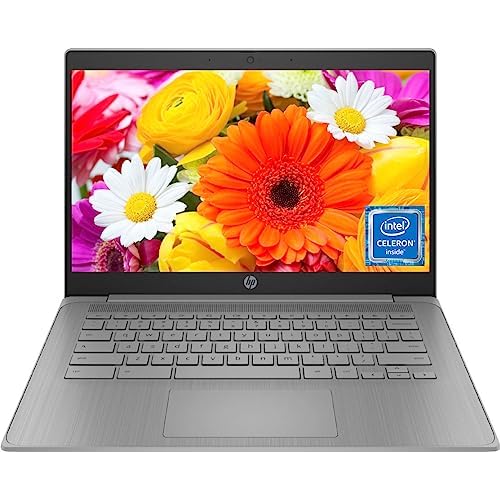
In that case, upgrade your hardware or consider the HP Chromebook 14, a budget-friendly machine optimized for Chrome browsing with 8GB RAM and fanless operation. Chrome freezes are almost nonexistent on ChromeOS, since the entire OS is purpose-built for the browser.
Frequently Asked Questions
Why does Chrome keep freezing when I have many tabs open?
Chrome freezing with multiple tabs occurs because each open tab runs as a separate process, consuming RAM. Background sync scripts in Gmail and streaming sites compound memory usage. When RAM is exhausted, Chrome becomes unresponsive to mouse clicks and keyboard input, causing freezes during scrolling or video playback.
What’s the fastest way to fix Chrome freezing issues?
Start by clearing your browsing cache (chrome://settings/clearBrowserData), disabling problematic extensions, and enabling Memory Saver mode. These fixes address the three most common freeze causes: corrupted cache files, extension conflicts, and excessive RAM usage. Most Chrome freezing problems resolve within minutes using these methods.
Can outdated graphics drivers cause Chrome to freeze?
Yes, outdated GPU drivers often cause Chrome freezing during video playback and scrolling. When hardware acceleration is enabled but drivers are incompatible, the GPU returns corrupted frames, creating freeze loops. Update drivers from NVIDIA, AMD, or Intel’s websites, or disable hardware acceleration in chrome://settings/system to stabilize performance.
How do I know if malware is causing Chrome to freeze?
Malware like cryptominers and adware run invisible background processes that drain CPU and memory. Use Chrome’s cleanup tool at chrome://settings/cleanup or run Malwarebytes Free for deeper scanning. If Malwarebytes finds threats, remove them and restart your PC, then clear Chrome’s cache again to eliminate residual scripts.
Will resetting Chrome to default settings fix freezing problems?
Chrome reset restores factory defaults, disabling extensions and clearing temporary data while preserving bookmarks and passwords. This neutralizes hidden conflicts from disabled flags and configuration drift. Navigate to chrome://settings/reset and click ‘Restore settings to their original defaults’ to test this troubleshooting step.
What should I do if Chrome freezes persist after all fixes?
If freezes continue after clearing cache, updating Chrome, and resetting settings, create a new user profile at chrome://settings/people. Profile corruption from unclean shutdowns or buggy extensions causes persistent freezes. If the new profile runs smoothly, your old profile is corrupted and should be deleted to reclaim disk space.
Read More:
- Chrome Keeps Crashing (Here’s Why and How to Fix It Fast)
- Chrome Autofill Not Working on Some Sites (Causes and How to Fix It)
- Chrome Crashes on Startup (Causes and Quick Fixes Explained)
- Chrome Autocomplete Not Working (Here’s the Quick Fixes that Work)
- Chrome Keeps Crashing Windows 11 (Why and How to Fix It Fast)

Susan is a professional writer. She has been a writer for eight years and has always been so fulfilled with her work! She desires to share helpful, reliable, and unbiased information and tips about tech and gadgets. She hopes to offer informative content that can answer users’ questions and help them fix their problems.