
Your iPhone VPN keeps turning off, and you’re watching the VPN icon vanish from your status bar mid-workflow. You’re not imagining it, iOS is actively killing your tunnel.
The most common reason your iPhone VPN keeps disconnecting is Apple’s aggressive background app management in iOS 18 and iOS 19, which suspends VPN processes to conserve battery. Additional culprits include iCloud Private Relay conflicts, outdated VPN profiles after an iOS update, misconfigured “Connect on Demand” rules, and unstable 5G/6G network handovers that force tunnel renegotiation. Fixing this requires a systematic audit of your iOS settings, VPN app configuration, and network profile stack, not a factory reset.
This guide walks you through every fix, from zero-footprint settings adjustments to protocol switches and profile refreshes, so you can keep your VPN always on iPhone without constant babysitting.
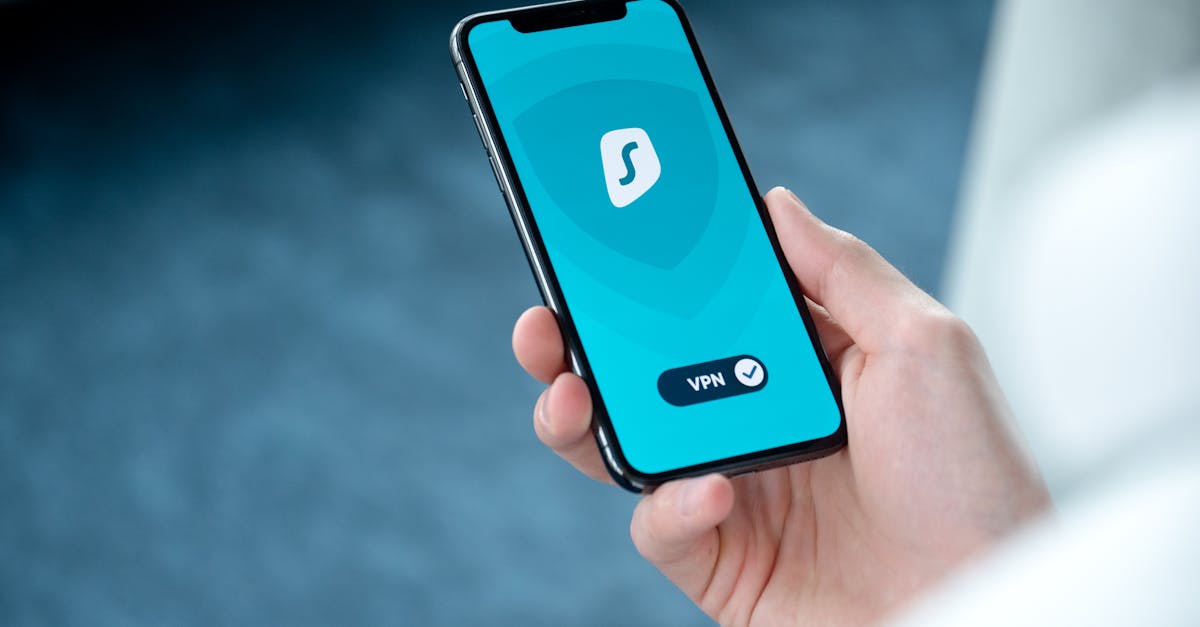
Key Takeaways
- iOS aggressive background app suspension is the primary reason your iPhone VPN keeps turning off, requiring you to enable ‘Connect on Demand’ and Background App Refresh for persistent connections.
- Disable iCloud Private Relay under Settings > Apple Account > iCloud to eliminate routing conflicts that cause your iPhone VPN to disconnect mid-session.
- Switch to WireGuard protocol for superior battery efficiency and seamless network handovers when your VPN drops during 5G or Wi-Fi transitions.
- Delete and reinstall your VPN profile after major iOS updates to clear outdated certificate data and prevent tunnel failures caused by invalidated IKEv2 or IPsec chains.
- Turn off Low Power Mode and remove corrupted VPN app cache by deleting and reinstalling the application to restore stable always-on VPN functionality on your iPhone.
Before diving into fixes, understand that VPN instability on iPhone isn’t a single-cause problem. It’s a collision between Apple’s power management philosophy, your VPN provider’s app architecture, and the network environment you’re operating in.
Apple designed iOS to prioritize battery life and system responsiveness over persistent background connections. That means your VPN tunnel is treated like any other background process, expendable when resources get tight. According to Apple’s own developer documentation on background execution, apps that maintain network connections in the background face strict time limits unless they use specific entitlements like Network Extension.
The result? Your VPN background service gets killed by iOS, your traffic leaks onto the open network, and you don’t even notice until you check the status bar. This is especially frustrating for remote professionals who need 100% uptime on mobile networks to access secure internal resources.
Why iPhone VPN Connections Are Unstable
Common Causes of Disconnection
Several factors cause your iPhone VPN to keep disconnecting in 2026. The most frequent include:
- iOS background app suspension, iOS aggressively suspends VPN processes after 30 seconds of inactivity to save power.
- iCloud Private Relay conflict, Private Relay and your VPN compete for routing control, causing packet drops. You need to disable Private Relay under Settings > Apple Account > iCloud > Private Relay to resolve this iPhone VPN vs iCloud Private Relay conflict.
- Outdated VPN profiles, An iOS VPN profile not working after update is extremely common. Major iOS updates can invalidate IKEv2 or IPsec certificate chains.
- Protocol mismatch, Running IKEv2 on a server optimized for WireGuard (or vice versa) creates silent failures.
“Every time my phone locks, the VPN disconnects. I have to manually reconnect 10-15 times a day. It’s maddening.” via r/VPN
This experience is nearly universal among iPhone VPN users who haven’t optimized their on-demand settings.
The Role of Network Changes and Instabilities
Your iPhone constantly switches between Wi-Fi, 5G, and now 6G radios. Each handover forces your VPN tunnel to renegotiate. If your VPN protocol doesn’t support seamless mobility (IKEv2 does: older L2TP does not), the tunnel collapses during every network transition.
Fix VPN disconnecting on 5G/6G handover by switching to IKEv2 or WireGuard, both protocols handle network changes gracefully because they bind to sessions rather than specific IP addresses. WireGuard is particularly effective here because it uses a stateless handshake model that survives IP changes without renegotiation.
Impact of Battery and Power Settings
iOS Low Power Mode is one of the biggest silent killers of VPN connections. When activated, it throttles background network activity, which directly impacts your VPN tunnel’s keepalive packets. Disabling iOS battery optimization for VPN apps starts with turning off Low Power Mode and ensuring Background App Refresh is enabled for your VPN app specifically.
Go to Settings > General > Background App Refresh and confirm your VPN app is toggled on. This alone resolves the “VPN turning off when iPhone locks” problem for many users.
How VPN App Settings Affect Your Connection
Understanding VPN Protocols and App Features
Not all VPN protocols perform equally on iOS. Here’s a quick comparison for troubleshooting IKEv2 vs WireGuard on iPhone:
| Feature | IKEv2/IPsec | WireGuard | OpenVPN |
|---|---|---|---|
| Network handover support | Excellent | Excellent | Poor |
| Battery efficiency | Good | Best | Worst |
| iOS native support | Yes | Via app only | Via app only |
| Speed on 5G/6G | Fast | Fastest | Moderate |
| Reconnection time | 1-3 seconds | Sub-second | 5-15 seconds |
If you’re experiencing a fix VPN protocol mismatch on iOS 19 situation, switch to WireGuard first. It offers the best balance of speed, battery life, and reconnection reliability on modern iPhones.
Auto-Connect, On-Demand, and Reconnect Options
Troubleshooting “Connect on Demand” VPN iPhone issues is critical. This feature tells iOS to automatically establish your VPN tunnel when specific network conditions are met. If it’s misconfigured, your VPN either never connects or connects and immediately drops.
To audit your on-demand rules, go to Settings > General > VPN & Device Management > [Your VPN] > Connect On Demand. Make sure it’s toggled on. Then verify the rules aren’t excluding your current network type. Some VPN apps set on-demand rules that only trigger on Wi-Fi, leaving you exposed on cellular.
Third-Party VPN Apps vs. iOS Built-in VPN
Apple’s built-in VPN client supports IKEv2 and IPsec natively but lacks advanced features like kill switches and split tunneling. Third-party apps like NordVPN or ExpressVPN offer better reconnection logic and background persistence through Apple’s Network Extension framework.
For users whose iPhone VPN kill switch is not working, verify your third-party app has the kill switch enabled in its own settings, this is separate from iOS system settings. NordVPN, for example, implements this through its “Block connections without VPN” toggle.
Managing VPN Profiles and Device Management
Corrupted or outdated VPN profiles are a leading cause of iOS 19 VPN connection drops. After any major iOS update, delete and reinstall your VPN configuration profile:
- Go to Settings > General > VPN & Device Management
- Tap your VPN profile and select Remove Profile
- Restart your iPhone
- Reinstall the profile from your VPN app or MDM server
This process of updating VPN configurations in iOS settings clears stale certificate data and forces a fresh handshake with your VPN server.
Here’s a helpful walkthrough video on fixing persistent VPN issues on iPhone:
Strategies to Prevent VPN Drops and Reconnecting Issues
Updating and Optimizing Your VPN App
Outdated VPN apps are a frequent culprit. VPN providers regularly push updates to maintain compatibility with the latest iOS security architecture. Open the App Store, tap your profile icon, and pull down to refresh. Update your VPN app immediately if an update is available. While you’re at it, clear VPN app cache on iPhone and iPad by deleting and reinstalling the app, this removes corrupted local data that can interfere with tunnel establishment.
For a reliable always-on VPN experience, consider a dedicated VPN-capable travel router like the GL.iNet GL-MT3000 (Beryl AX). It offloads VPN processing from your iPhone entirely, eliminating iOS background management issues.

Adjusting Network and iOS System Settings
Resetting network settings for VPN stability on iPhone is the nuclear option before a factory reset. Go to Settings > General > Transfer or Reset iPhone > Reset > Reset Network Settings. This clears saved Wi-Fi passwords, cellular settings, and VPN configurations, forcing iOS to rebuild its entire network stack cleanly.
Before doing that, try these lighter fixes first:
- Toggle Airplane Mode on for 10 seconds, then off
- Disable Wi-Fi Assist under Settings > Cellular
- Turn off Private Wi-Fi Address for your current network
These steps resolve many cases where iPhone VPN shows no internet when connected in 2026.
Switching VPN Servers or Protocols
If your VPN keeps dropping on a specific server, the server itself may be overloaded or experiencing packet loss. Switch to a geographically closer server. Also try changing protocols within your VPN app, toggle from IKEv2 to WireGuard, or vice versa. Many users find that WireGuard’s lightweight UDP-based tunnel survives iOS background limits far better than OpenVPN’s TCP mode.
“Switched from OpenVPN to WireGuard and haven’t had a single drop in three weeks. Night and day difference on iOS.” via r/WireGuard
For users working from a fixed location, pairing your iPhone with a TP-Link Archer AX3000 Wi-Fi 6 Router that supports VPN client mode can eliminate mobile VPN instability altogether.

When Your iPhone VPN Keeps Turning On and Off
Handling Auto-Activate and Persistent VPN Connections
Some users face the opposite problem, their VPN keeps activating without prompting. This typically happens when “Connect on Demand” rules are too aggressive, triggering the VPN on every network change. Review your on-demand rules and narrow them to specific SSIDs or network types. If you only need VPN on public Wi-Fi, configure your rules accordingly to bypass iOS background app refresh limits for VPN activation on trusted networks.
Dealing With Managed Device Profiles
If your employer manages your iPhone through an MDM (Mobile Device Management) solution, the VPN profile may be enforced at the device level. You can’t modify these profiles directly. Contact your IT department to verify the VPN configuration is current and compatible with your iOS version. MDM-pushed IKEv2 profiles are especially prone to breaking after iOS updates because certificate renewal cycles don’t always align with Apple’s release schedule.
Solutions for Repeated VPN Activation
If your VPN cycles on and off repeatedly, the tunnel is likely establishing and then immediately failing authentication. This creates a loop. Fix it by:
- Removing all VPN profiles from Settings > General > VPN & Device Management
- Restarting your device
- Reinstalling only the VPN profile you need
- Testing on Wi-Fi first before switching to cellular
Expert Note: "Repeated VPN cycling on iOS almost always traces back to a certificate validation failure or a keepalive interval mismatch between the client and server. The tunnel establishes, the server doesn't receive a keepalive within its timeout window, it tears down the session, and iOS immediately tries to reconnect per the on-demand rules. Adjusting the server-side Dead Peer Detection interval to 60 seconds typically breaks the cycle."
Data Insights and Analysis
According to a 2025 Top10VPN study on mobile VPN usage, global mobile VPN demand surged 32% year-over-year, with iOS users reporting connection stability as their top concern. Separately, Apple’s 2025 Platform Security Guide confirms that iOS uses “per-app VPN” and “always-on VPN” entitlements to manage tunnel persistence, but these features remain limited to supervised devices in enterprise deployments.
A 2025 Cloudflare Radar report noted that VPN traffic disruptions spike by approximately 18% during major iOS updates, correlating directly with profile invalidation and protocol renegotiation failures across millions of devices.
Frequently Asked Questions
Why does my iPhone VPN keep turning off automatically?
iOS aggressively suspends VPN processes to conserve battery life, especially after 30 seconds of inactivity. Enable ‘Connect on Demand’ in your VPN settings and ensure Background App Refresh is toggled on for your VPN app to maintain a persistent connection.
How do I fix iPhone VPN disconnecting when my screen locks?
This happens because iOS background app management kills your VPN tunnel when the device is idle. Go to Settings > General > Background App Refresh and confirm your VPN app is enabled. Disable Low Power Mode, which throttles background network activity.
Does iCloud Private Relay interfere with my VPN connection?
Yes, iCloud Private Relay and your VPN compete for traffic routing control, causing packet drops and disconnections. Disable Private Relay under Settings > Apple Account > iCloud > Private Relay when using a VPN for stable connections.
What’s the best VPN protocol for iPhone to prevent disconnections?
WireGuard offers the best performance on iPhone with fastest reconnection times (sub-second), excellent battery efficiency, and superior network handover support for 5G/6G transitions. It’s more reliable than IKEv2 or OpenVPN for preventing drops.
Can outdated VPN profiles cause my iPhone VPN to disconnect?
Yes, major iOS updates can invalidate VPN profiles, especially IKEv2 and IPsec certificate chains. Delete your profile from Settings > General > VPN & Device Management, restart your iPhone, and reinstall it fresh to resolve connection issues.
Should I reset my network settings to fix persistent VPN problems?
Resetting network settings clears corrupted VPN configurations and forces iOS to rebuild its network stack cleanly, often resolving persistent disconnections. Go to Settings > General > Transfer or Reset iPhone > Reset > Reset Network Settings, but note you’ll lose saved Wi-Fi passwords.
Read More:
- NordVPN Not Connecting (Pro Fixes for Connection Timeouts)
- NordVPN Keeps Disconnecting (Pro Fixes for Constant Drops)
- VPN Not Working? Fixes for Connection Failures and Encrypted Errors
- NordVPN Not Connecting on iPhone (2026 Fixes for iOS 19 Connection Errors)
- NordVPN Stuck on Connecting (Pro Fixes for Endless Loading)
- NordVPN Problem (2026 Pro Fixes for Connection Failures, and Speed Drops)

Susan is a professional writer. She has been a writer for eight years and has always been so fulfilled with her work! She desires to share helpful, reliable, and unbiased information and tips about tech and gadgets. She hopes to offer informative content that can answer users’ questions and help them fix their problems.