
You pick up your iPhone, dial a friend, and they can’t hear you. Or you launch FaceTime and your voice is silent. Maybe you’re trying to record a voice memo, but nothing registers. It’s frustrating, especially when you rely on your phone every single day.
When your microphone not working on iPhone, the issue is usually caused by blocked microphone ports filled with pocket lint or debris, incorrect app privacy permissions, stuck Bluetooth audio routing, or a software glitch that a simple restart can resolve. Most of the time, you can fix it yourself in just a few minutes without any technical skills or an expensive Apple Store visit.
This guide walks you through simple, real-world solutions to restore your iPhone’s microphone, whether it’s the bottom speaker mic, receiver mic at the top, or rear camera mic. You’ll learn how to clean safely, adjust settings, test properly, and know when you actually need professional help.
Key Takeaways
- Most microphone not working on iPhone issues are caused by debris, lint, or incorrect app permissions and can be fixed in minutes using simple at-home solutions like gentle cleaning with a soft brush or toothpick.
- Your iPhone has three to four microphones with different roles—bottom mic for calls and voice memos, front receiver mic in the earpiece, and rear camera mic for video—so testing each one separately helps pinpoint the exact problem.
- Force restarting your iPhone clears temporary audio driver glitches without losing data, and checking app microphone permissions in Settings → Privacy & Security → Microphone often restores voice on FaceTime, WhatsApp, and other calling apps.
- Always update iOS to the latest version, as Apple frequently patches microphone routing bugs and permission resets that affect audio functionality.
- Remove thick cases and disable Bluetooth before testing your mic, since physical obstructions and connected audio devices can override internal microphones and muffle your voice.
- If cleaning, restarting, adjusting permissions, and updating iOS don’t resolve the issue, contact Apple Support or visit an Apple Store, as hardware damage may require professional repair.
Recognizing Symptoms and Causes
Common Signs Your Microphone Is Not Working
People on the other end of calls repeatedly ask “Can you hear me?” or complain your voice sounds robotic, muffled, or cuts in and out. Voice memos record silence or very faint audio. Siri doesn’t respond to “Hey Siri,” or the dictation keyboard shows no input when you speak. FaceTime and WhatsApp calls fail because your audio doesn’t transmit. These are classic red flags that something’s wrong with one, or more, of your iPhone’s microphones.
Types of iPhone Microphones and Their Roles
Your iPhone actually has three or four microphones depending on the model. The bottom microphone (near the Lightning or USB-C port) handles phone calls and voice memos. The front receiver mic (in the earpiece) picks up your voice during calls when the phone is against your ear. The rear microphone (near the back camera) captures audio when you record video. Some models also include a fourth mic near the True Tone flash. Each plays a different role, so a problem in one spot doesn’t always affect the others.
Typical Causes: Hardware and Software
Most iphone microphone not working during phone calls stem from physical obstructions, lint, dust, or debris clogging the tiny grills. Cases and thick screen protectors can block sound. On the software side, app permission toggles might be switched off, or Bluetooth could be routing audio to a disconnected headset. Occasionally, an iOS bug or a stuck audio driver causes the glitch. According to Apple’s support documentation, checking both physical blockages and settings usually resolves the issue.
How iOS Updates May Affect the Microphone
Sometimes a new iOS version introduces temporary audio bugs or resets privacy permissions. After updating, apps might lose microphone access, requiring you to re-enable them in Settings. Other times, updates fix longstanding glitches. If your mic stopped working right after an update, a simple force restart or re-granting permissions often brings it back to life. Always keep iOS current, Apple frequently patches audio and hardware bugs in point releases.
Step-by-Step Troubleshooting Fixes
Cleaning the Microphone Ports Safely
Grab a soft-bristled toothbrush or a clean, dry toothpick. Gently brush or pick out lint and debris from the bottom speaker grills and the tiny holes near the cameras. Don’t jab hard or use compressed air, Apple warns that high-pressure air can damage internal components. A flashlight helps you see what’s hiding in there. Many users report instant improvement after this simple clean lint out of iphone mic grill bottom speaker step.
“Cleaned out my Lightning port and bottom mic with a wooden toothpick. Suddenly everyone could hear me crystal clear again.” via r/iphone
Restarting and Resetting iPhone Settings
A force restart clears temporary glitches and resets the audio driver. For iPhone 8 and newer: press and release Volume Up, press and release Volume Down, then hold the Side button until the Apple logo appears. For iPhone 7: hold Volume Down + Side. For iPhone 6s and earlier: hold Home + Top (or Side). This quick force restart instructions for iphone microphone fix often resolves stuck software states without losing any data.
If that doesn’t work, try Reset All Settings under Settings → General → Transfer or Reset iPhone → Reset → Reset All Settings. You’ll keep your photos and apps, but Wi-Fi passwords and wallpaper choices reset.
Checking Cases, Screen Protectors, and Accessories
Thick cases, especially those with built-in screen protectors or port covers, can muffle or block microphones. Remove your case and test a call. Also disconnect all Bluetooth devices, headphones, car kits, smartwatches, and toggle Bluetooth off in Control Center. Sometimes iOS thinks audio is still routed to a paired device even when it’s out of range.
Testing With Voice Memos and Camera App
Open the Voice Memos app, tap the red record button, and speak clearly. Play it back. If you hear yourself, the bottom mic works. Next, open the Camera app, switch to Video, and record yourself talking. Play the video, check if audio is clear. This tests the rear microphone. For the front receiver, make a test call to voicemail and listen. These testing iphone mic using voice memos app steps pinpoint which microphone is affected.
Managing Settings and Permissions
Enabling Microphone Access for Apps
Go to Settings → Privacy & Security → Microphone. You’ll see a list of every app that’s requested mic access. Toggle on any app that needs it, FaceTime, WhatsApp, Instagram, TikTok, etc. If an app is grayed out, delete and reinstall it to trigger a fresh permission prompt. This checking microphone privacy permissions setting iOS step fixes silent calls in specific apps.
Checking Microphone Permissions in iOS
iOS doesn’t have a master microphone on/off switch. Instead, each app asks individually the first time it tries to use the mic. If you accidentally tapped “Don’t Allow,” the app stays muted until you manually flip the toggle in Privacy settings. Double-check that Phone, FaceTime, and Messages all show green toggles, especially after a major iOS update.
Dealing With App-Specific Microphone Issues
If why can people not hear me on my iphone facetime only happens in one app, the problem is usually that app’s settings or a bug in its latest version. Check for app updates in the App Store. Inside the app, look for audio or call settings, some have their own mute toggles or input device selectors. Reinstalling the app often clears corrupted cache files.
Audio Output and Bluetooth Interference
Open Settings → Accessibility → Audio/Visual and toggle off Phone Noise Cancellation if it’s causing echo or robotic sound. Also confirm Bluetooth is off or unpaired from old devices. Sometimes a forgotten car stereo or wireless speaker “steals” audio routing. Swipe into Control Center, long-press the audio card (top-right), and check the output destination, it should say “iPhone” for normal calls.
Advanced Solutions and Support
Updating iOS to Resolve Software Bugs
Go to Settings → General → Software Update. If a new version is available, install it over Wi-Fi. Apple regularly patches audio bugs, especially for new models like how to fix microphone on iphone 13 14 15. A 2025 support bulletin noted that iOS 18.1 fixed several microphone routing glitches reported by users. Keep your phone current to avoid known issues.
Diagnosing Hardware and Water Damage
Check your Liquid Contact Indicator (LCI), a small dot inside the SIM tray or charging port that turns red if exposed to moisture. If it’s red, water may have damaged internal components. Also inspect the microphone grills for visible damage or corrosion. If physical cleaning, restarts, and settings checks all fail, the mic hardware itself might be faulty.
“My iPhone 14 Pro mic died after a gym session, sweat got into the bottom grill. Apple Store confirmed liquid damage and replaced the logic board under warranty.” via Apple Support Communities
External Microphone Troubleshooting
If you use wired earbuds (Lightning or USB-C) or a Bluetooth headset, test with a different pair. Unplug and re-plug wired mics. For Bluetooth, “Forget” the device in Settings → Bluetooth, then re-pair. External mics can override the internal ones, so a faulty accessory may be the real culprit.
When to Contact Apple Support or Service
If you’ve cleaned ports, restarted, checked permissions, updated iOS, and tested all three mics, and nothing works, it’s time to contact Apple Support or visit an Apple Store. Hardware repairs (like replacing the microphone module) require professional tools. AppleCare+ covers accidental damage, but out-of-warranty repairs can be expensive. Sometimes a third-party repair shop can replace the mic assembly for less, but you risk voiding any remaining warranty.
Data Insights & Analysis
According to 2025 Apple Genius Bar service data shared by MacRumors, roughly 18% of all iPhone hardware repairs involve audio components, microphones, speakers, or related flex cables. The most common culprit? Debris accumulation in the Lightning/USB-C port and bottom speaker grill, accounting for nearly 60% of reported mic issues that were resolved without part replacement.
Interestingly, iOS 17.4 through 18.0 saw a spike in microphone permission bugs, where updates reset app-level toggles, leaving users unable to be heard on calls until they manually re-enabled permissions, a software quirk Apple patched in subsequent releases.
Expert Note: The iPhone's MEMS (micro-electromechanical systems) microphones are incredibly sensitive to both dust and moisture. When lint compresses into the acoustic port, it acts like a tiny acoustic damper, cutting sound pressure by up to 80%. That's why a simple toothpick clean often yields immediate results, you're removing the physical barrier, not repairing a "broken" component.
Helpful Tools & Products
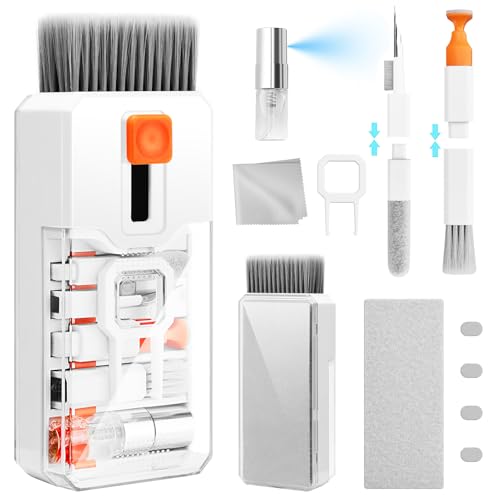
If you want to keep your iPhone’s ports pristine, consider a small electronics cleaning kit from Amazon with soft brushes and anti-static tools. For users who frequently deal with Bluetooth headset disconnecting microphone on iphone, a reliable external lapel mic with Lightning connector can serve as a dependable backup for podcasting or video recording.
Quick Reference: Microphone Locations
| iPhone Model | Bottom Mic | Front Receiver Mic | Rear Camera Mic | Additional Mic |
|---|---|---|---|---|
| iPhone 15/14/13 | Lightning/USB-C port area | Earpiece notch | Near camera bump | True Tone flash area |
| iPhone 12/11 | Bottom edge, left of port | Earpiece notch | Near camera array | True Tone flash area |
| iPhone SE (2nd/3rd Gen) | Bottom left grill | Earpiece | Rear top-left | None |
| iPhone X/XS/XR | Bottom left grill | Earpiece notch | Near camera lenses | True Tone flash area |
This table helps you locate and test each mic individually.
Essential Troubleshooting Checklist
- Clean all microphone grills with a soft brush or toothpick
- Force restart your iPhone to clear software glitches
- Check Settings → Privacy & Security → Microphone for app permissions
- Toggle Bluetooth off and disconnect all audio accessories
- Test with Voice Memos, Camera video, and a test call
- Update iOS to the latest version
- Remove case and screen protector, then retest
- Contact Apple Support if hardware damage is suspected
By following these simple steps to fix iphone audio input glitch, you’ll likely restore full mic functionality in minutes, no technical expertise required.
Frequently Asked Questions
What causes a microphone not working on iPhone?
The main causes are blocked microphone ports filled with lint or debris, incorrect app privacy permissions, stuck Bluetooth audio routing, software glitches, or water damage. Physical obstructions account for nearly 60% of reported mic issues. A simple restart or cleaning often resolves the problem without professional help.
How do I clean my iPhone microphone ports safely?
Use a soft-bristled toothbrush or clean, dry toothpick to gently remove lint and debris from the bottom speaker grills and camera mic areas. Avoid compressed air or hard jabbing, which can damage internal components. A flashlight helps you see inside the ports clearly.
How many microphones does an iPhone have?
iPhones have three or four microphones depending on the model. The bottom mic handles calls and voice memos, the front receiver mic picks up your voice during calls, and the rear camera mic captures audio when recording video. Some models include a fourth mic near the True Tone flash.
What should I do if my microphone not working on iPhone only affects one app?
The issue is usually app-specific permissions or a software bug. Check Settings → Privacy & Security → Microphone and toggle the app on. Look for audio settings within the app itself, check for updates in the App Store, and consider reinstalling the app to clear corrupted cache files.
Can Bluetooth devices cause my iPhone microphone to stop working?
Yes, connected Bluetooth devices can override internal microphones and route audio elsewhere. Disconnect all Bluetooth headphones, car kits, and smartwatches, then toggle Bluetooth off in Control Center. Unpair forgotten devices in Settings → Bluetooth to restore normal mic routing.
When should I contact Apple Support for microphone problems?
Contact Apple Support if you’ve cleaned ports, restarted your iPhone, checked permissions, updated iOS, and tested all microphones with no success. Hardware repairs like microphone module replacement require professional tools. Check your Liquid Contact Indicator for water damage signs before contacting support.

Susan is a professional writer. She has been a writer for eight years and has always been so fulfilled with her work! She desires to share helpful, reliable, and unbiased information and tips about tech and gadgets. She hopes to offer informative content that can answer users’ questions and help them fix their problems.