
You’re in the middle of a critical presentation or class meeting, speaking clearly, but suddenly you see chat messages flood in: “We can’t hear you.” Panic sets in. Your mouth is moving, but your colleagues hear nothing.
When your Zoom microphone stops working, the root cause is usually one of three issues: the microphone is muted within Zoom’s interface, the app lacks system-level permission to access your microphone, or Zoom has selected the wrong audio input device. Most audio failures stem from software permission blocks, incorrect device selection in Audio Settings, or aggressive noise suppression filters cutting off your voice completely.
This guide walks you through every essential fix, from toggling basic Zoom settings to resetting audio drivers and granting microphone access on Windows, Mac, iOS, and Android. You’ll learn how to test speaker and microphone zoom wizard fix tools, diagnose why your zoom microphone muted green bar not moving, and resolve bluetooth headset microphone not working zoom meeting scenarios. Let’s eliminate the silence and get you heard.
Key Takeaways
- Most Zoom microphone not working issues stem from three root causes: muted settings, missing system-level permissions, or incorrect audio device selection.
- Check basic Zoom audio settings first by unmuting (Alt+A on Windows or Cmd+Shift+A on Mac) and verifying the correct microphone device is selected in Audio Settings.
- Grant explicit microphone access at the OS level—check Windows Privacy & Security settings or macOS System Settings to ensure Zoom has permission to use your microphone.
- Test your microphone using Zoom’s built-in Test Speaker and Microphone wizard while watching the green input level bar for activity to diagnose whether the hardware is functioning.
- Disable Windows exclusive mode and audio enhancements that may conflict with Zoom, and lower the ‘Suppress Background Noise’ setting from High to Low if Zoom is muting your voice.
- For mobile devices and external USB headsets, verify permissions in app settings, check physical mute buttons, and try reconnecting Bluetooth devices to resolve Zoom microphone problems quickly.
Why Your Zoom Microphone Isn’t Working: Common Causes
Before diving into fixes, understanding the why helps you troubleshoot faster. The majority of Zoom audio input failures trace back to three categories: software permissions, incorrect device selection, and audio driver conflicts.
First, operating systems now require explicit user consent before apps can access your microphone. If you denied Zoom permission during installation, or if a system update reset privacy settings, your microphone input is blocked at the OS level, regardless of Zoom’s internal settings.
Second, modern computers often juggle multiple audio devices: built-in laptop mics, USB headsets, Bluetooth earbuds, and virtual audio drivers from streaming software. Zoom might default to a silent or disconnected device, leaving you inaudible even when you’re speaking directly into your headset.
Third, aggressive features like “Suppress Background Noise” can misidentify your voice as unwanted sound, muting you entirely. Audio enhancements, exclusive-mode locks from other apps, and outdated drivers compound the problem. Recognizing these patterns lets you apply the right fix immediately instead of guessing.
Check Your Basic Microphone Settings in Zoom
Start with the simplest culprit: Zoom’s in-meeting mute toggle. Look at the bottom-left corner of your Zoom window. If the microphone icon shows a red slash, you’re muted. Click it, or press Alt+A (Windows) or Cmd+Shift+A (Mac), to unmute. This single step resolves a surprising number of support tickets.
Next, launch Zoom’s Audio Settings. Click your profile picture, select Settings, then navigate to Audio. Under Microphone, verify the correct device is selected from the dropdown. If you see “Same as System” or a generic name, switch to your actual hardware: “Headset Microphone,” “Built-in Microphone,” or “Bluetooth Headset.”
Now run the Test Speaker and Microphone wizard. Click Test Mic and speak aloud. Watch the Input Level bar. If it stays flat or barely flickers, Zoom isn’t receiving audio. If the green bar bounces when you talk, your microphone works, the issue lies elsewhere, perhaps in meeting-host settings or network configuration.
Finally, ensure Automatically adjust microphone volume is enabled, or manually drag the Input Level slider to the right if your zoom mic low volume quiet input level slider reads too low. Save changes and rejoin your meeting to test.
Verify System-Level Audio Permissions
Even perfect Zoom settings won’t help if your operating system blocks microphone access. Both Windows and macOS enforce strict privacy controls that override app-level toggles.
Windows Audio Permission Settings
Open Settings > Privacy & Security > Microphone. Toggle Microphone access to On at the top. Scroll down to Let apps access your microphone and ensure the master switch is enabled. Then locate Zoom (or Zoom Meetings) in the app list and flip its individual toggle to On.
If Zoom doesn’t appear, reinstall the desktop client from the official Zoom Download Center to register it properly. Restart Zoom after granting permission. This fix alone resolves most “zoom audio input device not detected windows” complaints.
“Spent an hour troubleshooting, turned out Windows 11 privacy settings blocked Zoom after a system update. Flipped the switch and mic worked instantly.” via r/Zoom
Mac Audio Permission Settings
On macOS, navigate to System Settings > Privacy & Security > Microphone. Look for zoom.us in the list and check the box beside it. If it’s already checked, uncheck and recheck it to refresh the permission.
For older macOS versions, the path is System Preferences > Security & Privacy > Privacy tab > Microphone. Restart Zoom entirely, quit the app from the menu bar, not just close the window, then relaunch. This ensures the new permission takes effect and clears any cached denials.
Select and Test the Correct Microphone Device
Your computer may list five or more microphone devices, but only one is the physical mic you’re speaking into. Open Zoom Settings > Audio and click the Microphone dropdown. You’ll see entries like “Built-in Microphone,” “USB Audio Device,” “Bluetooth Headset,” or “Line In.”
Select each device one by one and click Test Mic after each change. Speak normally and watch the green input bar. When the correct device is active, the bar will jump and you’ll hear your recorded voice play back. If the bar never moves, that device is either disconnected, disabled, or silent.
For Bluetooth headsets, confirm pairing in your OS Bluetooth settings first. Windows users should check Settings > Bluetooth & devices and ensure the headset shows “Connected voice, music.” Mac users can verify in System Settings > Bluetooth. A common trap: the headset is paired but set to “audio only,” not “headset mode,” so the microphone stays offline.
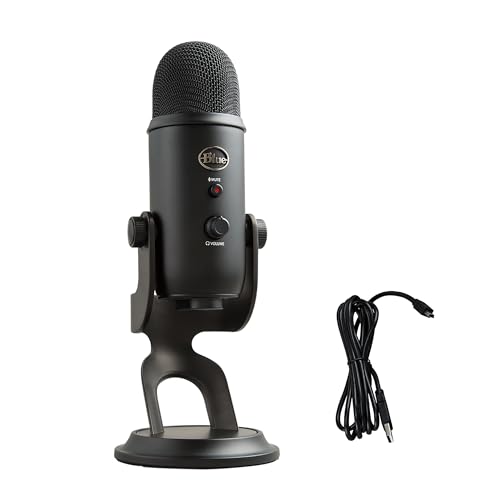
If you use an external USB microphone, like the Blue Yeti USB Microphone, make sure it’s plugged directly into your computer, not through a weak USB hub. Check the physical mute button on the mic itself: many models have hardware toggles that override all software settings.
Update or Reinstall Your Audio Drivers
Outdated or corrupted audio drivers are silent saboteurs. Windows relies on Realtek, Conexant, or Intel audio chipset drivers to translate microphone input into data Zoom can process. When these drivers glitch, you get “zoom microphone not picking up sound during call” symptoms even though hardware is fine.
On Windows, open Device Manager (right-click Start, select Device Manager), expand Audio inputs and outputs, and locate your microphone. Right-click it and choose Update driver > Search automatically for drivers. Windows will fetch the latest version from its catalog.
If that fails, visit your laptop or motherboard manufacturer’s support site, Dell, HP, Lenovo, ASUS, and download the newest audio driver package directly. Install it, restart your PC, then test Zoom again. This approach is more reliable than Windows Update, which sometimes skips vendor-specific patches.
For persistent issues, try a zoom audio driver reinstall device manager procedure: right-click the microphone in Device Manager, select Uninstall device, check Delete the driver software for this device, and restart. Windows will reinstall a fresh driver on boot, clearing corruption.
Mac users rarely face driver problems because Apple controls hardware and software tightly. If you suspect a macOS audio glitch, reset the Core Audio daemon by opening Terminal and typing sudo killall coreaudiod, then press Enter and enter your password. Audio services restart instantly, often fixing phantom mic failures.
Disable Exclusive Mode and Audio Enhancements
Windows audio enhancements and exclusive-mode locks let one app monopolize your microphone, silencing Zoom entirely. If another program, Skype, Discord, OBS Studio, or even a background voice assistant, holds exclusive control, Zoom cannot access the mic.
Open Sound settings in Windows: right-click the speaker icon in the taskbar, select Sounds, navigate to the Recording tab, and double-click your active microphone. Switch to the Advanced tab and uncheck both “Allow applications to take exclusive control of this device” and “Give exclusive mode applications priority.”
Next, click the Enhancements tab (if present) and check Disable all enhancements. Some Realtek or third-party audio managers apply echo cancellation or noise gates that conflict with Zoom’s own processing, creating a tug-of-war that mutes you. Click OK and restart Zoom.
Zoom’s internal “Suppress Background Noise” feature can be overly aggressive. In Zoom Settings > Audio > Advanced, find Suppress Background Noise and switch it from High to Low or Auto. The High setting occasionally misclassifies soft voices or certain microphone types as noise, leading to the dreaded “zoom microphone muted green bar not moving” symptom.
For pro-level hardware workarounds, consider the Shure MV7 USB Podcast Microphone. Its built-in digital signal processing bypasses OS enhancements entirely, delivering clean, consistent audio to Zoom without driver conflicts or exclusive-mode headaches.

Troubleshoot External Microphone Hardware Issues
If you’ve ruled out software, turn to hardware. Unplug your external microphone, USB or 3.5 mm, wait five seconds, then reconnect it. Watch Windows or macOS for the “device connected” notification. If nothing appears, try a different USB port or test the mic on another computer to confirm it’s functional.
For 3.5 mm jacks, ensure you’re using the correct port: pink for microphone input, green for speaker output. Many modern laptops combine both into a single TRRS combo jack, requiring a headset with a four-segment plug or a TRRS splitter adapter.

Bluetooth headsets introduce latency and compression. If your bluetooth headset microphone not working zoom meeting, unpair and re-pair the device. In Windows, remove it from Bluetooth & devices, restart Bluetooth, then pair fresh. On Mac, hold Option and click the Bluetooth menu bar icon, select Debug > Remove all devices, then re-pair.
Physical damage matters too. Inspect cables for kinks, fraying, or bent connectors. Test the mic’s hardware mute switch or gain knob, many USB mics have a volume dial that users accidentally turn to zero. If the mic includes monitoring software (like Logitech G Hub or SteelSeries Engine), ensure the input isn’t muted there.
Fix Zoom Microphone Problems on Mobile Devices
Mobile platforms enforce even stricter microphone permissions. On iOS (iPhone/iPad), open Settings > Zoom and toggle Microphone to green. If Zoom doesn’t appear, reinstall the app from the App Store, sometimes initial permission prompts get dismissed and never return.
For Android, navigate to Settings > Apps > Zoom > Permissions and grant Microphone access. If set to “Ask every time,” change it to “Allow.” Some Android skins (Samsung One UI, Xiaomi MIUI) add extra privacy dashboards: check those secondary permission managers as well.
“My Zoom mic worked fine until an Android update. Had to go into app permissions twice, once in Settings, once in the privacy dashboard Samsung added.” via r/androidapps
Restart the Zoom app completely: swipe it away from recent apps, wait ten seconds, relaunch. Test your mic by starting a personal meeting and recording a short clip. Play it back to confirm audio is captured.
If using Zoom in a web browser on mobile, browser permissions layer on top of OS permissions. In Safari (iOS), tap the aA icon in the address bar, select Website Settings > Microphone > Allow. In Chrome (Android), tap the lock icon beside the URL, then Permissions > Microphone > Allow. Refresh the Zoom web page after granting access.
Advanced Solutions: Firewalls, Antivirus, and Network Issues
Corporate firewalls and aggressive antivirus suites sometimes block Zoom’s audio engine, mistaking microphone data packets for suspicious activity. Temporarily disable your antivirus or add Zoom to its whitelist, then test. If audio returns, configure a permanent exception in your security software.
Network congestion rarely stops microphone input entirely but can cause “robotic” or choppy audio that attendees interpret as silence. Run a bandwidth test at Speedtest.net and confirm you have at least 1.5 Mbps upload. Close bandwidth hogs like cloud backup services or streaming video.
VPN tunnels can introduce routing delays or block UDP traffic Zoom prefers for audio. Disconnect your VPN temporarily and rejoin the meeting. If your mic works, ask your IT admin to whitelist Zoom’s IP ranges or switch the VPN protocol to one that supports real-time media.
For firewall configuration, allow Zoom on TCP ports 80, 443, and UDP ports 3478–3479. Detailed instructions are available in the Zoom Network Firewall Settings guide. Enterprise users should coordinate with IT to open these ports on corporate routers.
When to Contact Zoom Support or Seek Professional Help
If none of these fixes restore your microphone, the problem may lie in hardware failure, deep OS corruption, or server-side account restrictions. Submit a ticket to Zoom Support with your meeting ID, device details, and a description of every step you’ve tried.
Include diagnostic logs: in Zoom, click Settings > General, scroll to Feedback, and attach logs when you describe the issue. These files reveal hidden errors, codec mismatches, permission denials, driver crashes, that support engineers can decode.
For persistent laptop mic failures, schedule a hardware diagnostic with your manufacturer. Built-in microphones connect via fragile ribbon cables that can detach from impact or hinge flex. A technician can reseat the connector or replace the mic module.
If you need an immediate workaround for critical meetings, use your smartphone as a secondary audio device: join the Zoom meeting on your phone for audio only, muting the phone’s speaker, while sharing your screen from the computer. It’s inelegant but keeps you audible until you resolve the root cause.
Frequently Asked Questions
Why is my Zoom microphone not working?
Your Zoom microphone not working usually stems from three main issues: the microphone is muted in Zoom’s interface, your operating system blocks microphone access due to privacy settings, or Zoom has selected the wrong audio input device. Software permission blocks and incorrect device selection cause most audio failures.
How do I check if my Zoom microphone is muted?
Look at the bottom-left corner of your Zoom window. If the microphone icon displays a red slash, you’re muted. Click the icon or press Alt+A (Windows) or Cmd+Shift+A (Mac) to unmute. This single step resolves many microphone issues.
How do I grant Zoom microphone permission on Windows?
Open Settings > Privacy & Security > Microphone and toggle Microphone access to On. Scroll down and enable “Let apps access your microphone,” then locate Zoom in the app list and flip its toggle to On. Restart Zoom after granting permission.
What should I do if my Bluetooth headset microphone is not working in Zoom?
First, verify your headset is paired and set to “headset mode” (not audio-only) in your OS Bluetooth settings. Then, unpair and re-pair the device. In Zoom’s Audio Settings, select your Bluetooth headset from the Microphone dropdown and run the Test Mic wizard to confirm it’s working.
How can I fix a Zoom microphone with low volume or quiet input?
Open Zoom Settings > Audio and check that “Automatically adjust microphone volume” is enabled. If not, manually drag the Input Level slider to the right. Also disable Windows audio enhancements and exclusive-mode locks, which can suppress your voice. Lower “Suppress Background Noise” from High to Low or Auto.
What should I do if the green input level bar in Zoom’s Test Mic isn’t moving?
If the input bar doesn’t move when you speak, your microphone isn’t being detected. Verify the correct microphone device is selected in Zoom Settings > Audio. Check OS-level microphone permissions, update audio drivers, and test the microphone on another computer. If a physical USB mic is used, ensure it’s plugged directly into your computer, not a USB hub.
Read More:
- ThinkPad Microphone Not Working (Here’s What Usually Fixes It)
- Ubuntu Microphone Not Working (What’s Wrong? Here’s How to Fix It)
- Virtual Desktop Microphone Not Working (Here’s the Proven Solutions)
- Windows 11 Microphone Not Working (Proven Fixes that Always Work)
- Windows 10 Microphone Not Working (These Simple Fixes Work)

Susan is a professional writer. She has been a writer for eight years and has always been so fulfilled with her work! She desires to share helpful, reliable, and unbiased information and tips about tech and gadgets. She hopes to offer informative content that can answer users’ questions and help them fix their problems.