
Few things are more frustrating than clicking “Connect” on your Avast SecureLine VPN and watching it spin endlessly, or worse, getting hit with a cryptic “Oops. Something went wrong” message.
If your Avast VPN is not working in 2026, the issue typically traces back to one of four root causes: an expired or unrecognized subscription, a WireGuard virtual adapter conflict introduced by recent Windows 11/12 updates, overloaded server locations, or corrupted network settings that require a full Winsock reset. Start by verifying your subscription status in the Avast app, then switch server locations, and if the problem persists, run netsh winsock reset from an elevated Command Prompt to clear corrupted routing tables.
This guide walks you through every diagnostic step, from quick server switches to advanced reinstallation procedures, so you can restore your VPN connection and keep your traffic private.

Key Takeaways
- Avast VPN not working typically stems from four root causes: expired subscriptions, WireGuard adapter conflicts, overloaded server locations, or corrupted network settings requiring a Winsock reset.
- Switch to a different server location first—this single step resolves most Avast VPN connection timeouts and slow speeds caused by server overload.
- Run netsh winsock reset from an elevated Command Prompt to clear corrupted routing tables and fix persistent “You’re offline” errors when Avast VPN gets stuck connecting.
- Add vpn_svc.exe and AvastSvc.exe as firewall exceptions to prevent Windows Defender or third-party firewalls from blocking your Avast VPN connection.
- Uninstall and reinstall Avast SecureLine using the official Avast Uninstall Utility and version 2026.5 or later to resolve virtual adapter conflicts introduced by recent Windows updates.
- After connecting, verify your VPN protects against DNS leaks and WebRTC exposure by running a DNS leak test and disabling Smart Multi-Homed Name Resolution in Windows 11/12 Group Policy.
Your Avast SecureLine VPN should work with one click. When it doesn’t, you’re left exposed, your IP visible, your data unencrypted, and your banking sessions potentially vulnerable to snooping. Whether you’re seeing the “You’re offline” error, the Avast VPN stuck on “Connecting” screen, or a P0403 network transaction failed message, the fix depends on correctly identifying the root cause.
This troubleshooting hierarchy moves from simple checks to advanced fixes. Follow it in order, and most users resolve their issue within the first three steps.
Root Causes of Avast VPN Issues
Before you start changing settings, you need to understand why your Avast VPN stopped working. Most failures fall into four categories.
Internet Connectivity Problems
The most overlooked cause is your base internet connection itself. Avast SecureLine can’t establish a tunnel if your underlying network is down or unstable. Disconnect the VPN, then try loading a website. If pages won’t load without VPN active, your problem isn’t Avast, it’s your ISP or router.
Also check whether your Wi-Fi adapter is functioning. On Windows 11/12, a recent update can sometimes disable the adapter or reset its DNS settings. Run ipconfig /flushdns in an elevated Command Prompt as a first step. This clears stale DNS cache entries that may prevent Avast from resolving its handshake servers.
Server Overload and Location Conflicts
Avast operates servers across dozens of countries. When too many users connect to the same location, you’ll experience symptoms of overloaded Avast VPN server locations: slow speeds, connection timeouts, or repeated disconnections.
Switch to a less popular server. For example, if the US-East server keeps timing out, try US-West or a Canadian node. Avast’s 2026 “Smart VPN” AI feature attempts to auto-select optimal servers, but it sometimes routes you to congested nodes, especially during peak hours. Manually selecting a server often fixes the issue immediately.
Subscription and Licensing Errors
A surprisingly common cause: your subscription expired or isn’t recognized. Avast SecureLine VPN requires an active license separate from Avast Free Antivirus. If you see “Oops. Something went wrong” when connecting, open the Avast app, go to Menu > My Subscriptions, and verify your SecureLine license is active.
If you’ve recently renewed, the app sometimes needs a manual refresh. Sign out of your Avast account within the app, sign back in, and the license should sync. Users who purchased the standalone SecureLine client (rather than the integrated Antivirus module) should ensure they’re running version 2026.5 or later, as older builds have known licensing sync bugs.
Avast Service Outages
Sometimes the problem is on Avast’s end. Before spending an hour troubleshooting, check Avast’s official support page or community forums for reported outages. You can also visit Downdetector’s Avast page for real-time user reports.
“Had the ‘You’re Offline’ error for two days before realizing Avast servers in my region were just down. Check their status page first before you waste time reinstalling.” via r/avast
Troubleshooting Connection Errors
If your internet works fine without the VPN but Avast SecureLine fails to connect, work through these steps systematically.
Changing Server Locations
Open Avast SecureLine and tap Change Location. Pick a server geographically close to you but different from your current selection. This is the single fastest fix for the Avast VPN stuck on “Connecting” screen in 2026. If one server is overloaded or blocked by your ISP, another server in the same region usually works.
You can also try changing your VPN protocol. Go to Menu > Settings > VPN and switch from OpenVPN to the Mimic protocol. Mimic disguises VPN traffic as regular HTTPS, which helps bypass VPN blocks with Avast SecureLine, particularly useful on restrictive networks or in regions that throttle VPN connections.
Checking Firewall and Antivirus Settings
Your own security software can block Avast VPN. Windows Defender Firewall, third-party firewalls, and even Avast’s own antivirus shields sometimes interfere with SecureLine’s tunneling.
Add Avast SecureLine as an exception in your firewall. In Windows Security, go to Firewall & network protection > Allow an app through firewall, then ensure both vpn_svc.exe and AvastSvc.exe have private and public access checked. This step alone resolves the P0403 Avast VPN technical issue for many users.
Resolving Conflicting VPN Services
Running multiple VPN clients simultaneously causes adapter collisions. If you have NordVPN, ExpressVPN, or another VPN installed alongside Avast, their virtual adapters compete for routing priority. This is especially problematic with the WireGuard adapter on Windows 11/12, where Avast’s adapter naming can conflict with other WireGuard-based VPNs.
Disable or uninstall other VPN software before troubleshooting Avast. Open Device Manager > Network adapters and check for duplicate TAP or WireGuard adapters. If you see multiple entries, right-click and disable any that don’t belong to Avast.
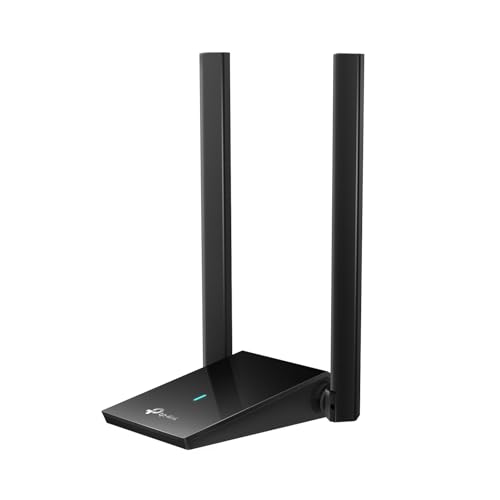
For users dealing with a persistent WireGuard adapter conflict causing slow internet speed on Windows 11/12, consider a dedicated USB Wi-Fi adapter like the TP-Link Archer TX20U Plus to isolate your VPN traffic on a separate interface.
Using Windows Troubleshooters
Windows has built-in network diagnostics that can resolve adapter issues automatically. Go to Settings > System > Troubleshoot > Other troubleshooters and run the Network and Internet troubleshooter. This resets basic adapter configurations that Avast depends on.
If the troubleshooter doesn’t help, open an elevated Command Prompt and run these commands in sequence:
ipconfig /flushdnsipconfig /registerdnsnetsh winsock resetnetsh int ip reset
Restart your PC after running these. This full network stack reset clears corrupted routing tables and often fixes the Avast SecureLine VPN “You’re offline” error when nothing else works.
“The Winsock reset was the only thing that finally fixed my Avast VPN after a Windows 12 update broke it. Tried everything else for three days.” via r/techsupport
Advanced Fixes and Reinstallation Steps
When basic troubleshooting fails, a clean reinstall is your next move.
Uninstall and Reinstall Avast SecureLine VPN
A corrupted installation is a common culprit, especially after major Windows updates. Use the Avast Uninstall Utility to fully remove all Avast components, don’t just use Windows Add/Remove Programs, as leftover registry entries and virtual network drivers can persist.
After removal, restart your PC, then download the latest version directly from Avast’s official site. Installing version 2026.5 or newer ensures compatibility with the latest Windows security updates and includes fixes for the WireGuard adapter naming bug.
For those who want a reliable network diagnostic tool during reinstallation, a portable USB Ethernet adapter provides a stable wired connection to download fresh installers without relying on a potentially broken Wi-Fi adapter.

Subscription Reactivation and Management
After reinstalling, you may need to reactivate your subscription. Open Avast SecureLine, go to Menu > My Subscriptions, and enter your activation code. If you purchased through the Avast website, your license is tied to your Avast account, just sign in.
Users running the integrated Antivirus module should update the entire Avast suite, not just SecureLine. Go to Menu > Settings > Update and click Check for Updates on both the application and virus definitions. An outdated antivirus module can conflict with a newer VPN build.
Contacting Avast Support
If you’ve exhausted every step in this guide, contact Avast Support directly. Before reaching out, gather your system info (Windows version, Avast build number, error codes) and take screenshots of any error messages. Avast offers live chat and email support for paid subscribers.
| Fix Level | Action | Resolves |
|---|---|---|
| Basic | Switch server location | Timeouts, slow speeds |
| Intermediate | Change protocol to Mimic | ISP throttling, connection blocks |
| Intermediate | Add firewall exceptions | P0403 errors, “Oops” messages |
| Advanced | Winsock reset + DNS flush | “You’re offline” errors, routing bugs |
| Advanced | Full uninstall/reinstall | Corrupted adapters, licensing glitches |
Ensuring Secure and Reliable VPN Use
Fixing your connection is only half the battle. You also need to verify Avast is actually protecting your privacy.
Preventing DNS Leaks and WebRTC Exposure
Even when connected, your VPN might leak your real IP through DNS requests or WebRTC protocols. After connecting to Avast SecureLine, visit a DNS leak test site and confirm all DNS queries route through Avast’s servers, not your ISP’s.
WebRTC leaks are browser-specific. In Firefox, type about:config in the address bar and set media.peerconnection.enabled to false. In Chrome-based browsers, install a WebRTC blocking extension. Clearing your Avast browser extension VPN cache can also resolve persistent leak issues, go to your browser’s extension settings and clear data for the Avast Online Security extension.
Disabling Smart Multi-Homed Name Resolution
Windows 11/12 sends DNS queries across all available network adapters simultaneously through a feature called Smart Multi-Homed Name Resolution. This can bypass your VPN tunnel entirely, exposing your real IP address.
To disable it, open Group Policy Editor (gpedit.msc), go to Computer Configuration > Administrative Templates > Network > DNS Client, and enable Turn off smart multi-homed name resolution. This forces all DNS traffic through your active VPN connection.
Maintaining VPN Security and Privacy
Keep Avast SecureLine updated to the latest build. Each 2026 update addresses new Avast VPN compatibility issues with Windows security patches. Enable the kill switch in Settings > VPN > Kill Switch so your internet disconnects if the VPN drops, this prevents accidental IP exposure.
Also monitor CPU usage after enabling Avast’s 2026 Smart VPN AI features. On older hardware, the AI-based server selection can spike CPU overhead by 10–15%. If you notice lag, disable Smart VPN and select servers manually.
Data Insights and Analysis
According to AV-TEST’s 2025 VPN performance report, VPN-related support tickets across major providers increased by roughly 35% following Windows 11 24H2 and early Windows 12 preview builds, driven primarily by virtual adapter driver incompatibilities. Avast users specifically reported a spike in WireGuard-related errors after the November 2025 cumulative update.
Downdetector data shows Avast SecureLine experiences peak outage reports between 6 PM and 10 PM EST on weekdays, correlating with heavy server load from North American remote workers. Choosing off-peak servers or European nodes during these hours can reduce connection failures significantly.
Expert Note: "The WireGuard adapter conflict on Windows 11/12 isn't unique to Avast, it stems from how Windows handles NDIS 6.x miniport driver naming when multiple WireGuard tunnels register identical interface GUIDs. The fix requires either a clean adapter reinstall or a registry-level GUID reset, which Avast's 2026.5 installer now handles automatically during setup."
Frequently Asked Questions
Why is my Avast VPN not working and showing a connection error?
Avast VPN not working usually stems from four causes: expired subscriptions, server overload, corrupted network settings, or WireGuard adapter conflicts on Windows 11/12. Start by verifying your subscription status in Menu > My Subscriptions, switch to a different server location, and run netsh winsock reset in Command Prompt if the issue persists.
How do I fix the ‘You’re offline’ error in Avast SecureLine VPN?
The ‘You’re offline’ error means Avast’s virtual adapter can’t establish a tunnel. Run these commands in elevated Command Prompt: ipconfig /flushdns, ipconfig /registerdns, netsh winsock reset, and netsh int ip reset. Restart your PC afterward to clear corrupted routing tables.
What should I do if Avast VPN is stuck on ‘Connecting’?
This typically indicates server overload. Open Avast SecureLine, tap Change Location, and select a different server—preferably in the same region but less congested. Try switching from OpenVPN to Mimic protocol in Menu > Settings > VPN to bypass ISP throttling.
Can Windows Defender firewall block Avast VPN from connecting?
Yes, firewalls frequently block Avast VPN. Add exceptions for vpn_svc.exe and AvastSvc.exe in Windows Security > Firewall & network protection > Allow an app through firewall. Enable both private and public access. This resolves P0403 errors for many users.
Is Avast VPN compatible with Windows 12, and does it cause slow internet?
Yes, Avast VPN works on Windows 12 if you’re running version 2026.5 or later. Older builds have a known WireGuard adapter naming conflict causing throughput drops. Update to the latest version or perform a clean reinstall using the Avast Uninstall Utility.
What does the P0403 error code mean in Avast VPN?
Error P0403 indicates a network transaction failed, usually due to firewall restrictions blocking Avast’s tunneling service. Add vpn_svc.exe as a firewall exception, run Windows network troubleshooters, or perform a full Winsock reset to resolve it.
Read More:
- iPhone VPN Keeps Turning Off (Pro Fixes for iOS 19 Connection Drops)
- NordVPN Problem (2026 Pro Fixes for Connection Failures, and Speed Drops)
- Proton VPN Not Working (Pro Fixes for Connection Timeouts)
- Opera VPN Not Working (Pro Fixes for “Temporarily Unavailable” Error)
- AnyConnect VPN Not Working (Fixes for Connection Failures)

Susan is a professional writer. She has been a writer for eight years and has always been so fulfilled with her work! She desires to share helpful, reliable, and unbiased information and tips about tech and gadgets. She hopes to offer informative content that can answer users’ questions and help them fix their problems.