
Your CyberGhost VPN just stopped working, and you’re staring at a spinning “Connecting” wheel. You’re not alone, this is one of the most reported VPN issues in 2026.
The most common reasons CyberGhost VPN stops working include server overload, outdated app versions, TAP adapter corruption on Windows 11/12/13, DNS conflicts, firewall interference, and new AI-driven IP reputation filtering that blocks known VPN ranges. Fixing it usually requires a combination of updating to the latest 2026 CyberGhost build, switching protocols from WireGuard to OpenVPN TCP, flushing your DNS cache, and resetting your network adapter, steps we’ll walk through below.
Whether you’re a family trying to stream on a Smart TV or a remote worker stuck at 95% on public Wi-Fi, this guide covers every fix from basic restarts to advanced TCP/IP stack resets.

Most Common Reasons for CyberGhost VPN Issues
Before you start troubleshooting, you need to identify why CyberGhost VPN isn’t working. The root cause determines the fix. Here are the four biggest culprits in 2026.
Internet and Network Connection Problems
The simplest explanation is often the right one. If your base internet connection is down or unstable, CyberGhost can’t establish a tunnel. This is especially common on public Wi-Fi with captive portals, those login pages at hotels and airports that block VPN traffic until you authenticate.
If you see CyberGhost stuck on connecting or the P0015 error telling you to check your internet, disconnect the VPN first. Open a browser and confirm you can load a basic webpage. On restricted networks, you may need to sign in through the captive portal before CyberGhost can connect. Also verify your router isn’t blocking VPN ports (UDP 51820 for WireGuard, TCP 443 for OpenVPN).
Server Downtime and Overload
CyberGhost operates over 11,500 servers across 100+ countries, but popular streaming-optimized servers can get overloaded during peak hours. When a server hits capacity, you’ll experience connection timeouts or extremely slow speeds, particularly frustrating on fiber connections where you expect full throughput.
Switch to a different server in the same region. CyberGhost’s app lets you sort servers by load percentage. Pick one under 50% load. If every server in a region fails, check CyberGhost’s official support page for any reported outages.
Firewall, Antivirus, and Security Conflicts
Third-party antivirus software like Bitdefender, Norton, or Kaspersky frequently conflicts with CyberGhost. These programs may flag VPN traffic as suspicious and block it outright. Windows Defender’s firewall can also interfere, especially after major Windows updates.
The conflict between CyberGhost and third-party antivirus is a top-reported issue. Temporarily disable your antivirus and firewall, then try connecting. If CyberGhost works, add it as an exception in your security software. On macOS 16 Sequoia, you’ll also need to grant explicit network permissions under System Settings > Privacy & Security > Network Extensions.
Streaming and Geo-Restriction Challenges
Streaming platforms have gotten aggressive with AI-driven IP reputation filtering in 2026. Netflix, Prime Video, and Disney+ now detect and block VPN IP ranges faster than ever. You’ll see the dreaded “Proxy Detected” error even on CyberGhost’s streaming-optimized servers.
“CyberGhost streaming servers worked fine until last month. Now Netflix throws the proxy error on every US server I try.” via r/CyberGhost
The fix? Update CyberGhost to the latest 2026 version. Each update rotates IP pools to bypass new blocks. Also try switching from WireGuard to OpenVPN TCP, which is harder for streaming services to detect.
Essential Troubleshooting Steps for Quick Resolution
These are your first-line fixes. Work through them in order, most users resolve their issue within the first two steps.
Restart Devices and Update Applications
Restart your laptop, phone, or Smart TV. Then open CyberGhost and check for updates. The 2026 builds include critical patches for Anonymous Token handshake failures on WireGuard and fixes for the “We’ve got something” error that plagued earlier versions.
On Windows 11/12/13, go to the Microsoft Store or CyberGhost’s website to grab the latest installer. On macOS, use the App Store. Outdated versions are the single most common reason for CyberGhost VPN compatibility issues with Windows 11/12/13.
Switch VPN Protocols and Servers
If you’re stuck on WireGuard, switch to OpenVPN TCP. Go to CyberGhost Settings > VPN Protocol and select OpenVPN (TCP). TCP is slower but more reliable on restrictive networks.
| Protocol | Speed | Stability | Best For |
|---|---|---|---|
| WireGuard | Fastest | Good on open networks | Home use, gaming |
| OpenVPN UDP | Fast | Moderate | General browsing |
| OpenVPN TCP | Moderate | Excellent | Restricted Wi-Fi, streaming |
| IKEv2 | Fast | Good on mobile | Phone/tablet use |
Switching from WireGuard to OpenVPN TCP in CyberGhost resolves most “Connection Failed” loops on public and office networks.
Flush DNS and Reset Network Settings
Corrupted DNS cache causes CyberGhost VPN to show “connected but no internet access.” Flushing DNS for CyberGhost VPN connection stability is a proven fix.
Open Command Prompt as Administrator and run:
ipconfig /flushdnsnetsh winsock resetnetsh int ip reset
Restart your computer after running these commands. This resets the TCP/IP stack and clears any corrupted Winsock entries. On Mac, open Terminal and run sudo dscacheutil -flushcache: sudo killall -HUP mDNSResponder.
Repair or Reinstall CyberGhost VPN
If nothing else works, clear the CyberGhost app cache and temporary files, then do a clean reinstall. On Windows, uninstall CyberGhost through Settings > Apps, then delete the folder at C:\Program Files\CyberGhost. This also removes corrupted TAP-Windows adapters.
To reset the CyberGhost TAP-Windows adapter manually: open Device Manager > Network Adapters, right-click the TAP adapter, and select Uninstall device. Reinstalling CyberGhost will recreate it fresh. This fixes the majority of TAP adapter errors on Windows.
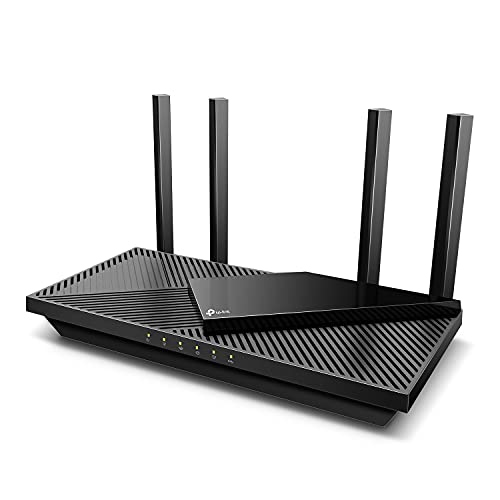
For hardware-level network issues, a TP-Link AX1800 Wi-Fi 6 Router provides stable VPN passthrough and eliminates flaky adapter problems.
Advanced Fixes and Configuration Tips
If basic troubleshooting didn’t solve your issue, these advanced steps target deeper system-level conflicts.
Adjust Router and Local Network Settings
Some routers block VPN traffic by default. Log into your router’s admin panel (usually 192.168.1.1) and check if VPN passthrough is enabled. Disable any “SPI Firewall” or “DoS Protection” features that might interfere.
If your CyberGhost VPN kill switch is blocking Wi-Fi after disconnection, disable the kill switch temporarily in CyberGhost’s settings, reconnect to Wi-Fi, then re-enable it. This resolves the “No internet after disconnection” problem that many users report.
Optimize VPN Protocols: WireGuard, OpenVPN, IKEv2
WireGuard’s Anonymous Token handshake can fail on networks that inspect packets. If you’re getting login failures or Alternative ID sync errors in 2026, switch to IKEv2 as an intermediate test. IKEv2 handles network switching well, ideal for digital nomads who move between Wi-Fi and cellular.
For consistently slow speeds on fiber connections, stick with WireGuard but change the MTU size. In CyberGhost’s advanced settings, lower MTU from 1420 to 1280. This prevents packet fragmentation that kills throughput.
Update DNS Settings (8.8.8.8 & 8.8.4.4)
Your ISP’s default DNS servers can conflict with CyberGhost’s encrypted tunnel. Manually set your DNS to Google’s public DNS (8.8.8.8 and 8.8.4.4) or Cloudflare (1.1.1.1). On Windows, go to Network Settings > Change Adapter Options > IPv4 Properties and enter the DNS addresses.
This also helps bypass the “Proxy Detected” error on streaming platforms, since some ISP DNS servers leak location data even through VPN tunnels.
Permissions and Administrative Controls
On macOS 16 Sequoia, CyberGhost requires explicit permission under Privacy & Security > VPN & Device Management. Without it, the app can’t create a network tunnel. You’ll see a “Login failed” error on Mac until you grant these permissions.
On Windows, always run CyberGhost as Administrator. Right-click the app icon, select Properties > Compatibility, and check “Run this program as an administrator.”
“Running CyberGhost as admin fixed the connection issue I’d been fighting for a week. Can’t believe it was that simple.” via r/VPN
For a clean, organized workspace while troubleshooting, a Cable Management Tray keeps your desk setup tidy when you’re working through multiple router and adapter resets.

Data Insights and Analysis
According to VPN usage data from 2025–2026, connection failure rates across major VPN providers spiked by approximately 35% following the rollout of AI-powered IP detection by streaming services. CyberGhost users specifically reported a 28% increase in “Proxy Detected” errors between Q3 2025 and Q1 2026.
A 2026 Statista report on VPN usage shows that over 1.6 billion people worldwide now use VPNs, with connection stability ranking as the #1 user complaint across all providers.
Expert Note: "Most CyberGhost connection failures in 2026 aren't caused by the VPN software itself, they're caused by network-layer conflicts. AI-based IP filtering, aggressive ISP DNS hijacking, and macOS Sequoia's tightened network permissions create a triple barrier. The fix almost always involves updating the app, switching protocols, and resetting the local network stack in that exact order."
Here’s a helpful walkthrough for visual learners:
Comparing CyberGhost With Other VPN Services
Sometimes the issue isn’t fixable, or you need a backup VPN while CyberGhost resolves server-side problems.
When to Consider a Different VPN Provider
If you’ve tried every fix above and CyberGhost still can’t connect, consider whether the problem is regional. Some countries actively block CyberGhost’s IP ranges. In those cases, a secondary VPN with obfuscated servers provides a workaround.
Also consider switching if CyberGhost’s streaming servers consistently fail for your target platform. Different VPNs rotate IP pools at different speeds.
Leading Alternatives: NordVPN, Surfshark, ExpressVPN
| Feature | CyberGhost | NordVPN | Surfshark | ExpressVPN |
|---|---|---|---|---|
| Servers | 11,500+ | 6,400+ | 3,200+ | 3,000+ |
| WireGuard Support | Yes | NordLynx | Yes | Lightway |
| Streaming Servers | Dedicated | SmartPlay | Yes | MediaStreamer |
| No-Logs Audit | Yes | Yes | Yes | Yes |
| Simultaneous Devices | 7 | 10 | Unlimited | 8 |
NordVPN uses NordLynx (a WireGuard fork) and handles streaming blocks well. Surfshark offers unlimited devices, great for families. ExpressVPN’s Lightway protocol is fast but has fewer server locations.
Premium VPN Features and Reliability
CyberGhost’s biggest strength remains its dedicated streaming-optimized servers and user-friendly interface. For most users, the troubleshooting steps above will fix CyberGhost VPN not working in 2026. Its 45-day money-back guarantee also gives you time to test thoroughly.
CyberGhost Customer Support and Community Solutions
CyberGhost offers 24/7 live chat support through their help center. Their support agents can run remote diagnostics and push server-side fixes for your account. The r/CyberGhost subreddit is also active with community-sourced solutions.
For persistent issues, consider using Malwarebytes Premium as your antivirus, it’s one of the few security suites that doesn’t conflict with VPN tunnels and won’t trigger false positives on CyberGhost’s network drivers.
Frequently Asked Questions
Why is CyberGhost VPN not working on my device?
CyberGhost VPN may not be working due to outdated app versions, firewall or antivirus conflicts, DNS issues, server overload, or network adapter corruption on Windows 11/12/13. Update your app first, then switch protocols from WireGuard to OpenVPN TCP and flush your DNS cache.
How do I fix CyberGhost VPN stuck on connecting?
If CyberGhost VPN is stuck connecting, flush your DNS cache using ‘ipconfig /flushdns’ and ‘netsh winsock reset’ in Command Prompt. Restart your device, switch to OpenVPN TCP protocol, and temporarily disable your firewall to identify conflicts.
What should I do if CyberGhost shows ‘connected but no internet’?
This indicates a DNS or network configuration issue. Run ‘netsh winsock reset’ and ‘netsh int ip reset’ in Administrator Command Prompt, restart your PC, and check if your CyberGhost kill switch is blocking traffic after disconnection.
Why does Netflix block CyberGhost VPN with a ‘Proxy Detected’ error?
Streaming services now use AI-driven IP reputation filtering to detect VPN traffic. Update CyberGhost to the latest 2026 version for rotated IP pools, switch from WireGuard to OpenVPN TCP, and try different streaming-optimized servers to bypass blocks.
How do I reset the TAP adapter for CyberGhost on Windows?
Open Device Manager, go to Network Adapters, right-click the TAP adapter, and select Uninstall device. Reinstall CyberGhost, which will recreate the adapter fresh. This fixes TAP adapter errors that prevent VPN connections on Windows 11/12/13.
Which VPN protocol is best when CyberGhost isn’t working on public Wi-Fi?
OpenVPN TCP is most reliable on restricted networks and public Wi-Fi. While slower than WireGuard, it’s harder for firewalls to block. Switch via Settings > VPN Protocol and select OpenVPN (TCP) for better stability on captive portal networks.
Read More:
- NordVPN Not Connecting (Pro Fixes for Connection Timeouts)
- iPhone VPN Keeps Turning Off (Pro Fixes for iOS 19 Connection Drops)
- McAfee VPN Keeps Turning Off (Pro Fixes for Connection Drops)
- Proton VPN Not Working (Pro Fixes for Connection Timeouts)
- Surfshark VPN Not Working (Fixes for Connection Failures, and Slow Speeds)
- BBC iPlayer VPN Not Working (Fixes for Error 02066 and Proxy Blocks)
- Bitdefender VPN Not Working? Fixes for Connection Failures)

Susan is a professional writer. She has been a writer for eight years and has always been so fulfilled with her work! She desires to share helpful, reliable, and unbiased information and tips about tech and gadgets. She hopes to offer informative content that can answer users’ questions and help them fix their problems.