
You’re mid-game and your Discord friends start groaning. “We hear ourselves talking,” they complain. “There’s an echo every time you speak.” You’re not doing anything weird, you unmute, speak normally, yet somehow your mic bounces everyone’s voices back into the channel.
Microphone echo in Discord happens when your mic picks up desktop or speaker audio and transmits it back to other users, or when Discord’s echo cancellation and noise suppression features fail to engage properly. The fix involves enabling Discord’s built-in Echo Cancellation and Krisp noise suppression, switching to Push-to-Talk, adjusting input sensitivity, resetting voice settings to default, and disabling the legacy audio subsystem or hardware acceleration in Voice & Video settings.
This guide walks you through immediate fixes, Discord voice setting tweaks, hardware checks, and advanced troubleshooting, so you can stop annoying your server and get back to clean comms.
Key Takeaways
- Microphone echo in Discord stems from audio feedback loops (speakers picking up and re-transmitting sound) or disabled echo cancellation settings, and switching to headphones eliminates 80% of cases immediately.
- Enable Echo Cancellation, Krisp Noise Suppression, and Automatic Gain Control in Discord’s Voice & Video settings to filter loopback sound in real time and prevent friends from hearing themselves.
- Switch from Voice Activity to Push-to-Talk mode to manually control transmission, eliminating accidental broadcast of desktop audio and speaker bleed that causes echo.
- Adjust your input sensitivity slider to activate only on your speaking voice, not background noise or faint speaker audio, ensuring Discord stays silent when you’re not talking.
- Check physical audio connections (loose 3.5mm jacks, unpowered USB hubs), update audio drivers, and disable the legacy audio subsystem to resolve hardware conflicts that bypass Discord’s echo cancellation pipeline.
- If echo persists after software fixes, reset Discord voice settings to defaults, disable hardware acceleration, run Discord as administrator, and disable Stereo Mix in Windows Sound settings to eliminate loopback paths.
What Causes Microphone Echo in Discord?
Audio Feedback Loops and Hardware Issues
Echo typically starts when your mic physically picks up sound from your speakers or headset drivers. If you’re using speakers instead of headphones, your microphone captures game audio, music, or other people’s voices and re-transmits them into the channel. This creates a classic feedback loop: sound leaves Discord, hits your speakers, gets picked up by your mic, and bounces back to everyone else.
Headset bleed is another culprit. High volume in over-ear or on-ear headphones can leak enough sound for your mic boom to detect. Cheaper headsets with weak acoustic isolation make this worse. Even USB or XLR mics positioned too close to speaker monitors will echo if the gain is cranked.
Loose cables, damaged 3.5 mm jacks, or poorly shielded USB connections introduce electrical noise that Discord misinterprets as voice activity. Ground loops between your PC power supply and audio interface can generate hum that Krisp struggles to suppress, leaving residual echo artifacts in the processed stream.
Discord Settings and Audio Configuration Problems
Discord’s Voice & Video settings include Echo Cancellation, Noise Suppression (Krisp), and Automatic Gain Control. When these toggles are disabled, or when Krisp processing stalls due to high CPU load, your outbound audio lacks the filter layer that strips loopback sound. The result: friends hear themselves talking, often with a half-second delay that makes conversation unbearable.
Input sensitivity set to automatic can make Discord treat any faint speaker bleed as intentional speech and broadcast it. Voice Activity mode amplifies this problem because it continuously listens: if your noise gate threshold is too low, even keyboard clicks and background music trigger transmission.
Hardware acceleration in Discord sometimes conflicts with older audio chipsets or motherboard Realtek drivers, causing double-buffering glitches that manifest as doubled voice or echo. The legacy audio subsystem, a fallback option for Windows 7 compatibility, can bypass modern echo cancellation APIs entirely, leaving raw mic input unprocessed.
Quick Fixes to Stop Discord Echo Immediately
Plug in headphones or a gaming headset instead of relying on desktop speakers. This single change eliminates 80 percent of microphone echo cases because your mic can no longer capture output audio. If you already wear headphones, lower the volume by 20–30 percent to reduce driver bleed through the ear cups.
Restart Discord completely, don’t just close the window. Right-click the Discord icon in your system tray (Windows notification area) and choose Quit Discord. Relaunch the app to flush stale audio processing states and force Krisp to re-initialize. Many echo problems vanish after a fresh start, especially if your PC has been running Discord for days without a reboot.
Switch from Voice Activity to Push-to-Talk in User Settings → Voice & Video → Input Mode. Bind a convenient key (like your mouse thumb button or a Function key) so you transmit only when you hold it down. Push-to-Talk gives you manual control, preventing accidental broadcast of desktop sounds or speaker audio.
“Switched to PTT and the echo disappeared instantly. My squad stopped complaining and we actually won the next two matches.” via r/discordapp
Mute your mic in Discord whenever you’re not actively speaking, especially during cutscenes, loading screens, or when watching YouTube videos with game audio playing. A quick server-mute (click your avatar at the bottom-left, hit the mic icon) stops all outbound transmission and buys you time to investigate settings.
Adjust Discord Voice Settings to Eliminate Echo
Enable Echo Cancellation and Noise Suppression
Open User Settings (gear icon next to your username) and navigate to Voice & Video. Scroll to the Audio Subsystem dropdown and confirm it’s set to Standard. If you see Legacy selected, switch it back: the legacy subsystem bypasses Windows audio enhancements and disables Discord’s modern echo cancellation pipeline.
Locate the Echo Cancellation toggle and turn it on. This feature analyzes outbound audio in real time, subtracts any waveform that matches recent inbound channel sound, and prevents loopback. Below it you’ll find Noise Suppression, set the dropdown to Krisp. Krisp uses machine learning to isolate your voice and strip background noise, keyboard clatter, and faint speaker bleed before transmission.
Scroll further and enable Automatic Gain Control. AGC normalizes your mic volume dynamically, preventing sudden spikes that can overload the echo cancellation buffer and cause processing stalls. Together, these three toggles form Discord’s primary defense against microphone echo and should remain on unless you’re using a professional audio interface with dedicated DSP.
Configure Input Sensitivity and Automatic Gain Control
Under Input Sensitivity, toggle Automatically determine input sensitivity to off. You’ll see a horizontal slider and a live waveform bar that lights up green when Discord detects sound. Drag the slider slowly to the right until only your speaking voice crosses the threshold, background hum, fan noise, and quiet speaker audio should stay below the activation line.
Test your new threshold by playing a YouTube video at normal volume (with headphones on) and watching the waveform. If the green bar flickers during video playback, slide the sensitivity further right. The goal: Discord transmits when you talk, stays silent when you don’t. A properly tuned gate eliminates the leaky-mic phenomenon that causes echo.
If you prefer Voice Activity over Push-to-Talk, keep the slider in the upper third of the range, aggressive gating. This trades some convenience (you may need to speak louder to activate) for cleaner output. Pair it with Krisp noise suppression for maximum echo rejection, especially if your room has hard surfaces that reflect sound back to the mic.
Fix Echo Caused by Other Users in Your Discord Server
Sometimes the echo isn’t your fault. If another server member uses speakers, has broken headphones, or runs maxed volume, their mic will pick up your voice from their speakers and send it back to you. This creates a confusing feedback loop where you hear yourself delayed by half a second, classic “someone else’s echo” syndrome.
Ask your friends to check their own audio setup. Have them switch to headphones, lower volume, and confirm Echo Cancellation is enabled in their Discord Voice & Video settings. If one person refuses to cooperate or doesn’t realize they’re the source, server admins can temporarily mute that user to diagnose the problem. When the echo stops after muting a specific person, you’ve found your culprit.
Use Discord’s Voice Debug panel to identify the offender. While in a voice channel, open User Settings → Voice & Video → Voice Processing, then scroll to Voice Debug. You’ll see real-time stats for each connected user, including packet loss and jitter. High outbound audio levels combined with user complaints usually point to a single problematic setup.
“Turned out my buddy was using laptop speakers and a webcam mic. Once he grabbed earbuds the echo was gone.” via r/discordapp
Server admins can enforce Push-to-Talk in specific channels via Channel Settings → Permissions → Voice. This prevents accidental open-mic broadcasts and reduces echo incidents during raid nights or competitive matches when clean comms matter most.
Resolve Hardware and Device-Related Echo Issues
Check your physical mic and headphone connections. A loose 3.5 mm jack in the front-panel audio port can introduce crosstalk between the mic and headphone circuits, causing your output to bleed into your input. Try plugging directly into the rear motherboard I/O instead, those traces are better shielded and grounded.
If you use a USB headset or standalone USB microphone, test a different USB port. USB hubs, especially unpowered ones, can cause voltage sag that destabilizes the microphone’s analog-to-digital converter. Plug your mic directly into a USB 3.0 (blue) port on the motherboard to ensure clean 5 V power and stable data transfer.
For users with combo audio jacks (headset icon with a mic inside), verify you’re using a TRRS (four-ring) connector or a proper splitter. Plugging a TRS (three-ring) headphone plug into a combo jack can short the mic ring to ground, creating a feedback path. Check Cable Matters TRRS splitter or similar adapters if you’re unsure.

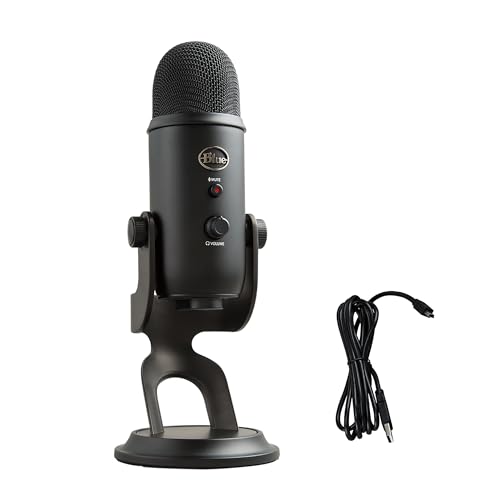
Move your microphone away from speakers, mechanical keyboard, or your monitor’s built-in speakers. Desktop condenser mics with wide pickup patterns will capture every sound in the room. A cardioid or hypercardioid boom arm mic pointed at your mouth, like the Blue Yeti, rejects off-axis noise and speaker bleed far better than an omnidirectional webcam mic.
Update Audio Drivers and Discord Application
Outdated Realtek, NVIDIA, or motherboard audio drivers can conflict with Discord’s voice engine and disable hardware-accelerated echo cancellation. Visit your motherboard or laptop manufacturer’s support page and download the latest High Definition Audio driver package for your chipset. For gaming laptops, also grab any proprietary audio software (like Nahimic or Sonic Studio) updates from the OEM downloads section.
If you have an NVIDIA RTX GPU, update NVIDIA Broadcast drivers separately. NVIDIA Broadcast provides AI noise and echo removal that runs on the GPU, offloading CPU cycles and often outperforming Discord’s Krisp when both are enabled. Install the latest version and configure it as your default microphone input device, then select “NVIDIA Broadcast” in Discord’s input dropdown.
Check for Discord updates by clicking User Settings → Release Channel or simply restarting the app, Discord auto-updates on launch. Version mismatches between client builds and Discord’s voice servers occasionally cause processing bugs that manifest as echo or robotic sound. Staying on the Stable release channel ensures you receive tested patches for known audio issues.
Consider Driver Booster to scan your entire system for outdated audio, USB, and chipset drivers in one pass. Keeping all peripheral drivers current reduces the chance of hardware conflicts that Discord’s diagnostics can’t detect. Audio glitches often trace back to stale USB 3.0 controller firmware or legacy HD Audio bus drivers from 2018.
Advanced Troubleshooting for Persistent Echo Problems
Reset Discord Voice Settings to factory defaults. In User Settings → Voice & Video, scroll to the bottom and click Reset Voice Settings. Confirm the action, this wipes all custom input/output selections, sensitivity tweaks, and processing toggles, forcing Discord to re-detect your hardware and apply recommended defaults. Reboot Discord afterward to complete the reset.
Disable hardware acceleration if echo persists. Navigate to User Settings → Advanced and toggle Hardware Acceleration off. This forces Discord to use CPU-based audio processing instead of offloading to your GPU or integrated chipset, which can resolve driver conflicts on systems with hybrid graphics (Intel iGPU + discrete AMD/NVIDIA GPU). Test voice for five minutes after disabling: if echo returns, re-enable acceleration and investigate other causes.
Run Discord as administrator to ensure it has full access to Windows audio APIs. Right-click your Discord desktop shortcut, choose Properties → Compatibility, and check Run this program as administrator. Some echo cancellation features require elevated privileges to hook into low-latency audio streams: without them, Discord falls back to basic processing.
Disable Stereo Mix or Wave Out recording devices in Windows Sound settings. Press Win + R, type mmsys.cpl, hit Enter, then switch to the Recording tab. Right-click any device labeled Stereo Mix, Wave Out, or What U Hear and select Disable. These virtual inputs can create loopback paths that Discord mistakenly uses as your microphone, broadcasting your entire desktop audio into voice channels.
Check for VPN or firewall interference. Some VPNs introduce latency spikes that desynchronize Discord’s echo cancellation buffer, causing delayed reflections. Temporarily disable your VPN, or switch to NordVPN, which offers optimized UDP routing for VoIP, and test voice quality. Firewall rules blocking UDP ports 50000–65535 can also force Discord to TCP fallback mode, degrading real-time processing and echo filtering.
If you’ve exhausted software fixes, consider upgrading to a dedicated USB audio interface like the Focusrite Scarlett Solo. External DACs bypass motherboard audio circuitry entirely, eliminate ground loop hum, and provide studio-grade preamps with hardware DSP that Discord can leverage for pristine echo cancellation. This is the ultimate hardware workaround for persistent mic issues on desktops with noisy onboard audio.
Frequently Asked Questions
What causes microphone echo in Discord?
Microphone echo in Discord occurs when your mic picks up desktop or speaker audio and transmits it back to other users. This happens due to feedback loops, loose hardware connections, disabled echo cancellation features, or improper input sensitivity settings that amplify speaker bleed.
How do I fix microphone echo in Discord immediately?
Switch to headphones instead of speakers, restart Discord completely, enable Echo Cancellation and Krisp noise suppression in Voice & Video settings, and consider switching to Push-to-Talk mode. Muting your mic when not speaking also prevents accidental audio transmission.
Should I use Push-to-Talk to fix Discord echo?
Yes, switching from Voice Activity to Push-to-Talk gives you manual control over when you transmit, preventing accidental broadcast of desktop sounds or speaker audio. Many users report echo disappears instantly after enabling Push-to-Talk in User Settings.
What Discord voice settings help eliminate echo?
Enable Echo Cancellation, set Noise Suppression to Krisp, enable Automatic Gain Control, and set Audio Subsystem to Standard (not Legacy). Adjust input sensitivity manually to ensure only your voice activates the gate, not background sound or speaker bleed.
Can another person’s microphone cause me to hear echo in Discord?
Yes, if another server member uses speakers instead of headphones, their mic will pick up your voice from their speakers and send it back, creating delayed echo. Ask them to switch to headphones, lower volume, and enable Echo Cancellation in their own settings.
What hardware changes stop Discord microphone echo?
Use a cardioid microphone instead of omnidirectional, plug headsets into rear motherboard audio ports for better shielding, test different USB ports (preferably USB 3.0 blue ports), and ensure loose 3.5mm jacks are secure. Update audio drivers and consider a dedicated USB audio interface for persistent issues.
Read More:
- Keyboard Not Working After Sleep (Reasons and How to Fix It)
- Keyboard Not Working After Restart (Diagnosis, Causes, and Solutions)
- Keyboard Not Working in BIOS (Reasons and Hardware Solutions)
- Keyboard Not Detected by Windows (Causes and Expert Fixes That Work)
- Keyboard Works in BIOS but Not Windows (Here’s the Proven Fixes)

Susan is a professional writer. She has been a writer for eight years and has always been so fulfilled with her work! She desires to share helpful, reliable, and unbiased information and tips about tech and gadgets. She hopes to offer informative content that can answer users’ questions and help them fix their problems.