
Nothing kills a live stream faster than viewers typing “echo” in chat. You’re going live, everything looks perfect, then your audience hears every word twice, delayed, layered, and completely unprofessional. Your broadcast turns into an audio nightmare before you can even troubleshoot.
Microphone echo in OBS happens when your audio gets captured multiple times: through desktop audio picking up monitoring output, duplicate mic sources listed in Audio Settings, incorrect Audio Monitoring configured to “Monitor and Output” instead of “Monitor Off,” or hardware loopback from capture cards and virtual mixers routing mic signals back into the stream. One misconfigured toggle creates a feedback loop that destroys audio quality instantly.
You don’t need a degree in broadcast engineering. You need the right OBS audio routing checks, filter configurations, and Windows sound settings tweaks to silence that doubled voice for good.
Key Takeaways
- Microphone echo in OBS occurs when audio gets captured multiple times through desktop audio, duplicate mic sources, or incorrect Audio Monitoring settings—disable Audio Monitoring or switch to ‘Monitor Only’ to eliminate the most common source of echo.
- Check your OBS Audio Settings (Settings > Audio) and Windows Sound settings to ensure your mic isn’t routed into system playback through virtual audio cables, Voicemeeter, Elgato Wave Link, or the ‘Listen to this device’ option that creates instant doubling.
- Isolate the echo source by starting a local OBS recording and monitoring which audio mixer channels react to your microphone—if Desktop Audio lights up when you speak, your mic is bleeding into system playback.
- Use proper audio filters in a clean signal chain (Noise Suppression, Noise Gate, Compressor, Limiter) but understand that filters manage existing echo rather than fix routing problems at their source.
- Switch from speakers to closed-back headphones, position your microphone 3–6 inches from your mouth, and lower mic gain to reduce room reflections and feedback loops that create physical echo.
- If digital fixes fail, check for advanced issues like NDI audio desync, multiple OBS instances running simultaneously, outdated audio drivers, or enable a dedicated audio interface with hardware monitoring for zero-latency control.
Understanding Why Your Microphone Echoes in OBS
Echo isn’t some mysterious bug. It’s OBS capturing your microphone audio more than once through different pathways. The moment two identical signals hit your stream with even a 50-millisecond delay, you’ve got that recognizable doubled voice. This section breaks down the two most common culprits.
Audio Feedback Loops and Monitor Settings
OBS includes a feature called Audio Monitoring that lets you hear your microphone through your speakers or headphones in real-time. When you set a mic source to “Monitor and Output,” OBS sends that audio both to your stream and to your playback device. If your Desktop Audio is also active in OBS, it captures everything your computer plays, including that monitored mic audio.
The result? Your voice goes to the stream directly from the mic source, then gets picked up again through Desktop Audio as it plays back. You’ve created a perfect loop.
Many streamers enable monitoring to check mic levels without realizing the downstream consequences. The fix is simple: change Audio Monitoring to “Monitor Off” or “Monitor Only (mute output)” so your mic doesn’t bleed into Desktop Audio. Never run monitoring through speakers while streaming, always use headphones to prevent room echo from physically feeding back into your microphone.
Desktop Audio Capture Creating Duplicate Sounds
Your Desktop Audio device in OBS is designed to capture game sound, music, Discord, and browser audio. But it’s a blunt instrument. If any application or Windows playback device routes your microphone signal into the system audio mix, Desktop Audio will capture it. This happens with virtual audio cables, Voicemeeter setups, Elgato Wave Link routing errors, and even some USB mic monitoring features that loop audio into system playback.
Check your OBS Audio Settings (Settings > Audio). Look at the “Global Audio Devices” section. If both Desktop Audio and your microphone are listed, and your mic is being routed anywhere into Windows playback, you’re doubling your audio.
Capture cards introduce another vector: if your capture device is set as both Mic/Auxiliary Audio and picks up HDMI audio that includes your mic, you’ll hear yourself twice with a slight desync delay. Streamlabs OBS users face identical issues, the software architecture is the same.
Quick Diagnostics: Identifying the Source of Your Echo
Before you start changing settings randomly, isolate where the duplicate audio originates. Open OBS, start a local recording (not a live stream), and speak into your microphone while watching the audio mixer panel at the bottom of OBS.
Watch each audio source meter:
- Mic/Aux: Should light up when you speak
- Desktop Audio: Should not light up when you speak (unless you’re playing back audio simultaneously)
- Any capture card or application audio sources: Should not react to your mic
If Desktop Audio shows activity when you speak, you’ve found the problem. Your mic is bleeding into system playback. If you see your microphone listed twice in the Audio Mixer, once as “Mic/Aux” and again as a Scene source, you’ve got duplicate sources. Some users accidentally add their mic as both a global device and as an Audio Input Capture source in their scene, creating instant doubling.
Play back your test recording and listen. If the echo has a very short delay (under 100ms), it’s likely an OBS routing problem. If the delay is longer or varies, suspect a capture card desync or NDI audio latency issue. Take note of which mixer channels lit up, that tells you exactly which Fix section to jump to.
Fix 1: Disable Audio Monitoring in OBS
Audio Monitoring is the number-one culprit behind mic echo. Right-click your microphone source in the OBS Audio Mixer (usually labeled “Mic/Aux” or your mic’s name). Select Advanced Audio Properties. A new window opens showing every audio source in your current scene collection.
Find your microphone row. Look at the “Audio Monitoring” column. If it says “Monitor and Output,” change it immediately to “Monitor Off” or “Monitor Only (mute output)”. “Monitor Off” means you won’t hear yourself at all, ideal if you don’t need real-time feedback. “Monitor Only (mute output)” lets you hear yourself through your headphones without sending that monitored audio to the stream.
Click “Close” and test. Speak into your mic. Check your Desktop Audio meter, it should no longer react. If you still need to hear yourself for timing or pronunciation, make sure you’re wearing headphones, not playing audio through speakers. Physical room echo is another issue entirely and requires foam treatment or repositioning your mic away from reflective surfaces.
This single setting change eliminates echo for about 60% of users. If your echo persists, your mic is being captured through another pathway, move to Fix #2.
Fix 2: Adjust Desktop Audio and Application Audio Capture
Open OBS Studio and go to Settings > Audio. Look at the “Global Audio Devices” section. You’ll see dropdown menus for Desktop Audio, Desktop Audio 2, and up to six Mic/Auxiliary Audio slots. If your microphone appears in both a Mic/Aux slot and you’re using virtual audio routing software, you’re doubling your signal.
Set Desktop Audio to your actual system playback device (usually “Default” or your headphones/speakers). Then check every application on your PC that might be routing your mic into playback:
- Elgato Wave Link: Ensure your mic channel is routed only to the “Stream” mix, not to the “Monitor” mix that feeds back into your headphones and gets captured by OBS Desktop Audio.
- Voicemeeter: Check the Hardware Out assignments. Your mic input should route to your virtual cable going to OBS, but not to your physical output device (A1/A2) that Desktop Audio captures.
- GoXLR or similar mixers: Make sure the “Mic” fader isn’t also routed to the “System” or “Game” channel that OBS captures as Desktop Audio.
- Windows Sound Settings (Listen tab): Open Sound Control Panel > Recording > Your Microphone > Properties > Listen tab. If “Listen to this device” is checked, Windows is playing your mic back through your speakers, disable it immediately.
For dual-PC stream setups using a capture card: Verify that your gaming PC isn’t sending microphone audio over HDMI to the streaming PC. HDMI carries audio, and if your capture card is set to capture that audio, you’ll get your mic from both the direct USB connection on the streaming PC and the HDMI feed from the gaming PC. Mute or disable the audio track from the capture card in OBS if you’re handling mic audio separately.
Fix 3: Configure Windows Sound Settings to Prevent Echo
Windows has several hidden audio settings that can create echo even when OBS is configured correctly. Press Win + R, type mmsys.cpl, and press Enter to open Sound settings.
Click the Recording tab. Right-click your microphone and select Properties. Go to the Listen tab. If “Listen to this device” is checked, uncheck it immediately and click Apply. This feature plays your microphone back through your default playback device, which Desktop Audio in OBS then captures, instant echo.
Next, check the Levels tab in the same window. Some USB microphones and audio interfaces include a “Microphone Boost” slider. If this is set too high and your mic has built-in monitoring, you may be amplifying a loopback signal. Set it to +0.0 dB or +10.0 dB maximum unless your mic is genuinely very quiet.
Now click the Playback tab. Right-click your main playback device (speakers or headphones) and select Properties. Sometimes Windows re-enables Stereo Mix or other legacy recording devices that create feedback loops. Go back to the Recording tab, right-click in an empty area, and select Show Disabled Devices. If you see “Stereo Mix” or “What U Hear,” make sure it’s disabled. If it’s enabled and selected as a Global Audio Device in OBS, you’re capturing a mix that includes your mic.
Finally, disable any “Spatial Sound” or “Enhancements” on your playback device. Some audio enhancements introduce latency or loopback effects that can cause perceived echo, especially when combined with real-time monitoring in OBS.
Fix 4: Set Up Proper Audio Filters in OBS
Audio filters can suppress echo, but only if your signal chain is already clean. Filters don’t fix routing problems, they manage what remains. Right-click your microphone in the OBS Audio Mixer and select Filters. You’ll see any existing filters listed on the left.
If you have multiple Noise Suppression or Compressor filters stacked, remove duplicates. Too many filters introduce latency and can cause phasing issues that sound like echo. A typical clean filter chain looks like this:
- Noise Suppression (RNNoise or Speex)
- Noise Gate (to cut background noise when you’re not speaking)
- Compressor (optional, for volume consistency)
- Limiter (to prevent peaks from clipping)
Do not add an Expander filter unless you understand signal processing, it can amplify room echo if your mic picks up reflections. If you’ve installed VST plugins for echo cancellation, verify they’re configured correctly. Some plugins (like Reaper ReaFIR) can remove room echo, but they require profile training and can introduce artifacts if set aggressively.
Noise Suppression and Noise Gate Filters
Noise Suppression targets constant background hum, fan noise, and air conditioning, not echo. RNNoise (the newer method) works well for most streamers. Speex is older and less effective. Select RNNoise if available. Set the suppression level to -30 dB as a starting point.
Noise Gate acts like a smart mute button: it cuts your mic signal when you’re not speaking, which can mask echo during pauses but won’t eliminate it while you talk. Set the Close Threshold to -40 dB to -35 dB (adjust based on your room noise). Set Open Threshold 5-10 dB higher. Set Attack Time to 25 ms, Hold Time to 200 ms, and Release Time to 150 ms. These settings prevent the gate from cutting off the start or end of your words while still muting between sentences.
If echo persists even with filters active, the duplicate audio is hitting your stream before the filters process it, meaning the echo is coming from a separate, unfiltered source like Desktop Audio or a duplicate mic input. Go back to Fix #1 and Fix #2.
Fix 5: Resolve Hardware and Headphone Issues
Sometimes the echo isn’t OBS at all, it’s your physical setup. If you’re using speakers instead of headphones, your microphone picks up the sound from the speakers, creating a classic feedback loop. Switch to closed-back headphones. Open-back headphones leak sound, which your mic can capture if it’s positioned nearby or if you have the volume turned up high.
Check your microphone position and gain. If your mic gain is cranked to maximum and you’re sitting far away, the mic will pick up room reflections, keyboard noise, and even faint playback from your headphones. Move your mic closer to your mouth (3-6 inches for dynamic mics, 6-12 inches for condensers) and reduce the gain. This improves your signal-to-noise ratio and minimizes room echo.
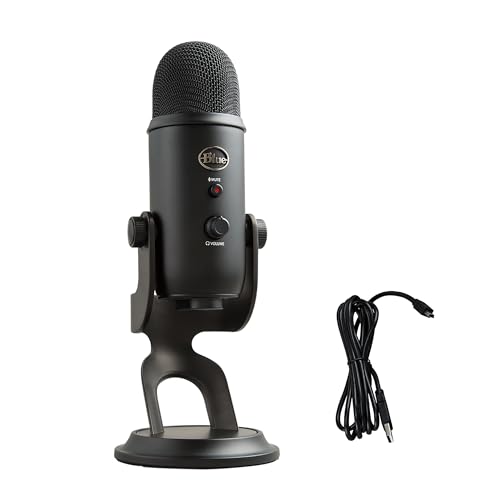
USB microphones like the Blue Yeti have a built-in headphone jack for zero-latency monitoring. If you’re using this feature and OBS Audio Monitoring is also enabled, you’re hearing yourself twice in your headphones, which can create confusion. Disable OBS monitoring and rely solely on the mic’s onboard monitoring.
For capture card users (Elgato HD60, AVerMedia, etc.): Open the card’s control software and check if “Analog Audio Input” or “Line In” is enabled. If your capture card is receiving audio from the gaming PC via HDMI and you’ve also connected a 3.5mm cable from your mixer to the card’s line input, you’re feeding your mic twice. Disable one of those inputs.
If you’re streaming from a laptop, disable the built-in laptop microphone in Windows Sound settings. OBS can accidentally add the laptop mic as a default device, and if you’re wearing headphones with a boom mic, you now have two active mics, one from the headset, one from the laptop, creating a delayed double signal. Go to Settings > Audio in OBS and make sure only your intended microphone is listed.
Advanced Solutions for Persistent Echo Problems
If you’ve tried every fix above and still hear echo, the issue is likely in your network stream path, virtual audio drivers, or software conflicts. Check for these advanced scenarios:
NDI Audio Desync: If you’re using NDI to route OBS audio between two PCs, audio can arrive out of sync or duplicated if both PCs are trying to send the mic feed. On the streaming PC, add a Sync Offset to the NDI source. Right-click the source > Properties > Audio Sync Offset. Add +100 ms to +300 ms and test until the echo disappears or realigns.
Multiple OBS Instances: Running both OBS Studio and Streamlabs OBS simultaneously? Both will try to capture your microphone. Close one. Running OBS on a virtual machine? Audio passthrough can duplicate signals, disable audio on the VM and handle all audio on the host OS.
VPN or Network Conflicts: Some VPNs (like NordVPN) or firewalls interfere with low-latency audio drivers, causing buffer overruns that manifest as echo or stuttering. Temporarily disable your VPN and test. If the echo disappears, add OBS to your VPN’s split tunneling whitelist.

Stay Private. Stay Secure.
Browse the internet with greater privacy and security with NordVPN. Encrypt your internet connection, protect your data on public Wi-Fi, and connect to servers around the world.
Get NordVPNOutdated Audio Drivers: Use Driver Booster or manually update your motherboard audio drivers, USB audio interface drivers, and capture card drivers from the manufacturer’s website. Legacy ASIO or WDM drivers can cause routing conflicts with OBS’s audio engine.
Physical Room Echo: If you’ve eliminated all digital causes, you’re dealing with room acoustics. Invest in a foam isolation shield like the Aokeo AO-505 to place behind your mic. Heavy curtains, carpets, and bookshelves absorb sound reflections better than bare walls and hard floors.
For the ultimate hardware workaround, consider a dedicated audio interface like the Focusrite Scarlett Solo (3rd Gen). Interfaces include hardware monitoring with mix control, allowing you to hear yourself without routing audio back through Windows or OBS, eliminating the most common echo pathways entirely.

Frequently Asked Questions
What causes microphone echo in OBS?
Microphone echo in OBS occurs when audio gets captured multiple times through different pathways: Audio Monitoring set to ‘Monitor and Output,’ Desktop Audio picking up monitored mic signals, duplicate mic sources, or hardware loopback from capture cards. Any misconfigured routing creates feedback loops that double your voice.
How do I fix audio monitoring to stop microphone echo?
Right-click your microphone in the OBS Audio Mixer, select Advanced Audio Properties, find the Audio Monitoring column, and change it from ‘Monitor and Output’ to ‘Monitor Off’ or ‘Monitor Only (mute output).’ This prevents monitored audio from bleeding into Desktop Audio, eliminating echo for most users.
Why is my Desktop Audio picking up my microphone?
Your Desktop Audio captures system playback, including monitored mic audio if Audio Monitoring is enabled. Virtual audio cables, Voicemeeter, Wave Link routing errors, or Windows ‘Listen to this device’ settings can route your microphone into system audio. Check OBS Audio Settings and Windows Sound Control Panel to isolate the source.
Can audio filters remove microphone echo in OBS?
Filters like Noise Suppression and Noise Gate can suppress echo but won’t eliminate routing problems. Filters manage what remains after fixing your signal chain. If echo persists with filters enabled, duplicate audio is hitting your stream from an unfiltered source like Desktop Audio or a duplicate mic input.
Should I use speakers or headphones to prevent echo while streaming?
Always use closed-back headphones instead of speakers when streaming. Speakers let your microphone pick up monitor playback, creating a classic feedback loop. Headphones isolate audio to your ears only. If using a USB mic’s onboard headphone monitoring, disable OBS Audio Monitoring to avoid hearing yourself twice.
How do I check for duplicate microphone sources in OBS?
Open OBS Audio Mixer and observe which channels light up when you speak. If your microphone appears twice (as ‘Mic/Aux’ and a Scene source), you’ve created a duplicate. Check OBS Audio Settings and your scene for accidentally added mic inputs. Remove duplicates to stop audio doubling immediately.
Read More:
- Microphone Echo (Here the Ultimate Guide to Fix the Issue)
- Microphone Echo in Recordings (Expert Fix Guide that Always Work)
- Microphone Echo But Headphones Are Fine (Fix Audio Bleed Fast)
- Microphone Echo Without Speakers Connected (Here’s How to Fix It Fast)
- Microphone Echo With Headphones (Quick & Simple DIY Fixes)

Susan is a professional writer. She has been a writer for eight years and has always been so fulfilled with her work! She desires to share helpful, reliable, and unbiased information and tips about tech and gadgets. She hopes to offer informative content that can answer users’ questions and help them fix their problems.