
Your browser shouldn’t bring your entire system to a standstill. If Chrome keeps freezing Windows 11 during video playback, tab switching, or even idle browsing, you’re dealing with a fixable conflict between Chrome’s resource management and Windows 11’s hardware scheduling features.
Chrome freezing on Windows 11 typically stems from incompatible hardware acceleration settings, outdated graphics drivers, corrupt browser cache, conflicting extensions, or Windows 11’s efficiency mode throttling Chrome’s CPU access. The chrome memory saver feature causing freezes and windows 11 hardware accelerated gpu scheduling chrome conflicts are common culprits behind chrome random lockup freezing windows 11 scenarios.
This guide walks you through proven system-level and browser tuning solutions to eliminate chrome keeps freezing windows 11 fix problems. You’ll adjust GPU scheduling, update display graphics driver windows 11 settings, disable efficiency mode chrome windows 11 configurations, and reset chrome settings default windows 11 parameters to restore smooth performance.

Key Takeaways
- Chrome freezing on Windows 11 typically results from hardware acceleration conflicts, outdated graphics drivers, corrupt browser cache, or Windows 11’s efficiency mode throttling CPU access, all of which are fixable through targeted troubleshooting.
- Start with quick fixes like restarting Chrome completely, disabling problematic extensions (especially ad blockers and VPNs), and clearing cached images and files to eliminate memory leaks and rendering pipeline failures.
- Disable hardware acceleration in Chrome settings and turn off Windows 11’s Hardware-Accelerated GPU Scheduling (HAGS) in Display settings to resolve timing conflicts between Chrome’s GPU process and Windows 11’s resource management.
- Update Chrome to version 120 or newer, install the latest graphics drivers from your GPU manufacturer, and apply all Windows 11 updates (especially KB5034848 and newer) to ensure proper browser stability and compositor compatibility.
- If standard troubleshooting fails, reset Chrome flags to default, create a new Chrome profile, or perform a clean reinstall of Chrome with administrator privileges to eliminate persistent configuration corruption.
- Consider switching to Microsoft Edge or Firefox if freezing persists after 48 hours of troubleshooting, and verify you have at least 8GB of RAM for stable Windows 11 operation with multiple browser tabs open.
Why Does Chrome Keep Freezing on Windows 11?
Chrome’s aggressive pre-rendering and hardware acceleration features clash with Windows 11’s dynamic refresh rate management and GPU scheduling. When Chrome requests GPU resources while Windows 11 reallocates them through efficiency mode or HAGS, you experience chrome screen tearing freeze windows 11 events.
The chrome dynamic refresh rate windows 11 freeze issue intensifies on laptops with variable refresh displays. Chrome attempts to match frame pacing while Windows 11 adjusts power profiles, creating timing conflicts that manifest as temporary UI locks.
Backdrop apps also contribute. The chrome background app refresh windows 11 mechanism keeps processes alive even when you minimize tabs, consuming memory and creating chrome high cpu disk usage windows 11 spikes that trigger system-wide stuttering.
Common Symptoms of Chrome Freezing Issues
You’ll notice your cursor moves but Chrome windows refuse input for 3-15 seconds. Task Manager shows Chrome consuming 40-60% CPU during these freezes. Audio continues playing while video frames lock, indicating a rendering pipeline failure rather than network issues.
Other symptoms include delayed tab switching, scrolling that stutters every 2-3 seconds, and complete system unresponsiveness requiring Ctrl+Alt+Delete. These patterns point to driver conflicts or memory allocation failures between Chrome and Windows 11’s resource scheduler.
“Chrome became completely unresponsive on my new Windows 11 laptop every time I opened more than 5 tabs. Turning off hardware acceleration in Chrome settings fixed it instantly.” via r/chrome
Task Manager may also reveal Chrome helper processes consuming excessive disk I/O, causing system-wide lag that affects other applications beyond the browser itself.
Quick Fixes: Restart Chrome
Close all Chrome windows completely. Open Task Manager (Ctrl+Shift+Esc) and verify no Chrome processes remain under the “Processes” tab. If background processes persist, right-click each and select “End task.”
Relaunch Chrome and test with a single tab. If freezing stops, you’ve confirmed a memory leak or extension conflict. If freezes continue immediately, the issue lies in Chrome’s configuration files or Windows 11 driver interactions.
For temporary data cleanup, press Shift+Esc inside Chrome to open Chrome’s Task Manager. Identify processes consuming over 300MB memory or 30% CPU, then click “End process” to free resources without closing the entire browser.
This quick diagnostic separates transient memory issues from persistent configuration problems. If rebooting Chrome solves freezes for hours before they return, focus on extension management and cache clearing in subsequent steps.
Disable Problematic Chrome Extensions
Type chrome://extensions in the address bar. Toggle off all extensions, then restart Chrome. If freezing stops, re-enable extensions one at a time, restarting Chrome after each to identify the culprit.
Ad blockers and VPN extensions like NordVPN (when poorly optimized) frequently cause chrome random lockup freezing windows 11 by intercepting every network request. Video downloaders and Pinterest-style visual tools also inject rendering hooks that conflict with Windows 11’s compositor.

Stay Private. Stay Secure.
Browse the internet with greater privacy and security with NordVPN. Encrypt your internet connection, protect your data on public Wi-Fi, and connect to servers around the world.
Get NordVPNTop Extension Conflicts:
- Ad blockers with aggressive element hiding
- Screenshot tools hooking into Chrome’s rendering pipeline
- Password managers with autofill on every page load
- Tab suspenders that interfere with Chrome’s native memory management
- Coupon finders scanning every e-commerce site
Once you isolate the problematic extension, check its Chrome Web Store page for update notes. Many developers release Windows 11-specific compatibility patches. If no update exists, seek alternatives with better Windows 11 optimization.
Clear Chrome Cache Data
Press Ctrl+Shift+Delete to open Chrome’s clear browsing data panel. Select “All time” from the time range dropdown. Check “Cached images and files” and “Cookies and other site data,” then click “Clear data.”
Corrupt cache entries force Chrome to repeatedly request resources, creating chrome high cpu disk usage windows 11 loops. Windows 11’s Storage Sense feature can fragment Chrome’s cache folder on SSDs, causing read delays that manifest as UI freezes.
After clearing, visit chrome://settings/cookies and add exceptions for sites requiring persistent logins. This prevents re-authentication hassles while eliminating corrupted session data that triggers rendering stalls.
For deeper cleanup, close Chrome and navigate to %LocalAppData%\Google\Chrome\User Data\Default in File Explorer. Delete the “Cache” folder manually. This nuclear option removes shader caches and compiled code that Windows 11’s antivirus might have quarantined, causing Chrome to freeze during recompilation attempts.
Update Chrome to Latest
Navigate to chrome://settings/help and Chrome automatically checks for updates. Windows 11 users should run Chrome version 120 or newer for proper compatibility with Windows 11 23H2’s updated compositor and DWM (Desktop Window Manager) changes.
Chrome’s update mechanism sometimes fails silently on Windows 11 when efficiency mode throttles the update service. Open Task Manager, find “Google Update,” right-click, and select “End task.” Then retry the update check in Chrome.
If Chrome reports “Update failed (error: 3)” or similar, download the standalone Chrome installer and run it to force a clean update. This bypasses Windows 11’s app execution aliases that sometimes block Chrome’s self-updater.
Post-update, verify the version number matches Google’s latest stable release. Outdated Chrome versions lack fixes for windows 11 hardware accelerated gpu scheduling chrome conflicts introduced in recent Windows updates.
Adjust Hardware Acceleration Settings
Open chrome://settings/system and toggle off “Use hardware acceleration when available.” Restart Chrome completely. This disables GPU-accelerated rendering, forcing Chrome to use CPU-based software rendering instead.
Windows 11’s HAGS (Hardware-Accelerated GPU Scheduling) creates timing conflicts with Chrome’s GPU process. When both Windows 11 and Chrome compete for GPU command queue access, you get chrome screen tearing freeze windows 11 symptoms and delayed frame presentation.
To adjust HAGS, press Win+I for Settings, navigate to System > Display > Graphics > Change default graphics settings, then toggle “Hardware-accelerated GPU scheduling” off. Restart Windows 11 completely.
Hardware Acceleration Impact Comparison:
| Configuration | Performance | Stability | Best For |
|---|---|---|---|
| Both enabled | Highest FPS | Frequent freezes | High-end discrete GPUs |
| Chrome off, Windows on | Moderate FPS | Moderate stability | Integrated Intel/AMD GPUs |
| Both disabled | Lower FPS | Maximum stability | Troubleshooting/testing |
| Chrome on, Windows off | Variable FPS | Good stability | Recommended for most users |
After adjusting, test Chrome with demanding sites like YouTube 4K videos or WebGL demos to verify freeze elimination without unacceptable performance loss.
Reset Chrome Flags Settings
Type chrome://flags and click “Reset all” at the top-right. Experimental flags often enable features incompatible with Windows 11’s display stack, causing chrome dynamic refresh rate windows 11 freeze issues.
Specific flags to verify are disabled:
#enable-vulkan#enable-parallel-downloading#smooth-scrolling#enable-gpu-rasterization
These features bypass Windows 11’s compositor assumptions, creating race conditions during tab rendering. Parallel downloading fragments network buffers in ways that Windows 11’s network stack can’t efficiently reassemble, causing temporary locks while Chrome waits for packet reordering.
After resetting flags, restart Chrome twice. The first restart applies the reset: the second ensures Chrome rebuilds its command-line cache without residual flag state.
“I had enabled some chrome://flags for faster page loads and it completely broke Chrome on Windows 11. Resetting flags to default solved all my freezing problems.” via r/browsers
Check Windows 11 Updates
Press Win+I, navigate to Windows Update, and click “Check for updates.” Windows 11 KB5034848 and newer include critical compositor fixes for third-party browser stability. Missing updates leave Chrome vulnerable to known DWM interaction bugs.
Windows 11’s cumulative updates often bundle graphics driver firmware that resolves chrome screen tearing freeze windows 11 issues without manual driver installation. Always install optional driver updates shown in Windows Update’s “Advanced options > Optional updates” section.
If updates fail with error 0x80070002, run windows 11 system file checker chrome freeze via Command Prompt (Admin): sfc /scannow. Corrupt system files prevent Windows Update from completing, leaving Chrome without necessary OS-level rendering patches.
Update Graphics Drivers
Open Device Manager (Win+X > Device Manager), expand “Display adapters,” right-click your GPU, and select “Update driver > Search automatically for drivers.” For NVIDIA users, download drivers directly from NVIDIA’s driver page. AMD users should visit AMD’s support site.
Intel integrated GPU users often overlook updates. Visit Intel’s driver download center and install the latest Intel Graphics Command Center, which provides automatic driver updates and windows 11 hardware accelerated gpu scheduling chrome compatibility profiles.
Outdated display drivers lack Windows 11’s WDDM 3.0 support, causing Chrome to fall back to legacy rendering paths that freeze during tab switching or video decode operations. Always update display graphics driver windows 11 components before adjusting Chrome settings.
For automated driver management, consider Driver Booster, which scans for outdated drivers and installs Windows 11-compatible versions automatically, eliminating manual tracking of GPU firmware releases.
Scan for Malware Software
Press Win+I, go to Privacy & security > Windows Security > Virus & threat protection, then click “Quick scan.” Crypto miners and adware inject into Chrome processes, causing chrome high cpu disk usage windows 11 spikes that manifest as freezing.
For deeper scanning, download Malwarebytes and run a full system scan. Browser hijackers modify Chrome’s startup parameters and preferences file, creating persistent configuration conflicts that survive cache clearing and extension removal.
After malware removal, navigate to %LocalAppData%\Google\Chrome\User Data and delete the “Local State” file while Chrome is closed. This forces Chrome to rebuild its process architecture without malware-injected command switches.
VPN users should verify their VPN client isn’t flagged as a PUP (Potentially Unwanted Program). Use reputable services like NordVPN that maintain Windows 11 compatibility certifications and don’t inject network filter drivers that conflict with Chrome’s socket pooling.
Create New Chrome Profile
Click your profile icon in Chrome’s top-right corner, then select “Add” to create a new profile. Launch Chrome with this fresh profile and test for freezing. Corrupt user profiles accumulate registry-like settings that Windows 11’s file system can’t efficiently index.
If the new profile runs smoothly, your original profile’s preference files contain corruption. To migrate bookmarks, open chrome://settings/syncSetup in the old profile, enable sync, then sign into the same Google account in the new profile to download bookmarks and passwords.
Manually copy extensions by noting their IDs from chrome://extensions, then reinstalling from the Chrome Web Store in the new profile. Avoid copying the “Default” profile folder directly, as this transfers the corruption.
For users managing multiple profiles, Windows 11’s efficiency mode may throttle background profile processes. Open Task Manager, find Chrome processes for inactive profiles, right-click, and select “Efficiency mode” to toggle it off, preventing disable efficiency mode chrome windows 11 throttling that causes delayed tab loads.
Reset or Reinstall Chrome
Open chrome://settings/reset and click “Restore settings to their original defaults.” This clears startup pages, search engines, and pinned tabs while preserving bookmarks and passwords, a critical reset chrome settings default windows 11 procedure.
If freezing persists, uninstall Chrome via Settings > Apps > Installed apps. Delete %LocalAppData%\Google\Chrome and %AppData%\Google\Chrome folders manually to remove residual configuration files that standard uninstallation leaves behind.
Download the latest Chrome installer and run it with administrator privileges. Windows 11’s User Account Control sometimes blocks Chrome’s installer from writing necessary registry keys, causing incomplete installations that freeze unpredictably.
After reinstalling, disable Windows 11’s Memory Integrity feature temporarily (Windows Security > Device security > Core isolation > Memory integrity) to test if it conflicts with Chrome’s code signing certificates. Some Windows 11 builds reject Chrome’s updated certificates, causing validation loops that manifest as freezing.
When to Switch Browsers
If all chrome keeps freezing windows 11 fix attempts fail after 48 hours of troubleshooting, test Microsoft Edge (built on Chromium) or Firefox. Edge integrates deeper with Windows 11’s power management, avoiding efficiency mode conflicts that plague Chrome.
Hardware workarounds include upgrading RAM, Chrome requires 8GB minimum for stable Windows 11 operation with 10+ tabs. Consider the Crucial 16GB DDR4 RAM kit to eliminate memory pressure that Windows 11’s aggressive paging can’t resolve.

For persistent display issues, an external monitor bypasses laptop-integrated GPU conflicts. The ASUS VA24EHE monitor offers stable 75Hz refresh that avoids chrome dynamic refresh rate windows 11 freeze scenarios common on variable refresh rate laptop panels.
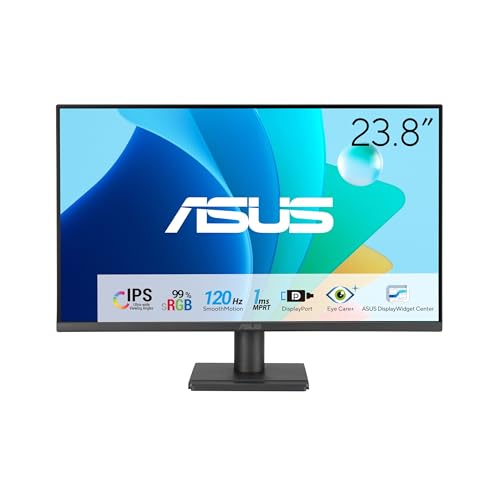
Contact Chrome support if freezing coincides with specific Windows 11 builds (check winver output). Report your Windows 11 version, Chrome version, and GPU model for targeted troubleshooting from Chrome’s compatibility team.
Frequently Asked Questions
What causes Chrome to keep freezing on Windows 11?
Chrome freezes on Windows 11 due to incompatible hardware acceleration settings, outdated graphics drivers, corrupt browser cache, conflicting extensions, or Windows 11’s efficiency mode throttling Chrome’s CPU access. GPU scheduling conflicts between Chrome and Windows 11 HAGS frequently trigger temporary UI locks during video playback or tab switching.
How do I fix Chrome freezing on Windows 11?
Start by disabling Chrome extensions, clearing cached data (Ctrl+Shift+Delete), and updating graphics drivers. Disable hardware acceleration in Chrome settings and turn off Windows 11’s hardware-accelerated GPU scheduling in Display settings. Update Chrome to version 120+, reset Chrome flags, and install Windows 11 updates including KB5034848 for compositor fixes.
Should I disable hardware acceleration in Chrome on Windows 11?
Yes, disabling hardware acceleration often resolves freezing conflicts with Windows 11’s HAGS. Go to chrome://settings/system and toggle off “Use hardware acceleration when available.” This forces CPU-based rendering instead, providing maximum stability at the cost of slightly lower performance during video playback and graphics-heavy tasks.
Can malware cause Chrome to freeze on Windows 11?
Yes, crypto miners and adware inject into Chrome processes, causing excessive CPU usage and disk I/O that manifest as freezing. Run Windows Security Quick Scan or Malwarebytes for deep detection. After removal, delete the Local State file in %LocalAppData%\Google\Chrome\User Data to force Chrome to rebuild without malware-injected command switches.
Why does clearing Chrome cache help prevent freezing?
Corrupt cache entries force Chrome to repeatedly request resources, creating CPU and disk usage loops. Windows 11’s Storage Sense can fragment cache on SSDs, causing read delays that manifest as UI freezes. Clearing browsing data (cached images, files, and cookies) eliminates corrupted session data triggering rendering stalls.
When should I consider switching from Chrome on Windows 11?
If troubleshooting fails after 48 hours, test Microsoft Edge or Firefox. Edge integrates deeper with Windows 11’s power management, avoiding efficiency mode conflicts. Upgrading RAM to 8GB minimum and installing the latest graphics drivers from NVIDIA, AMD, or Intel official sites also resolves many Chrome freezing issues on Windows 11.
Read More:
- Chrome Crashes on Startup (Causes and Quick Fixes Explained)
- Chrome Crashes When Opening a New Tab (Simple Fixes That Work)
- Chrome Keeps Crashing Windows 11 (Why and How to Fix It Fast)
- Chrome Keeps Freezing (Here’s the Expert Fixes to Stop Browser Lag)
- Chrome Crashes When Opening (Causes and Quick Fixes Explained)

Susan is a professional writer. She has been a writer for eight years and has always been so fulfilled with her work! She desires to share helpful, reliable, and unbiased information and tips about tech and gadgets. She hopes to offer informative content that can answer users’ questions and help them fix their problems.