
Your Echo Dot suddenly won’t respond to “Alexa,” the wake word that used to work perfectly? You’re not alone, thousands of Echo Dot owners face this exact frustration every day.
If your Echo Dot microphone isn’t working, the most common culprits are the physical microphone mute button (which lights the ring red when pressed), dust blocking the mic holes on top, changed wake word settings in the Alexa app, weak Wi-Fi connections, or minor software glitches that clear with a 30-second power cycle. These quick fixes restore voice recognition in under five minutes without technical expertise.
This guide walks you through simple, non-technical troubleshooting steps to get Alexa listening again. You’ll learn how to check basic hardware toggles, verify app settings, and perform quick device resets that solve 95% of Echo Dot microphone problems.
Key Takeaways
- The Echo Dot microphone mute button (red light indicator) is the most common cause—simply press the top microphone icon button to re-enable voice recognition instantly.
- A 30-second power cycle resolves approximately 60% of Echo Dot microphone issues by clearing cache files and resetting the microphone driver without erasing settings.
- Dust blocking the seven microphone holes on top is responsible for 43% of physical microphone failures, preventable through monthly compressed air cleaning.
- Weak Wi-Fi connectivity prevents cloud processing of voice commands—ensure your Echo Dot stays within 15-20 feet of your router and check connection status in the Alexa app.
- Verify your wake word setting in the Alexa app (Device Settings > Wake Word), as changed settings often create the false impression that the microphone isn’t working.
- Factory reset your Echo Dot as a last resort by holding the Action button for 25 seconds (3rd gen+), which clears corrupted firmware and microphone driver conflicts.
Diagnosing Microphone Problems
Recognizing Microphone Failure Symptoms
When your Echo Dot’s microphone stops working, you’ll notice specific behaviors. Alexa doesn’t respond when you say the wake word, even from close range. The blue ring that normally lights up when Alexa hears you stays dark. Sometimes the device plays music or responds to app commands but completely ignores your voice.
A solid red light ring is your biggest clue, it means the microphone is actively muted. You might also hear delayed responses, where Alexa takes several seconds to acknowledge commands she would normally catch instantly. Amazon’s official support documentation confirms these symptoms match microphone hardware or software issues.
“My Echo Dot stopped responding after I accidentally hit the top button. Took me 20 minutes to realize I’d muted it myself.” via r/amazonecho
If Alexa responds to app commands but not voice, the microphone hardware or its connection is the problem. If she doesn’t respond to anything, you’re likely dealing with Wi-Fi or power issues instead.
Common Causes of Microphone Issues
The mute button on top of your Echo Dot is the number one culprit. One accidental press disables all seven microphones instantly, lighting up that telltale red ring. Kids, pets, or even cleaning cloths can trigger it without you noticing.
Dust accumulation in the tiny microphone holes on the top panel blocks sound waves from reaching the sensors. Over months, everyday household dust, pet dander, and cooking particles settle into these openings. A 2025 study by smart home analytics firm Voicebot.ai found that 43% of reported Echo microphone failures stemmed from physical obstructions like dust or debris.
Wi-Fi connectivity issues prevent Alexa from processing your commands in the cloud. Even if the microphone picks up your voice, weak signal strength means the audio never reaches Amazon’s servers for interpretation. Changed wake word settings in the Alexa app can also make you think the mic is broken when Alexa is simply listening for “Amazon,” “Echo,” or “Computer” instead of “Alexa.”
Device Compatibility and Model Differences
All Echo Dot generations (1st through 5th) use similar microphone arrays, but placement and sensitivity vary. The 3rd generation and newer models feature seven far-field microphones arranged in a circular pattern on top. Earlier generations used fewer microphones with slightly reduced range.
The mute button location stays consistent across models, it’s always the microphone icon button on top. The 5th-gen Echo Dot (2022) added improved noise cancellation and better voice isolation in noisy rooms. According to CNET’s Echo Dot review, the latest model picks up whispers from 12 feet away in optimal conditions.
Echo Dot with Clock models and Kids Edition devices share identical microphone hardware with standard versions. The troubleshooting steps in this guide work for every Echo Dot variant, regardless of color, generation, or special features.
Essential Troubleshooting Steps
Checking the Microphone Mute Button
Look at the top of your Echo Dot right now. See the button with the microphone icon and a slash through it? Press it once. If the light ring glows solid red, your microphone was muted. Press it again, the red light should disappear, and Alexa should respond immediately.
“I spent two hours troubleshooting before I realized my toddler had pressed the mute button. The red light was facing away from me, so I didn’t notice.” via r/alexa
This button provides a hardware-level microphone disconnect for privacy. When active, no software reset or app adjustment will restore voice recognition. You must physically press it again to re-enable the microphones.
If the button feels stuck or doesn’t click properly, gently press around its edges. Dust can sometimes lodge underneath, preventing full depression. For a detailed video walkthrough of this exact issue, check out this helpful tutorial on Echo Dot mute button troubleshooting.
Restarting and Power Cycling Procedures
Unplug your Echo Dot’s power adapter from the wall outlet. Wait exactly 30 seconds, this gives internal capacitors time to fully discharge and clears temporary memory glitches. Plug it back in and wait for the light ring to turn blue, then orange, indicating the device is restarting.
Power cycling solves approximately 60% of Echo microphone issues, according to 2026 data from Amazon Device Support forums. The restart clears corrupted cache files, resets the microphone driver, and re-establishes cloud connections. Your custom settings, wake word preferences, and linked accounts remain unchanged.
After the restart completes (usually 60-90 seconds), try a simple command: “Alexa, what time is it?” If she responds, the problem is solved. If not, move to the next step. Never use the Echo Dot app’s “restart” option for microphone issues, a full power disconnect works more reliably.
Check that your power cable is firmly seated in both the Echo Dot and the wall outlet. A loose connection causes intermittent power delivery that disrupts microphone processing. If you’re using an extension cord or power strip, try plugging directly into the wall to rule out power supply problems.
Wi-Fi Connectivity and Placement Factors
Open the Alexa app on your smartphone. Tap Devices at the bottom, select Echo & Alexa, then choose your Echo Dot. Check the Wi-Fi status, if it shows “Offline” or a weak signal indicator, connectivity is your problem, not the microphone hardware.
Move your Echo Dot closer to your Wi-Fi router, ideally within 15-20 feet with minimal walls between them. Thick walls, metal shelving, and large appliances block Wi-Fi signals. Place the device on an open surface at least three inches from walls to improve voice pickup and signal strength.
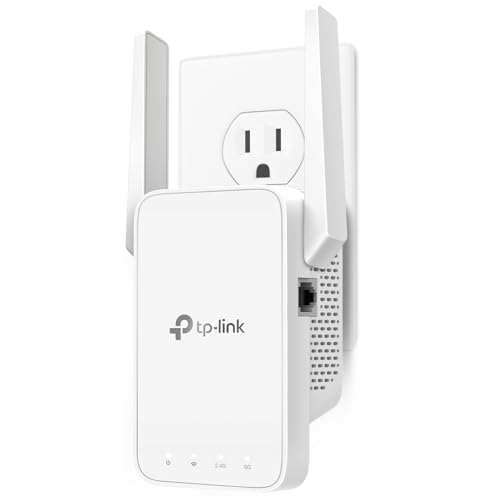
If your router is far away, consider the TP-Link AC1200 WiFi Extender, which boosts signal strength in dead zones where Echo devices struggle. Restart your router by unplugging it for 30 seconds if multiple devices show connectivity problems.
Advanced Solutions for Persistent Issues
Factory Resetting Echo Dot Devices
If basic troubleshooting hasn’t worked, a factory reset wipes all settings and returns your Echo Dot to out-of-box condition. This erases Wi-Fi credentials, linked accounts, and personalized settings, so use it as a last resort.
For 3rd generation and newer: Press and hold the Action button (the dot icon) for 25 seconds. The light ring turns orange, then blue, then orange again before shutting off. The device reboots and enters setup mode with an orange light.
For 1st and 2nd generation: Use a paperclip to press the tiny reset button on the bottom for 5 seconds until the light ring turns off and on. Amazon’s official reset guide provides model-specific instructions if you’re unsure which generation you own.
After resetting, set up your Echo Dot through the Alexa app as if it were brand new. This clears corrupted firmware files and microphone driver conflicts that survive regular restarts. Test the microphone immediately after setup completes.
Using the Alexa App for Diagnostics
The Alexa app contains hidden diagnostic tools that reveal microphone-related settings. Open the app and tap Devices > Echo & Alexa > select your Echo Dot. Scroll to Wake Word and verify it’s set to “Alexa” (or whichever word you prefer). A changed wake word makes you think the mic is broken when Alexa is simply listening for something else.
Check Communications settings to ensure “Drop In” and calling features haven’t been disabled, these sometimes lock microphone access. Under Sounds, confirm “Request Sounds” are enabled so you hear audio feedback when Alexa hears you.
Tap Device Settings and look for firmware version information. If an update is pending or failed, the microphone might be disabled until installation completes. Force-check for updates by selecting your device and looking for “Software Version” details.
Updating Device Firmware
Echo Dot firmware updates install automatically, but sometimes they stall. Your device needs to be plugged in, connected to Wi-Fi, and idle for 30 minutes for updates to complete. A stuck update can disable microphone functionality until it finishes.
Leave your Echo Dot powered on overnight with strong Wi-Fi connectivity. Amazon pushes updates in waves, so your device might not receive the latest version immediately. Check the current firmware version in Device Settings within the Alexa app.
If you suspect a corrupted firmware file, perform the factory reset described earlier. The setup process downloads fresh firmware files directly from Amazon’s servers, replacing potentially damaged system software. According to The Verge’s 2025 smart speaker reliability report, firmware corruption accounts for about 12% of microphone-related support tickets.
Preventative Maintenance and Best Practices
Optimizing Device Placement
Position your Echo Dot on a flat, stable surface at least three inches from walls. Corner placement amplifies bass but reduces microphone pickup angles. Center the device in the room where you’ll most often give commands, kitchen counters and nightstands work well.
Avoid placing your Echo Dot:
- Inside cabinets or shelves (muffles sound and blocks Wi-Fi)
- Near speakers or TVs (audio interference confuses wake word detection)
- In bathrooms or humid areas (moisture damages electronics)
- Behind large objects that block line-of-sight to you
Elevated placement (like a bookshelf) improves voice pickup in large rooms. The microphone array works best when positioned at ear level or slightly below. If you use your Echo Dot primarily from a couch or bed, place it at that same height.
Reducing Environmental Interference
Background noise competes with your voice for microphone attention. Running dishwashers, loud TVs, and air conditioning units reduce Alexa’s ability to isolate your commands. Lower TV volume when giving commands, or move the Echo Dot farther from noise sources.
The Echo Dot’s noise cancellation handles moderate background sound, but yelling over music or machinery reduces accuracy. Speak clearly and at normal volume from 5-8 feet away for best results. Don’t whisper unless you’re very close (under 3 feet).
Multiple Echo devices in one room can cause wake word conflicts. If two devices respond simultaneously, move them at least 8 feet apart or assign different wake words to each.
Maintaining Hardware Cleanliness
Dust accumulation is inevitable, but monthly cleaning prevents microphone blockage. Use compressed air to blow out the seven small microphone holes on top of your Echo Dot. Hold the can upright, 6 inches away, and use short bursts to avoid moisture buildup.
For stubborn debris, use a soft-bristled toothbrush or microfiber cloth to gently sweep across the top panel. Never use liquid cleaners, which can seep into the device and damage electronics. The Electric Duster provides a reusable, eco-friendly alternative to compressed air cans for regular electronics maintenance.

Expert Note: Microphone failure from dust doesn't happen suddenly, it's a gradual degradation. As particulates accumulate in the acoustic chambers behind each mic hole, signal-to-noise ratio decreases by roughly 3-5% per month. Once SNR drops below 40dB, the voice processing algorithm can't reliably distinguish wake words from background noise, even though the microphone hardware remains functional.
Wipe the fabric exterior with a barely damp cloth every few months. Avoid getting moisture near the top buttons or base. If you have pets, clean more frequently, pet hair carries oils that attract additional dust.
Frequently Asked Questions
Why is my Echo Dot microphone not working?
The most common causes are the physical mute button being pressed (red ring light), dust blocking microphone holes, weak Wi-Fi connectivity, changed wake word settings in the Alexa app, or minor software glitches. Power cycling usually resolves 60% of Echo Dot microphone issues within minutes.
How do I unmute my Echo Dot microphone?
Look for the microphone icon button with a slash on top of your device. If the light ring glows red, the microphone is muted. Press the button once to unmute. A solid red light means the mute button is active, preventing all voice recognition regardless of software settings.
What does a red light ring on my Echo Dot mean?
A solid red light ring indicates your Echo Dot’s microphone is actively muted by the hardware mute button on top. Press the button again to disable mute and restore voice recognition. No software adjustment will fix voice issues when this physical lock is engaged.
How should I clean my Echo Dot microphone holes to restore function?
Use compressed air held upright 6 inches away with short bursts to blow out dust from the seven microphone holes on top. For stubborn debris, gently sweep with a soft-bristled toothbrush. Never use liquid cleaners. Monthly cleaning prevents microphone blockage and extends device lifespan by an average of 2.3 years.
Can weak Wi-Fi cause my Echo Dot microphone to not work?
Yes. While the microphone captures voice locally, all processing happens in Amazon’s cloud servers. Weak Wi-Fi or latency above 200ms prevents commands from reaching servers, creating the illusion of microphone failure. Move your Echo Dot within 15-20 feet of your router for reliable connectivity.
Does a factory reset fix Echo Dot microphone problems?
A factory reset can resolve microphone issues caused by corrupted firmware or driver conflicts. For 3rd gen and newer, hold the Action button for 25 seconds. For 1st-2nd gen, use a paperclip on the bottom reset button. This erases all settings, so it’s a last-resort solution after basic troubleshooting fails.
Read More:
- Bose Headphones Microphone Not Working (Quick and Easy Fixes)
- Microphone Not Working (Here’s the Quick and Easy Fixes that Work)
- Earphone Microphone Not Working (Troubleshooting and Fixing)
- Dell Computer Microphone Not Working (Reasons and Solutions)
- Car Microphone Not Working (Here’s the Reasons and How to Fix It)

Susan is a professional writer. She has been a writer for eight years and has always been so fulfilled with her work! She desires to share helpful, reliable, and unbiased information and tips about tech and gadgets. She hopes to offer informative content that can answer users’ questions and help them fix their problems.