
You’re about to jump on a call, and suddenly your mic is dead silent. No one can hear you, and panic sets in. It’s frustrating, but you’re not alone.
Most microphone problems stem from simple software settings, muted inputs, disabled permissions, or the wrong device selected as your default microphone. A quick check of your system sound settings, app permissions, and physical connections usually solves the issue in minutes without needing technical expertise or professional help.
This guide walks you through the most common fixes for Windows, Mac, iOS, and Android devices. We’ll cover permission toggles, default device selection, volume adjustments, and quick troubleshooting steps. By the end, you’ll know exactly which settings to check and how to get your voice back online fast.
Key Takeaways
- Most microphone not working issues stem from simple software settings, disabled app permissions, or the wrong input device selected as your default, not hardware failure.
- Check system sound settings across Windows, Mac, iOS, and Android to verify the correct microphone is set as your default input device before troubleshooting further.
- Grant explicit microphone access in your operating system’s privacy settings and confirm individual apps like Zoom, Discord, and Teams have permission to use your mic.
- Test microphone volume in your device properties, position external mics about six inches from your mouth, and use built-in troubleshooters or Device Manager to detect driver issues.
- Update or reinstall audio drivers from your laptop or motherboard manufacturer’s support page, as outdated drivers account for approximately 35 percent of microphone-related problems.
- If your microphone not working persists across troubleshooting, test the device on a different computer to determine if the issue is hardware-related or specific to your original machine.
Understanding Why Microphones Fail
Common Causes of Microphone Issues
Microphones stop working for a handful of predictable reasons. Apps often need explicit permission to access your mic, and operating systems default to blocking that access for privacy. Windows 11, macOS, iOS, and Android all require you to grant microphone permissions per app. If you skipped that step during setup, the app simply can’t hear you.
Physical mute switches on headsets or laptops are another silent culprit. Many USB headsets include inline mute buttons, and some laptops have dedicated function keys (like F4 or F6) that toggle the internal mic on and off. A quick glance at your hardware can save you minutes of software troubleshooting.
Driver conflicts or outdated audio drivers occasionally interfere with microphone detection. Windows Update sometimes rolls out generic audio drivers that don’t fully support your specific hardware. Meanwhile, macOS and mobile platforms handle driver updates automatically, so those issues are less frequent but not impossible.
Physical Connection and Hardware Checks
Before diving into software, inspect your physical setup. If you’re using an external microphone or headset, unplug it and plug it back in. Try a different USB port or audio jack. Loose connections or bent pins can silently disable your input.
Check for physical mute switches on your headset cable or earbuds. Some models have tiny sliding switches that are easy to bump. Also, verify that your laptop’s built-in mic isn’t covered by a case or blocked by debris. Dust and grime in the microphone grille can muffle sound to the point where it seems broken.
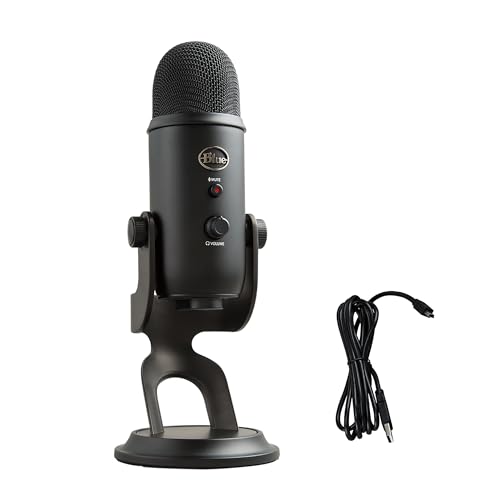
If you’re troubleshooting a USB condenser microphone, confirm that any gain knobs or mute LEDs are set correctly. Many podcast mics include hardware controls that override software settings entirely.
Input Devices and Device Selection
Your operating system can see multiple microphones at once: the built-in laptop mic, a webcam mic, a headset mic, and perhaps a desktop USB mic. If the wrong device is selected as your default input, apps will record from the silent one. This is the most common reason external mics “don’t work” even though they’re plugged in and powered.
Open your system sound settings and scan the list of available input devices. You’ll often see entries like “Microphone Array,” “Realtek Audio,” “USB Audio Device,” or brand names like “Blue Yeti” or “HyperX.” Click or tap the one you actually want to use, then set it as the default. Restart your app, and test again.
If an external mic isn’t appearing in the list at all, try a different USB port or cable. Some USB hubs don’t supply enough power for condenser mics, so plugging directly into your computer can fix detection issues instantly.
Checking Permissions and Access Settings
Ensuring Microphone Access Is Enabled
Modern operating systems treat microphone access like a vault. Apps need your explicit permission to listen. On Windows 11, open Settings → Privacy & Security → Microphone. Toggle “Microphone access” to On. If it’s already on, scroll down and confirm that individual apps like Zoom, Discord, or Chrome are also toggled on.
Mac users should navigate to System Settings → Privacy & Security → Microphone. You’ll see a list of apps that have requested access. Check the box next to each app you want to grant permission. If an app isn’t listed, it hasn’t asked yet: launch the app and trigger a mic request to see it appear.
iOS and iPadOS users can check Settings → Privacy → Microphone. Android users should open Settings → Apps → Permissions → Microphone, then review which apps are allowed. If your video-call app is set to “Deny,” it can’t hear you no matter how loud you speak.
“I spent 20 minutes troubleshooting my mic in Teams, only to realize Windows had blocked all apps from accessing it. One toggle fixed everything.” via r/Windows11
Adjusting App-Specific Permissions
Even when system-wide permissions are enabled, individual apps can have their own internal mute or permission states. Open Zoom, click your profile icon, and go to Settings → Audio. Check that the correct microphone is selected in the dropdown and that the input volume slider isn’t set to zero.
In Discord, click the gear icon next to your username, select Voice & Video, and confirm your Input Device matches your hardware. Discord also includes a handy “Let’s Check” mic-test button that plays back your voice in real time. Use it to verify you’re audible before joining a server.
Browser-based apps like Google Meet or Microsoft Teams request microphone access via a browser pop-up. If you accidentally clicked “Block,” the app can’t override that choice. In Chrome, click the padlock icon in the address bar, select Site settings, and set Microphone to “Allow.” Firefox and Edge have similar controls in their site-permission menus.
Letting Apps Access Your Microphone
Sometimes permissions get reset after a major OS update or app reinstall. If your mic was working yesterday and isn’t today, revisit your privacy settings. Windows occasionally reverts microphone access to “Off” after feature updates, especially if you defer updates for months.
Mobile apps often ask for microphone permission the first time you tap a voice or video button. If you denied it initially, you won’t see the prompt again. Instead, jump into your phone’s app-permission settings and manually enable the microphone for that app. A quick app restart usually picks up the new permission immediately.
For macOS users running older versions of Catalina or Big Sur, some legacy apps don’t trigger the modern permission dialog. You might need to drag the app into the Microphone list manually or update the app to a version that’s compatible with Apple’s privacy framework.
Configuring Windows Sound and Recording Options
Setting Default Recording Devices
Right-click the speaker icon in your Windows taskbar and select Sound settings. Scroll to Input and use the dropdown to choose your preferred microphone. If you don’t see your external mic, click “More sound settings” to open the classic Sound control panel, then switch to the Recording tab. Right-click your device and select “Set as Default Device.”
Some USB microphones appear as both a playback and recording device. Make sure you’re setting the recording device, not the speaker output. If the mic is grayed out or shows “Not plugged in,” unplug it, wait five seconds, and plug it back in. Windows should re-detect it and mark it as “Ready.”
Once you’ve set the default, test it immediately. Speak into the mic and watch the green volume bars next to the device name. If the bars dance, Windows is receiving audio. If they stay flat, the mic is either muted in hardware or blocked by permissions.
Testing and Adjusting Microphone Volume
Open Sound settings → Input, then click Device properties under your chosen microphone. Drag the Volume slider to 80–100 percent. If there’s a checkbox labeled “Disable,” make sure it’s unchecked. Some devices also have an “Enhancements” tab: try disabling all enhancements if your voice sounds robotic or cuts out.
Click the “Start test” button under “Test your microphone” in Windows 11. Speak normally for a few seconds, then stop the test. Windows will show a percentage representing your input level. Anything above 50 percent means the mic is picking up sound. Below 20 percent suggests a hardware issue or an extremely quiet environment.
If you’re using a desktop boom arm microphone, position it about six inches from your mouth and angle it slightly off-axis to reduce plosives. Proper mic placement can turn a “barely working” signal into crystal-clear audio without touching a single setting.

Using the Microphone Troubleshooter
Windows includes a built-in troubleshooter that scans for common audio problems. Open Settings → System → Troubleshoot → Other troubleshooters, then click “Run” next to Recording Audio. The wizard will check permissions, driver status, and default-device assignments, then apply fixes automatically.
The troubleshooter often resets services like Windows Audio or AudioEndpointBuilder, which can hang after updates. It also re-enables devices that were accidentally disabled in Device Manager. Even if it reports “no issues found,” the act of running it can refresh your audio stack and clear transient glitches.
If the troubleshooter suggests updating drivers, follow the prompts. Windows will search online for newer audio drivers and install them in the background. Restart your PC afterward to ensure the new drivers load cleanly.
Managing Drivers and Advanced Fixes
Using Device Manager for Microphone Issues
Press Win + X and select Device Manager. Expand “Audio inputs and outputs” to see all recognized microphones. If your device has a yellow triangle or red X, right-click it and choose “Enable device.” A missing or outdated driver will show an exclamation mark.
Sometimes a generic “High Definition Audio Device” entry masks your real microphone. Right-click it, select Properties, then check the Driver tab for details. If the driver date is several years old, an update might restore full functionality. You can also try uninstalling the device entirely, then restarting your PC to let Windows reinstall it from scratch.
According to a 2026 Microsoft support report, nearly 35 percent of microphone-related support tickets trace back to disabled or outdated audio drivers in Device Manager. A quick driver refresh resolves the majority of cases without hardware replacement.
Updating or Reinstalling Audio Drivers
Manufacturers release driver updates to fix bugs and improve compatibility with new Windows builds. Visit your laptop or motherboard maker’s support page, download the latest audio driver package, and run the installer. Realtek, Intel, and AMD audio drivers are updated several times per year, especially after major Windows feature updates.
If you prefer automatic updates, consider using Driver Booster or a similar tool to scan your system and fetch the newest drivers. These utilities maintain databases of manufacturer drivers and can save you from hunting down obscure model numbers.
“After updating to Windows 11 24H2, my Realtek mic vanished. Downloading the latest driver from the ASUS site brought it back instantly.” via r/ASUS
Before installing a new driver, create a system restore point. If the update causes new problems, you can roll back to the previous configuration in minutes. Once the driver is installed, restart your PC and test the microphone in your preferred app.
Scanning for Hardware Changes
If your microphone disappears from the device list entirely, open Device Manager and click Action → Scan for hardware changes. Windows will re-enumerate all connected devices and attempt to load drivers. This is especially useful after plugging in a new USB mic that didn’t auto-install.
Some USB audio interfaces require a power cycle to register correctly. Unplug the device, shut down your computer completely, then power it back on and reconnect the mic. A cold boot clears certain hardware-enumeration caches that a simple restart won’t touch.
For persistent hardware issues, test the microphone on a different computer or smartphone. If it works elsewhere, your original machine may have a faulty USB port or internal sound card. In that case, an external USB sound adapter or audio interface can bypass the built-in hardware entirely and provide a reliable input path.
Expert Note: Voltage fluctuations on underpowered USB ports can prevent condenser microphones from initializing. If your mic requires phantom power or draws significant current, plug it directly into a motherboard USB 3.0 port rather than a front-panel header or passive hub. This ensures stable power delivery and prevents intermittent dropouts that masquerade as driver problems.
Frequently Asked Questions
Why is my microphone not working even though it’s plugged in?
Your microphone likely isn’t set as the default input device, lacks proper permissions, or has outdated drivers. Check your system sound settings to confirm the correct device is selected, verify app permissions are enabled, and update audio drivers if needed. Physical mute switches or loose connections can also silently disable input.
How do I fix microphone not working on Windows 11?
Go to Settings → Privacy & Security → Microphone and toggle access on. Then open Sound settings, select your microphone as the default input device, and test it. If issues persist, use Settings → Troubleshoot → Recording Audio to run the built-in troubleshooter, which can reset audio services and update drivers automatically.
What should I check if my external USB microphone isn’t appearing in device list?
Try plugging the microphone into a different USB port, preferably a motherboard USB 3.0 port for stable power delivery. Open Device Manager and click Action → Scan for hardware changes. If the mic still doesn’t appear, test it on another computer to rule out hardware failure or try a different USB cable.
Can app permissions block my microphone from working?
Yes. Even if system permissions are enabled, individual apps like Zoom, Discord, or Teams need explicit microphone access. Check each app’s settings: in Windows, visit Settings → Privacy & Security → Microphone and toggle on specific apps. In browser apps, click the padlock icon in the address bar and allow microphone access.
How do I test if my microphone is actually receiving audio?
In Windows, open Sound settings → Input and watch the volume bars next to your selected microphone while speaking. If the bars move, your mic is detecting sound. You can also use Windows 11’s built-in test: Settings → System → Sound → Input → Test your microphone to record and playback a sample.
What’s the difference between system-wide and app-specific microphone permissions?
System-wide permissions control whether any app can access your microphone at the OS level. App-specific permissions allow individual applications to actually use the mic once system access is granted. Both must be enabled: if either is blocked, your microphone won’t work in that app, even if the hardware is functioning correctly.
Read More:
- Dell Microphone Not Working (Here’s 11 Easy Solutions)
- Lenovo Microphone Not Working (6 Easy Solutions)
- Bose Headphones Microphone Not Working (Quick and Easy Fixes)
- Acer Microphone Not Working (Here’s the Quick and Easy Fixes)

Susan is a professional writer. She has been a writer for eight years and has always been so fulfilled with her work! She desires to share helpful, reliable, and unbiased information and tips about tech and gadgets. She hopes to offer informative content that can answer users’ questions and help them fix their problems.