
You’re mid-call with a client when they interrupt: “I can’t hear you, you’re cutting out.” Your Galaxy Buds 3 Pro, with their premium blade-stem design, should deliver crystal-clear voice pickup. Instead, you’re stuck repeating yourself while your frustration builds. You paid flagship money for flagship call quality, and now you’re wondering if you made a mistake.
The Galaxy Buds 3 Pro microphone not working issue stems from five root causes: app permission blocks inside the Galaxy Wearable platform, firmware glitches that switch audio input back to your phone’s internal mic, debris clogging the blade-stem grille holes, Bluetooth profile conflicts (especially the Hands-Free Profile on Windows 11), or disabled “Calls” audio routing in your device’s Bluetooth settings. Most cases resolve in under five minutes by toggling mic permissions, running the Samsung Members diagnostic test, cleaning the mic openings with a soft brush, or performing a 7-second reset inside the charging case.
This guide walks you through every fix, from quick permission toggles to factory resets, so you can reclaim hands-free confidence without shipping your buds back for warranty service.
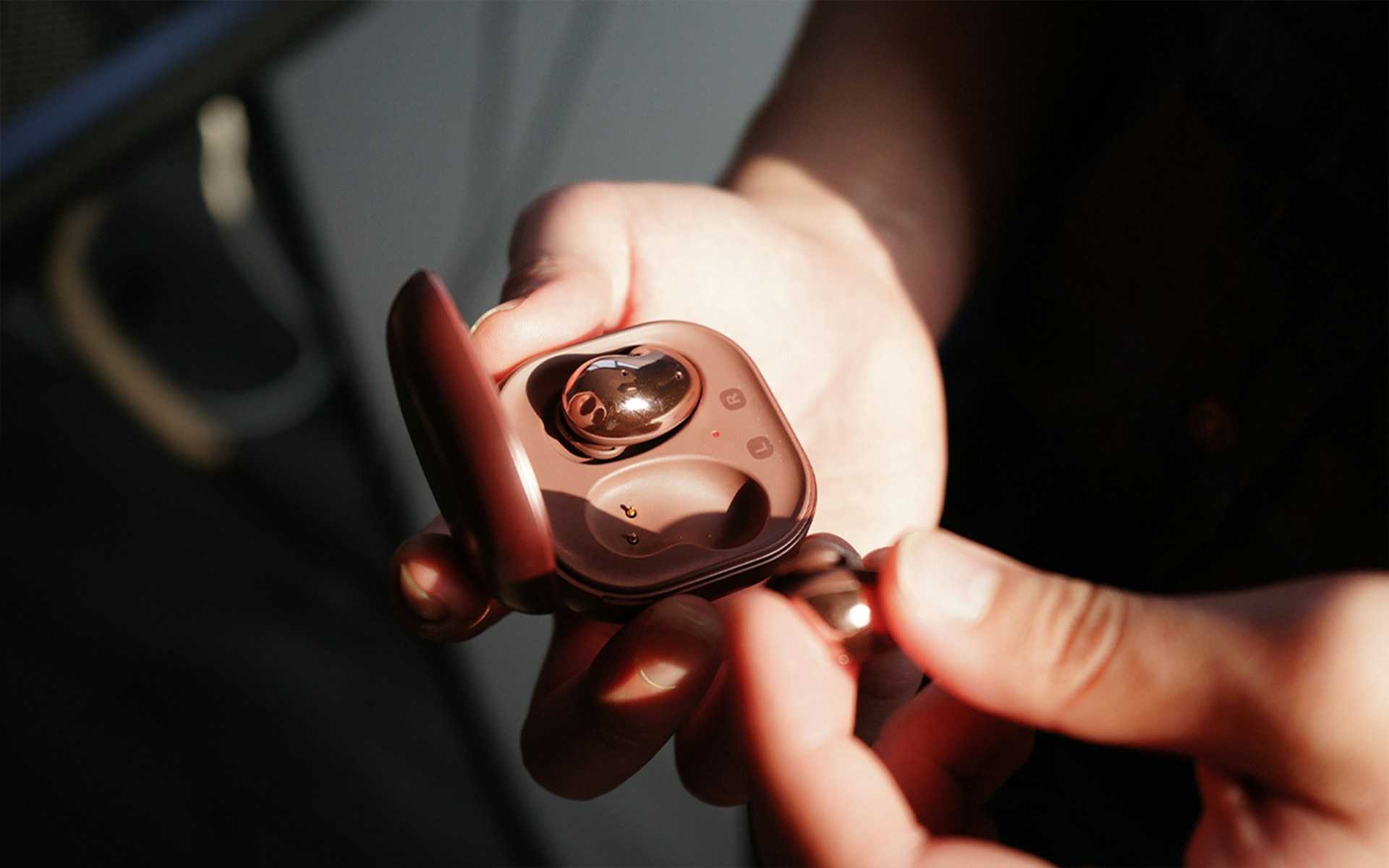
Key Takeaways
- Galaxy Buds 3 Pro microphone not working issues stem from five root causes: app permission blocks, firmware glitches, debris clogging the blade-stem grilles, Bluetooth profile conflicts, or disabled call audio routing—most fixable in under five minutes.
- Re-grant microphone permissions in Galaxy Wearable app and verify “Calls” access in your device settings, as Android 15 and One UI 6.1 tightened permission granularity and may have blocked the app’s mic access.
- Gently clean the three pinhole microphone grilles along the blade-stem design using a soft-bristle brush or slightly dampened cotton swab, as pocket lint and debris can completely block sound pickup.
- Ensure your device uses the Hands-Free Profile (HFP) instead of A2DP audio profile during calls—on Windows 11, select “Headset (Galaxy Buds 3 Pro Hands-Free)” in Sound settings; on Android, verify the correct profile is selected.
- Update Galaxy Buds 3 Pro firmware through the Galaxy Wearable app and your phone’s OS, as recent patches (including version R630XXU0AXA3) fixed UHQ-mode mic dropout and improved call audio routing reliability.
- If your voice sounds distant rather than silent, increase microphone sensitivity in Galaxy Wearable > Labs > Ambient sound, or disable wind noise reduction if it’s suppressing your voice in quiet indoor environments.
Common Causes Behind Issues
Software Glitches and Firmware Bugs
Firmware builds shipped with the Galaxy Buds 3 Pro in late 2025 and early 2026 introduced a subtle audio-routing bug. When you enable High-Quality (UHQ) audio mode in the Galaxy Wearable app, the earbuds occasionally prioritize music-streaming bandwidth over voice-upload channels. Your Discord or Teams call thinks you’re using the phone’s internal mic instead of the blade-stem mic array.
Another glitch appears after software updates: the Galaxy Wearable app loses its “Calls” permission toggle. Android 15 and One UI 6.1 tightened app permission granularity, so if the Wearable app doesn’t explicitly hold microphone access, your earbuds won’t transmit voice data during cellular or VoIP calls. A recent Samsung support thread documents dozens of users who resolved their issue by re-granting that single permission.
Background audio loops also cause phantom mic failures. If you pause a YouTube video, switch to a phone call, and the buds think media playback is still “active,” they won’t hand off the microphone channel properly. Restarting the buds clears this loop in most cases.
Physical Blockages and Debris
The blade-stem design places three pinhole microphone grilles along the vertical shaft. Pocket lint, earwax, and fine dust particles migrate into those openings faster than you’d expect. Even a tiny fiber can muffle or completely block sound pickup, making your voice sound distant or robotic to the person on the other end.
One user on Reddit’s r/GalaxyBuds shared:
“Checked my left bud under a desk lamp and saw a clump of lint wedged in the top mic hole. Picked it out with a wooden toothpick, and suddenly people could hear me perfectly again.” via r/GalaxyBuds
Inspect each stem under bright light. If you see any dark spots or fibers, grab a soft-bristle brush, an unused toothbrush or this mini electronics cleaning kit works perfectly, and gently sweep across the grilles. Avoid compressed air: high pressure can push debris deeper into the internal chamber.
Improper Bluetooth Audio Profile
Bluetooth defines two voice-call profiles: Hands-Free Profile (HFP) and Advanced Audio Distribution Profile (A2DP). A2DP handles high-fidelity music, while HFP manages two-way voice. Windows 11 and some older Android devices default to A2DP for all audio, which means your earbuds play sound beautifully but never activate the microphone.
You’ll notice this when your buds connect for music but no voice. The device settings list “Galaxy Buds 3 Pro” twice: once as “Headphones” and once as “Headset.” You need to select “Headset” (HFP) during calls. On Windows, navigate to Settings > Bluetooth & devices > Devices, click your buds, and confirm “Hands-free” appears under Audio profiles.
Device Compatibility Concerns
ARM-based Windows laptops, Chromebooks, and non-Samsung Android phones sometimes lack the proprietary Samsung Scalable Codec (SSC) driver. Without SSC, the earbuds fall back to standard SBC or AAC codecs, which compress voice data more aggressively. Your mic still works, but you sound tinny or garbled.
Microsoft Surface devices running Windows 11 ARM occasionally skip Bluetooth HFP initialization. A Microsoft support article confirms that re-pairing often resolves this, but you may need to install the latest Intel/Qualcomm Bluetooth driver if the built-in stack is outdated.
Quick Diagnostic and Fixes
Running Microphone Tests in Samsung Apps
Open the Samsung Members app on your Galaxy phone (pre-installed on most One UI devices). Tap Get Help > Diagnostics > Earbuds, then select Microphone Test. The module plays a 10-second recording prompt: speak clearly, then listen to the playback. If you hear yourself perfectly, the hardware is fine, the issue lives in permissions or Bluetooth routing. If playback is silent or muffled, you’ve confirmed a hardware or blockage problem.
The Galaxy Wearable app also offers a “Labs” feature (hidden in Settings > About earbuds > Labs) that includes a mic sensitivity slider. Try bumping it up one notch. Some units ship with conservative gain curves that underperform in noisy environments.
Cleaning the Microphone Openings
Lay a white sheet of paper under your workspace so you can see any debris that falls out. Hold one earbud with the blade stem pointing down. Use a soft-bristle brush, like the one included in this precision electronics toolkit, and gently sweep downward along each pinhole grille. Rotate the bud and repeat for all three mic openings.
For stubborn particles, dampen a cotton swab with 70% isopropyl alcohol, squeeze out excess liquid, and lightly roll the tip around the grille edge. Let the bud air-dry for two minutes before placing it back in the case. Never insert anything sharp (pins, needles) into the holes: you risk puncturing the internal MEMS microphone diaphragm.
Restarting and Resetting the Buds
A soft reset clears transient firmware states without erasing pairing data. Place both buds in the case, close the lid, wait 10 seconds, then remove them. If that doesn’t help, perform a 7-second reset: with buds in the case and lid open, press and hold the case button until the interior LED blinks red three times. The buds reboot and reconnect automatically.
For a full factory reset, open Galaxy Wearable > About earbuds > Reset. This wipes all custom EQ profiles, touch controls, and pairing records. You’ll need to re-pair from scratch, but it’s the nuclear option that solves persistent software corruption.
Checking Microphone Permissions on Connected Devices
On Android, go to Settings > Apps > Galaxy Wearable > Permissions and verify Microphone is set to “Allow.” Also check Phone under the same menu: the Wearable app needs phone-state access to route call audio correctly. If you see “Denied” or “Ask every time,” switch it to “Allow.”
On Windows 11, open Settings > Privacy & security > Microphone and toggle on “Let apps access your microphone.” Scroll down to the desktop app list and confirm your communication app (Teams, Discord, Zoom) has microphone permission. Finally, right-click the speaker icon in the taskbar, select Sound settings > Input, and choose Headset (Galaxy Buds 3 Pro Hands-Free) as the default device.
Advanced Solutions for Persistence
Updating Earbud and Device Firmware
Samsung pushes over-the-air firmware updates through the Galaxy Wearable app roughly once a quarter. Each build addresses known bugs, 2026’s first update (version R630XXU0AXA3) patched the UHQ-mode mic dropout and improved HFP handoff reliability. Open Galaxy Wearable > Earbud software update and tap Download and install. Keep both buds in the case and connected to your phone: the process takes about eight minutes.
Also update your phone’s OS. Android 15 January 2026 security patches included Bluetooth stack improvements that fixed mic initialization delays on Galaxy S24 and Z Fold 6 devices. Check Settings > Software update > Download and install.
Reconnecting Bluetooth Audio and Re-Pairing
Forget the Galaxy Buds 3 Pro from your device’s Bluetooth menu: Settings > Bluetooth > Galaxy Buds 3 Pro > Forget. Power off Bluetooth, wait 10 seconds, then turn it back on. Place the buds in pairing mode by holding the case button for three seconds until the LED blinks blue.
During re-pairing, your phone will prompt “Use for calls and media?” or a similar dialog. Confirm both checkboxes. Some users accidentally deny call audio during initial setup, which disables the microphone channel permanently until you re-pair and accept.
Managing App and System Settings
Disable UHQ audio mode in Galaxy Wearable if you primarily use the buds for calls. UHQ prioritizes 24-bit music streaming over voice bandwidth. Toggle it off under Sound quality and effects > Advanced > Separate app sound (if enabled) or simply switch the codec to “Auto” under Labs > Codec.
Check your phone’s Battery optimization settings. If Galaxy Wearable is set to “Optimize,” Android may throttle its background service, breaking real-time mic routing. Go to Settings > Battery > Battery optimization, find Galaxy Wearable, and select Don’t optimize.
Addressing Low Microphone Volume and Audio Quality
If people say you sound “far away” rather than completely silent, your mic gain is too low. Open Galaxy Wearable > Labs > Ambient sound > Microphone sensitivity and nudge it up one or two notches. Test with a voice recording app before jumping on another call.
Wind noise reduction can backfire indoors. The algorithm sometimes mistakes HVAC hum or keyboard tapping for wind and suppresses all mid-frequency audio, including your voice. Temporarily disable Labs > Call quality > Reduce wind noise and retest. If clarity improves, leave it off when you’re in quiet indoor spaces.
Special Bluetooth and Compatibility Considerations
Using Buds 3 Pro with Windows PCs and Surface Devices
Windows splits Bluetooth audio into two virtual devices: “Stereo” (A2DP) for music and “Hands-free” (HFP) for calls. Right-click the speaker icon > Sound settings > Advanced sound options > App volume and device preferences. Under your communication app (Teams, Zoom), set Input to Headset (Galaxy Buds 3 Pro Hands-Free).
If “Hands-free” never appears, your Bluetooth driver may be outdated. Visit your laptop manufacturer’s support page or download Intel’s latest Bluetooth driver directly. After installation, restart your PC and re-pair the buds.
Bluetooth Profile Limitations on ARM-Based Devices
ARM-based Windows laptops (Surface Pro X, Lenovo ThinkPad X13s) and Chromebooks rely on chipset-specific Bluetooth stacks that sometimes omit HFP or carry out it with reduced sample rates. You may be locked to 8 kHz narrow-band audio, which sounds “phone-like.”
A practical workaround: use a USB Bluetooth 5.3 adapter that includes full HFP support. Plug it in, disable the built-in Bluetooth radio in Device Manager, and pair your buds through the adapter. Many users report immediate HFP recognition and clearer call quality.
Troubleshooting Microphone Issues Across Different Platforms
| Platform | Common Mic Issue | Quick Fix |
|---|---|---|
| Samsung Galaxy phones | Galaxy Wearable missing “Calls” permission | Go to Settings > Apps > Galaxy Wearable > Permissions > Microphone > Allow |
| Windows 11 (Intel/AMD) | Default input stuck on laptop mic | Settings > Sound > Input > Headset (Hands-Free) |
| Windows 11 (ARM) | HFP profile not detected | Install USB Bluetooth 5.3 adapter or update chipset drivers |
| iPhone/iPad | Mic works but sounds robotic | Disable “Automatic Ear Detection” in iOS Bluetooth settings |
| Non-Samsung Android | Low call volume | Disable battery optimization for Galaxy Wearable |
Frequently Asked Questions
Why is my Galaxy Buds 3 Pro microphone not working on calls?
Galaxy Buds 3 Pro microphone issues typically stem from app permission blocks in Galaxy Wearable, firmware bugs switching audio to your phone’s mic, debris in the blade-stem grilles, Bluetooth profile conflicts (especially HFP on Windows), or disabled call audio routing. Most resolve within five minutes by toggling permissions, cleaning the mic openings, or performing a 7-second reset.
How do I clean the microphone openings on Galaxy Buds 3 Pro?
Hold one earbud stem downward and gently sweep a soft-bristle brush along the three pinhole mic grilles. For stubborn debris, dampen a cotton swab with 70% isopropyl alcohol and lightly roll it around the grille edge. Let the bud air-dry for two minutes. Avoid sharp objects and compressed air, which can damage internal components.
What permission do I need to grant for Galaxy Buds 3 Pro calls to work?
On Android, go to Settings > Apps > Galaxy Wearable > Permissions and ensure Microphone is set to ‘Allow.’ Also grant Phone access so the Wearable app can route call audio correctly. Android 15 and One UI 6.1 require explicit microphone permissions that may be lost after updates.
Can I fix Galaxy Buds 3 Pro microphone issues without factory reset?
Yes, start with quick fixes: run the microphone test in Samsung Members app, clean the mic grilles, toggle permissions, or perform a soft reset by placing buds in the case for 10 seconds. If those fail, try a 7-second reset by holding the case button until the LED blinks red three times.
Why does my Galaxy Buds 3 Pro microphone work for music but not calls on Windows?
Windows defaults buds to A2DP (music) instead of HFP (Hands-Free) for calls. Right-click the speaker icon > Sound settings > App volume and device preferences, then set your communication app input to ‘Headset (Galaxy Buds 3 Pro Hands-Free).’ If HFP doesn’t appear, update your Bluetooth driver.
Does disabling UHQ audio mode fix Galaxy Buds 3 Pro microphone problems?
Yes, UHQ mode can cause mic dropouts by prioritizing music bandwidth over voice channels. Toggle it off in Galaxy Wearable > Sound quality and effects > Advanced, or switch the codec to ‘Auto’ under Labs > Codec. This is especially helpful if you primarily use buds for calls rather than music streaming.
Read More:
- Laptop Microphone Not Working (Causes and Fast Fixes That Work)
- HP Microphone Not Working (5-Minute Fixes That Actually Work)
- Headset Microphone Not Working (Quick & Simple DIY Fixes)
- Google Search Microphone Not Working (Here’s How to Fix It in 5 Minutes)
- Google Pixel Microphone Not Working (Causes and How to Fix It)

Susan is a professional writer. She has been a writer for eight years and has always been so fulfilled with her work! She desires to share helpful, reliable, and unbiased information and tips about tech and gadgets. She hopes to offer informative content that can answer users’ questions and help them fix their problems.