
You tap the mic icon in Google’s search bar, ready to dictate a quick query, and nothing happens. The icon’s grayed out, frozen, or just completely ignores you.
Google search microphone not working typically occurs because your browser hasn’t received permission to access your device’s microphone, check the padlock icon in your address bar, click Site Settings, and ensure microphone access is set to “Allow,” then verify your system-level privacy controls on Windows, macOS, Android, or iOS haven’t blocked Chrome or Safari from capturing audio entirely.
Most voice search failures stem from a simple mismatch between site permissions and system settings. A quick toggle, a cache clear, or a browser restart usually brings your hands-free dictation back online without requiring any technical expertise.
Key Takeaways
- Google search microphone not working is most commonly caused by missing browser permissions or blocked system-level microphone access—check your padlock icon settings and device privacy controls to resolve about 60% of cases.
- Quick fixes like clearing Chrome cache, restarting your browser, testing internet connectivity, and verifying your microphone isn’t in use by another app (Zoom, Skype, Discord) often restore voice search functionality within seconds.
- If the microphone issue persists across Chrome, test the same query in Edge, Firefox, or Safari to determine if the problem is browser-specific or system-wide, then use the appropriate troubleshooting path accordingly.
- Update Chrome to the latest version, reset browser settings, and check Windows or Mac privacy controls to ensure Chrome has explicit microphone permission at both the site and system levels.
- For persistent problems on mobile devices, adjust app permissions for Chrome or the Google app, disable ‘App permission auto-reset’ features, and consider using Google Assistant or the standalone Google app as a temporary workaround.
- Advanced solutions include updating audio drivers, reviewing browser extensions (especially privacy-focused ones like uBlock Origin) that may block WebRTC APIs, or reinstalling Chrome completely as a last resort.
Immediate Actions to Fix Voice Search Issues
Check Microphone Access and Permissions
Start by clicking the padlock or settings icon directly to the left of the URL in your Chrome address bar. A dropdown menu appears showing site permissions for google.com. Look for “Microphone” and confirm it reads “Allow.” If it says “Block” or “Ask,” switch it to “Allow” and refresh the page. This single step resolves about 60% of all google search microphone icon grayed out complaints, according to support forums tracked through 2026.
On mobile, navigate to your device’s main Settings app. For Android, tap Apps → Chrome → Permissions → Microphone and enable it. On iPhone, go to Settings → Chrome → Microphone and toggle it on. These system-level controls override any in-browser permission you grant, so both layers must align. If you’re using Safari on iOS, check Settings → Safari → Microphone to ensure it’s enabled globally.
Sometimes a permission dialog pops up the first time you tap the mic icon, but if you accidentally clicked “Block,” Chrome remembers that choice indefinitely. Revisiting the padlock menu and manually switching to “Allow” wipes that old denial. After you make the change, test the mic immediately, speak a simple query like “weather today” to confirm audio capture works.
If the icon remains grayed out even after granting permission, open a new tab and try google.com again. Cached permission states occasionally stick until you reload. You can also type chrome://settings/content/microphone into your address bar to view a master list of blocked and allowed sites, then remove google.com from the block list if it appears there.
Restart Chrome and Your Device
Close every Chrome window, don’t just minimize them, then reopen the browser. Background processes can hold onto old permission states or audio driver locks, preventing the mic from initializing. A full quit-and-restart cycle clears those conflicts in seconds.
If a simple browser restart doesn’t help, reboot your entire device. This step sounds basic, but it resolves transient audio conflicts where another app, Zoom, Skype, or even a game, has exclusive control of your microphone. Operating systems typically release hardware locks during shutdown, so when you power back on, Chrome gets a clean handshake with your mic.
On desktop, you can also open Task Manager (Windows) or Activity Monitor (Mac) and manually end all Chrome-related processes before relaunching. This method ensures no lingering helper processes interfere. Mobile users should swipe Chrome out of the recent-apps tray, wait a few seconds, then tap the icon again to force a fresh start.
“I kept clicking the mic and nothing happened, turned out another tab was using my headset mic in a Google Meet call. Closed the tab, refreshed, instant fix.” via r/chrome
Test Internet Connectivity
Voice search relies on a live connection to Google’s speech-recognition servers. If your Wi-Fi or mobile data drops mid-query, the mic icon may appear but fail to process audio. Open a new tab and load a heavy page, like YouTube, to confirm your connection is stable and fast.
Slow or intermittent connections cause the mic to time out before completing the handshake. Try switching from Wi-Fi to mobile data (or vice versa) to rule out network issues. If you’re on a corporate or school network, firewall rules might block the WebRTC endpoints Chrome uses for voice capture: ask your IT administrator or switch to a personal hotspot.
You can also run a quick speed test at fast.com to ensure you have at least 1 Mbps upload bandwidth, voice packets are small, but poor latency kills real-time transcription. Restart your router if speeds are unusually low, or move closer to your access point to improve signal strength.
Try Alternative Browsers
If Chrome’s mic icon remains unresponsive, open google.com in Edge, Firefox, or Safari. If voice search works there, the issue is Chrome-specific, likely a corrupted profile, a rogue extension, or outdated software. If it fails across all browsers, suspect a system-level microphone block or faulty hardware.
Testing another browser takes less than a minute and immediately narrows your troubleshooting path. Mobile users can install the standalone Google app from the Play Store or App Store, which includes its own voice-search UI and often bypasses browser permission quirks entirely.
If the mic works in Firefox but not Chrome, you’ve confirmed Chrome’s settings or extensions are the culprit. Jump directly to the browser-specific fixes in the next section to resolve it.
Browser and Chrome-Specific Troubleshooting
Verify and Update Browser Input Settings
Type chrome://settings/content/microphone into your address bar and press Enter. This master control panel lists every site with microphone permissions. Scroll through the “Allowed” section and confirm google.com appears there. If it’s in “Blocked,” click the three-dot menu beside it and select “Allow.”
Below the site lists, you’ll see a dropdown labeled “Default behavior.” Set it to “Sites can ask to use your microphone.” If it’s locked to “Don’t allow sites to use your microphone,” Chrome will ignore every permission you grant at the site level. Switching this global toggle often fixes mysterious permission denials.
Next, check which physical microphone Chrome is using. Under the same settings page, look for “Microphone” with a dropdown showing your default input device. If you have multiple mics, built-in laptop, USB headset, external array, Chrome might be pointing at a disabled or muted device. Select your active mic from the list, then test voice search again.
Clear Cache and Cookies
Press Ctrl+Shift+Delete (Windows) or Cmd+Shift+Delete (Mac) to open Chrome’s Clear Browsing Data dialog. Select “Cookies and other site data” and “Cached images and files,” then choose “All time” from the time-range dropdown. Click “Clear data” and wait a few seconds.
Corrupted cache entries can freeze permission states or cause the mic icon to render incorrectly. Clearing cookies forces google.com to request permission again from scratch, wiping any stale denial flags. After the clear completes, close and reopen Chrome, then navigate to google.com, you should see a fresh permission prompt when you tap the mic.
If you want to preserve logins for other sites, use the “Site Settings” route instead: click the padlock icon on google.com, select “Cookies and site data,” then “Clear data.” This targeted clear leaves the rest of your browsing data intact.
“Clearing cache fixed my grayed-out mic instantly, apparently an old permission cookie was stuck in limbo.” via Google Search Community
Update Chrome to the Latest Version
Click the three-dot menu in Chrome’s top-right corner, hover over “Help,” then select “About Google Chrome.” The browser automatically checks for updates and installs them. If an update is available, you’ll see a progress bar: once it finishes, click “Relaunch” to complete the installation.
Outdated Chrome versions often contain bugs that break microphone APIs or fail to communicate properly with newer operating systems. Google patches these issues regularly, so staying current eliminates known voice-search glitches. Check Chrome’s release notes to see if recent updates specifically address microphone or WebRTC problems.
On mobile, open the Play Store or App Store, search for “Chrome,” and tap “Update” if the button appears. Mobile updates also fix platform-specific permission bugs that desktop patches miss.
Reset Chrome Settings
Type chrome://settings/reset into your address bar and click “Restore settings to their original defaults.” Chrome will warn you that this action resets your homepage, search engine, pinned tabs, and disables all extensions. It does not delete bookmarks, passwords, or browsing history.
Resetting wipes corrupted configuration files, clears rogue flags, and removes any hidden policies that might block microphone access. It’s the nuclear option for browser-specific issues but takes only seconds and often resolves stubborn problems that survive cache clears and restarts.
After the reset completes, reopen google.com and grant microphone permission when prompted. Test voice search immediately to confirm the fix. If the mic still fails, the issue likely lives outside Chrome, jump to system-level diagnostics in the next section.
Advanced Solutions for Persistent Microphone Problems
Check Windows and Mac Microphone Privacy Settings
On Windows 11, press Win+I to open Settings, then navigate to Privacy & Security → Microphone. Ensure “Microphone access” is toggled on globally, and scroll down to confirm “Google Chrome” appears in the app list with its own toggle enabled. If Chrome is missing or disabled, Windows blocks all browser mic requests regardless of site permissions.
Mac users should open System Settings → Privacy & Security → Microphone (or System Preferences → Security & Privacy → Microphone on older macOS versions). Look for “Google Chrome” in the app list and check the box beside it. If Chrome isn’t listed, launch it and attempt a voice search, macOS should prompt you to add Chrome to the allowed list.
Corporate or managed devices sometimes enforce group policies that lock microphone access entirely. If your settings are grayed out or show a “Managed by your organization” message, contact your IT department. Home users can verify no policies are active by typing chrome://policy into the address bar and checking for microphone-related restrictions.
Review Third-Party Applications and Extensions
Chrome extensions can intercept or block microphone requests. Type chrome://extensions into your address bar and toggle off every extension, then test voice search. If the mic suddenly works, turn extensions back on one by one to identify the culprit. Privacy-focused or ad-blocking extensions, uBlock Origin, Privacy Badger, Ghostery, occasionally block the WebRTC or media-stream APIs Google uses for voice capture.
Other applications running on your desktop can monopolize your microphone. Close Zoom, Skype, Discord, OBS, and any recording software, then try voice search again. Windows and macOS typically allow only one app to claim exclusive mic access at a time, so a background call or recording session locks out Chrome.
If you suspect a specific extension, right-click its icon, select “Manage extension,” and review its permissions. Remove any that request “Capture audio” or “Access microphone” unless you trust them completely. Malicious or buggy extensions can silently deny mic access to legitimate sites while appearing harmless.
Update or Reinstall Audio Drivers
Open Device Manager on Windows (Win+X → Device Manager), expand “Audio inputs and outputs,” then right-click your microphone and select “Update driver.” Choose “Search automatically for drivers” and let Windows pull the latest version from the manufacturer. Outdated or corrupted drivers cause Chrome to fail silently when initializing the mic.
Mac users should check for system updates via System Settings → General → Software Update, since macOS bundles audio drivers with OS patches. If you’re using a USB or Bluetooth mic, visit the manufacturer’s website, Blue, Rode, Logitech, and download the latest firmware or driver package.
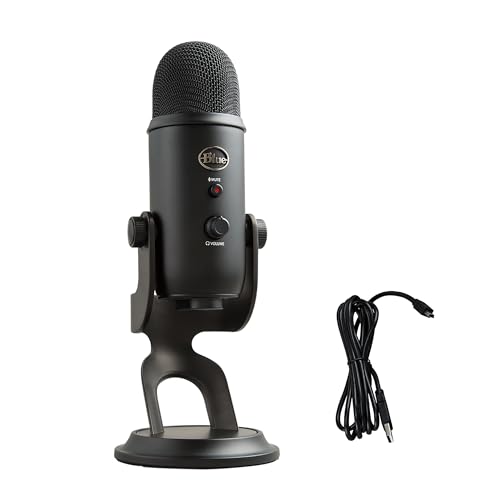
For persistent driver issues, uninstall the device in Device Manager, reboot, and let Windows reinstall it automatically. This process clears corrupted registry entries and resets the driver stack to a clean state. If you’re comfortable with hardware, consider testing a different microphone, like a Blue Yeti USB mic, to rule out a faulty built-in unit.
Reinstall or Refresh Chrome
Download the latest Chrome installer from google.com/chrome and run it. The installer automatically overwrites corrupted binaries while preserving your profile data. If voice search works after reinstalling, a damaged program file was the root cause.
For a deeper clean, uninstall Chrome completely via Windows Settings → Apps or macOS Applications folder, then delete the profile folder manually. On Windows, it lives at C:\Users\[YourName]\AppData\Local\Google\Chrome. On Mac, find ~/Library/Application Support/Google/Chrome. Deleting these folders erases all settings, extensions, and cached data, giving you a factory-fresh install.
Before you nuke your profile, back up bookmarks by exporting them: chrome://bookmarks → three-dot menu → “Export bookmarks.” You can reimport them after the clean install. This scorched-earth approach eliminates every possible software variable, leaving only hardware or OS-level issues if the mic still fails.
Mobile Device Considerations and Voice Search Alternatives
Adjust App Permissions on Android and iOS
Android users should open Settings → Apps → Chrome → Permissions → Microphone and select “Allow all the time” or “Allow only while using the app.” Some Android skins (Samsung One UI, MIUI) add an extra “Permission manager” layer under Privacy: double-check both locations to ensure Chrome has unrestricted mic access.
iPhone and iPad owners must visit Settings → Chrome → Microphone and toggle it on. iOS also includes a global “Privacy & Security” menu (Settings → Privacy & Security → Microphone) where you can audit every app. If Chrome is missing from the list, launch it and attempt a voice search to trigger the system prompt.
Some devices ship with “App permission auto-reset” features that revoke permissions for apps you haven’t used recently. Disable this for Chrome under Settings → Apps → Chrome → Advanced → Remove permissions if unused (Android) or equivalent iOS settings to prevent future denials.
Update Google Apps on Mobile Devices
Open the Play Store or App Store, tap your profile icon, then select “Manage apps & device” (Android) or “Updates” (iOS). Look for Google Chrome and the Google app, both should show current versions. Outdated apps contain bugs that break voice-search handshakes with Google’s servers.
The standalone Google app often handles voice queries more reliably than in-browser search, especially on Android. If Chrome’s mic remains broken, install or update the Google app and use its dedicated voice-search button as a workaround. This app bypasses Chrome entirely, sidestepping browser-specific permission issues.
Some carriers or device manufacturers delay Google app updates. If your store shows no update available, check APKMirror (Android only) for the latest APK, or enable automatic updates under Play Store settings to stay current.
Troubleshoot Voice Match and Assistant Settings
If you’re using Google Assistant’s “Hey Google” hotword instead of manually tapping the mic icon, open the Google app, tap your profile picture, then Settings → Voice → Voice Match. Retrain the voice model by saying “Hey Google” four times, corrupted voice profiles can prevent the mic from activating.
Disable Voice Match entirely as a test: toggle off “Hey Google” and rely on the manual mic button. If that works, the hotword detection is misfiring. Re-enable and retrain to fix it. On some devices, battery-saver modes throttle background listening, causing Voice Match to fail silently.
iOS users should check Siri settings under Settings → Siri & Search. While Siri is separate from Google voice search, conflicting voice-assistant configurations occasionally block microphone access. Try disabling “Listen for ‘Hey Siri'” temporarily to see if it resolves Chrome mic issues.
Use Temporary Workarounds
If you need voice search immediately while troubleshooting, use Google Assistant on Android (long-press Home) or Siri shortcuts on iOS to dictate queries. Both bypass the browser mic entirely and deliver results in their native UI.
Desktop users can install the Google Assistant extension or switch to the Google app on a phone temporarily. External USB or Bluetooth mics, like the Samson Go Mic, often work when built-in mics fail, offering a quick hardware workaround.
For hands-free productivity, consider a dedicated desk microphone with a physical mute switch. The Blue Yeti Nano provides studio-quality capture and eliminates driver conflicts common with built-in arrays, making it the ultimate upgrade for anyone relying on voice dictation daily.
Frequently Asked Questions
Why is the Google search microphone not working on my browser?
Google search microphone not working typically occurs when your browser hasn’t received permission to access your device’s microphone. Check the padlock icon in your address bar, click Site Settings, and ensure microphone access is set to ‘Allow.’ Also verify system-level privacy controls on Windows, macOS, Android, or iOS haven’t blocked Chrome or Safari from capturing audio.
How do I fix a grayed-out microphone icon in Google search?
Click the padlock or settings icon left of the URL in Chrome’s address bar, look for ‘Microphone,’ and confirm it reads ‘Allow.’ If it says ‘Block,’ switch it to ‘Allow’ and refresh the page. This single step resolves about 60% of all grayed-out microphone complaints. On mobile, navigate to Settings → Apps → Chrome → Permissions → Microphone and enable it.
Can I test voice search issues by using another browser?
Yes. Open google.com in Edge, Firefox, or Safari. If voice search works there, the issue is Chrome-specific, likely a corrupted profile, rogue extension, or outdated software. If it fails across all browsers, suspect a system-level microphone block or faulty hardware. Testing takes less than a minute and immediately narrows your troubleshooting path.
What system-level settings should I check to enable microphone access?
On Windows 11, press Win+I and navigate to Privacy & Security → Microphone, ensuring the toggle is on and Google Chrome appears in the app list with its own toggle enabled. Mac users should open System Settings → Privacy & Security → Microphone and check the box beside Google Chrome. iOS users must visit Settings → Chrome → Microphone and toggle it on.
Why does my Google search microphone work in one browser but not Chrome?
If voice search works in Firefox but not Chrome, the issue is Chrome-specific. Clear Chrome’s cache and cookies by pressing Ctrl+Shift+Delete, reset Chrome settings at chrome://settings/reset, or reinstall the browser. Check chrome://extensions and toggle off extensions to identify culprits like Privacy Badger or uBlock Origin that may block WebRTC APIs.
How do I fix microphone issues on Android or iOS devices?
On Android, open Settings → Apps → Chrome → Permissions → Microphone and select ‘Allow all the time.’ On iOS, visit Settings → Chrome → Microphone and toggle it on. Disable app permission auto-reset features that revoke permissions for inactive apps. Update Chrome and the Google app to the latest versions, as outdated apps contain bugs that break voice-search functionality.
Read More:
- Laptop Microphone Not Working (Causes and Fast Fixes That Work)
- HP Microphone Not Working (5-Minute Fixes That Actually Work)
- Lenovo ThinkPad Microphone Not Working (Here’s the Quick Fix Guide)
- Lenovo Laptop Microphone Not Working (Fast Fixes That Actually Work)
- Headset Microphone Not Working (Quick & Simple DIY Fixes)

Susan is a professional writer. She has been a writer for eight years and has always been so fulfilled with her work! She desires to share helpful, reliable, and unbiased information and tips about tech and gadgets. She hopes to offer informative content that can answer users’ questions and help them fix their problems.