
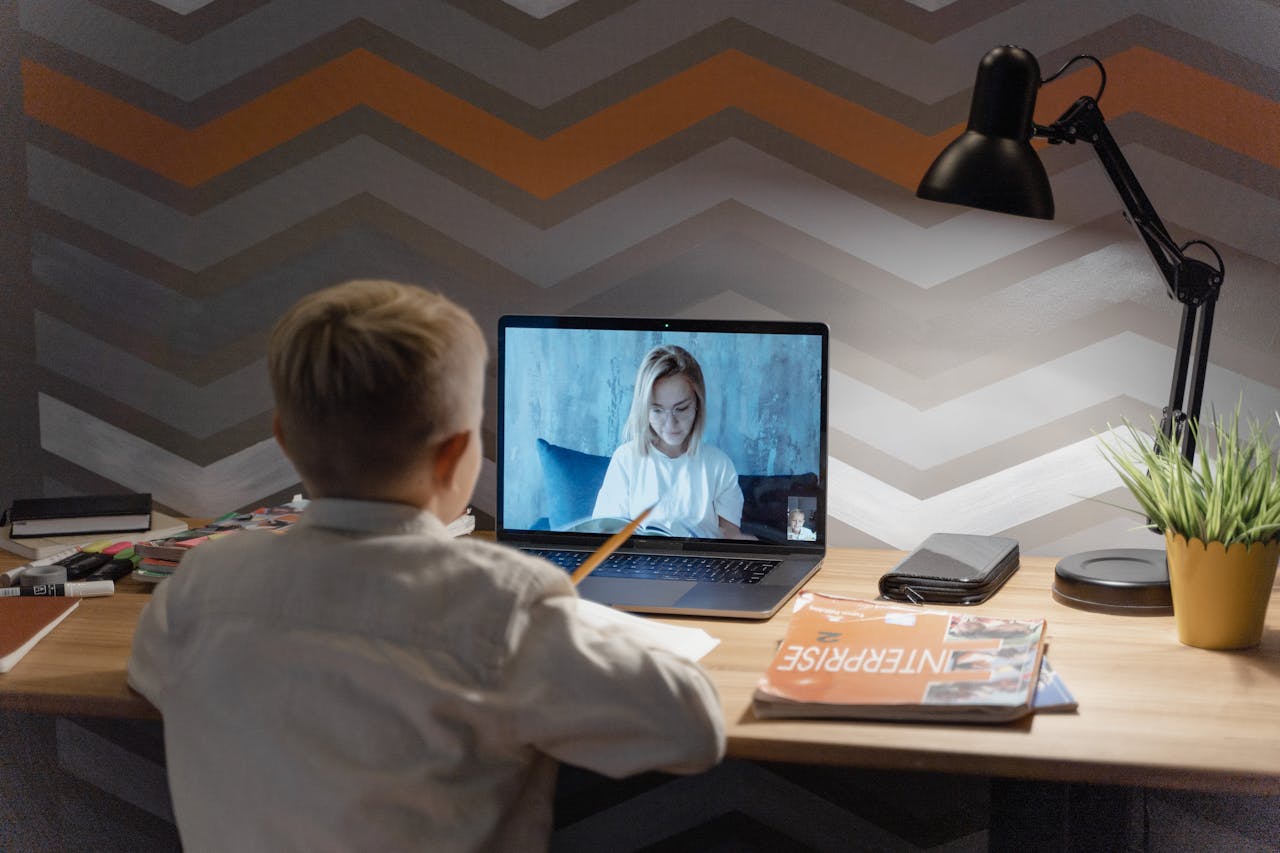
If you’ve ever wished you could clone yourself to explain an assignment one more time, Loom for teachers is the next best thing. This free screen recording tool lets you record quick video messages, lesson recaps, and personalized feedback, then share them instantly with students through any Learning Management System.
Loom for teachers is a powerful, free screen recorder that helps educators create asynchronous video lessons, provide individual student feedback, and flip their classrooms without adding to an already heavy workload. The Loom Education Plan gives verified K-12 and higher education teachers full access to premium features at no cost.
Whether you teach fifth graders or college seniors, this guide walks you through Loom’s best features, setup steps, and practical classroom strategies to boost student engagement while reclaiming your time.
Key Takeaways
- Loom for teachers is a free screen recording tool that enables educators to create asynchronous video lessons, personalized feedback, and flipped classroom content without editing software or complex setup.
- The free Loom Education Plan gives verified K-12 and higher education teachers unlimited recording length and access to pro-level features like viewer analytics, drawing tools, and LMS embedding.
- Screen-plus-camera mode combines your face with on-screen content to increase student engagement, while real-time annotations and drawing tools help visual learners follow complex concepts.
- Loom integrates seamlessly with Google Classroom, Canvas, and Schoology, allowing teachers to paste shareable links or embed videos directly into learning platforms in seconds.
- Keeping videos short (3–5 minutes), providing personalized video feedback, and organizing recorded content by subject creates a reusable library that saves teachers significant time across multiple semesters.
- Unlike live meeting tools like Zoom, Loom is purpose-built for asynchronous learning, making it ideal for students in different time zones, those with scheduling constraints, and learners who benefit from rewatching content.
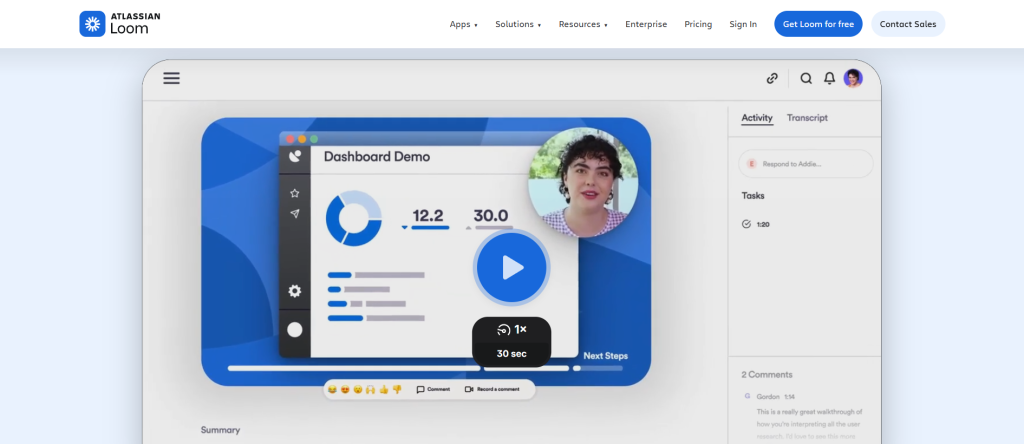
Loom is an asynchronous learning tool that records your screen, webcam, or both simultaneously. You hit record, explain a concept or walk through feedback, and share the video link in seconds. No editing software. No uploading delays.
For teachers juggling grading, lesson planning, and parent communication, this simplicity matters. Instead of typing long email explanations or scheduling yet another live meeting, you record a short video and move on. Students watch on their own time, pause, rewind, and rewatch as needed.
The Loom Education Plan removes the usual recording limits and gives verified educators access to pro-level features for free. That alone makes it worth exploring.
Essential Features for Educators
Screen Recording and Screencast Functionality
Loom’s core strength is its screen recording capability. You can capture your entire screen, a specific application window, or a single browser tab. This makes recording whiteboard lessons on Loom straightforward, open your digital whiteboard, hit record, and teach.
Screencasts work well for walking students through a website, demonstrating software, or showing how to format an essay in Google Docs. The recording starts in one click, and there’s no complicated setup. You don’t need to be a tech expert to make accessible video lessons for students.
Screen and Cam Modes
Loom offers three recording modes: screen only, camera only, and screen plus camera. The screen-plus-camera mode places a small webcam bubble in the corner of your recording. Students see your face while you explain content on screen.
This combination adds a human touch that plain screencasts lack. Research consistently shows that instructor presence increases student engagement through video messaging. A quick camera-on walkthrough of assignments instructions feels more personal than a typed PDF.
Drawing Tool and Annotations
While recording, you can draw directly on your screen. Circle important text, underline key formulas, or sketch arrows to guide attention. These real-time annotations help visual learners follow along.
You can also use the mouse emphasis tool, which highlights your cursor’s movement. This small feature is surprisingly useful when demonstrating multi-step processes in spreadsheets or coding environments.
Instant Sharing and Video Management
The moment you stop recording, Loom generates a shareable link. You can paste it into Google Classroom, Canvas, Schoology, or an email within seconds. Videos can also be embedded directly into LMS pages using Loom’s embed code.
Loom’s video privacy settings let you control who sees your content. You can restrict access to specific email domains, like your school’s, or require a password. This is essential for Loom video privacy for schools, especially when recordings contain student names or grades.
Getting Started with Loom
Setting Up Your Account
Visit Loom’s website and sign up with your school email address. Once registered, apply for the Loom Education Plan by verifying your educator status. Approval typically takes a few business days.
After verification, your account upgrades automatically. You’ll get unlimited recording length, unlimited video storage, and access to features like custom thumbnails and viewer analytics.
How to Use Loom Chrome Extension
The Loom Chrome extension for education is the fastest way to start recording. Install it from the Chrome Web Store, pin it to your toolbar, and click the icon whenever you’re ready.
A small recording menu appears. Choose your recording mode, select your audio source, and press “Start Recording.” It’s that simple. The extension works well for teachers who live inside their browser, grading in Canvas, building slides in Google Slides, or reviewing documents.
Navigating the Desktop App and Mobile Options
If you prefer recording outside the browser, Loom’s desktop app offers the same features with slightly more flexibility. It captures any application on your computer, not just browser tabs.
Loom also has a mobile app for iOS and Android. You can record quick camera-only videos from your phone, great for sending encouragement before a big test or recording a brief explanation while away from your desk.
Tips for Recording Effective Videos
Keep videos short. Aim for three to five minutes per topic. Students retain more from focused, bite-sized clips than from 30-minute lectures.
- Plan your talking points before you hit record
- Close unrelated tabs to avoid distractions on screen
- Speak naturally, don’t script every word
- Use annotations to highlight key information
- Add chapters in longer videos so students can skip ahead
Best Practices for Online Teaching
Facilitating Asynchronous Communication
Not every conversation needs a live meeting. Asynchronous learning tools for teachers like Loom let you deliver instructions, explain rubrics, or answer common questions on your schedule. Students watch on theirs.
This approach benefits students in different time zones, those with after-school jobs, and learners who process information more slowly. Everyone gets the same clear explanation, available 24/7.
Integrating with Google Classroom and LMS
Loom for Google Classroom integration is seamless. Paste a Loom link into an assignment post, and students see a clickable video thumbnail. The same works for Loom for Canvas and Schoology.
You can also embed Loom videos directly into LMS pages using the embed code. This keeps students inside their learning platform instead of redirecting them to external sites. Fewer clicks means fewer confused emails.
Providing Feedback and Assignments Instructions
Personalized video feedback for students is one of Loom’s most impactful uses. Instead of writing margin comments on an essay, record yourself scrolling through the document and explaining your feedback out loud.
Students hear your tone, see exactly what you’re referencing, and understand your suggestions more clearly. Teachers report that this method actually saves time compared to typing detailed written comments.
Comparing Loom with Zoom and Google Meet
Zoom and Google Meet are live meeting tools. Loom is asynchronous. They solve different problems.
| Feature | Loom | Zoom | Google Meet |
|---|---|---|---|
| Live meetings | No | Yes | Yes |
| Async video sharing | Yes | Limited | No |
| Free for teachers | Yes (Education Plan) | Limited free tier | Yes (with Google account) |
| LMS embedding | Yes | No | No |
| Viewer analytics | Yes | No | No |
Use Zoom or Meet for live discussions. Use Loom for everything that doesn’t require real-time interaction, flipped classroom video tools, feedback, and lesson recaps.
Maximizing Loom’s Value for Teachers
Benefits of Loom Pro (Free for Teachers)
The Loom Education Plan gives verified educators Loom Pro features at no cost. That includes unlimited recordings, unlimited recording length, custom branding, drawing tools, and viewer insights.
Loom vs Screencastify for teachers often comes down to this: Loom’s free education tier is more generous. Screencastify limits free recordings to 30 minutes each, while Loom removes that cap entirely for verified teachers.
Organizing and Reusing Video Content
Create folders in your Loom library by subject, unit, or class period. Label videos clearly so you can reuse them semester after semester. A well-organized library means you record a lesson once and share it for years.
This is especially powerful for how to use Loom for lesson recaps. Record your best explanation of photosynthesis or the Pythagorean theorem, and it becomes a permanent resource. New students get the same quality instruction without extra effort from you.
Engaging Students with Interactive Features
Loom lets viewers leave timestamped comments and emoji reactions on videos. This turns a one-way recording into a conversation. Students can ask questions at the exact moment they get confused.
You can also use Loom for recording student presentations. Have students record themselves presenting a project, then share the link with you or the class. It reduces presentation anxiety and gives every student equal time to present.
Is Loom for teachers worth your time? Absolutely. It’s free, simple, and built for exactly the kind of asynchronous communication that modern classrooms demand. Start with one short feedback video this week. You’ll wonder how you taught without it.
Frequently Asked Questions
Is Loom really free for teachers?
Yes. Loom offers a free Education Plan for verified K-12 and higher education teachers. After signing up with your school email and completing verification, you gain access to Loom Pro features at no cost, including unlimited recordings and storage.
What is the best way to use Loom for student feedback?
Record yourself scrolling through a student’s work while explaining feedback verbally. This personalized video feedback approach saves time compared to written comments and helps students understand suggestions more clearly by hearing your tone and seeing exactly what you’re referencing.
How does Loom for teachers compare to Zoom for classroom use?
Loom is asynchronous—students watch on their own time—while Zoom requires live meetings. Use Zoom for real-time discussions and Loom for lesson recaps, flipped classroom content, and feedback. Loom’s Education Plan is free and integrates directly into LMS platforms.
Can I embed Loom videos directly into Google Classroom?
Yes. You can paste Loom links into Google Classroom assignments, or use Loom’s embed code to embed videos directly into Canvas, Schoology, and other LMS platforms. This keeps students within their learning platform without external redirects.
What recording length limits apply to Loom’s Education Plan?
The Education Plan removes recording length limits entirely. You can record videos of any length, though educators recommend keeping videos to three to five minutes per topic for better student engagement and information retention.
How does Loom for teachers help with asynchronous learning?
Loom lets you deliver instructions, explanations, and feedback on your schedule—students watch anytime, anywhere. This asynchronous approach benefits learners in different time zones, those with after-school jobs, and students who need time to process information at their own pace.

Susan is a professional writer. She has been a writer for eight years and has always been so fulfilled with her work! She desires to share helpful, reliable, and unbiased information and tips about tech and gadgets. She hopes to offer informative content that can answer users’ questions and help them fix their problems.