
You’re two minutes into a client presentation when you realize nobody can hear you. Your Poly headset sits perfectly on your head, yet your microphone refuses to transmit a single word.
When your poly headset microphone not working issue strikes, the problem usually stems from one of five culprits: incorrect audio device selection in your operating system, outdated Poly Lens firmware, a triggered inline hardware mute switch, application-level privacy permission blocks, or USB dongle pairing failures with BT600/BT700 adapters. Most Voyager, Savi, Blackwire, and Focus series microphone failures resolve through systematic checking of physical mute buttons, updating headset drivers via Device Manager, selecting the correct communications device in Windows Sound settings, and granting microphone access in both OS privacy panels and individual softphone applications like Teams or Zoom.
This guide walks you through each diagnostic step with the precision your enterprise communications workflow demands. You’ll restore microphone functionality and eliminate call center downtime.

Key Takeaways
- A poly headset microphone not working usually stems from five main culprits: incorrect audio device selection, outdated firmware, triggered mute switches, privacy permission blocks, or USB dongle pairing failures.
- Always verify your boom microphone extends fully and clicks into position, as Poly headsets have sensors that disable the mic when the boom arm sits flush against the earcup.
- Set your Poly headset as the default input and communication device in Windows Sound settings and macOS System Settings to ensure applications detect and use the correct microphone.
- Download and install Poly Lens Desktop software to automatically detect your headset and check for firmware updates, which can resolve intermittent dropout issues after Windows updates.
- Grant explicit microphone permissions in both your operating system’s privacy settings and individual applications like Teams, Zoom, and Slack, as modern systems block app access by default.
- Factory reset your Poly headset by holding the call and mute buttons for 10 seconds on Voyager models, or unplugging the base station for Savi wireless headsets to clear corrupted pairing profiles.
Why Your Poly Headset Microphone Stops Working
Poly headsets fail to transmit audio when three systems break alignment: hardware signal flow, software driver handshakes, and application-level permissions. Your Voyager or Blackwire microphone generates an analog or digital signal that travels through USB, Bluetooth, or 3.5mm connections to your computer’s audio subsystem. If any link in this chain malfunctions, a loose boom mic sensor, corrupted audio driver, or revoked app permission, your voice never reaches the recipient.
Microphone detection failures often originate from Windows defaulting to your laptop’s built-in mic instead of the Poly headset. Teams and Zoom read the operating system’s default communications device: if that setting points to the wrong hardware, your headset becomes invisible to the application. Outdated firmware on Savi or Voyager models can trigger intermittent dropouts, especially after Windows updates that alter USB power management.
Bluetooth profiles add another layer of complexity. The BT700 dongle and wireless Focus headsets use the Hands-Free Profile (HFP) for two-way audio. If your computer switches to A2DP stereo mode, you’ll hear crystal-clear playback but the microphone vanishes. Enterprise environments with managed Group Policy settings sometimes block microphone access entirely, requiring IT admin intervention to restore permissions.
Quick Checks Before Troubleshooting
Verify your boom mic extends fully and clicks into position. Poly headsets feature position sensors that disable the microphone when the boom arm sits flush against the earcup. Rotate the boom down until you feel or hear a faint click, most models require the mic to extend at least 45 degrees from the folded position.
Inspect the inline control module for a glowing red LED or mute icon. Poly Blackwire and Voyager headsets include physical mute buttons that toggle independently of software controls. Press the mute button once and watch for the LED to extinguish. If the light persists, hold the button for three seconds to perform a hard unmute.
Confirm your USB cable or dongle seats firmly in the port. Loose connections cause intermittent detection failures. Try a different USB port, preferably USB 3.0 or higher, and avoid passive hubs that can’t supply adequate power for active noise cancellation and microphone preamplifiers.
Fix 1: Verify Your Headset Connection and Port
Disconnect your Poly headset completely and examine the connector. USB models should show a clean contact surface with no debris or oxidation. For wireless Savi or Voyager headsets using the BT600 or BT700 dongle, remove the adapter and reinsert it into a different USB port on your computer, ideally one directly on the motherboard rather than a front-panel extension.
Wireless headsets require active pairing with the base station or dongle. Press and hold the pairing button on the BT700 adapter for five seconds until the LED flashes blue rapidly. Then power off your headset, wait ten seconds, and power it back on while holding the call button. The devices should establish a fresh Bluetooth link within 30 seconds.
Test a known-good USB port by plugging in another device. If that port functions normally, the issue lies within your headset or drivers. If multiple devices fail on the same port, your USB controller may need updating through Device Manager or BIOS firmware patches from your computer manufacturer.
Fix 2: Configure Your Computer’s Audio Settings
Windows Audio Configuration
Right-click the speaker icon in your system tray and select Sound settings. Scroll to Advanced sound options and click App volume and device preferences. Verify that your default input device shows “Poly” or “Plantronics” in the device name, not “Realtek” or “Microphone Array.” If the wrong device appears, return to Sound settings, choose Input, and select your Poly headset from the dropdown menu.
Open the legacy Sound Control Panel by typing mmsys.cpl in the Windows search bar. Navigate to the Recording tab, right-click your Poly headset microphone, and select Set as Default Communication Device. This action forces all VoIP applications to route audio through your headset. Click Properties, then the Levels tab, and ensure the microphone slider sits at 80–100 and isn’t muted.
Disable automatic gain control if you experience volume fluctuations. In the same Properties window, switch to the Advanced tab and uncheck Allow applications to take exclusive control of this device. This prevents softphone apps from monopolizing the microphone and blocking other programs.
Mac Audio Configuration
Open System Settings (or System Preferences on older macOS versions) and navigate to Sound. Select the Input tab and choose your Poly headset from the device list. Drag the Input volume slider to maximum and speak into the mic, the level meter should bounce in response. If you see no movement, click Output, confirm the headset is selected there as well, and then return to Input.
Grant microphone permissions through System Settings → Privacy & Security → Microphone. Toggle the switches on for Terminal, Zoom, Microsoft Teams, and any other communication apps you use. macOS Ventura and later require explicit per-app consent: a single denied permission can silence your mic across all calls.
For Bluetooth Poly headsets, open System Settings → Bluetooth, click the info icon next to your headset name, and verify the profile shows “Headset” or “Hands-Free.” If it displays “Audio,” disconnect and re-pair the device to establish the correct two-way audio profile.
Fix 3: Update or Reinstall Your Poly Headset Drivers
Download and install Poly Lens Desktop software from the official Poly support portal. Lens automatically detects connected Voyager, Savi, Blackwire, and Focus headsets, then checks for firmware updates. Launch the application, select your headset from the device list, and click Update if a newer firmware version appears. The update process takes three to five minutes, do not disconnect your headset during installation.
Manually update drivers through Windows Device Manager if Poly Lens fails to recognize your headset. Press Win + X and select Device Manager. Expand Audio inputs and outputs, right-click Poly Headset Microphone, and choose Update driver. Select Search automatically for drivers and allow Windows to query Microsoft’s driver repository. If no update appears, choose Browse my computer for drivers, then Let me pick from a list, and select the most recent Poly driver entry.
Uninstall and reinstall the driver to clear corrupted configuration files. In Device Manager, right-click your Poly device, select Uninstall device, and check Delete the driver software for this device. Restart your computer, reconnect the headset, and Windows will install a fresh driver package. For stubborn issues, download the latest Plantronics Hub (legacy software for older models) and run the built-in diagnostic tool to identify firmware corruption.
Fix 4: Adjust Microphone Permissions and Privacy Settings
Windows 11 blocks desktop apps from accessing your microphone by default. Navigate to Settings → Privacy & Security → Microphone and toggle on Microphone access. Scroll down to Let desktop apps access your microphone and enable the switch. Individual applications like Zoom and Teams appear below: verify each app shows “On” status. If an app is missing from this list, launch it once to trigger the permission request.
Mac users face similar restrictions under modern privacy frameworks. Open System Settings → Privacy & Security → Microphone and review the list of applications. Any app with a grayed-out toggle has never requested mic access, launch the app and attempt a test call to generate the permission prompt. If you accidentally denied access, you must manually re-enable it in this panel: macOS won’t ask again.
Enterprise environments managed by Group Policy or Mobile Device Management (MDM) may enforce microphone restrictions at the administrator level. Contact your IT helpdesk if you cannot toggle the microphone privacy switches. They can deploy a policy exception or whitelist your specific Poly headset model in the endpoint management console.
“Poly Voyager 5200 mic not detected in Teams, fixed by re-enabling desktop app permissions in Windows Privacy settings.” via r/MicrosoftTeams
Fix 5: Test and Troubleshoot in Your Communication Apps
Zoom and Microsoft Teams Settings
Launch Zoom and navigate to Settings → Audio. Click the dropdown menu under Microphone and select your Poly headset by its full device name (e.g., “Poly Blackwire 5220 USB”). Click Test Mic and speak, watch the input level bar fill at least halfway. If the bar remains flat, click Advanced and disable Automatically adjust microphone volume. Manually raise the slider to 80–100.
In Microsoft Teams, click your profile picture, select Settings → Devices, and choose your Poly headset under Audio devices. Teams combines speaker and microphone selection into a single “Audio” category. Run the built-in test call by clicking Make a test call under the device dropdowns. If Teams cannot detect your headset, close the app completely (check Task Manager to ensure no background processes remain) and relaunch.
Disable “Noise suppression” and “Echo cancellation” temporarily if you experience intermittent dropouts. Some Poly headsets include onboard DSP (digital signal processing) that conflicts with app-level audio enhancements. In Teams, go to Settings → Devices → Audio devices and toggle off both features. Test again to isolate whether software processing causes the failure.
Slack and Discord Settings
Open Slack, click your workspace name, and select Preferences → Audio & video. Choose your Poly headset from the Microphone dropdown. Slack defaults to automatic input sensitivity, click Advanced and switch to manual mode if your voice cuts out mid-sentence. Adjust the threshold slider until the green indicator lights up when you speak at normal volume.
Discord users should navigate to User Settings → Voice & Video and select the Poly headset under Input Device. Run the Mic Test feature and watch the real-time waveform. If you see no activity, scroll down to Voice Processing and disable Echo Cancellation, Noise Suppression, and Automatic Gain Control. These features can interfere with Poly’s hardware-level audio optimizations.
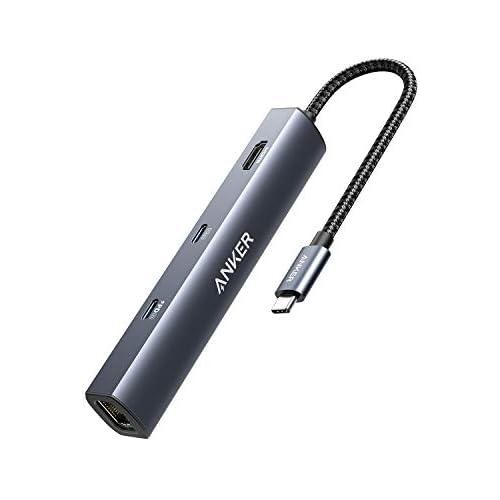
For a comprehensive connectivity upgrade, consider the Anker USB-C Hub to eliminate port-sharing conflicts on laptops with limited USB slots.
Fix 6: Reset Your Poly Headset to Factory Settings
Factory resets clear corrupted pairing profiles and restore default firmware parameters. For Poly Voyager headsets, slide the power switch to On, then press and hold both the call button and mute button simultaneously for ten seconds. The LED will flash purple or red to indicate reset completion. Release the buttons and allow the headset to reboot.
Poly Savi wireless headsets require base-station resets. Unplug the base from USB power, wait 30 seconds, then reconnect. Press and hold the subscription button on the base (usually labeled with a chain-link icon) for 15 seconds until all LEDs illuminate. Place your headset in the charging cradle to re-establish the wireless link.
Blackwire USB models don’t support traditional factory resets because they operate as plug-and-play devices. Instead, uninstall the device from Windows Device Manager (as described in Fix 3), restart your computer, and allow Windows to rediscover the headset with fresh settings. This process mimics a factory reset by purging stored configurations.
“Hard reset on Poly Focus fixed persistent mic muting, held call + mute buttons for 10 seconds.” via r/sysadmin
After resetting, reconfigure your preferred sidetone and microphone gain levels in Poly Lens. These settings revert to factory defaults during the reset process.
When to Contact Poly Support or Replace Your Headset
Persistent microphone failures after exhausting all software fixes indicate hardware degradation. Physical damage to the boom mic capsule, often caused by repeated hyperextension or moisture ingress, cannot be repaired through firmware updates. Inspect the mesh windscreen for tears or discoloration: a compromised screen allows debris to block the condenser element.
Contact Poly Professional Services if your headset remains under warranty. Most Voyager and Savi models include one- to two-year limited warranties covering manufacturing defects. Prepare your device serial number (found on the headband or base station) and a description of troubleshooting steps already attempted. Poly support can issue RMA (return merchandise authorization) numbers for replacement units.
Call center environments experiencing widespread microphone failures across multiple headsets should audit USB hub power delivery. Enterprise-grade solutions like the Poly Plantronics DA80 USB Adapter provide dedicated audio processing and eliminate motherboard compatibility issues. For the ultimate desk upgrade, the Poly Sync 20 USB Speakerphone serves as a failsafe backup when headset microphones fail during critical client calls.

Replace headsets older than three years if you notice volume drift, intermittent static, or frequent disconnections. Battery-powered wireless models lose charge capacity over time, which can trigger low-power microphone shutdowns. Upgrading to current-generation Poly models ensures compatibility with modern USB-C ports, Bluetooth 5.2 protocols, and evolving Microsoft Teams certification requirements.
Frequently Asked Questions
Why is my Poly headset microphone not working?
Poly headset microphone issues typically stem from incorrect audio device selection, outdated firmware, triggered mute switches, missing app permissions, or USB dongle pairing failures. Check your physical mute button, update drivers via Poly Lens, select the correct device in Windows Sound settings, and verify microphone access in OS privacy panels and applications like Teams or Zoom.
How do I fix my Poly headset microphone in Windows?
Right-click the speaker icon and select Sound settings. Under App volume and device preferences, verify your Poly headset is set as the default input device. Open Sound Control Panel (mmsys.cpl), navigate to the Recording tab, right-click your Poly microphone, and select Set as Default Communication Device. Ensure the microphone slider is at 80–100.
What should I check before troubleshooting my Poly microphone?
Verify your boom mic extends fully and clicks into position—Poly headsets have position sensors that disable the mic when the boom is folded. Check the inline control module for a glowing mute LED and press the mute button to deactivate it. Confirm your USB cable or dongle sits firmly in a USB 3.0 port directly on your motherboard.
How do I update my Poly headset drivers and firmware?
Download and install Poly Lens Desktop software from the official Poly support portal. Launch the application, select your headset, and click Update if a firmware version is available. Alternatively, use Windows Device Manager: press Win + X, expand Audio inputs and outputs, right-click Poly Headset Microphone, and select Update driver.
Why is my Poly microphone not detected in Teams or Zoom?
Open Zoom Settings → Audio and select your Poly headset from the Microphone dropdown. In Microsoft Teams, click your profile picture, select Settings → Devices, and choose your Poly headset under Audio devices. Close and relaunch the app if detection fails. Check that your Poly headset is set as the default communication device in Windows Sound settings.
How do I perform a factory reset on my Poly headset?
For Voyager models, press and hold both the call button and mute button simultaneously for ten seconds until the LED flashes purple. For Savi wireless headsets, unplug the base, wait 30 seconds, reconnect, and hold the subscription button for 15 seconds. Blackwire USB models require uninstalling from Device Manager and restarting to reset—they don’t support traditional factory resets.
Read More:
- Windows 10 Microphone Not Working (These Simple Fixes Work)
- Zoom Microphone Not Working (Quick Fixes that Really Work)
- Xiaomi Microphone Not Working (What’s Wrong? Here’s How to Fix It)
- YouTube Microphone Not Working (Essential Troubleshooting Steps)
- Pixel Buds Pro 2 Microphone Not Working (Here’s How to Fix It Fast)

Susan is a professional writer. She has been a writer for eight years and has always been so fulfilled with her work! She desires to share helpful, reliable, and unbiased information and tips about tech and gadgets. She hopes to offer informative content that can answer users’ questions and help them fix their problems.