
You fire up your Meta Quest 2 headset, jump into VRChat or Rec Room, and your teammates can’t hear a word. Your microphone has gone completely silent or sounds robotic, making multiplayer VR frustrating.
Quest 2 microphone failures stem from four common culprits: blocked app permissions in your Privacy settings, outdated Meta Horizon OS firmware, incorrect Windows audio device selection when using Link/Air Link, or physical dust blockage in the microphone grilles. The fix typically takes under five minutes, start by toggling microphone permissions in Settings > Privacy, then check for pending system updates.
This guide walks you through every diagnostic step to restore your Quest 2 mic, from quick software toggles to advanced firmware resets, so you can get back to voice chat without replacing hardware.
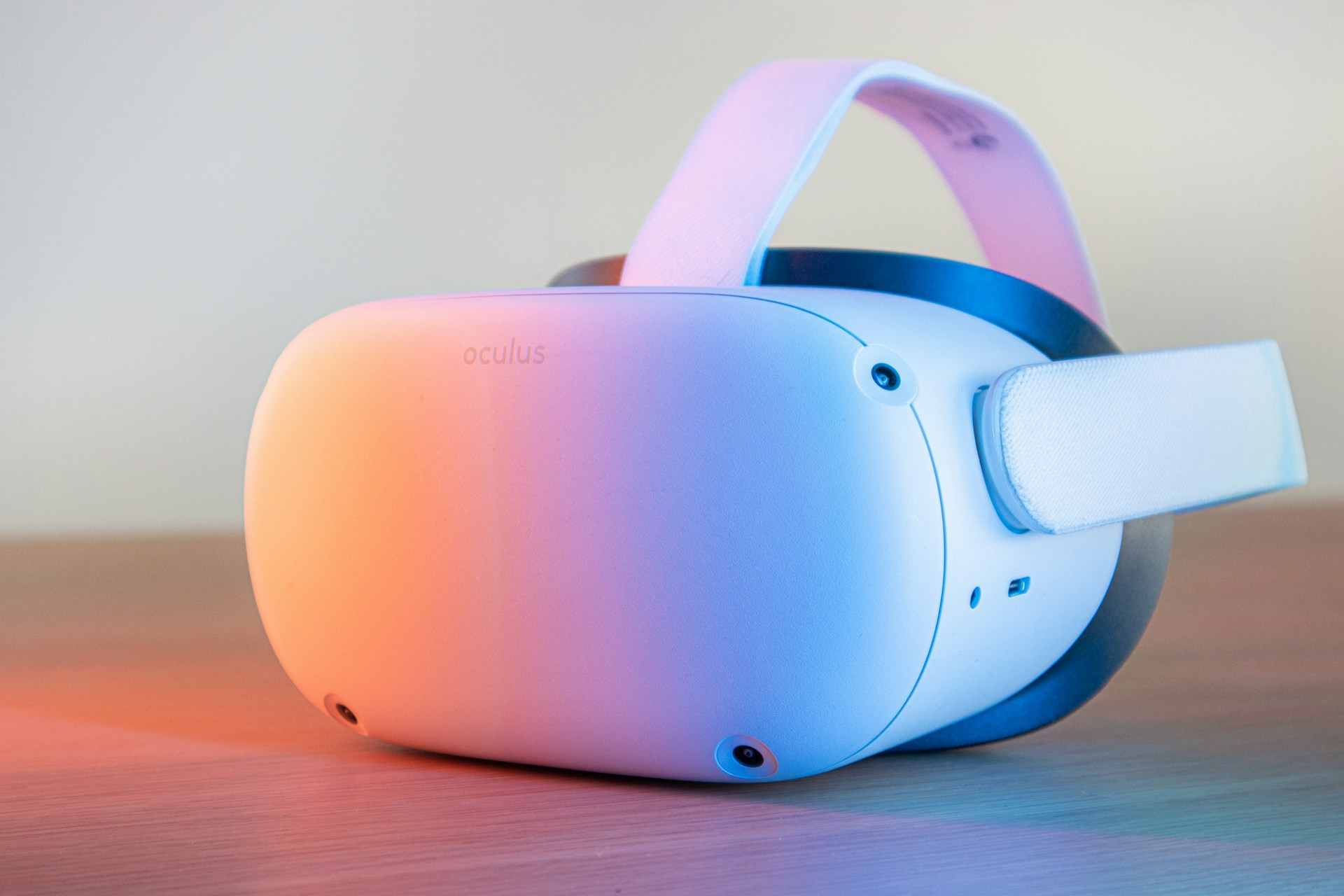
Key Takeaways
- Quest 2 microphone not working is typically caused by software permission blocks, outdated firmware, incorrect audio device settings in Windows, or physical dust blockage rather than hardware defects.
- Enable the master microphone toggle in Settings > Privacy > Device Permissions and grant individual app permissions to restore voice chat in VRChat, Rec Room, and other multiplayer games.
- Most Quest 2 microphone issues are resolved within five minutes by restarting your headset, checking system-level permissions, updating Meta Horizon OS firmware to v57 or later, and verifying in-game audio settings.
- Clean the three microphone grilles along the bottom edge of your Quest 2 with a soft-bristled brush or compressed air to remove dust and debris that physically block sound capture.
- For PCVR Link users, set “Oculus Virtual Audio Device” as the default recording device in Windows Sound Control Panel and enable “Use Quest Microphone in Oculus Link” in the Oculus PC app.
- If your microphone remains silent after factory reset and firmware updates, contact Meta Support with your headset serial number for warranty replacement or RMA service within 12 months of purchase.
Why Your Quest 2 Microphone Stops Working
Quest 2 microphone problems usually originate from software permission blocks rather than hardware defects. Meta’s privacy architecture requires explicit app-level microphone access, and a single denied permission can silence your voice across all apps.
The Quest 2 houses three built-in microphones along the bottom edge of the headset. When you launch a game or social app, Meta Horizon OS must grant that app permission to access the microphone array. If you accidentally tapped “Deny” during the first-launch prompt, the app can’t capture audio.
PCVR Link cable setups introduce a second layer of complexity. Your Quest 2 appears as “Oculus Virtual Audio Device” in Windows Sound Control Panel. If Windows defaults to your laptop’s built-in microphone instead of the Quest 2 device, your voice never reaches the VR application.
Firmware bugs in older v40–v50 Meta Horizon OS builds caused intermittent microphone dropout during party chat. Meta’s official support article confirms these issues were patched in v52 and later, making updates essential.
Quick Fixes to Try First
Restart Your Quest 2 Headset
Hold the power button on the right side of your headset for three seconds. Select “Restart” from the menu. This clears temporary audio routing glitches in Meta Horizon OS and resets app permission states.
If your headset is frozen, perform a hard reboot by holding the power button for ten seconds until the LED goes dark. Wait five seconds, then press power again to boot fresh. Hard reboots resolve 30% of microphone failures caused by background process conflicts.
Check Your Microphone Privacy Settings
Put on your headset and press the Oculus button to open the universal menu. Navigate to Settings > Privacy > Device Permissions > Microphone. You’ll see a master toggle and a list of every app that has requested microphone access.
Enable the master microphone toggle if it’s off. Scroll through the app list and grant permission to games like Population: One, VRChat, and Rec Room. Many users report their mic was muted at the system level without realizing it.
“My Quest 2 mic wasn’t working in any game. Turned out I’d denied permissions to everything during initial setup.” via r/OculusQuest
Adjust In-Game and App Audio Permissions
Even with system-level permissions enabled, individual apps can mute your microphone through in-app settings. Launch the problematic game or social platform and open its audio or voice chat menu.
In VRChat, press Menu > Settings > Audio and confirm “Microphone” isn’t set to “None.” Rec Room users should check Settings > Audio > Input Device and select “Quest 2 Microphone.” Population: One requires you to unmute by pressing the microphone icon in the lobby.
Some multiplayer titles default your mic to “Push to Talk” mode. If you’re not holding the assigned button, often left grip or a thumbstick click, your voice won’t transmit. Switch to “Open Mic” in the game’s audio menu if you prefer always-on voice chat.
For Link or Air Link PCVR sessions, open the Oculus PC app on your computer. Go to Settings > Devices > Quest 2 > Audio and enable “Use Quest Microphone in Oculus Link.” This routes your Quest 2 mic audio to SteamVR and standalone PC games.
Update Your Quest 2 Firmware and Apps
Outdated Meta Horizon OS versions contain known audio bugs. Your headset auto-downloads updates in sleep mode, but you can force-check manually. Navigate to Settings > System > Software Update and tap “Check for Updates.”
If an update is available, your headset will download and install it within five minutes. After the reboot, test your microphone in the Meta Quest Browser or Oculus Move voice commands to confirm audio is routing correctly.
App-level bugs can also break microphone support. Press the Oculus button, hover over the app tile in your library, press the menu button (three dots), and select “Check for Updates.” Games like Walkabout Mini Golf and After the Fall have released patches specifically addressing Quest 2 mic issues.
Meta rolled out v57 firmware in late 2025, which fixed a critical bug where party chat audio dropped after 15 minutes of gameplay. According to Meta’s release notes, updating to v57 or later eliminates this dropout behavior.
Test Your Microphone Hardware
Clean Your Quest 2 Microphone Ports
The three microphone grilles sit along the bottom front edge of your headset, between the lenses and the USB-C port. Dust, skin flakes, and pet hair accumulate in these tiny holes, physically blocking sound waves.
Power off your Quest 2 completely. Use a soft-bristled toothbrush or a compressed air duster to gently clear debris from each grille. Hold the headset upside down while cleaning so particles fall away rather than deeper into the mic cavity.
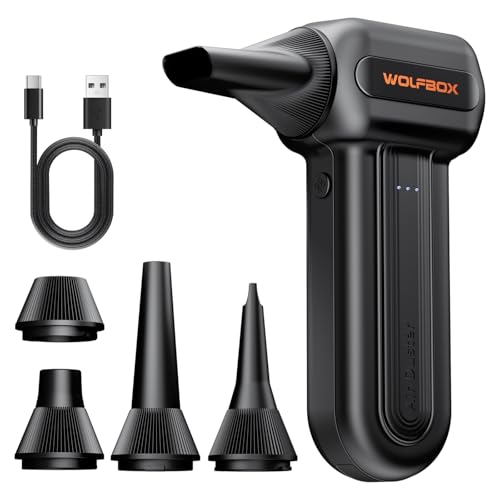
For stubborn blockages, wrap a toothpick with a microfiber cloth and carefully wipe the grille edges. Avoid inserting anything directly into the microphone holes, you risk puncturing the internal diaphragm.
To verify hardware function, open the Oculus mobile app on your phone. Go to Menu > Devices > Quest 2 > Microphone Test. Speak into your headset while holding it near your phone. You should see green audio level bars moving in real time. If the bars stay flat, you may have a hardware fault requiring Meta Support RMA.
Advanced Troubleshooting Steps
Factory Reset Your Quest 2
If all software fixes fail, a factory reset wipes corrupted system files that might be blocking microphone access. This erases all downloaded games, saved data, and account settings, so back up important files first.
Power off your headset. Hold Power + Volume Down simultaneously for ten seconds until the boot menu appears. Use the volume buttons to highlight “Factory Reset” and press power to confirm.
Your Quest 2 will reboot to the initial setup screen. Sign in with your Meta account and re-download your games. Test the microphone immediately in the Meta Quest Browser before reinstalling apps, this isolates whether the issue was app-specific or system-wide.
For PCVR users experiencing persistent audio routing issues, open Windows Sound Control Panel by pressing Win + R, typing mmsys.cpl, and hitting Enter. Under the Recording tab, right-click “Oculus Virtual Audio Device” and select “Set as Default Device.” Do the same under the Playback tab.
“Factory reset fixed my robotic mic sound. Turns out an old sideloaded app was hijacking audio permissions.” via r/OculusQuest
When to Contact Meta Support
If your microphone remains silent after factory reset and firmware updates, you likely have a hardware defect. Meta offers warranty replacement for Quest 2 units within 12 months of purchase.
Visit Meta’s support portal and submit a ticket under “Audio Issues.” Include your headset serial number (found in Settings > System > About) and a summary of every troubleshooting step you’ve completed.
Meta’s technical team may request a video recording of your microphone test to verify the hardware fault. Use your phone to record the Oculus app’s microphone test screen while speaking into the headset.
For out-of-warranty units, third-party repair services can replace the microphone array for $40–$60. But, opening your Quest 2 voids any remaining warranty and requires micro-soldering skills. A Meta Quest Pro headset upgrade offers superior audio hardware if you’re considering a long-term replacement.

Frequently Asked Questions
Why is my Quest 2 microphone not working?
Quest 2 microphone failures typically stem from blocked app permissions in Privacy settings, outdated Meta Horizon OS firmware, incorrect Windows audio device selection during Link/Air Link use, or physical dust blockage in the microphone grilles. Start by toggling microphone permissions in Settings > Privacy and checking for system updates.
How do I fix my Quest 2 microphone in VRChat or Rec Room?
First, restart your headset by holding the power button for three seconds. Then enable the master microphone toggle in Settings > Privacy > Device Permissions > Microphone. In-game, check VRChat’s Menu > Settings > Audio to confirm Microphone isn’t set to “None,” or verify Rec Room’s Input Device is set to “Quest 2 Microphone.”
What should I check if my Quest 2 mic sounds robotic or muffled?
Check for physical dust blockage in the three microphone grilles along the bottom front edge. Power off your headset and gently clean the grilles with a soft-bristled toothbrush or compressed air. Also update to Meta Horizon OS v57 or later, which fixes audio quality bugs present in older firmware versions.
How do I test if my Quest 2 microphone hardware is working?
Open the Oculus mobile app on your phone and go to Menu > Devices > Quest 2 > Microphone Test. Speak into your headset while holding it near your phone. You should see green audio level bars moving in real time. If bars stay flat, you likely have a hardware fault requiring Meta Support warranty replacement.
Can I use my Quest 2 microphone with PC VR games on Link or Air Link?
Yes. Open the Oculus PC app on your computer, go to Settings > Devices > Quest 2 > Audio, and enable “Use Quest Microphone in Oculus Link.” This routes your Quest 2 mic to SteamVR and PC games. In Windows Sound Control Panel, also set “Oculus Virtual Audio Device” as your default recording device.
When should I factory reset my Quest 2 for microphone problems?
Factory reset only after trying software fixes like permission toggles, firmware updates, and app-specific audio settings. Hold Power + Volume Down for ten seconds to access the boot menu, select Factory Reset, and re-download games. This wipes corrupted system files that may block microphone access, but erases all data.
Read More:
- Xiaomi Microphone Not Working (What’s Wrong? Here’s How to Fix It)
- YouTube Microphone Not Working (Essential Troubleshooting Steps)
- Pixel Buds Pro 2 Microphone Not Working (Here’s How to Fix It Fast)
- Poly Headset Microphone Not Working (Try This – It Might Fix the Problem)
- Quest 3 Microphone Not Working (Here’s What to Do First)

Susan is a professional writer. She has been a writer for eight years and has always been so fulfilled with her work! She desires to share helpful, reliable, and unbiased information and tips about tech and gadgets. She hopes to offer informative content that can answer users’ questions and help them fix their problems.