
Whether you’re gaming, coding, or just hammering out an email, that persistent beeping sound when pressing multiple keys simultaneously is incredibly frustrating. The good news? It’s almost always fixable.
The most common cause of your ThinkPad keyboard beeping when pressing multiple keys is Windows Filter Keys or Toggle Keys being accidentally enabled, or the keyboard hitting its key rollover limit. In most cases, you can resolve this in under five minutes by disabling Filter Keys in your Windows accessibility settings or updating your keyboard driver.
This guide will walks you through every fix, from quick software tweaks to BIOS adjustments and hardware checks, so you can get back to typing in peace.

Why Your Lenovo ThinkPad Beeps
Before you start changing settings, let’s understand why your ThinkPad is making noise in the first place. The beeping typically stems from one of two root causes: a hardware-level keyboard limitation or a Windows accessibility feature you didn’t know was active.
Key Rollover Limits and Ghosting
Every keyboard has a maximum number of simultaneous key presses it can register. This is called “key rollover.” Most ThinkPad keyboards support n-key rollover (NKRO) or at least 6-key rollover over USB, but certain key combinations on specific matrix layouts can still trigger issues.
When you press more keys than the keyboard controller can handle, it either drops the extra input or produces a beep to signal the conflict. This phenomenon is closely related to “ghosting,” where the keyboard’s electrical matrix misinterprets simultaneous presses as a phantom keystroke. The controller beeps instead of registering a wrong key.
ThinkPad keyboards use a membrane-style key matrix. Certain three-key or four-key combinations that share the same electrical pathways will conflict. You’ll notice the beep happens with specific key combos, not every multi-key press. If the beeping only occurs during gaming or specific shortcuts, rollover limits are likely the culprit.
One Reddit user described the problem perfectly (r/thinkpad) This is a textbook rollover issue, not a hardware failure.
“Every time I press 3+ keys at once in a game, my ThinkPad beeps like crazy. Thought my keyboard was dying.”
Filter Keys and Accessibility Settings
The far more common cause, especially if the beeping happens during normal typing, is Windows Filter Keys. This accessibility feature is designed to ignore brief or repeated keystrokes, and it makes a beep sound each time it filters an input.
Here’s the sneaky part: you can accidentally activate Filter Keys by holding down the right Shift key for eight seconds. Many ThinkPad users trigger this without realizing it, especially during long typing sessions or when resting their hand on the keyboard.
Toggle Keys is another accessibility setting that beeps when you press Caps Lock, Num Lock, or Scroll Lock. If your beeping coincides with those specific keys, Toggle Keys is the likely offender. Both features are easy to disable, which we’ll cover in the next section.
According to Microsoft's official support documentation, Filter Keys can also cause a noticeable delay between keystrokes, which compounds the frustration for fast typists.
Disable Filter and Toggle Keys
This is the fix that resolves the problem for roughly 80% of users. Here’s exactly how to disable both Filter Keys and Toggle Keys in Windows 10 and Windows 11.
To disable Filter Keys:
- Open Settings (press Win + I)
- Go to Accessibility (or “Ease of Access” in Windows 10)
- Select Keyboard from the sidebar
- Find Filter Keys and toggle it Off
- Also uncheck “Allow the shortcut key to start Filter Keys”
To disable Toggle Keys:
- In the same Keyboard settings screen
- Find Toggle Keys and switch it Off
- Uncheck “Allow the shortcut key to start Toggle Keys”
Disabling the shortcut is critical. If you skip that step, you’ll accidentally re-enable Filter Keys the next time you hold Shift too long. That’s the mistake most people make, they turn off the feature but leave the shortcut active.
After making these changes, test your keyboard immediately by pressing multiple keys at once. The beeping should stop. If it doesn’t, the issue likely lives deeper in your driver stack or BIOS settings.
If you want a streamlined way to manage Windows settings and catch hidden annoyances like rogue accessibility features, Microsoft PowerToys is a free utility worth installing. Its Keyboard Manager module gives you granular control over key behavior and remapping.
Updating Your Keyboard Driver
Outdated or corrupted keyboard drivers can cause erratic behavior, including phantom beeping. This fix takes a bit more effort but is essential if disabling Filter Keys didn’t solve the problem.
Steps to update your ThinkPad keyboard driver:
- Right-click the Start button and select Device Manager
- Expand the Keyboards section
- Right-click your keyboard device (usually “Standard PS/2 Keyboard” or “Lenovo ThinkPad Keyboard”)
- Select Update driver → Search automatically for drivers
- If no update is found, select Uninstall device instead
- Restart your ThinkPad, Windows will reinstall the driver automatically on boot
For ThinkPad-specific drivers, you should also visit Lenovo’s official support page and download the latest Hotkey Features Integration package for your exact model. This package handles special key functions and can resolve beeping issues tied to the Fn key matrix.
A corrupted driver sometimes registers phantom key presses, which triggers the system beep. After reinstalling, open Notepad and press several keys simultaneously. If the beeping is gone, you’ve found your fix.
For a visual walkthrough of driver troubleshooting on ThinkPads, check out this helpful video:
Video Credit: Lenovo Support/ YouTube
Adjusting BIOS Keyboard Settings
If software-level fixes haven’t stopped the beeping, your BIOS might be the source. ThinkPad BIOS includes keyboard-specific settings that can generate beep codes independently of Windows.
To access your ThinkPad BIOS:
- Restart your laptop
- Press F1 repeatedly during boot (before the Windows logo appears)
- Navigate to the Config tab
- Select Keyboard/Mouse
- Look for “Beep on key press” or “Keyboard Beep” and set it to Disabled
Not every ThinkPad BIOS has an explicit beep toggle. Older models (T440, T450, X240) sometimes bury this under “Beep and Alarm” in the Config menu. Newer models like the T14 Gen 4 or X1 Carbon Gen 11 may handle beeping entirely through Lenovo Vantage software instead.
While you’re in the BIOS, also check the Fn key behavior setting. Some ThinkPads swap the Fn and Ctrl key functions, which can cause unexpected input combinations and trigger rollover beeps during heavy typing.
Always save your changes (F10) before exiting. If the beeping persists after this step, the problem is almost certainly hardware-related.
Hardware Troubleshooting for Beeping
When software and BIOS fixes don’t work, it’s time to investigate the physical keyboard itself. Hardware issues are less common but they do happen, especially on older ThinkPads or machines that have taken a spill.
Start by connecting an external USB keyboard. If the beeping stops when you type on the external keyboard, your ThinkPad’s built-in keyboard likely has a hardware fault, a stuck key, damaged membrane, or corroded contact point.
Here’s a quick comparison to help you determine the source:
| Symptom | Likely Cause | Fix |
|---|---|---|
| Beeping with specific key combos only | Key rollover/ghosting | Remap keys or use external keyboard |
| Beeping during all multi-key presses | Filter Keys enabled | Disable in Windows settings |
| Beeping persists with external keyboard | Windows or BIOS setting | Check accessibility and BIOS |
| Beeping only on built-in keyboard | Hardware fault | Replace keyboard module |
If you identify a hardware issue, ThinkPad keyboards are thankfully some of the easiest laptop keyboards to replace. Most models use a few screws and a ribbon cable, no soldering required.
The Lenovo ThinkPad T14 Replacement Keyboard is a solid pick for anyone with a T-series model. For a more permanent upgrade to your typing setup, the Lenovo ThinkPad TrackPoint Keyboard II gives you that classic ThinkPad feel as an external USB/Bluetooth option, perfect as a desk upgrade or backup keyboard.

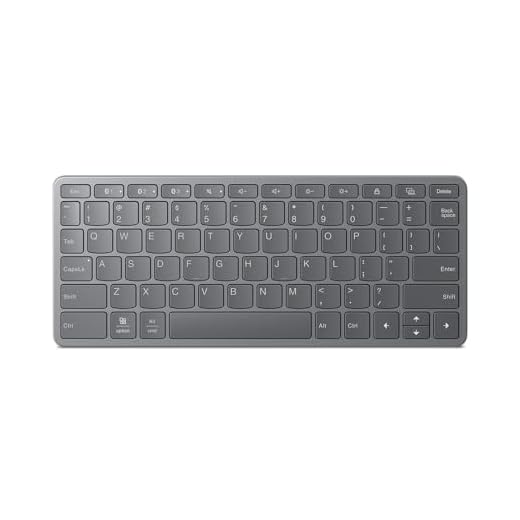
Before replacing anything, try compressed air to clean under the keycaps. Debris can cause keys to stick and register repeated presses, which mimics the beeping problem.
Preventing the Issue From Recurring
Fixing the beeping once is great. Making sure it never comes back is better. Here are the key steps to prevent this issue from returning:
- Disable Filter Keys shortcut permanently, Settings → Accessibility → Keyboard and turn off every shortcut toggle
- Keep drivers updated, Use Lenovo Vantage or Lenovo System Update to automate driver checks
- Set BIOS beep to disabled, One less source of unexpected noise
- Clean your keyboard monthly, Dust and crumbs cause stuck keys, which trigger repeated input beeps
- Avoid resting your palm on Shift, This is the number one way users accidentally re-enable Filter Keys
Lenovo Vantage is especially useful here. It monitors your system health, pushes driver updates automatically, and lets you adjust keyboard and input settings without digging through Windows menus.
Pro tip: if you use your ThinkPad for gaming, consider remapping your key bindings to avoid combinations that hit the rollover limit. Tools like AutoHotkey give you full control over which keys do what, and you can sidestep ghosting entirely by choosing non-conflicting key combos.
Finally, periodically check your Windows accessibility settings after major updates. Windows updates have been known to re-enable Filter Keys and Toggle Keys without warning. A quick 30-second check after each update saves you from a repeat headache.
Frequently Asked Questions
Why does my ThinkPad keyboard beep when pressing multiple keys at once?
The most common causes are Windows Filter Keys being accidentally enabled or your keyboard hitting its key rollover limit. Filter Keys beeps when it filters repeated or brief keystrokes, while rollover limits trigger a beep when more simultaneous key presses occur than the keyboard matrix can handle.
How do I disable Filter Keys to stop my ThinkPad from beeping?
Open Settings (Win + I), go to Accessibility > Keyboard, toggle Filter Keys off, and uncheck “Allow the shortcut key to start Filter Keys.” Disabling the shortcut is critical, otherwise, holding the right Shift key for eight seconds will silently re-enable the feature.
Can a BIOS setting cause keyboard beeping on a ThinkPad?
Yes. Some ThinkPad BIOS configurations include a “Keyboard Beep” or “Beep on key press” option under Config > Keyboard/Mouse. Pressing F1 during boot lets you access BIOS and disable this setting. Newer models may manage this through Lenovo Vantage software instead.
What is keyboard ghosting and how does it relate to ThinkPad beeping?
Ghosting occurs when a keyboard’s electrical matrix misinterprets simultaneous key presses as a phantom keystroke. ThinkPad membrane keyboards can conflict on certain three- or four-key combinations sharing the same electrical pathways, causing the controller to beep rather than register an incorrect input.
How do I know if my ThinkPad keyboard beeping is a hardware issue?
Connect an external USB keyboard and test. If the beeping stops on the external keyboard but continues on the built-in one, you likely have a hardware fault such as a stuck key, damaged membrane, or debris under the keycaps. Try compressed air first before considering a keyboard replacement.
Does Windows Update re-enable Filter Keys or Toggle Keys automatically?
Yes, Windows updates have been known to re-enable Filter Keys and Toggle Keys without warning. It’s a good practice to check Settings > Accessibility > Keyboard after every major update to ensure these features and their shortcut keys remain disabled, preventing unexpected beeping from returning.
Source:
- Lenovo Forums – Disable BIOS Keyboard Beep
- Lenovo Support – Troubleshooting Keyboard Issues
- Microsoft Support – Using Filter Keys
- Laptop Mag – Stop Your Laptop from Beeping
- Reddit – ThinkPad Keyboard Beeping Discussion
Read More:
- [Solved] Lenovo Thinkpad Keyboard Not Working (Here’s The Quick Fix)
- Lenovo ThinkPad Camera Not Working Issue (Solved!)
imerimran@gmail.com or the word “Avangate”

Susan is a professional writer. She has been a writer for eight years and has always been so fulfilled with her work! She desires to share helpful, reliable, and unbiased information and tips about tech and gadgets. She hopes to offer informative content that can answer users’ questions and help them fix their problems.