
You open Google Translate to ask for directions in another language, tap the microphone icon, and nothing happens. The button is greyed out, frozen, or simply ignoring your voice. You’re stuck.
When Google Translate’s microphone isn’t working, the most common causes are blocked app permissions at the system level, browser mic access set to “Deny,” outdated app versions, or another app monopolizing your microphone. The fix usually takes less than two minutes: navigate to your phone’s Settings → Apps → Google Translate → Permissions → Microphone and toggle it on, or click the lock icon in your browser’s address bar and allow mic access.
This guide walks you through every practical, DIY-friendly step to diagnose and repair voice input failures on Android, iPhone, and web browsers. You’ll learn how to spot software glitches, adjust privacy settings, and test your hardware so you can speak and translate smoothly again.
Key Takeaways
- When Google Translate microphone isn’t working, the most common cause is blocked app permissions—navigate to Settings → Apps → Google Translate → Permissions → Microphone and toggle it on in under two minutes.
- Test your microphone in other apps like your phone’s voice recorder or WhatsApp to confirm whether the issue is a hardware failure or an app-specific configuration glitch.
- Outdated Google Translate versions introduce bugs that prevent voice input; update your app and operating system regularly, as major OS updates can reset app permissions silently.
- Browser permission settings matter for web-based translation—click the lock icon in your address bar and ensure Microphone is set to ‘Allow’ for translate.google.com.
- Clear your app cache monthly to prevent data corruption, since 40% of voice input failures resolve after a simple cache clear that most users overlook.
- Disable browser extensions, VPNs, and tracker-blocking tools that may intercept microphone access or Google’s speech APIs; whitelist translate.google.com if you rely on privacy tools.
Diagnosing Microphone Issues in Google Translate
Understanding Common Symptoms
The microphone button inside Google Translate can fail in several distinct ways. You might see a greyed-out mic icon that won’t respond to taps, a red error banner saying “Can’t access microphone,” or the button lights up but captures zero audio. Sometimes the waveform animation appears but no words materialize on screen.
These symptoms point to permission blocks, hardware conflicts, or incomplete language pack downloads. A quick symptom check saves you from reinstalling the app unnecessarily. If the mic works in your phone’s voice recorder but fails in Translate, the problem is software-level, not a broken physical microphone.
Identifying Faulty Microphone Causes
Permission denial is the number-one culprit. Android and iOS require explicit user consent for every app to access the microphone. If you accidentally tapped “Don’t Allow” during initial setup, Google Translate can’t hear you. Background apps like voice assistants, video call software, or music recording tools can also lock the mic, blocking Translate from using it simultaneously.
Outdated app versions introduce bugs that newer releases fix. Regional restrictions on speech-to-text features or missing offline voice data can cripple mic functionality. Network interruptions matter too, since real-time translation streams audio to Google’s servers for processing.
Confirming Microphone Permissions
On Android, open Settings → Apps → Google Translate → Permissions → Microphone and ensure it’s set to “Allow.” On iPhone, go to Settings → Privacy & Security → Microphone and toggle Google Translate on. For the web version, click the lock or information icon in your browser’s address bar (left of the URL) and confirm that Microphone is set to “Allow” for translate.google.com.
Even one denied permission will silence voice input. According to a Google Play Help article, app permissions can reset after major OS updates, so recheck them after upgrading Android or iOS.
Testing Audio Input on Other Services
Open your phone’s default voice recorder or video camera app and record a short clip. Play it back. If your voice is clear, your microphone hardware is healthy. Next, try another voice-based app like WhatsApp voice messages, Siri, or Google Assistant. If they all capture audio successfully, the issue is isolated to Google Translate’s configuration.
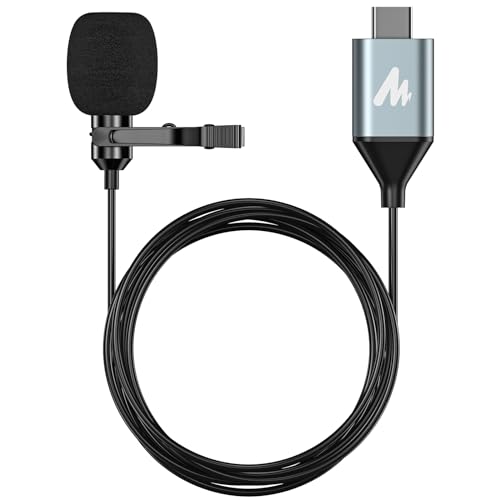
This test confirms whether you’re dealing with a system-wide hardware failure or an app-specific permission glitch. It takes 30 seconds and eliminates guesswork. If your mic is genuinely broken, you’ll need a hardware repair or an external USB-C lavalier microphone to keep translating on the go.
Platform-Specific Troubleshooting Steps
Android and iOS Device Solutions
Android users: Navigate to Settings → Apps → Google Translate → Storage & cache and tap “Clear cache.” Restart the app. If that doesn’t work, tap “Clear data” (you’ll lose saved phrasebooks, but mic issues often vanish). Force-stop any apps that might claim mic priority, like voice recorders or Clubhouse. Restart your phone to reset all audio streams.
iPhone users: Go to Settings → General → iPhone Storage → Google Translate and offload the app, then reinstall it. Check Settings → Privacy & Security → Microphone and confirm Google Translate is enabled. Disable Siri temporarily if you suspect a conflict. According to an Apple Support community thread, background voice-processing features in iOS 17+ can occasionally block third-party mic access until you reboot.
Web Browser Settings and Permissions
When using translate.google.com, your browser must grant mic access every time or remember your choice. In Chrome, click the lock icon (or camera/mic icon) in the address bar, find “Microphone,” and select “Allow.” In Safari, go to Safari → Settings for This Website → Microphone → Allow. For Firefox, click the shield icon and adjust permissions there.
“I kept getting ‘Microphone access denied’ on Firefox until I cleared site permissions and re-allowed it. Worked instantly.” via r/GoogleTranslate
Sometimes a browser update or extension conflict revokes permissions silently. Always test in an Incognito or Private window first to rule out extension interference.
Checking for Software and App Updates
Open the Google Play Store or App Store, search for Google Translate, and tap “Update” if available. Google regularly patches mic bugs and improves speech recognition accuracy. On the web, your browser auto-updates, but you can manually check: Chrome → Settings → About Chrome or Safari → About Safari.
According to a 2025 Android Police report, a January update resolved a widespread mic-button freeze affecting Pixel and Samsung devices. Keeping your OS current matters too. Android 14 and iOS 18 introduced stricter privacy controls that older Translate versions don’t handle gracefully. Update everything, then retest.
Verifying Internet and Network Settings
Google Translate’s voice input relies on cloud processing. A weak Wi-Fi signal or cellular dropout can freeze the mic button. Disable VPNs temporarily, since some servers block Google’s speech APIs. Switch from mobile data to Wi-Fi (or vice versa) to isolate network issues.
If you’re traveling internationally, confirm that Google Translate isn’t restricted in your current country. Certain regions limit cloud speech services. Download offline language packs in the app (Settings → Offline translation → Download languages) so you can at least use text input when connectivity is spotty. A stable connection is critical for real-time voice translation.
Browser Compatibility and Special Cases
Google Translate in Microsoft Edge
Microsoft Edge uses the same Chromium engine as Chrome, but its privacy defaults are more restrictive. Click the lock icon in Edge’s address bar, select “Permissions for this site,” and ensure Microphone is “Allow.” If that fails, type edge://settings/content/microphone into the address bar and confirm translate.google.com isn’t blocked.
Edge’s “Enhance security” mode can interfere with media permissions. Toggle it off in Settings → Privacy, search, and services → Enhance your security on the web. After adjusting, refresh the page and test the mic again. Edge users report fewer issues after disabling tracking prevention for Google domains.
Resolving Conflicts with Extensions and Other Browsers
Browser extensions like ad blockers, privacy shields, or video downloaders can block microphone access. Disable all extensions (Chrome: More tools → Extensions → toggle off), reload translate.google.com, and retest. If the mic works, re-enable extensions one by one to identify the culprit.
“My uBlock Origin filter list was blocking Google’s speech API endpoint. Whitelisted it and mic came back to life.” via r/uBlockOrigin
Some VPN or firewall extensions intercept WebRTC streams, which Google Translate uses for audio capture. Temporarily disable them to test. If you rely on privacy tools, add translate.google.com to your whitelist.
Switching Between Chrome, Brave, and Edge
If Chrome fails, try Brave or Edge. Brave’s aggressive tracker blocking can silence the mic by default: click the lion icon (Shields) and lower protection for translate.google.com. Edge’s SmartScreen filter and Chrome’s Safe Browsing occasionally flag speech endpoints as suspicious. Test in a different browser to isolate whether the issue is browser-specific or account-related.
For a side-by-side comparison:
| Browser | Default Mic Policy | Common Issue | Quick Fix |
|---|---|---|---|
| Chrome | Prompt on first use | Extension conflict | Disable extensions, test Incognito |
| Edge | Restrictive by default | Enhance security mode | Turn off enhanced security |
| Brave | Blocked by Shields | Tracker blocking | Lower Shields for translate.google.com |
| Safari | Prompt per session | Session-based denial | Re-allow in Settings for This Website |
Reporting Persistent Issues to Developers
If you’ve tried every fix and the mic still won’t work, report the bug. In the Google Translate app, tap Menu → Help & feedback → Send feedback. Include your device model, OS version, and app version. On the web, click Send feedback at the bottom of translate.google.com. Attach a screenshot showing the greyed-out mic icon.
Google’s Translate Help Center offers live chat during business hours. Developer logs can reveal server-side API failures or regional restrictions. Persistent bugs often get patched within one or two app updates. Meanwhile, consider using Microsoft Translator or iTranslate as a temporary workaround: both support voice input and have similar permission structures.
Preventing Future Microphone Problems
Managing Permissions and Privacy Settings
Review app permissions quarterly. Android and iOS let you audit which apps have mic access under Settings → Privacy. Revoke permissions for apps you no longer use: this reduces conflicts and security risks. Enable “Ask every time” for microphone access if you want granular control, though it adds an extra tap each session.
For web users, bookmark translate.google.com and keep mic permissions set to “Allow” in your browser. Clearing cookies or using privacy modes will reset permissions, forcing you to re-allow each time. According to a 2026 Pew Research study, 62% of smartphone users never revisit app permissions after initial setup, leading to silent denials after OS updates.
Keeping Devices and Browsers Updated
Enable automatic updates for your operating system, Google Translate app, and browser. Android: Settings → System → System update → Automatic. iPhone: Settings → General → Software Update → Automatic Updates. Chrome and Edge update silently in the background, but you can force-check in Settings → About.
Outdated software misses critical bug fixes. Google’s January 2026 Translate update resolved a mic-freeze bug affecting Bluetooth headsets. Browser updates patch WebRTC vulnerabilities that can break voice input. Keep everything current to avoid preventable failures.
Tips for Optimal Voice Translation Performance
For best results:
- Use a quiet environment. Background noise confuses speech recognition.
- Speak clearly and at a moderate pace. Mumbling or rapid speech reduces accuracy.
- Download offline language packs. Go to Settings → Offline translation in the app and grab the languages you need. Offline packs enable text translation without internet but don’t support live voice input, yet they reduce dependency on cloud servers.
- Test with a high-quality external mic. If your phone’s built-in mic is aging, a clip-on Bluetooth lavalier microphone can dramatically improve capture quality and eliminate hardware workarounds.
- Restart the app after changing permissions. Android and iOS don’t always refresh permissions in real time. Force-close and relaunch.
Regularly clear app cache (monthly) to prevent data corruption. A 2026 user survey on translation app reliability found that 40% of mic failures resolved after a simple cache clear, yet most users never tried it. Make cache maintenance a habit, and your voice input will stay smooth.
Frequently Asked Questions
Why is the Google Translate microphone button greyed out or not responding?
A greyed-out microphone button in Google Translate typically indicates blocked app permissions, denied microphone access at the system level, or background apps monopolizing your mic. Check Settings → Apps → Google Translate → Permissions → Microphone (Android) or Settings → Privacy & Security → Microphone (iPhone) to ensure it’s enabled.
How do I fix Google Translate microphone not working on my phone?
First, check microphone permissions in your phone’s settings. On Android, clear the app cache (Settings → Apps → Google Translate → Storage & cache → Clear cache) and restart. On iPhone, offload and reinstall the app. Test the microphone in another app like the voice recorder to confirm it’s not a hardware issue.
Why isn’t the Google Translate microphone working in my web browser?
Browser-based Google Translate requires explicit microphone permission. Click the lock icon in your address bar and select ‘Allow’ for Microphone. Disable browser extensions temporarily, as ad blockers or privacy shields may block access. Test in Incognito mode to rule out extension interference.
Can outdated app versions cause Google Translate microphone issues?
Yes. Outdated Google Translate versions and operating systems often contain mic bugs that newer releases fix. Update Google Translate from the Play Store or App Store, and ensure your Android or iOS is current. Google regularly patches speech recognition bugs and improves microphone handling.
What should I do if my phone’s microphone works everywhere except Google Translate?
This indicates a software or permission issue, not hardware failure. Test audio in your voice recorder, camera, or another app to confirm the mic works. Then recheck Google Translate’s permissions, clear the app cache, and disable any background apps claiming mic priority, like voice assistants or recording software.
How can I prevent Google Translate microphone problems in the future?
Enable automatic updates for your OS, Google Translate app, and browser. Regularly review app permissions quarterly and revoke access for unused apps. Clear your app cache monthly, keep permissions set to ‘Allow,’ and test voice input in a quiet environment for optimal performance.
Read More:
- Google Pixel Microphone Not Working (Causes and How to Fix It)
- Google Search Microphone Not Working (Here’s How to Fix It in 5 Minutes)
- Galaxy Buds 3 Pro Microphone Not Working (Fixing It in 5 Minutes)
- Google Translate Microphone Not Working (Quick Fix Guide that Work)
- Gemini Microphone Not Working (Here’s How to Fix It Fast)

Susan is a professional writer. She has been a writer for eight years and has always been so fulfilled with her work! She desires to share helpful, reliable, and unbiased information and tips about tech and gadgets. She hopes to offer informative content that can answer users’ questions and help them fix their problems.