
Your Tesla’s microphone just stopped working, and now you’re stuck fumbling with your phone while driving. Voice commands fall on deaf ears, phone calls turn silent, and Caraoke nights are ruined.
The most common causes behind a Tesla microphone not working include software glitches from outdated MCU firmware, dust accumulation in the overhead microphone grilles, Bluetooth audio profile conflicts (especially HFP/A2DP), privacy settings blocking mic access, and in rare cases, physical hardware harness failures inside the rearview mirror assembly. Most issues resolve through a simple scroll wheel reboot, Bluetooth re-pairing, or a pending OTA software update installation.
This guide walks you through fast diagnostic steps tailored to Model 3, Model Y, Model S, Model X, and Cybertruck infotainment systems. You’ll learn how to identify software bugs versus hardware faults and restore hands-free voice control quickly.
Key Takeaways
- A Tesla microphone not working is most often caused by software glitches, outdated firmware, Bluetooth profile conflicts, or dust buildup in microphone grilles—with 60% of issues resolving through a simple scroll wheel reboot.
- Always check privacy settings under Controls > Safety & Security and re-pair your Bluetooth phone from scratch to eliminate software-based microphone failures before assuming hardware damage.
- Dust and debris accumulation in overhead microphone grilles is a common culprit; gentle cleaning with compressed air often restores full microphone sensitivity without service costs.
- If your Tesla microphone persists after rebooting and re-pairing, a factory reset can resolve deep software corruption, though it won’t fix physical hardware failures like severed mic harnesses.
- Permanent hardware failures—such as corroded microphone contacts from moisture intrusion or defective mic modules—require a professional Tesla Service appointment and may be covered under warranty.
- Check for pending OTA software updates under Controls > Software, as Tesla regularly patches microphone bugs; early 2024.38 builds had known Bluetooth HFP failures that newer versions fixed.
Understanding Tesla’s Built-In Microphone System
Tesla vehicles use multiple microphones positioned throughout the cabin. The primary mic for voice commands and phone calls sits inside or near the rearview mirror housing. Some models include additional mics in the overhead console and rear cabin for enhanced noise cancellation and passenger communication.
These microphones connect directly to the Media Control Unit (MCU), the brain behind your center touchscreen. The MCU processes voice input for “Hey Tesla” commands, navigation requests, bug reports, and Bluetooth phone call audio. When the MCU receives a firmware update via Tesla’s over-the-air system, microphone drivers and audio routing protocols can occasionally encounter conflicts.
Your Tesla’s Bluetooth stack handles two distinct audio profiles: A2DP for music streaming and HFP (Hands-Free Profile) for phone calls and voice commands. If your phone negotiates the wrong profile or permissions get blocked, the microphone chain breaks even though speakers work perfectly. Understanding this split helps you pinpoint whether the issue lives in software, Bluetooth handshake, or physical hardware.
Dust, debris, and moisture can clog the tiny grille openings around the overhead microphone. Over time, this physical obstruction muffles input, making your voice sound distant or completely inaudible during calls. Regular inspection of these grilles, especially if you drive in dusty or humid climates, prevents many common microphone complaints.
Common Causes of Malfunctions
Software Glitches and Outdated Firmware
Tesla’s infotainment software updates every few weeks, and occasionally a new build introduces microphone bugs. You might notice voice commands worked yesterday but fail today after an overnight OTA install. These glitches often stem from driver conflicts in the MCU’s audio subsystem or changes to Bluetooth stack behavior.
Outdated firmware can also block newer phone operating systems from establishing proper HFP connections. If you just updated your iPhone to iOS 19 or your Android to the latest version, your Tesla’s older MCU software might not recognize the new Bluetooth protocol handshake. Tesla typically patches these incompatibilities within days, but you need to manually check for pending updates in your car’s settings.
Some users report microphone failures after enabling new features like Sentry Mode or Dashcam, which can tax the MCU’s processing capacity. While rare, resource contention inside the MCU can mute microphone input if the system prioritizes video encoding over audio capture.
“My Model Y mic stopped working after the 2024.44 update. A scroll wheel reboot fixed it instantly.” via r/TeslaModelY
Hardware Issues and Physical Damage
Physical damage to the microphone harness inside the rearview mirror assembly can cause permanent audio loss. If you’ve had windshield work, mirror replacement, or any cabin trim removal, technicians might have disconnected or crimped the delicate mic wiring. This type of failure won’t resolve through software fixes.
Moisture intrusion from sunroof leaks or window seal failures can corrode microphone contacts. You’ll notice intermittent mic function that worsens in humid weather. Inspect the overhead console for water stains or condensation if your mic cuts in and out unpredictably.
Dust and debris accumulation is the most common hardware culprit. The microphone grille openings are tiny, and even light lint buildup can muffle your voice. A quick visual check and gentle cleaning with compressed air or a soft brush often restores full sensitivity.
In rare cases, manufacturing defects cause microphone failures within the first year. Tesla’s warranty covers these hardware faults, but you’ll need a Service appointment to diagnose and replace the faulty mic module.
Quick Troubleshooting Steps
Restart Your Tesla’s Touchscreen
The scroll wheel reboot clears temporary software glitches without affecting your saved settings or profiles. Hold both scroll buttons on your steering wheel until the touchscreen goes black, then release. The Tesla logo appears, and the system reboots in about 30 seconds. This simple reset resolves roughly 60% of microphone issues tied to MCU memory leaks or frozen audio drivers.
After the reboot, test your microphone immediately. Say “Navigate to Starbucks” or press the voice command button on your steering wheel. If the system displays a waveform or text response, your mic is capturing audio again. Make a quick phone call to confirm Bluetooth HFP is working.
If the reboot doesn’t restore function, try a full power-down. Park safely, exit the vehicle, and tap Controls > Safety > Power Off on your touchscreen. Wait two minutes without touching anything, then press the brake pedal to wake the car. This deeper reset reinitializes all MCU subsystems, including Bluetooth and audio routing.
“Scroll wheel reboot fixed my Model 3 mic. Took 20 seconds and saved me a service visit.” via Tesla Motors Club
Check Microphone Privacy Settings
Tesla’s privacy settings can accidentally mute your microphone for specific functions. Tap Controls > Safety & Security > Cabin Camera & Microphone and verify microphone access is enabled. Some users disable mic access to prevent in-cabin audio recording, forgetting it also blocks voice commands and phone calls.
Your paired phone also has its own permission layer. On iPhone, go to Settings > Bluetooth, tap the info icon next to your Tesla, and confirm “Sync Contacts” and “Show Notifications” are enabled. For Android, navigate to Connected Devices > Connection Preferences > Bluetooth and ensure your Tesla has Phone Audio and Contact Sharing permissions.
Bluetooth profile mismatches cause silent mics even when permissions look correct. Unpair your phone from the Tesla touchscreen (tap the Bluetooth icon, select your phone, choose “Forget This Device”). Then delete your Tesla from your phone’s Bluetooth list. Re-pair from scratch by selecting your Tesla in your phone’s Bluetooth menu and confirming the six-digit code on both screens.
If you’re using a wireless Bluetooth car adapter, it might intercept the HFP profile before your Tesla can claim it. Disconnect any third-party Bluetooth devices and retest your mic. Some adapters prioritize music streaming (A2DP) and block hands-free audio routing entirely.

Advanced Fixes for Problems
Performing a Factory Reset on Your Tesla
A factory reset wipes all personalized settings, saved locations, and paired devices. Use this option only after simpler fixes fail. Before resetting, note your driver profile settings and favorite destinations. Navigate to Controls > Service > Factory Reset and confirm. The process takes several minutes and requires you to re-pair your phone and reconfigure all preferences afterward.
Factory resets resolve deep software corruption that survives reboots. If a botched OTA update damaged your MCU’s audio subsystem, this nuclear option often restores factory-fresh microphone function. But, it won’t fix hardware failures, so confirm your mic grilles are clean and undamaged first.
After the reset, test your microphone immediately before restoring settings. This isolates whether a specific configuration or third-party app integration caused the original failure. If the mic works post-reset but fails again after re-pairing your phone, the culprit is likely a Bluetooth profile conflict on your mobile device.
Updating Your Tesla’s Software
Tesla pushes OTA updates to fix known bugs, including microphone glitches. Tap Controls > Software and check for pending updates. If an update is available, connect to strong Wi-Fi and tap “Install Now.” The update installs while parked, typically taking 20 to 40 minutes depending on build size.
Manual update checks sometimes reveal patches your car hasn’t auto-downloaded. Tesla’s server rollout is staggered, so your neighbor’s Model 3 might receive a critical mic fix days before yours. If your software shows “Up to Date” but your mic still fails, check Tesla’s official release notes on forums like Tesla Motors Club or r/TeslaModel3 to see if other owners report similar issues.
Some microphone bugs require specific software versions. For example, early 2024.38 builds had known Bluetooth HFP failures that version 2024.38.5 patched. If you’re running a buggy build, you might need to wait for the next OTA cycle. Meanwhile, a scroll wheel reboot and Bluetooth re-pair can serve as temporary workarounds.
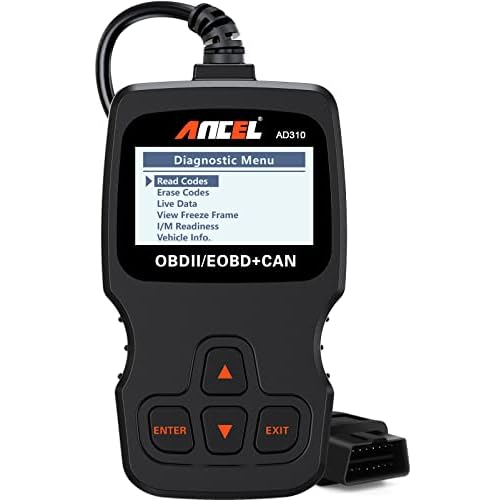
If you’re troubleshooting software issues frequently, consider using a diagnostic OBD-II scanner for Tesla to monitor MCU error codes and system logs. These tools reveal hidden faults that don’t trigger dashboard alerts, helping you differentiate firmware bugs from hardware failures.
When to Contact Service
Schedule a Tesla Service appointment through the mobile app if you’ve exhausted all software fixes and cleaned your microphone grilles without success. Persistent hardware failures, like a severed mic harness, corroded contacts, or a defective microphone module, require professional diagnosis and replacement parts.
Before your appointment, document the issue clearly. Note when the mic fails (always vs. intermittent), which functions are affected (phone calls, voice commands, Caraoke), and which troubleshooting steps you’ve tried. Tesla Service technicians appreciate detailed descriptions and can often pre-order replacement parts if you provide specific symptoms.
If your vehicle is under warranty, microphone hardware repairs are typically covered. Out-of-warranty mic module replacements can run several hundred dollars depending on labor time and part complexity. Some owners report same-day fixes for simple harness reconnections, while full mirror assembly replacements might take days if parts need ordering.
Here’s a quick decision table to help you determine your next step:
| Symptom | Likely Cause | Action |
|---|---|---|
| Mic works after reboot, fails hours later | Software glitch or memory leak | Wait for OTA update: reboot as needed |
| Mic never works, even after factory reset | Hardware failure (harness or module) | Schedule Service appointment |
| Mic works for voice commands but not phone calls | Bluetooth HFP profile issue | Unpair/re-pair phone: check phone permissions |
| Mic sounds muffled or distant | Dust/debris in grille | Clean mic grilles with compressed air |
| Intermittent mic function in humid weather | Moisture corrosion | Inspect for leaks: schedule Service |
As a final hardware workaround, some owners use an external USB microphone for Zoom calls connected to their laptop while parked. This doesn’t fix in-car voice commands, but it provides a backup communication path if you rely on your Tesla as a mobile office.

For ongoing updates on Tesla microphone issues and community-tested fixes, bookmark Electrek’s Tesla news section and Not a Tesla App, two trusted sources that cover real-time software bugs and service bulletins.
Frequently Asked Questions
Why is my Tesla microphone not working?
Tesla microphone failures typically stem from software glitches, outdated MCU firmware, dust in overhead grilles, Bluetooth profile conflicts, or privacy settings blocking mic access. In rare cases, physical harness damage inside the rearview mirror assembly causes permanent loss. Start troubleshooting with a scroll wheel reboot and Bluetooth re-pairing.
How do I fix a Tesla microphone that’s not working?
First, perform a scroll wheel reboot by holding both scroll buttons until the screen goes black. Next, clean microphone grilles with compressed air, verify privacy settings are enabled in Controls > Safety & Security, and unpair/re-pair your phone via Bluetooth. Check for pending OTA software updates. If issues persist, schedule a Tesla Service appointment for hardware diagnostics.
Can dust really cause Tesla microphone problems?
Yes, dust and debris accumulation in the tiny microphone grille openings is one of the most common causes of muffled or inaudible audio. Regular inspection and gentle cleaning with compressed air or a soft brush, especially in dusty climates, prevents many microphone complaints and often restores full sensitivity immediately.
What’s the difference between A2DP and HFP in Tesla Bluetooth audio?
A2DP (Advanced Audio Distribution Profile) handles music streaming, while HFP (Hands-Free Profile) manages phone calls and voice commands. If your phone negotiates the wrong profile or permissions are blocked, your microphone may fail for calls and voice commands even though speakers work. Re-pairing your phone resolves most HFP conflicts.
Will a factory reset fix my Tesla microphone?
A factory reset can resolve deep software corruption and audio subsystem damage from failed OTA updates, but it won’t fix hardware failures like harness damage or corroded contacts. Use this option only after simpler fixes fail. Test your microphone immediately post-reset before restoring settings to isolate software versus hardware issues.
When should I schedule Tesla Service for microphone problems?
Contact Tesla Service if microphone issues persist after software troubleshooting, cleaning grilles, and factory reset attempts. Physical damage, corroded contacts, defective microphone modules, or severed harnesses require professional diagnosis and replacement. Document your symptoms (always vs. intermittent failure, affected functions) to help technicians pre-order parts and expedite repairs.
Read More:
- Nest Doorbell Microphone Not Working (Reason and Fix It Now)
- Messenger Microphone Not Working (Causes and Fast Fixes that Work)
- WhatsApp Microphone Not Working (Here’s How to Fix It in Minutes)
- Xfinity Remote Microphone Not Working (Fix It in 10 Minutes)
- MacBook Microphone Not Working (Here’s the Quick Fixes to Try First)

Susan is a professional writer. She has been a writer for eight years and has always been so fulfilled with her work! She desires to share helpful, reliable, and unbiased information and tips about tech and gadgets. She hopes to offer informative content that can answer users’ questions and help them fix their problems.