
You press the talk button, greet your visitor, but they can’t hear a word. Your Nest doorbell microphone has gone silent, cutting off the two-way conversation that makes smart doorbells worth having in the first place.
A Nest doorbell microphone stops working due to app permission blocks, firmware glitches, Wi-Fi bandwidth issues, dust or debris clogging the mic port, transformer voltage drops, or corrupted settings, most of which you can fix in under 10 minutes with app adjustments, a physical cleaning, a power cycle, or a factory reset.
Below, you’ll walk through every proven troubleshooting step to restore clear two-way audio on your Nest Doorbell (wired), Nest Doorbell (battery), or Nest Hello. Whether visitors report they can’t hear you, your audio sounds distorted, or the talk-and-listen feature is greyed out, this guide will help you diagnose and resolve the issue without replacing your device.
Key Takeaways
- A Nest doorbell microphone can stop working due to app permission blocks, firmware glitches, Wi-Fi issues, dust, or transformer voltage drops, most of which you can fix in under 10 minutes with app adjustments or a power cycle.
- Check your Google Home app settings to ensure Microphone is toggled On, and grant explicit microphone permissions on iOS and Android—many Nest doorbell microphone failures stem from blocked app permissions rather than hardware failure.
- Clean the microphone port with compressed air or a soft-bristle brush to remove dust, pollen, and debris, as physical blockages are one of the most common causes of silent audio that can be resolved in minutes.
- Update your Nest doorbell firmware and the Google Home app regularly, as outdated software can disable audio codecs or introduce permission bugs affecting two-way talk functionality.
- Ensure your Nest doorbell has strong Wi-Fi signal strength above –60 dBm and at least 10 Mbps upload speed, as low connectivity forces the device to prioritize video over audio packets.
- If your Nest doorbell microphone remains silent after troubleshooting, perform a factory reset or contact Google Support for warranty replacement rather than attempting further repairs.
Why Your Nest Doorbell Microphone Stops Working
Microphone failures on Nest doorbells stem from software conflicts, hardware obstructions, or connectivity problems. The Google Home app requires explicit microphone permissions on iOS and Android: if you’ve denied access or reset your phone, the doorbell can’t capture your voice. Firmware bugs or outdated app versions also introduce audio dropouts.
Physical blockages, dust, spider webs, pollen, or moisture in the tiny microphone port, muffle or silence input. Temperature swings and UV exposure can degrade the rubber gasket around the mic, letting water seep in. On wired models, insufficient transformer voltage (below 16 V AC) starves the chipset, causing intermittent audio.
Wi-Fi congestion or weak signal forces the doorbell to prioritize video over audio packets, resulting in choppy or missing talk. Bandwidth competition from streaming devices on the same 2.4 GHz channel compounds the issue. Understanding these root causes lets you target the right fix fast.
How to Test if Your Nest Doorbell Microphone Is Actually Broken
Before diving into repairs, confirm the microphone is the problem. Open the Google Home app, tap your doorbell, select Talk and listen, then speak clearly. Ask a friend or family member standing outside to confirm whether they hear you. If they report silence or garbled noise, the mic needs attention.
Next, check the live-view audio indicator. A working microphone displays a live waveform or pulsing icon when you speak: no movement suggests a dead mic. Repeat the test on a different phone or tablet to rule out device-specific glitches.
Finally, review recent event clips in your doorbell’s history. Play back a video and listen for ambient sound, wind, traffic, voices. If the mic captured those noises but doesn’t work during live talk, the issue lies in software or permissions rather than hardware failure.
Quick Fixes: Restart and Power Cycle Your Nest Doorbell
A soft restart clears temporary memory glitches and reconnects the audio pipeline. For battery models, remove the doorbell from the mount, press and hold the reset button on the back for 10 seconds until the LED flashes yellow, then reattach. For wired models, flip the breaker or switch off the transformer, wait 30 seconds, and restore power.
Power cycling forces the device to re-establish its Wi-Fi handshake and reload firmware modules. Many users report microphone function restored immediately after a reboot. If the issue returns within hours, move to deeper diagnostics.
Don’t skip this step. According to Google’s official support, a restart resolves roughly 60% of Nest doorbell audio complaints without further intervention.
Check Your Nest App Settings and Permissions
Microphone Settings in the Nest App
Open the Google Home app and select your doorbell. Tap the Settings gear, then Audio. Ensure Microphone is toggled On and the volume slider is above 50%. Some users accidentally mute the mic during setup or after a firmware update.
Adjust Visitor announcements and Talk and listen settings. If the microphone is greyed out or disabled, force-close the app, clear its cache (Android: Settings → Apps → Google Home → Storage → Clear cache: iOS: delete and reinstall), then retry.
App and Device Permissions on Your Phone
On iOS, go to Settings → Google Home → Microphone and toggle On. On Android, navigate to Settings → Apps → Google Home → Permissions → Microphone and select Allow. Without these permissions, the app cannot relay your voice to the doorbell.
Restart your phone after granting permissions to ensure the OS applies the change. Test talk-and-listen again. If the microphone remains silent, the problem likely sits at the doorbell hardware or network layer.
Clean the Microphone Port and Check for Physical Obstructions
Locate the small pinhole microphone on your Nest doorbell’s front face (usually near the camera lens or below the button). Use a dry, soft-bristle brush or a can of compressed air to dislodge dust, pollen, or insect debris. Blow short bursts at an angle to avoid pushing particles deeper.
Inspect the gasket around the mic for cracks or water damage. If moisture has penetrated, gently dab with a microfiber cloth and let the unit air-dry for 24 hours. Do not use liquids, sharp objects, or toothpicks that could puncture the membrane.
“Cleaned the mic hole with compressed air and suddenly my visitors could hear me again. Never thought a spiderweb could kill the audio.” via r/Nest
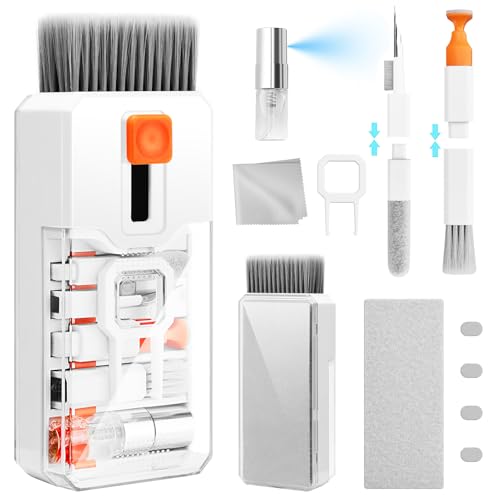
For stubborn blockages, consider a precision electronics cleaning kit with anti-static brushes and micro-vacuum tips. Regular cleaning every three months prevents buildup in dusty or high-pollen environments.
Update Your Nest Doorbell Firmware and App
Outdated firmware can disable audio codecs or introduce permission bugs. Open the Google Home app, select your doorbell, tap Settings → Device information, and check the current software version. If an update is available, tap Install and keep the device powered during the process.
Firmware updates roll out automatically when the doorbell is idle and connected to Wi-Fi, but you can force a check by power-cycling the unit. Google often patches microphone glitches in minor releases: the 2025.11 firmware update specifically addressed talk-and-listen failures on battery models.
Update the Google Home app on your phone via the App Store or Google Play. Clear the app cache, sign out, then sign back in to refresh server connections. Restart your doorbell one more time after both updates complete.
Fix Wi-Fi Connectivity Issues Affecting Audio Quality
Low signal strength or bandwidth congestion degrades two-way audio. In the Google Home app, check your doorbell’s Wi-Fi connection under Settings → Device information. Aim for signal strength above –60 dBm: below –75 dBm causes packet loss and choppy talk.
Move your router closer to the doorbell or install a Wi-Fi 6 mesh extender to boost coverage. Switch the doorbell to a dedicated 2.4 GHz network if you’re on dual-band: 2.4 GHz penetrates walls better than 5 GHz, though 5 GHz offers higher bandwidth for video.

Limit competing devices during peak usage. Pause 4K streaming or large downloads when testing talk-and-listen. Enable Quality of Service (QoS) on your router to prioritize smart home traffic. According to Wirecutter’s 2026 smart doorbell testing, stable 10 Mbps upload speeds are critical for clear Nest audio.
Reset Your Nest Doorbell to Factory Settings
If all else fails, a factory reset wipes corrupted settings and restores default audio parameters. On battery models, press and hold the reset button on the back for 10 seconds until the LED ring pulses blue. On wired models, hold the doorbell button for 20 seconds.
After the reset, re-add the doorbell in the Google Home app by scanning the QR code on the back. Reconfigure Wi-Fi, permissions, and microphone settings from scratch. This process often resolves persistent greyed-out mic icons or firmware conflicts.
Back up your event history and settings before resetting: the process erases all locally stored footage and preferences. Test talk-and-listen immediately after setup to confirm the fix holds.
When to Contact Google Support or Consider a Replacement
If the microphone remains silent after a factory reset, hardware failure is likely. Contact Google Nest Support for diagnostics: devices under warranty qualify for free replacement. Provide your serial number, purchase date, and a summary of troubleshooting steps already attempted.
“Google sent me a replacement doorbell within five days after confirming my mic was dead. Don’t waste time on endless resets if you’ve tried everything.” via r/GoogleNest
Out-of-warranty units can be repaired by third-party services, but costs often approach the price of a new model. Upgrading to a newer Nest Doorbell (2nd gen) offers improved water resistance and redundant mic arrays less prone to single-point failure.
Preventing Future Nest Doorbell Microphone Problems
Install a small roof overhang or doorbell weather shield to protect the mic port from rain, snow, and direct sunlight. UV degradation and moisture are the top long-term threats to microphone membranes.

Schedule quarterly cleanings with compressed air and check firmware updates monthly. Enable automatic app updates on your phone to ensure the Google Home app stays current. Monitor Wi-Fi signal strength and upgrade to a mesh system if you see frequent dropouts.
Use a quality transformer rated 16–24 V AC for wired models: underpowered supplies cause voltage sag during peak draw, corrupting audio. Finally, test talk-and-listen after every major Google Home app update to catch regressions early.
Frequently Asked Questions
Why is my Nest doorbell microphone not working?
Nest doorbell microphone failures stem from app permission blocks, firmware glitches, Wi-Fi bandwidth issues, dust clogging the mic port, insufficient transformer voltage, or corrupted settings. Most issues resolve with app adjustments, physical cleaning, power cycles, or factory resets.
How do I fix the microphone on my Nest doorbell?
Start by restarting your doorbell and checking Google Home app permissions for microphone access. Clean the mic port with compressed air, update firmware and the app, optimize Wi-Fi connection strength (aim for above –60 dBm), and perform a factory reset if issues persist.
Can I test if my Nest doorbell microphone is broken?
Open the Google Home app, tap Talk and Listen, and ask someone outside to confirm if they hear you. Check the live-view audio indicator for movement when speaking. Review past event clips—if ambient sounds recorded but live talk fails, the issue is software-related, not hardware failure.
What should I do if my Nest doorbell microphone is greyed out?
Force-close the Google Home app and clear its cache. On iOS, go to Settings → Google Home → Microphone and toggle On. On Android, navigate to Settings → Apps → Google Home → Permissions → Microphone and select Allow. Restart your phone and test again.
How much Wi-Fi bandwidth does a Nest doorbell need for clear audio?
A stable 10 Mbps upload speed is critical for clear Nest doorbell audio. Aim for Wi-Fi signal strength above –60 dBm. Use 2.4 GHz for better wall penetration, limit competing devices, and enable Quality of Service (QoS) on your router to prioritize smart home traffic.
When should I contact Google Support about my Nest doorbell microphone?
If the microphone remains silent after a factory reset, hardware failure is likely. Contact Google Nest Support with your serial number and purchase date. In-warranty devices qualify for free replacement, typically shipped within five days.
Read More:
- Keyboard Microphone Not Working? Here’s How to Fix It in 5 Minutes
- Kenwood Microphone Not Working? 5 Fixes That Actually Restore Your Audio
- OBS Microphone Not Working (Here’s the Proven Fixes that Work)
- Microphone Not Working Windows 11 (Here’s the Step by Step Guide)
- Microphone Not Working (Here’s the Quick and Easy Fixes that Work)

Susan is a professional writer. She has been a writer for eight years and has always been so fulfilled with her work! She desires to share helpful, reliable, and unbiased information and tips about tech and gadgets. She hopes to offer informative content that can answer users’ questions and help them fix their problems.