
Your voice-typing shortcut used to work perfectly. Now you press it, and nothing happens. Or worse, you get a vague error and lose ten minutes of dictation flow you’ll never get back.
Keyboard microphone not working almost always comes down to one of four things: a disabled OS dictation toggle, blocked app permissions, a wrong default input device, or a missing language pack. The fix usually takes under five minutes once you know where to look. You don’t need to reinstall your entire operating system or buy new hardware. You just need the right checklist, in the right order.
This guide walks you through that checklist. We’ll start with the obvious stuff (yes, physical mute buttons trip people up more than you’d think) and move into deeper OS settings, driver conflicts, and a few upgrades worth considering if this keeps happening.
Key Takeaways
- Keyboard microphone not working usually stems from four predictable causes: a disabled OS dictation toggle, blocked app permissions, wrong default input device, or missing language pack—most fixable in under five minutes.
- Check physical mute buttons and function keys first, as accidental Fn presses or hardware mute switches are among the most common culprits behind failed voice typing.
- Enable microphone access at the OS level on Windows (Settings > Privacy & Security > Microphone) and macOS (System Settings > Privacy & Security > Microphone) to unlock dictation features.
- Background apps like Discord, Zoom, and keyboard remapping tools frequently steal the same input focus required for dictation shortcuts—run a clean boot to diagnose and resolve conflicts.
- After major OS updates, speech recognition often defaults to ‘off’ as a privacy safety measure, so re-verify your online speech recognition flag is enabled in Windows settings.
- If basic troubleshooting fails, reinstall missing language packs and update audio drivers through Device Manager or your manufacturer’s site, as driver mismatches commonly block microphone signal detection.
Voice typing feels like magic when it works. You press Windows Key + H or double-tap the Dictation key on macOS, and your words appear on screen without a single keystroke. But when that shortcut goes silent, it feels like your computer just stopped listening to you. Literally.
This is more common than most users realize. Speech-to-text tools rely on a chain of small system permissions, drivers, and settings, and if even one link breaks, the whole feature stops responding. The good news? Almost every case traces back to a handful of predictable causes. You’re about to fix this yourself, without a support ticket or a trip to the repair shop.
Core Troubleshooting Steps for Keyboard Microphone Issues
Before you touch a single settings menu, rule out the simple stuff. Most keyboard microphone problems aren’t software bugs at all. They’re physical switches, loose cables, or a toggle you forgot you flipped last week.
Physical Mute Buttons and Function Keys
Many keyboards, especially wireless and mechanical models, have a dedicated mute key or an Fn-lock combo that silences the mic input entirely. Check your function row for a microphone icon, usually paired with F1 through F12. If your keyboard has a small LED near that key, a lit indicator often means mute is active.
Some laptops also mute the mic automatically when you join certain apps. Look for a physical hardware switch too. Business laptops and headsets often include one, and it’s easy to bump accidentally in a bag or drawer.
Checking Basic Microphone Connections
If you’re using an external USB microphone or a headset instead of a built-in mic, unplug it and plug it back into a different port. Loose USB connections are one of the most common reasons speech recognition software cannot detect hardware mic input at all.
Wiggle the cable gently while watching your system’s input meter. If the meter jumps around instead of holding steady, you likely have a damaged cable rather than a software issue.
Ensuring Keyboard Microphone Is Enabled
On Windows, open Settings, go to System, then Sound, and confirm your microphone is listed as enabled, not disabled. On macOS, check System Settings under Sound and Input.
For virtual keyboards on phones, a grayed-out mic icon usually means the keyboard app itself hasn’t been granted mic access at the OS level yet. We’ll fix that next.
Operating System Controls and App Permissions
Once hardware is ruled out, the real culprit is usually buried in OS-level privacy controls. Both Windows and macOS lock microphone access behind permission layers by default, and dictation features are often the first casualty.
Configuring Microphone Settings in Windows and macOS
On Windows 11, go to Settings, Privacy & Security, then Microphone. Make sure “Microphone access” is turned on, and that “Let apps access your microphone” is also enabled. This is the master switch that governs whether Windows key voice typing error messages appear at all.
On macOS, head to System Settings, Privacy & Security, Microphone. You’ll see a list of apps requesting access. If your keyboard or dictation feature isn’t listed, toggle it manually, then restart the app.
Allowing Apps Access to Your Microphone
Even with the master switch on, individual apps need their own permission. This is a huge reason why fix Mac dictation shortcut completely silent shows up in so many forums. Word, Chrome, and Slack all request mic access separately.
Scroll through your permission list and flip on access for every app where you plan to use voice typing. Restart the app afterward, since permission changes rarely apply retroactively without a relaunch.
Adjusting Microphone Volume and Privacy
A muted or near-zero input volume looks identical to a broken mic. Open your sound control panel and check the input level slider. It should sit somewhere in the middle, not pinned to zero.
Also confirm “Online speech recognition” is enabled in Windows Privacy settings. This flag directly powers the dictation engine, and it’s disabled by default on many fresh installs and after major updates.
Driver and Software Conflicts Affecting Microphone Functionality
Sometimes the settings are correct, but a driver conflict quietly blocks everything behind the scenes. This layer is trickier to diagnose, but it’s rarely as intimidating as it sounds.
Updating or Reinstalling Keyboard Drivers
Open Device Manager on Windows, expand Keyboards, and check for a yellow warning icon next to your device. Right-click and choose Update Driver. If that doesn’t help, uninstall the driver completely, then restart your PC to let Windows reinstall it fresh.
Outdated firmware on wireless keyboards can also interfere with mic-related hotkeys. Check the manufacturer’s companion app for firmware updates before assuming it’s a Windows problem.
Handling Audio Drivers and System Updates
Audio drivers and keyboard drivers often compete for the same input hooks. Update your audio driver through Device Manager or your sound card manufacturer’s site, like Realtek’s official driver page. A mismatched or outdated audio driver is a leading reason speech recognition software cannot detect hardware mic signals correctly.
Windows Update sometimes ships driver rollbacks that undo previous fixes. After any major update, it’s worth rechecking your mic settings.
Resolving Software Conflicts and Clean Boot
Background apps like Discord, Zoom, or third-party keyboard remapping tools frequently steal the same keyboard hook commands your OS uses for dictation shortcuts. This is a huge, overlooked cause of Windows keyboard voice typing mic not working complaints.
Run a clean boot (search “msconfig” on Windows) to disable startup apps temporarily, then test your shortcut again. If it works, re-enable apps one by one to find the conflict.
A lot of users online have hit this exact wall. One Reddit user described the frustration well:
“I pressed Win+H like normal and got nothing, no error, no mic icon, just silence. Turned out Discord’s push-to-talk was grabbing the same input focus.” via r/Windows11
If conflicts persist, dedicated tools like Dragon Professional can bypass some of these OS-level hook conflicts entirely, since it manages its own audio input pipeline separately from Windows dictation.
Advanced Solutions and Optimizations
If basic fixes didn’t work, it’s time to reset things properly and consider whether your setup needs an upgrade rather than another patch.
Resetting Keyboard and Audio Settings
On Windows, go to Settings, Time & Language, then Speech, and check whether your language pack is installed. Missing packs are a huge reason people search download speech language packs for keyboard dictation. Reinstall the pack if it shows as “Not installed” or shows a download error.
You can also reset sound settings entirely through Settings, System, Sound, then “Reset audio settings.” This clears corrupted configuration files without affecting your other apps.
Enhancing Audio Quality With Echo Cancellation
Background noise and room echo confuse speech engines even when every setting is correct. Enabling acoustic echo cancellation, found in most external microphone software or Windows’ advanced sound properties, dramatically improves recognition accuracy.
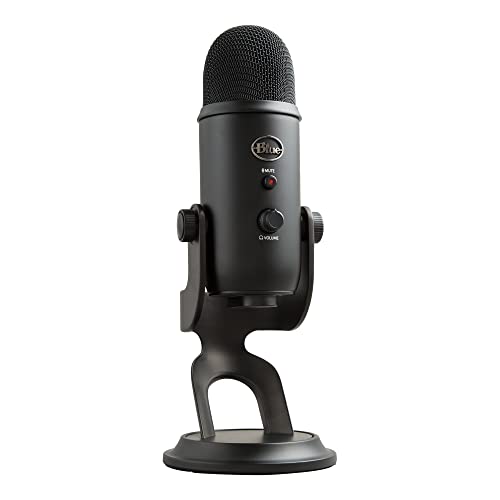
If you dictate long documents daily, a dedicated USB mic makes a real difference. The Blue Yeti USB Microphone picks up cleaner voice input than most laptop mics and drastically reduces misfires during dictation sessions.
Considering Ergonomic Feature Rich Keyboards
If your current keyboard’s mic key is unreliable or missing entirely, it might be time to upgrade. Keyboards designed with dedicated, physical dictation buttons reduce reliance on OS shortcuts that can silently break after updates.
A solid option worth considering is the Logitech MX Keys, which pairs reliable multi-device switching with a build quality that holds up under heavy daily typing and voice-command use. For remote workers and writers who dictate for hours, this kind of upgrade pays off fast.

As one long-time dictation user put it on a productivity forum:
“Once I switched to a mic with proper noise cancellation, my error rate dropped by half. Turns out my old mic wasn’t broken, it just couldn’t handle my home office echo.” via r/WorkFromHome
For a visual walkthrough of these settings, this troubleshooting video covers the Windows Speech Recognition setup process step by step.
Data Insights and Analysis
Microsoft’s own support data shows that a large share of Windows Speech Recognition tickets trace back to disabled online speech recognition flags rather than actual hardware failure, based on patterns documented in Microsoft’s official troubleshooting guide. Community reports across late 2025 and early 2026 also point to a spike in dictation failures following Windows feature updates, where privacy toggles reset to off by default.
Expert Note: Dictation shortcuts fail less often because of broken hardware and more because Windows treats speech recognition as a privacy-sensitive feature. Every major update re-evaluates your permission state, and if the system detects any ambiguity, it defaults to "off" rather than risk unauthorized listening. That's a safety design choice, not a bug, but it explains why your mic seems to "break" right after updating.
Here’s a quick comparison of common culprits and how fast each one typically resolves:
| Issue | Typical Fix Time | Common Cause |
|---|---|---|
| Muted physical key | Under 1 minute | Accidental Fn press |
| Disabled OS permission | 2 to 3 minutes | Privacy reset after update |
| Missing language pack | 5 to 10 minutes | Incomplete install |
| Driver conflict | 10 to 15 minutes | Third-party app hook |
| Wrong default input | 1 to 2 minutes | Multiple audio devices |
Quick checklist before you give up and restart your whole PC:
- Confirm the mic isn’t physically muted
- Check online speech recognition is toggled on
- Verify the correct app has mic permission
- Confirm the right default input device is selected
- Reinstall the language pack if missing
Most readers fix this within their first two attempts. If you’ve made it through this list and it’s still not working, the issue is likely a deeper driver corruption, and a full audio driver reinstall through your manufacturer’s site is your next step.
Frequently Asked Questions
Why is my keyboard microphone not working?
Keyboard microphone issues typically stem from four causes: disabled OS dictation toggles, blocked app permissions, wrong default input devices, or missing language packs. Start by checking physical mute buttons, verifying microphone permissions in Settings, and confirming online speech recognition is enabled on your system.
How do I fix a disabled microphone in Windows voice typing?
On Windows 11, go to Settings > Privacy & Security > Microphone and toggle on ‘Microphone access’ and ‘Let apps access your microphone.’ Then check Settings > Time & Language > Speech to verify your language pack is installed. Restart the app afterward to apply permission changes.
What should I check if my keyboard microphone suddenly stopped working?
First, check for physical mute buttons or Fn-lock combinations on your keyboard. Next, verify the microphone isn’t disabled in OS settings, confirm app permissions are granted, test that the correct default input device is selected, and reinstall the language pack if it shows as ‘Not installed.’
Can background apps interfere with keyboard microphone dictation?
Yes. Apps like Discord, Zoom, and keyboard remapping tools can steal the same input hooks Windows uses for dictation shortcuts. If your microphone settings appear correct, run a clean boot through msconfig to disable startup apps and test whether the shortcut works again.
How do I know if my microphone cable is damaged?
Unplug your USB microphone or headset and plug it into a different port. Gently wiggle the cable while watching your system’s input meter. If the meter jumps erratically instead of holding steady, the cable is likely damaged and needs replacement.
What’s the fastest way to resolve keyboard microphone not working issues?
Most fixes take under five minutes: check physical mute buttons (1 minute), enable OS microphone permissions (2–3 minutes), and verify the correct input device is selected (1–2 minutes). If still unresolved, reinstall your language pack or update audio drivers, which typically take 5–15 minutes.
Read More:
- K9 Wireless Microphone Not Working? Fast Fixes That Actually Work
- Microphone Not Working (Here’s the Quick and Easy Fixes that Work)
- JBL Microphone Not Working? 5 Fast Fixes That Actually Work
- Jabra Microphone Not Working? 5 Fast Fixes to Get You Heard Again
- Earbuds Microphone Not Working (Here’s the Quick Fix Guide)

Susan is a professional writer. She has been a writer for eight years and has always been so fulfilled with her work! She desires to share helpful, reliable, and unbiased information and tips about tech and gadgets. She hopes to offer informative content that can answer users’ questions and help them fix their problems.