
You’re mid-call or about to join an important meeting when you realize nobody can hear you. Your earbuds are connected, music plays perfectly, but your microphone? Completely silent. It’s frustrating, especially when you’re pressed for time.
Most earbud microphone failures stem from simple software misconfigurations, your device isn’t using the earbuds as the active input source, app-specific permissions are blocking microphone access, Bluetooth pairing has a temporary glitch, or the tiny microphone hole is clogged with lint or earwax. The good news: you can fix nearly all of these issues in under five minutes with basic settings adjustments, a quick Bluetooth refresh, or gentle cleaning, no tools or tech expertise required.
This guide walks you through the most effective, everyday fixes that get your earbud microphone working again fast. We’ll cover software toggles, connectivity resets, app permission checks, and simple physical maintenance, all in plain language you can follow from your desk or couch.
Key Takeaways
- Most earbuds microphone not working issues stem from simple software misconfigurations, mute toggles, or Bluetooth pairing glitches that can be fixed in under five minutes.
- Verify your device is actually using your earbuds as the active microphone input—many users have earbuds connected for audio but their system defaults to the built-in mic instead.
- Check app-specific microphone permissions on your phone or computer, and ensure conferencing apps like Zoom and Teams are pointing to your earbuds in their audio settings.
- A simple Bluetooth restart (toggle off and on), followed by unpairing and re-pairing your earbuds, resolves the majority of microphone failures without needing technical expertise.
- Gently clean the tiny microphone holes on your earbuds with a soft toothbrush or compressed air to remove earwax and lint buildup, which commonly blocks sound pickup entirely.
- If software fixes and cleaning don’t work, test your earbuds microphone on another device to determine whether the issue is a hardware defect requiring manufacturer repair or warranty replacement.
Immediate Steps to Diagnose Earbuds Microphone Issues
Confirm Proper Device Connection
First, verify your earbuds are actually connected to your device. This sounds obvious, but Bluetooth earbuds sometimes pair partially, playing audio but not routing microphone input. Check your phone or laptop’s Bluetooth settings and confirm your earbuds appear as “Connected” (not just “Paired”). On iPhone, swipe to Control Center and tap the audio widget to see which device is active. On Android, pull down the notification shade and long-press the Bluetooth icon to view connected devices.
For wired earbuds, push the 3.5mm or USB-C plug firmly into the port. A loose connection often causes one-way audio where you hear sound but others can’t hear you. Try unplugging and reinserting the cable, then test a voice memo or quick call.
If you’re using true wireless earbuds with a primary and secondary bud, make sure both earbuds are out of the case and in your ears. Some models only activate the microphone when both buds detect wear, so wearing just one can disable the mic entirely.
Check Mute and Volume Settings
Double-check that you haven’t accidentally muted yourself. Many wireless earbuds feature touch controls, a single tap or swipe can toggle mute without you realizing it. Review your earbud’s manual or companion app to understand the gesture layout, then test tapping or holding different zones to unmute.
Next, verify your system microphone isn’t muted. On Windows, right-click the speaker icon in the taskbar, select “Sound settings,” scroll to “Input,” and ensure the volume slider isn’t at zero or muted. On Mac, open System Preferences > Sound > Input, select your earbuds, and drag the input volume slider to at least 50%. On smartphones, check the in-call volume by pressing the physical volume-up button during a test call.
Also inspect the app you’re using. Zoom, Teams, Discord, and most conferencing tools have their own mute buttons. Look for a microphone icon (usually red or crossed out when muted) and click or tap to unmute. This simple oversight accounts for a huge portion of “broken” microphone complaints.
Test Earbuds on Another Device
Connect your earbuds to a different phone, tablet, or computer and make a test recording or call. Use your phone’s voice recorder app, WhatsApp voice message, or a quick FaceTime/Duo call to a friend. If the microphone works perfectly on the second device, you’ve confirmed the earbuds are fine, the issue is with your original device’s settings or software.
If the microphone still fails on every device, you’re likely dealing with a hardware defect or physical blockage in the microphone port. This narrows your troubleshooting dramatically and saves time before you jump into complex software fixes.
Testing across devices also helps identify pairing conflicts. Some Bluetooth earbuds struggle when connected to multiple devices simultaneously (multipoint pairing). Disconnect from all other devices, then re-pair only to the one you’re actively using.
Resolving Software and Settings Conflicts
Adjust Input Device Selection
Your computer or phone might be using the built-in microphone instead of your earbuds. On Windows, go to Settings > System > Sound, scroll to “Input,” and click the dropdown menu. Select your earbuds by name (e.g., “AirPods Pro” or “Galaxy Buds2”). Speak into the mic and watch the blue input-level bar, if it moves, your earbuds are now active.
On Mac, open System Preferences > Sound > Input tab, and click your earbuds in the device list. Adjust the input volume slider and check the level meter. For iPhone or iPad, input switching is usually automatic, but you can verify in Settings > Bluetooth by tapping the “i” icon next to your earbuds and ensuring “Call Audio” is enabled.
Many users forget that conferencing apps can override system defaults. In Zoom, click the gear icon (Settings) > Audio, then choose your earbuds from both the “Microphone” and “Speaker” dropdowns. Microsoft Teams, Google Meet, and Discord have similar audio device menus, always confirm the app is pointing to your earbuds, not the laptop’s internal mic.
“Realized my Bluetooth earbuds were connected but Windows was still using the laptop mic. Took 10 seconds to switch the input device and boom, fixed.” via r/Windows10
App and Permissions Troubleshooting
Modern operating systems require explicit microphone permissions for each app. On iPhone or iPad, go to Settings > Privacy & Security > Microphone and scroll through the app list. Toggle on any app (WhatsApp, Zoom, Voice Memos) that should access your mic. On Android, open Settings > Apps > [App Name] > Permissions > Microphone and set it to “Allow.”
Windows users should check Settings > Privacy > Microphone. Ensure “Allow apps to access your microphone” is turned on, then scroll down and verify individual apps (Zoom, Teams, Chrome) are also enabled. Mac users can do the same under System Preferences > Security & Privacy > Privacy tab > Microphone.
Sometimes a fresh app reinstall clears stubborn permission bugs. Uninstall the conferencing or recording app, restart your device, then download and reinstall from the official store. This forces the app to request microphone access again and often resolves hidden conflicts.
If you use a VPN or security software, temporarily disable it and retest. Some firewall or antivirus programs block microphone access as a privacy feature, causing silent failures that look like hardware issues.
Update Operating System and Firmware
Outdated Bluetooth drivers or earbud firmware can cause microphone dropouts or complete failures. On Windows, open Device Manager, expand “Bluetooth,” right-click your Bluetooth adapter, and select “Update driver.” Choose “Search automatically for drivers” and let Windows find the latest version. Restart your PC afterward.
Mac users should click the Apple menu > System Preferences > Software Update and install any available macOS updates. iOS and Android users can check Settings > General > Software Update (iOS) or Settings > System > System update (Android).
Many premium earbuds (AirPods, Sony, Jabra, Samsung Galaxy Buds) ship with companion apps that manage firmware updates. Download the official app, like Samsung Galaxy Buds app, Apple’s automatic AirPods updates via iOS, or Sony Headphones Connect, and check for earbud firmware updates. Install them, then retest your microphone.
Keeping everything current eliminates compatibility bugs introduced by OS patches or app updates, and often delivers microphone quality improvements or bug fixes directly from the manufacturer.
Pairing and Connectivity Solutions for Bluetooth Earbuds
Restart and Re-Pair Bluetooth Connection
Bluetooth glitches are incredibly common and easy to fix. Turn Bluetooth off on your phone or computer, wait 10 seconds, then turn it back on. This forces a fresh handshake between your device and earbuds, clearing temporary connection bugs that block microphone input.
If toggling Bluetooth doesn’t help, forget (unpair) your earbuds and pair them again from scratch. On iPhone, go to Settings > Bluetooth, tap the “i” icon next to your earbuds, and select “Forget This Device.” On Android, tap the gear icon next to the earbud name and choose “Unpair” or “Forget.” On Windows, open Settings > Devices > Bluetooth & other devices, click your earbuds, and select “Remove device.”
Next, put your earbuds back in pairing mode (usually by holding the button on the case or earbuds until an LED flashes). Re-pair them as if they’re brand new, then test a call or voice recording. This simple reset resolves the majority of “nobody can hear me” complaints.
“My AirPods mic stopped working on Teams. Unpairing and re-pairing fixed it instantly. No idea why, but it works every time.” via r/AirPods
Reset Bluetooth Services
On Windows, you can restart the Bluetooth support service. Press Win + R, type services.msc, and hit Enter. Scroll to “Bluetooth Support Service,” right-click it, and choose “Restart.” This clears stuck Bluetooth processes without rebooting your entire PC.
Mac users can reset the Bluetooth module by holding Shift + Option and clicking the Bluetooth icon in the menu bar, then selecting “Reset the Bluetooth module.” Confirm and wait for Bluetooth to restart, then re-pair your earbuds.
For persistent Bluetooth issues on Android, enable Developer Options (tap Build Number seven times in Settings > About Phone), then go to Developer Options and tap “Reset Bluetooth & Wi-Fi.” This wipes cached Bluetooth data and often fixes stubborn pairing or microphone problems.
Run Bluetooth Troubleshooter
Windows 10 and 11 include a built-in troubleshooter that automatically detects and fixes common Bluetooth issues. Open Settings > Update & Security > Troubleshoot > Additional troubleshooters, then click “Bluetooth” and “Run the troubleshooter.” Follow the prompts, it will scan for driver conflicts, reset services, and suggest fixes.
Mac doesn’t offer a dedicated Bluetooth troubleshooter, but resetting NVRAM can help. Shut down your Mac, then turn it on while holding Option + Command + P + R for about 20 seconds. This clears hardware settings that sometimes interfere with Bluetooth microphone routing.
On smartphones, clearing the Bluetooth app cache can work wonders. On Android, go to Settings > Apps > Show system apps > Bluetooth > Storage > Clear cache. Restart your phone, then re-pair your earbuds and test the mic. iPhone users don’t have manual cache clearing, but a simple restart (hold Side + Volume buttons, slide to power off) often achieves the same result.
Physical Maintenance and When to Seek Repairs
Inspect for Hardware Damage
Carefully examine your earbuds for visible damage. Look for cracks in the plastic housing, frayed wires (on wired models), or water damage indicators (some earbuds have moisture-sensitive stickers inside the charging case). If you dropped your earbuds in water or sweat heavily during workouts, moisture may have shorted the microphone circuit.
Check the charging contacts and case. Corroded or dirty contacts can prevent proper charging, which indirectly affects microphone performance if the battery is too low. Wipe the metal pins gently with a dry microfiber cloth or a tiny bit of isopropyl alcohol on a cotton swab.
If your earbuds are still under warranty and you see physical damage or suspect internal failure, contact the manufacturer before attempting any DIY fixes. Most major brands (Apple, Samsung, Sony, Jabra) offer free replacements or repairs for defects within the warranty period.
Clean the Microphone Port
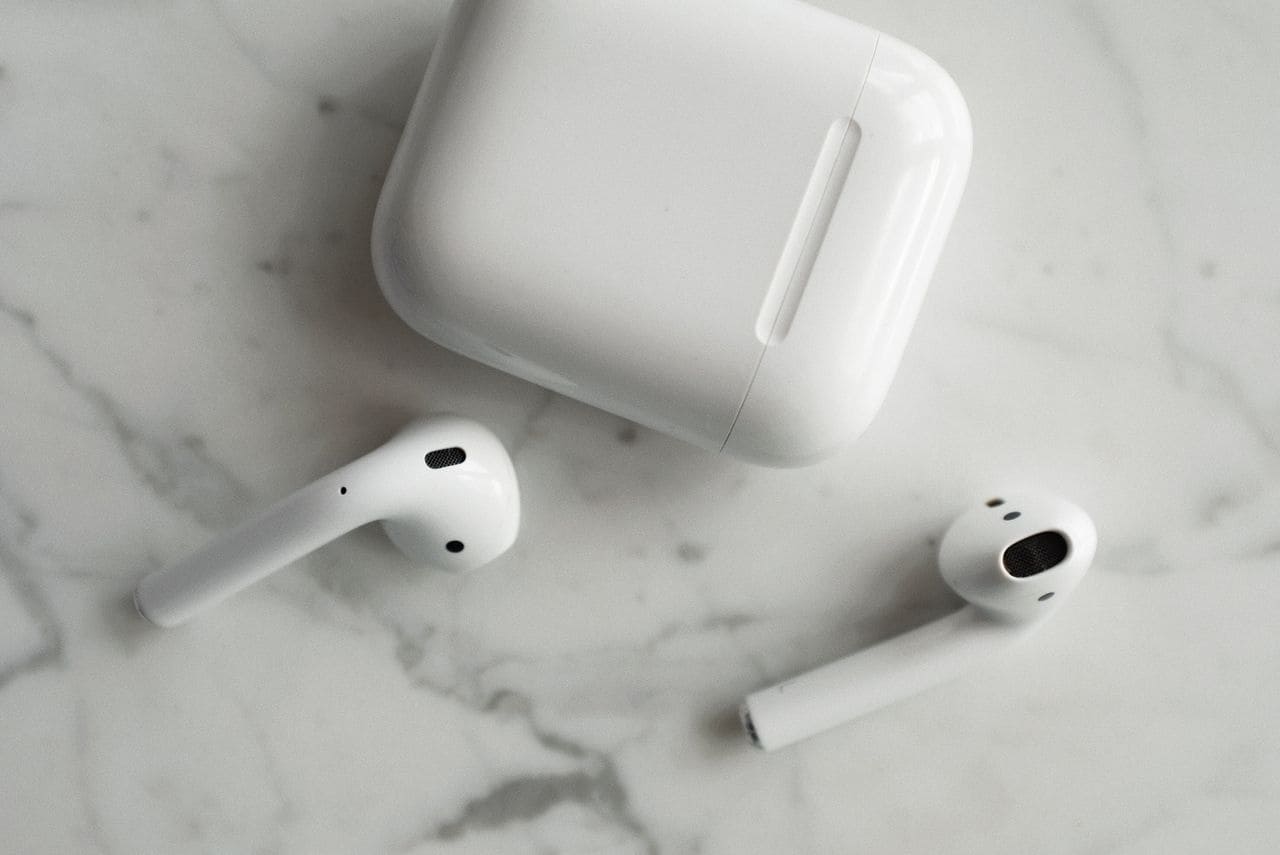
Earwax, lint, and dust love to clog the tiny microphone holes on earbuds, muffling or completely blocking sound pickup. Grab a flashlight and inspect the earbud stem or outer shell for small openings (usually 1–2mm holes). You’ll often see dark buildup around the mesh.
Use a dry, soft-bristled toothbrush or a clean, unused makeup brush to gently sweep away surface debris. For stubborn wax, wrap a wooden toothpick in a thin layer of cotton (or use a cotton swab with most of the cotton removed) and carefully dislodge the blockage. Never insert metal tools or push too hard, you can puncture the internal microphone membrane.
Compressed air (like Dust-Off Electronics Duster) works great for blowing out loose particles. Hold the can upright, keep it a few inches away, and use short bursts. Avoid shaking the can or spraying at close range, which can damage delicate components.
After cleaning, test your microphone immediately. You’ll be surprised how often a simple clean restores full clarity and volume.
Professional Repair Options
If you’ve tried every software fix, cleaned the microphone, and tested on multiple devices with no improvement, it’s time to consider professional help or replacement. Contact the earbud manufacturer’s support team, many offer mail-in repair services, and some have walk-in service centers in major cities. Check Apple Support for AirPods, Samsung Support for Galaxy Buds, or your brand’s official website.
For budget or off-brand earbuds, repair costs often exceed the price of a new pair. In that case, investing in a reliable replacement makes more sense. Consider models with strong microphone reviews, like the Jabra Elite 85t or Anker Soundcore Liberty 5 Pro, which both offer excellent call quality and robust warranty coverage.

Before you buy new earbuds, double-check your credit card benefits or homeowner’s insurance, some policies cover accidental damage or loss of personal electronics, potentially reimbursing you for a replacement pair.
Frequently Asked Questions
Why is my earbud microphone not working even though my earbuds are connected?
Your device may be using a different input source, the app lacks microphone permissions, or there’s a Bluetooth pairing glitch. Check Settings > Sound > Input to ensure your earbuds are selected, verify app permissions in Privacy settings, and try forgetting and re-pairing your earbuds to resolve the issue.
How do I fix earbuds microphone not working on Windows?
Go to Settings > System > Sound > Input and select your earbuds from the dropdown menu. Confirm the input volume slider isn’t at zero. For apps like Zoom or Teams, check their audio settings separately. If that fails, restart the Bluetooth Support Service via Services.msc or run the Windows Bluetooth troubleshooter.
Can a clogged microphone hole cause earbud microphone failure?
Yes, earwax, lint, and dust frequently block the tiny microphone holes on earbuds, muffling or completely silencing audio input. Use a soft-bristled toothbrush or compressed air to gently clean the microphone port. Avoid metal tools or excessive force to prevent damaging the internal microphone membrane.
What should I do if my earbud microphone works on one device but not another?
This confirms your earbuds are functioning properly. The issue is with your original device’s settings, permissions, or software. Check that the earbuds are selected as the active input device, verify microphone permissions for the app, and update your device’s operating system and Bluetooth drivers to the latest version.
How do I reset Bluetooth on my Mac to fix microphone issues?
Hold Shift + Option and click the Bluetooth icon in the menu bar, then select ‘Reset the Bluetooth module.’ Wait for Bluetooth to restart, then re-pair your earbuds. Alternatively, reset NVRAM by shutting down and restarting while holding Option + Command + P + R for 20 seconds.
Is earbud microphone not working fixable without professional repair?
Most microphone issues are fixable in under five minutes with software adjustments, Bluetooth refreshes, or gentle cleaning. Test on another device first to rule out hardware defects. If the issue persists across devices and cleaning doesn’t help, contact the manufacturer’s support team or consider replacement, as internal defects may require professional service.
Read More:
- Blue Yeti Microphone Not Working (Here’s the Quick and Easy Fixes)
- Microphone Not Working (Here’s the Quick and Easy Fixes that Work)
- Beats Studio Buds Microphone Not Working (Here’s the Quick Fixes)
- Microphone Not Working on Laptop (Here’s the Reasons and How to Fix It)
- Car Microphone Not Working (Here’s the Reasons and How to Fix It)
- Dell Microphone Not Working (Here’s 11 Easy Solutions)

Susan is a professional writer. She has been a writer for eight years and has always been so fulfilled with her work! She desires to share helpful, reliable, and unbiased information and tips about tech and gadgets. She hopes to offer informative content that can answer users’ questions and help them fix their problems.