
You’re about to join a critical Teams meeting when you realize nobody can hear you. Your Dell Latitude’s microphone has gone silent at the worst possible moment.
Most Dell Latitude microphone failures stem from simple software toggles: Windows Privacy settings blocking microphone access, the wrong input device selected in Sound Control Panel, muted app-level permissions in Teams or Zoom, or outdated Realtek audio drivers. Physical causes include privacy shutters covering adjacent mic holes, loose headset jacks, or disabled BIOS audio settings. Nearly all cases resolve in minutes with systematic checks of permissions, default devices, driver updates via Dell SupportAssist, and a quick reboot.
This guide walks you through proven, non-technical steps to restore your built-in microphone array or external headset. We’ll focus on quick wins that get you back online fast, without diving into complex IT configurations or hardware disassembly.
Key Takeaways
- Dell Latitude microphone issues typically stem from software problems like disabled Windows Privacy settings, incorrect Sound Control Panel defaults, or outdated Realtek audio drivers—most resolve within minutes.
- Check your default recording device in Sound Control Panel’s Recording tab and ensure your microphone is set as the Default Device; if it shows ‘Disabled,’ right-click and enable it immediately.
- Use Dell SupportAssist or Windows 11’s built-in troubleshooter to update audio drivers, scan for hardware faults, and automatically reset permissions without manual configuration.
- Verify BIOS audio settings by pressing F2 at boot and confirming ‘Enable Microphone’ is checked under System Configuration > Audio, as BIOS-level toggles can disable microphones entirely.
- For physical causes, inspect the 3.5mm jack and USB ports for dust or loose connections, clear microphone array perforations near the webcam bezel with compressed air, and test external headsets on other devices to isolate the problem.
- If external headsets work but built-in mics fail, the hardware or driver profile is faulty; conversely, check that application-level mutes (like Ctrl+Shift+M in Teams) and per-app microphone permissions in Privacy & Security are not blocking audio.
Common Causes of Microphone Issues
Loose or Faulty Connections
Physical connection problems top the list for external headsets. Check your 3.5mm jack or USB plug, partially seated connectors often register as “plugged in” but fail to capture audio. Dell Latitude models feature combo audio jacks that detect microphone vs. headphone signals based on plug ring configuration. If your headset uses a CTIA standard while the port expects OMTP (or vice versa), the mic won’t work.
Inspect the port for dust or debris. A single fiber can prevent proper contact. Gently blow out the jack or use compressed air. Try your headset on another device to confirm it’s functional. If the headset works elsewhere, the issue lives in your Latitude’s software or port hardware.
For built-in mics, physical obstructions matter too. Many Dell Latitude models place microphone arrays near the webcam bezel. Privacy shutters, stickers, or even a smudge of cleaning residue can muffle or block sound completely. Run your finger along the top bezel, you’ll feel tiny perforations where the mics live.
Mute Settings and Permissions
Windows 11 and Windows 10 both guard microphone access aggressively. If you’ve never granted an app permission, it simply won’t hear you. Open Settings > Privacy & security > Microphone and confirm the toggle for “Microphone access” reads On. Scroll down to see per-app permissions, ensure Microsoft Teams, Zoom, Skype, or your preferred conferencing tool is enabled.
Application-level mutes catch users constantly. Teams, Zoom, and Google Meet each have in-meeting mute buttons, toolbar icons, and sometimes global keyboard shortcuts (like Ctrl+Shift+M in Teams). Check both the app window and your system tray for mute indicators. A red slash or crossed-out mic icon means you’re broadcasting silence.
Windows Sound settings also include a master mute. Right-click the speaker icon in your taskbar, select Open Sound settings, then Sound Control Panel. Under the Recording tab, locate your microphone, right-click it, and choose Properties. The Levels tab shows a volume slider and a mute button, make sure the speaker icon beside the slider isn’t red.
Audio Driver Conflicts
Realtek, MaxxAudio Pro, and Waves MaxxAudio drivers power most Dell Latitude audio subsystems. Driver conflicts emerge after Windows updates, major feature releases, or third-party software installations. You might see “No audio input device found,” hear distorted sound, or watch your microphone icon flicker in and out.
Windows sometimes installs its own generic High Definition Audio driver alongside Dell’s custom package, creating two competing driver stacks. Both claim ownership of the same hardware, and neither functions correctly. Device Manager will show yellow exclamation marks or multiple “Microphone Array” entries if this happens.
Outdated drivers also lose compatibility with newer Windows builds. Microsoft’s 22H2 and 23H2 updates changed audio pipeline requirements, breaking older Realtek drivers. If you haven’t updated drivers in six months, you’re due for a refresh.
Hardware and BIOS Considerations
Dell Latitude BIOS settings can disable onboard audio entirely. During boot, press F2 repeatedly to enter BIOS setup. Navigate to System Configuration > Audio and verify Enable Audio or Enable Microphone is checked. Some models separate “Enable Speaker” and “Enable Internal Microphone” into distinct toggles. If disabled here, no amount of Windows troubleshooting will help.
Hardware failures are rare but real. Microphone arrays use tiny electret condenser elements soldered to the motherboard. Physical drops, liquid spills near the bezel, or manufacturing defects can sever connections. If you’ve tried every software fix and external headsets work flawlessly while the built-in mic stays silent, the hardware may need service.
Dell’s onboard diagnostics (accessed by pressing F12 at boot, then selecting Diagnostics) include an audio recording test. The tool plays a tone and asks if you hear it, then records a few seconds and plays it back. This test bypasses Windows entirely, isolating hardware from software issues.
Step-by-Step Troubleshooting Methods
Checking Device Manager and Audio Inputs
Open Device Manager by right-clicking the Start button and selecting it from the menu. Expand Audio inputs and outputs and Sound, video and game controllers. Look for “Realtek High Definition Audio,” “MaxxAudio Pro,” or “Microphone Array (Realtek Audio).” Any entry with a yellow triangle or red X indicates a problem.
Right-click the microphone device and choose Properties. Under General, the device status should read “This device is working properly.” If you see error codes (Code 10, Code 28, Code 43), note the number, Microsoft’s support site offers specific remedies for each.
Next, check your default recording device. Right-click the speaker icon in your system tray, select Sound settings, then scroll to Advanced > More sound settings (or Sound Control Panel). Click the Recording tab. Your built-in “Microphone Array” or external headset mic should appear with a green checkmark badge labeled “Default Device.” If it shows “Disabled” or isn’t listed, right-click and select Enable or Show Disabled Devices.
Speak into the mic while watching the green level bars. If they dance, your hardware works, permissions or app settings are the culprit. No movement means driver or hardware trouble.
“I spent 30 minutes troubleshooting before realizing my Latitude’s built-in mic was disabled in the Recording tab. One right-click ‘Enable’ and I was back in business.” via Dell Community Forums
Updating or Reinstalling Audio Drivers
Outdated or corrupted drivers cause most Dell Latitude mic failures. Visit the Dell Drivers & Downloads portal, enter your service tag (found on the bottom of your laptop or in BIOS), and filter by Audio. Download the latest Realtek or MaxxAudio driver package for your model and Windows version.
Before installing, uninstall the current driver to avoid conflicts. In Device Manager, right-click your audio device, choose Uninstall device, and check Delete the driver software for this device. Restart your Latitude. Windows will install a generic driver automatically. Then run the Dell installer you downloaded, it replaces the generic driver with the optimized package.
If you prefer automation, Dell SupportAssist handles driver updates seamlessly. Open the app (pre-installed on most Latitude machines), click Check for updates, and let it scan. It will flag outdated audio drivers and install them with one click. SupportAssist also runs diagnostic scans to detect hardware faults.
Using Dell SupportAssist and Windows Troubleshooter
Dell SupportAssist isn’t just for drivers, it includes a full hardware diagnostics suite. Launch the app, click Troubleshooting > I want to check a specific hardware component > Audio, then follow the prompts. The tool tests speakers and microphones independently, recording a sample and playing it back. If the test fails, SupportAssist logs the error and suggests next steps, including contacting Dell support.
Windows 11’s built-in troubleshooter also resolves common mic issues. Open Settings > System > Sound, scroll to Advanced, and click Input devices > Troubleshoot. Alternatively, search “Find and fix problems with recording audio” in the Start menu. The troubleshooter resets permissions, re-enumerates devices, and restarts the Windows Audio service, often enough to restore function.
Testing with Dell Drivers & Downloads Portal
If SupportAssist doesn’t auto-detect your model, manually verify your hardware. Press Windows + R, type msinfo32, and hit Enter. Note your System Model (e.g., Latitude 5420, 7490). Head to Dell’s driver portal, input that model, and cross-reference the listed audio drivers with your installed versions in Device Manager.
Dell also publishes BIOS updates that patch audio bugs. Check the BIOS category on the downloads page. BIOS version mismatches sometimes disable microphones after a Windows update. Flash the latest BIOS (Dell provides a Windows executable), then retest.
For persistent issues, Dell’s ePSA (Enhanced Pre-boot System Assessment) runs outside Windows. Reboot, press F12, select Diagnostics, and choose the full hardware scan. The mic test records audio and confirms whether the hardware is intact.
Advanced Solutions for Persistent Issues
BIOS Update and Configuration
BIOS-level audio toggles occasionally reset after firmware updates or battery failures. Restart your Latitude, tap F2 repeatedly during the Dell splash screen, and navigate to System Configuration > Audio. Ensure Enable Microphone is checked. Some models nest this under Integrated Devices, explore each submenu.
Outdated BIOS versions contain known audio bugs. Dell’s changelogs (available on each BIOS download page) list fixes like “Resolved intermittent microphone detection on Latitude 5420.” Download the latest BIOS executable, close all apps, plug in your AC adapter, and run the installer. Your system will reboot several times, don’t interrupt the process.
After flashing, reset BIOS to defaults: press F2 at boot, hit F9 (Load Defaults), then F10 (Save and Exit). This clears any stale configurations.
Resolving Application and Privacy Conflicts
Some conferencing apps cache permission denials. Revoke and re-grant access to force a refresh. In Settings > Privacy & security > Microphone, toggle Microphone access off, wait five seconds, then turn it back on. Do the same for the specific app (Teams, Zoom, etc.).
Windows 11’s Focus Assist can mute notifications and audio inputs during meetings if misconfigured. Open Settings > System > Focus assist and ensure “Priority only” or “Alarms only” isn’t blocking your microphone unexpectedly.
Third-party audio utilities (Nahimic, Sonic Studio, Dolby Atmos) sometimes hijack input routing. Uninstall them temporarily via Settings > Apps to see if the mic returns.
External vs. Built-in Microphone Diagnostics
If your external headset mic works but the built-in array doesn’t, the internal hardware or driver profile is at fault. Conversely, if only the built-in mic functions, check your headset’s TRRS plug (four metal rings). A TRS plug (three rings) won’t carry mic signals on a combo jack.
Windows sometimes defaults to the “wrong” mic. In Sound Control Panel’s Recording tab, right-click your preferred device and Set as Default Device and Set as Default Communication Device. This forces all apps to use it unless they override manually.
For quick hardware isolation, boot into Dell’s SupportAssist OS Recovery (hold Power + Volume Down during startup on some models, or press F12 > SupportAssist OS Recovery). Run the audio diagnostic there, it proves whether the mic hardware is intact, independent of Windows.
Special Considerations for Alienware Devices
While Alienware laptops share Dell’s underlying hardware, they often bundle proprietary audio software like Alienware Command Center or Nahimic. These apps layer additional EQ, noise suppression, and input routing on top of Realtek drivers, sometimes conflicting with standard Windows controls.
If you’ve migrated from Alienware to Latitude (or vice versa) and restored a system image, lingering Alienware audio profiles can disable Latitude mics. Uninstall Alienware-specific audio apps via Settings > Apps, reboot, and reinstall clean Latitude drivers from Dell’s portal.
Prevention and Best Practices
Regular Driver Updates
Schedule quarterly driver checks. Subscribe to Dell’s email alerts for your model or enable SupportAssist’s automatic update mode. Audio drivers evolve alongside Windows feature updates, staying current prevents compatibility breaks. Bookmark the Dell driver download page for your Latitude model.
After major Windows updates (like 23H2 or 24H2), manually verify audio functionality. Run a quick Teams test call or Windows Voice Recorder session. Catching issues early avoids the mid-meeting scramble.
Periodic Hardware Checks
Inspect your Latitude’s mic grilles monthly. Dust, pocket lint, and adhesive residue accumulate silently. Use a soft brush or compressed air (held upright to avoid liquid propellant) to clear the bezel perforations. Avoid inserting objects into the holes, you could puncture the delicate diaphragm.
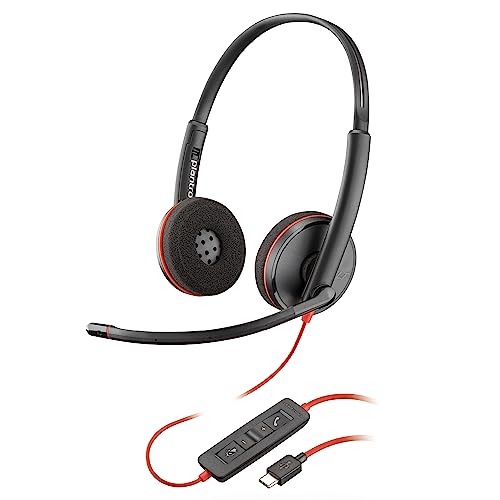
For external headsets, rotate your backup. Cables fray, connectors oxidize, and inline mute switches fail. Keep a spare USB-C headset with built-in mic in your laptop bag. USB audio bypasses the 3.5mm jack entirely, sidestepping many driver and hardware quirks.
Effective Use of Dell Support Tools
Dell SupportAssist, Dell Optimizer, and the online Dell Hardware Support portal form a powerful troubleshooting ecosystem. Enable SupportAssist’s proactive monitoring to catch driver regressions before they break your workflow. Dell Optimizer’s “Audio” tab fine-tunes noise cancellation and echo reduction, experiment with these settings if colleagues report muffled or choppy audio.
Create a system restore point before major driver updates. If a new Realtek package introduces bugs, roll back instantly without reinstalling Windows. Press Windows + R, type rstrui.exe, and follow the wizard to create a checkpoint labeled “Before Audio Update.”
For hardware issues beyond software fixes, leverage Dell’s warranty lookup tool. Enter your service tag to check coverage. ProSupport and Premium Support plans include next-business-day on-site repair, worth it for mission-critical laptops.
Frequently Asked Questions
Why is my Dell Latitude microphone not working during Teams meetings?
Your Dell Latitude microphone may be disabled in Windows Privacy settings, muted in Teams, or using outdated audio drivers. Check Settings > Privacy & security > Microphone to ensure it’s enabled, verify Teams isn’t muted in-app, and update Realtek drivers via Dell SupportAssist. Most issues resolve with these quick checks.
How do I enable my Dell Latitude microphone in Windows 11?
Open Settings > Privacy & security > Microphone and toggle ‘Microphone access’ to On. Then check the Recording tab in Sound Control Panel—right-click your microphone and select Enable if it’s disabled. Verify your preferred mic is set as the Default Device for both audio and communication.
What should I do if my Dell Latitude headset microphone isn’t detected?
First, inspect the 3.5mm jack for dust or debris and try the headset on another device to confirm it works. Check Device Manager for driver issues (yellow exclamation marks). Ensure Windows recognizes the device in Sound Control Panel’s Recording tab. If not listed, right-click and select ‘Show Disabled Devices.’
Can outdated audio drivers cause Dell Latitude microphone failure?
Yes, outdated Realtek or MaxxAudio drivers frequently cause microphone issues, especially after Windows updates. Visit Dell’s Drivers & Downloads portal, enter your service tag, and download the latest audio driver package. Alternatively, use Dell SupportAssist to automatically detect and install updates with one click.
How do I check if my Dell Latitude microphone hardware is working properly?
Use Dell SupportAssist’s hardware diagnostics: launch the app, select Troubleshooting > Audio, and run the microphone test. Alternatively, boot into Dell ePSA (press F12, select Diagnostics) to test hardware outside Windows. If the test passes, software settings are the issue; if it fails, contact Dell support for hardware service.
What privacy settings or app permissions might block my microphone on Dell Latitude?
Windows Privacy settings, per-app permissions in Teams/Zoom, and Windows Focus Assist can all block microphone access. In Settings > Privacy & security > Microphone, enable ‘Microphone access’ globally and for individual apps. Disable Focus Assist in Settings > System if it’s active. Also check in-app mute buttons for Ctrl+Shift+M shortcuts.
Read More:
- Dell Laptop Microphone Not Working (Quick and Easy Fixes that Work)
- Dell Computer Microphone Not Working (Reasons and Solutions)
- Microphone Not Working Windows 11 (Here’s the Step by Step Guide)
- Acer Microphone Not Working (Here’s the Quick and Easy Fixes)
- Dell Microphone Not Working (Here’s 11 Easy Solutions)
- Microphone Not Working (Here’s the Quick and Easy Fixes that Work)

Susan is a professional writer. She has been a writer for eight years and has always been so fulfilled with her work! She desires to share helpful, reliable, and unbiased information and tips about tech and gadgets. She hopes to offer informative content that can answer users’ questions and help them fix their problems.