
You’re five minutes from your big stream, podcast recording, or Zoom call when your Blue Yeti suddenly refuses to pick up your voice. The panic is real, and completely understandable.
When your Blue Yeti microphone isn’t working, the most common culprits are a faulty or loose mini-USB cable, the mute button being stuck on (flashing red LED), the mic not being set as your default input device in Windows or macOS sound settings, insufficient USB power from a hub or aging port, or microphone privacy permissions blocking the device. Most of these issues take less than five minutes to diagnose and fix without any advanced technical skills.
In this guide, you’ll walk through simple, proven steps to get your Blue Yeti back online. No heavy jargon, no driver rewrites, just quick wins that restore crystal-clear audio and get you recording again.
Key Takeaways
- When your Blue Yeti microphone not working, check the USB cable for damage, verify the mute button LED is not flashing red, and ensure the mic is plugged into a powered motherboard port rather than a hub.
- Windows and macOS microphone privacy permissions can silently block your Blue Yeti even if it’s set as the default device—navigate to Settings > Privacy & Security > Microphone to grant access for your apps.
- A full PC restart clears USB enumeration caches and resets application-level audio locks that may prevent the Blue Yeti from being recognized by your operating system.
- In Device Manager, uninstall your Blue Yeti completely, reboot without it plugged in, then reconnect to force Windows to install fresh drivers and resolve ‘device not recognized’ errors.
- Test your Blue Yeti on an alternate computer or smartphone to quickly determine whether the issue is hardware failure or an OS-specific software conflict.
- Use a high-quality shielded mini-USB cable and avoid frequent plugging and unplugging to prevent connection issues and microphone port deterioration over time.
Common Causes of Blue Yeti Microphone Issues
USB Connection and Hardware Factors
Your Blue Yeti relies on a stable USB connection to transmit audio data. A worn-out or low-quality mini-USB cable is the number-one hardware culprit behind intermittent dropouts or complete silence. These cables fray internally over time, especially if you frequently plug and unplug the mic or coil them tightly. USB hubs, particularly unpowered ones, can also starve the Yeti of the current it needs, causing Windows or macOS to fail to recognize the device.
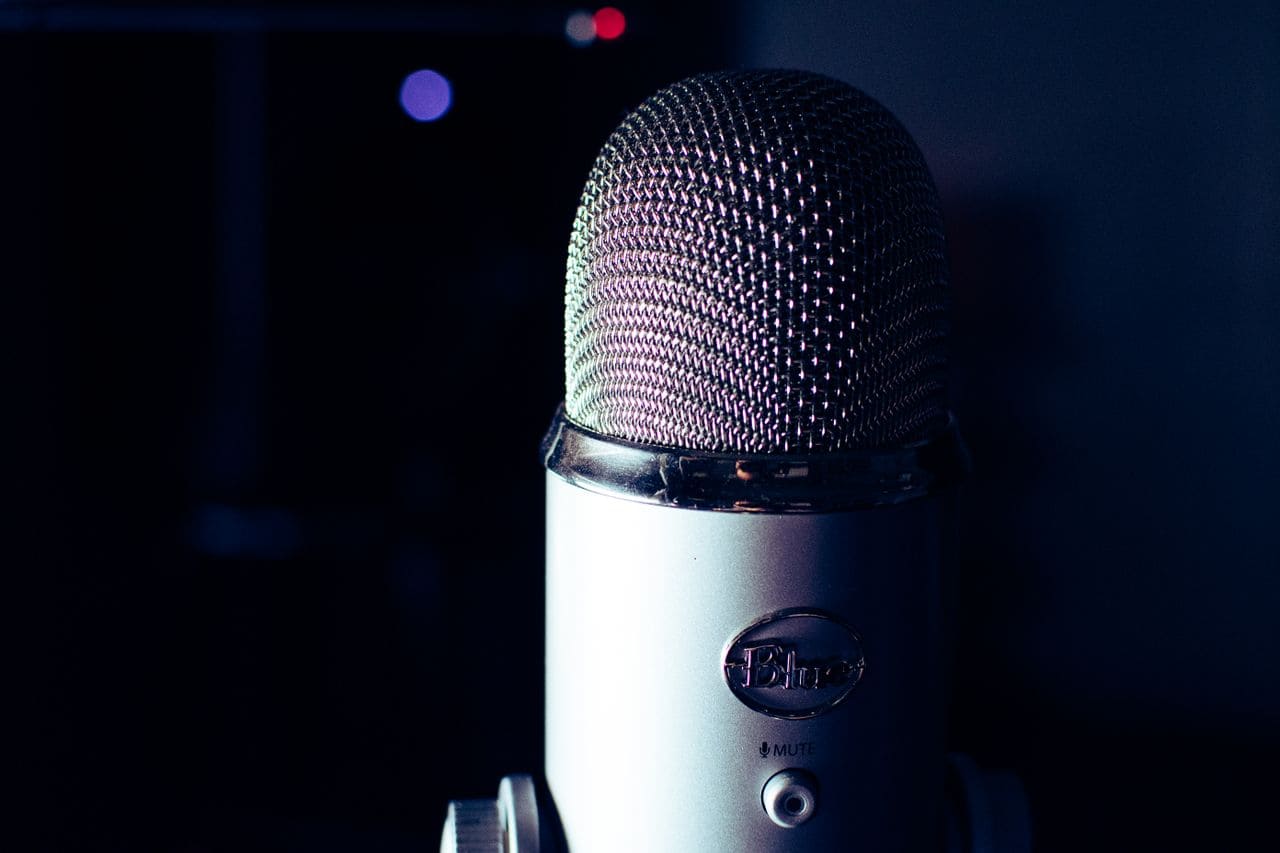
Another sneaky hardware issue is the physical mute button on top of the mic. If the LED ring is flashing red, the mic is muted at the hardware level, and no amount of software tweaking will bring it back. A solid red glow means it’s live and listening. Always double-check that button before diving into settings.
Driver Conflicts and Outdated Drivers
Blue Yeti microphones use class-compliant USB audio drivers, meaning Windows and macOS should recognize them automatically without installing extra software. But, older operating system builds or conflicting audio drivers from other peripherals, like gaming headsets or virtual audio cables, can block the Yeti from appearing in your device list. Microsoft’s USB troubleshooting guide offers additional context on these conflicts.
If you’ve recently updated Windows 11 or upgraded to a new macOS version, your Yeti might need a driver refresh. Device Manager on Windows sometimes flags the mic with a yellow exclamation mark, signaling a driver hiccup. A clean uninstall and reconnection usually resolves this.
Windows Audio Settings and Permissions
Windows 11 introduced tighter microphone privacy controls. If you haven’t granted permission for apps like Discord, Zoom, OBS, or Audacity to access your mic, the Blue Yeti will sit silent even when selected as the default device. Navigate to Settings > Privacy & security > Microphone and toggle on access for both Windows and individual apps.
macOS follows a similar pattern. Check System Preferences > Security & Privacy > Microphone to confirm your recording apps have the green checkmark. Without these permissions, your Yeti technically “works,” but software can’t listen to it.
External Software and Application Conflicts
Some streaming and recording programs remember the last input device you used and won’t automatically switch to the Blue Yeti when you plug it in. Discord, for example, caches audio settings per server. If you joined a voice channel while using a different mic, Discord might ignore the Yeti until you manually select it in User Settings > Voice & Video.
Virtual audio routing tools like Voicemeeter or OBS virtual cameras can also hijack your input. These apps create virtual devices that sit between your physical mic and your recording software, and misconfigured routing sends your Yeti’s signal into the void. If you use any of these tools, verify your input chain.
Step-by-Step Solutions for Recognition Problems
Checking Cables and USB Ports
Start by unplugging the mini-USB cable from both the mic and your computer. Inspect the cable for kinks, exposed wires, or bent pins. If you spot damage, or if the cable is more than a year old, swap it out. A high-quality USB 2.0 Mini-B replacement cable runs under ten dollars and can instantly revive a “dead” Yeti.

Next, plug the Yeti directly into a USB port on your motherboard’s rear I/O or your laptop’s built-in ports. Avoid front-panel connectors or multi-port hubs, which often lack sufficient power delivery. USB 3.0 and 3.1 ports work fine, the Yeti is USB 2.0 but backward-compatible.
Restarting the PC
It sounds too simple, but a full restart clears Windows’ USB enumeration cache and reloads audio drivers from scratch. If your Yeti appeared as “Unknown USB Device” or didn’t show up at all, a reboot often solves it. Before restarting, unplug the mic, shut down completely (not just sleep or hibernate), then plug the Yeti back in after your desktop loads.
This step also resets any application-level locks. Programs like Skype or Teams sometimes hold exclusive access to the mic, preventing other apps from using it. A restart breaks those locks.
Testing With Device Manager
Press Win + X and select Device Manager. Expand Audio inputs and outputs and look for “Blue Yeti” or “USB Advanced Audio Device.” If you see a yellow triangle, right-click the entry and choose Uninstall device. Check the box to delete the driver software, then unplug and replug the Yeti. Windows will reinstall the driver automatically.
If the Yeti appears under Sound, video and game controllers with no errors, it’s recognized at the hardware level. The issue likely lies in your audio settings or app permissions.
Verifying Audio Inputs and Outputs
Right-click the speaker icon in your system tray and select Sound settings. Under Input, confirm “Blue Yeti” is selected. Speak into the mic and watch the volume bar, it should bounce in response. If it stays flat, the Yeti is muted or another device is stealing focus.
On macOS, open System Preferences > Sound > Input and select the Blue Yeti. Adjust the input volume slider to around 75 percent and watch the level meter. If you see activity, the hardware is fine, and you need to check app-specific settings.
Fixing Driver and Settings Issues
Uninstalling and Reinstalling the Device
In Device Manager, find your Blue Yeti, right-click, and choose Uninstall device. This purges any corrupted driver files or registry entries. Reboot your PC without the Yeti plugged in. Once Windows loads, connect the mic. The operating system will detect it as a new device and install fresh drivers. This clean-slate approach resolves most “device not recognized” errors.
“I kept getting ‘USB device not recognized’ on my Blue Yeti until I fully uninstalled it in Device Manager and rebooted. Worked instantly after that.” via r/audio
How to Update Blue Yeti Drivers
Blue doesn’t publish standalone driver downloads, your OS handles everything. To force a driver update, open Device Manager, right-click the Yeti, and select Update driver > Search automatically for drivers. Windows will check Windows Update for any newer class-compliant USB audio drivers. If none are found, you’re already running the latest.
For persistent issues, visit Blue’s official support page to check for firmware updates or known compatibility bulletins. Firmware updates are rare but can fix deep-seated USB handshake bugs.
Setting the Correct Default Input Device
Multiple input devices confuse Windows. Open Settings > System > Sound and scroll to Advanced. Click More sound settings to launch the legacy control panel. Under the Recording tab, right-click “Blue Yeti” and choose Set as Default Device and Set as Default Communication Device. This ensures both regular apps and VoIP software use the Yeti.
On macOS, the process is simpler: System Preferences > Sound > Input, then click the Blue Yeti. Some apps like GarageBand or Logic Pro require you to select the input inside the app’s audio preferences, too.
Utilizing the Audio Troubleshooter
Windows 11 includes a built-in troubleshooter that auto-detects and repairs common audio glitches. Go to Settings > System > Troubleshoot > Other troubleshooters and run Recording Audio. The wizard scans for disabled services, incorrect default devices, and permission blocks. It won’t fix hardware failures, but it catches software misconfigurations quickly.
Microsoft’s audio troubleshooting documentation walks through additional manual checks if the automated tool doesn’t resolve your issue.
Advanced Troubleshooting and Ongoing Maintenance
Testing on Alternative Devices or Platforms
Plug your Blue Yeti into a different computer, Mac, Windows, even a Linux machine, to isolate whether the problem is hardware or OS-specific. If the mic works flawlessly on another device, your original PC has a software conflict, USB controller issue, or power delivery problem. If it fails everywhere, the Yeti itself may need repair or replacement.
You can also test on a smartphone or tablet using a USB-C to USB-A adapter (if your device supports USB host mode). This quick cross-platform check saves hours of Windows troubleshooting.
“My Yeti stopped working on my desktop but ran perfectly on my laptop. Turned out my motherboard’s USB controller needed a BIOS update. Fixed it in ten minutes.” via r/podcasting
Preventing Future Connection Problems
Dust and debris inside USB ports degrade contact quality over time. Blow out your ports with compressed air every few months. Use a high-quality, shielded mini-USB cable, cheap cables introduce signal noise and drop connections. A premium shielded cable is a small investment that prevents future headaches.
![JSAUX Mini USB Cable[2-Pack 3.3ft+6.6ft], USB 2.0 Type A to Mini B Fast Charging Braided Cord for GoPro Hero 3+, PS3 Controller, MP3 Player, Dash Cam, Garmin Nuvi GPS, Camera, Blue Yeti, Red](https://m.media-amazon.com/images/I/41VNlnFHfmL._SS500_.jpg)
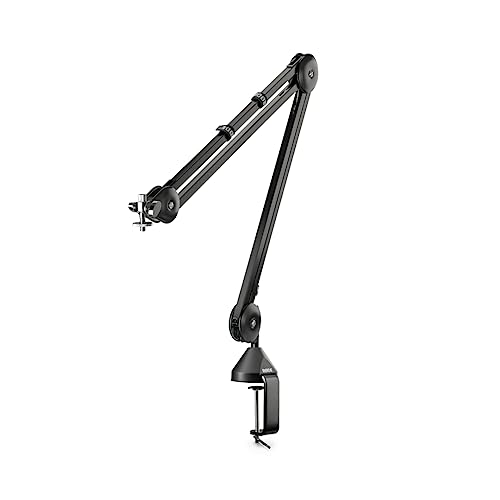
Avoid plugging and unplugging the Yeti dozens of times per week: the port on the mic itself can loosen. If you need portability, consider a desktop mic stand like the RODE PSA1+ that keeps the Yeti in place and reduces cable strain.
Firmware Updates and Manufacturer Support
Blue periodically releases firmware updates to fix USB enumeration bugs or improve compatibility with newer operating systems. Visit Blue’s firmware update page and download the Logitech G Hub or Blue Sherpa software (Blue is owned by Logitech) to check if an update is available. Firmware flashing takes about two minutes and can resolve stubborn recognition issues.
If you’ve exhausted all troubleshooting steps and your Yeti still won’t work, contact Blue customer support or check your warranty status. Hardware failures, like a blown USB chipset inside the mic, do happen, especially on units several years old.
For a visual walkthrough, this YouTube tutorial covers common Blue Yeti fixes step-by-step:
https://www.youtube.com/watch?v=Z5qgFQ6W9P4
Frequently Asked Questions
Why is my Blue Yeti microphone not working?
Common causes include a faulty USB cable, the mute button being engaged (flashing red LED), the mic not set as default input in sound settings, insufficient USB power from a hub, or microphone privacy permissions blocking access. Most issues resolve in under five minutes.
How do I fix a Blue Yeti microphone that won’t be recognized by Windows?
First, test with a different USB port directly on your motherboard and inspect the mini-USB cable for damage. Then open Device Manager, uninstall the Blue Yeti device (including drivers), restart your PC, and reconnect the mic. Windows will automatically reinstall fresh drivers.
What should I check if my Blue Yeti microphone shows no audio input?
Verify the mute button isn’t engaged (solid red LED = active, flashing red = muted). In Windows Sound settings or macOS System Preferences, confirm the Yeti is selected as the default input device and check the volume meter responds when you speak.
Can app permissions prevent my Blue Yeti from working?
Yes. Windows 11 and macOS require explicit microphone permissions for each app. Check Settings > Privacy & security > Microphone (Windows) or System Preferences > Security & Privacy > Microphone (macOS) and enable access for Discord, Zoom, OBS, or other recording software.
Why does my Blue Yeti work on another computer but not mine?
If your Yeti functions on a different device, the issue is software-related on your original PC, such as a USB controller conflict, outdated BIOS, or driver conflict. Test on multiple platforms to isolate hardware vs. OS-specific problems before considering hardware failure.
How can I prevent my Blue Yeti microphone from failing in the future?
Use a high-quality shielded mini-USB cable, avoid frequent unplugging, clean USB ports with compressed air monthly, and keep your OS and firmware updated. Consider a desk stand like the RODE PSA1+ to reduce cable strain and improve stability.
Read More:
- Microphone Not Working (Here’s the Quick and Easy Fixes that Work)
- Dell Microphone Not Working (Here’s 11 Easy Solutions)
- Microphone Not Working Windows 11 (Here’s the Step by Step Guide)
- Microphone Not Working on iPhone (Symptoms, Causes and Easy Fixes)
- Beats Microphone Not Working (Here’s the Quick Fix Guide that Work)
- Bose Headphones Microphone Not Working (Quick and Easy Fixes)

Susan is a professional writer. She has been a writer for eight years and has always been so fulfilled with her work! She desires to share helpful, reliable, and unbiased information and tips about tech and gadgets. She hopes to offer informative content that can answer users’ questions and help them fix their problems.