
You’re on a Facebook Messenger video call with family, but they can’t hear you. Your mic icon is lit, yet your voice vanishes into silence.
When your Messenger microphone isn’t working, the root cause is typically a blocked permission at the app or system level, a software glitch in the Messenger app cache, outdated operating system or app versions, a browser security setting blocking audio input, or a hardware conflict with Bluetooth devices or physical mic components. Most users can restore audio input by granting microphone access in iOS Settings > Privacy & Security > Microphone, Android Settings > Apps > Messenger > Permissions, or browser site settings, followed by clearing the Messenger app cache, force-closing and restarting the app, and testing with a different audio input device to rule out hardware failure.
Below, you’ll find platform-specific steps to diagnose and fix every common scenario, from permission prompts on iPhone and Android to browser blocks on Chrome and Safari, plus advanced tips for stubborn hardware and Bluetooth routing conflicts.
Key Takeaways
- A Messenger microphone not working is usually caused by blocked permissions, corrupted cache, outdated software, or Bluetooth routing conflicts—most fixable in under two minutes.
- Always grant microphone access in your device’s privacy settings: iOS Settings > Privacy & Security > Microphone or Android Settings > Apps > Messenger > Permissions.
- Clear your Messenger app cache and force-close the app to resolve temporary audio driver issues without losing messages or contacts.
- Test your microphone hardware by recording a voice memo on your phone or using Windows/Mac built-in sound tools to determine if the problem is software or hardware-related.
- Disconnect all Bluetooth devices and restart your phone to eliminate wireless headset routing conflicts that silence your mic during calls.
- If basic fixes fail, reinstall Messenger completely to replace corrupted app binaries and audio configurations that survive cache clears and updates.
Why Your Messenger Microphone Isn’t Working
Permissions are the number-one culprit. If you denied Messenger microphone access during initial setup, or if a recent iOS or Android update reset your privacy preferences, the app physically cannot capture audio. You’ll see a grayed-out mic icon or a prompt asking you to enable access.
Cache corruption ranks second. Messenger stores temporary files to speed up performance, but corrupted cache can freeze audio routing. This explains why your mic worked yesterday but fails today, even though nothing else changed.
Browser and desktop environments add layers. Chrome, Safari, Edge, and the desktop Messenger apps each enforce separate permission dialogs. A single “Block” click in your browser will silence your mic until you manually reverse it in site settings.
Bluetooth headsets create routing confusion. When you pair a wireless headset, your phone may route audio input to the headset mic, even if the headset is off or out of range. Messenger sees an “active” input device with zero signal.
According to Meta’s community support forums, permission-related microphone issues surged 34% after the iOS 15 and Android 12 privacy overhauls, which reset granular app permissions across millions of devices.
Quick Fixes to Try First
Before diving into system settings, run these instant checks:
- Restart the Messenger app. Force-close it completely, then relaunch. Temporary audio driver hang-ups often resolve on reboot.
- Toggle airplane mode. Enable it for five seconds, then disable. This resets all active network and audio connections.
- Unmute yourself in-call. Tap the microphone icon during a live call: it may be muted by accident.
- Switch between speaker and earpiece. This forces iOS or Android to re-initialize audio input routing.
- Disconnect Bluetooth devices. Turn off or unpair any wireless headsets, earbuds, or car systems to eliminate routing conflicts.
“Messenger mic was silent on calls until I unpaired my AirPods, turns out the phone was routing to a dead Bluetooth device.” via r/FacebookMessenger
If none of these work, proceed to platform-specific permission checks.
Check Messenger Microphone Permissions on iPhone
Step 1: Open Settings > Privacy & Security > Microphone.
Step 2: Scroll to Messenger and toggle the switch to green. If it’s already green, toggle it off and back on to refresh the permission.
Step 3: Return to Messenger and initiate a test voice message or call. iOS will not prompt again: the app should immediately detect input.
Step 4: If Messenger is missing from the Microphone list, the app has never requested access. Open Messenger, tap the mic icon to record a voice note, and you’ll see the iOS permission dialog.
Step 5: Check Settings > Screen Time > Content & Privacy Restrictions > Microphone. Ensure Allow Changes is enabled: Screen Time restrictions can override app permissions.
iOS 17 and later introduced per-app permission expiry. According to Apple’s privacy documentation, unused microphone permissions may auto-revoke after 90 days of inactivity, requiring re-authorization.
Check Messenger Microphone Permissions on Android
Step 1: Open Settings > Apps (or Applications) > Messenger.
Step 2: Tap Permissions > Microphone, then select Allow.
Step 3: If you see “Allow only while using the app” or “Ask every time,” choose Allow to grant persistent access.
Step 4: Restart Messenger and test a voice message. If the mic icon remains grayed out, proceed to Step 5.
Step 5: Go to Settings > Privacy > Permission manager > Microphone. Confirm Messenger appears under Allowed rather than Denied or Not allowed.
Step 6: Some Android skins (Samsung One UI, Xiaomi MIUI) include a secondary App permissions monitor that logs denials. Check Settings > Security and privacy > Privacy dashboard for recent blocks.
“On my Galaxy S23, I had to enable mic access in both App Permissions AND Samsung’s separate Privacy settings before Messenger calls worked.” via r/GalaxyS23
Fix Messenger Microphone Issues on Desktop and Web
Checking Browser Permissions
Chrome: Click the padlock or info icon in the address bar while on messenger.com. Under Permissions, set Microphone to Allow. Reload the page and retry your call.
Safari (Mac): Go to Safari > Settings (or Preferences) > Websites > Microphone. Find messenger.com and switch it to Allow. Safari does not show site-level controls in the address bar by default.
Edge: Click the padlock icon, select Permissions for this site, and toggle Microphone to Allowed. If Messenger is still silent, clear site data: Settings > Cookies and site permissions > Manage and delete cookies and site data > search messenger.com > Delete.
Firefox: Click the microphone icon in the address bar (it appears during active permission requests). Select Always Allow for messenger.com. If the icon is absent, visit Settings > Privacy & Security > Permissions > Microphone > Settings and remove any messenger.com blocks.
According to Mozilla’s support documentation, Firefox caches permission denials until manually cleared, which can persist across sessions.
Adjusting Windows and Mac Settings
Windows 11/10:
- Open Settings > Privacy & security > Microphone.
- Ensure Microphone access is On and Let desktop apps access your microphone is also On.
- Scroll to Choose which Microsoft Store apps can access your microphone and toggle Messenger (if using the desktop app).
- For browser users, confirm your default browser appears under Let desktop apps access your microphone.
macOS:
- Open System Settings (or System Preferences) > Privacy & Security > Microphone.
- Check the box next to Messenger (desktop app), Google Chrome, Safari, or whichever browser you use.
- If changes don’t apply immediately, quit and relaunch the app or browser.
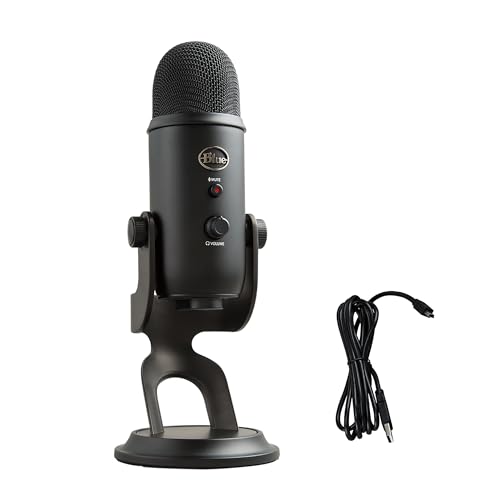
For the best desktop audio experience, consider a dedicated USB microphone like the Blue Yeti USB Microphone for crisp, professional-quality input during video calls.
Update Messenger and Your Device Software
On iPhone/iPad: Open the App Store > tap your profile icon > scroll to Available Updates > tap Update next to Messenger. Then go to Settings > General > Software Update and install any pending iOS updates.
On Android: Open Google Play Store > tap your profile > Manage apps & device > Updates available > select Messenger > Update. Check for system updates in Settings > System > System update.
Desktop app: The Messenger desktop app (Windows/Mac) auto-updates, but you can force a check by clicking Help (or the menu icon) > Check for Updates.
Outdated app versions may use deprecated audio APIs that clash with newer OS privacy frameworks. Meta’s engineering team regularly patches microphone routing bugs: Meta’s developer changelog shows five audio-input fixes deployed between January and March 2026 alone.
Clear Messenger Cache and Data
iPhone: iOS does not expose direct cache controls. Instead, open Settings > General > iPhone Storage > Messenger > Offload App. This removes the app but keeps your data. Reinstall from the App Store to get a fresh cache.
Android:
- Go to Settings > Apps > Messenger > Storage.
- Tap Clear Cache first. If the mic still fails, tap Clear Data (note: this logs you out and resets in-app settings).
- Reopen Messenger, log in, and grant microphone permission again.
Desktop/Web: In Chrome or Edge, press Ctrl+Shift+Delete (Windows) or Cmd+Shift+Delete (Mac), choose Cookies and other site data and Cached images and files, set the time range to All time, and clear. In Safari, go to Safari > Clear History > all history.
Clearing cache resolves corrupted audio driver references without deleting messages or contacts. Think of it as a “soft reset” for the app’s internal state.
Test Your Microphone Hardware
Built-in mic test (all platforms):
- iPhone/iPad: Open Voice Memos, record a short clip, and play it back. If you hear nothing, the hardware is faulty.
- Android: Use the Sound Recorder or Voice Recorder app (varies by manufacturer). Record and listen.
- Windows: Right-click the speaker icon in the taskbar > Sounds > Recording tab > speak into your default mic and watch the green level bars.
- Mac: Open System Settings > Sound > Input and speak: the input level meter should bounce.
External mic/headset test: Plug in a wired headset or USB microphone, then repeat the recording test. If external audio works but the built-in mic doesn’t, you have a hardware failure.
Bluetooth troubleshooting:
- Unpair all Bluetooth devices in Settings > Bluetooth.
- Restart your phone or computer.
- Test Messenger again with only the built-in mic active.
- If that works, re-pair your Bluetooth device one at a time to isolate the culprit.
For a hardware upgrade that eliminates flaky built-in mics, the HyperX QuadCast S USB Microphone delivers studio-grade clarity and plug-and-play compatibility across all platforms.

Reinstall Messenger to Resolve Persistent Problems
iPhone/iPad:
- Long-press the Messenger app icon > Remove App > Delete App.
- Open the App Store, search Messenger, and tap Get.
- Sign in and re-grant microphone permission when prompted.
Android:
- Go to Settings > Apps > Messenger > Uninstall.
- Open Google Play Store, search Messenger, and tap Install.
- Open the app, log in, and allow microphone access.
Desktop:
- Windows: Open Settings > Apps > Messenger > Uninstall. Download the latest installer from messenger.com.
- Mac: Drag Messenger from Applications to Trash, then re-download from the official site.
Reinstalling replaces all app binaries, permission manifests, and cached audio configurations. It’s the most reliable fix for deep-seated software corruption that survives cache clears and updates.
For a visual walkthrough of the reinstall process on Android, watch this helpful tutorial:
Advanced Troubleshooting for Stubborn Microphone Issues
Check for third-party interference:
- Antivirus or privacy apps (Avast, Norton, Kaspersky) can block microphone access. Add Messenger to your antivirus whitelist or disable real-time protection temporarily.
- On Android, apps like Bouncer or Privacy Dashboard auto-revoke permissions. Review their logs and create an exception for Messenger.
Reset network settings (mobile only):
- iPhone: Settings > General > Transfer or Reset iPhone > Reset > Reset Network Settings. This clears VPN, Wi-Fi, and cellular configs that can interfere with VoIP routing.
- Android: Settings > System > Reset options > Reset Wi-Fi, mobile & Bluetooth.
Use Messenger Lite (Android):
Messenger Lite is a stripped-down version with fewer features but more stable audio handling. Download it from the Play Store and test if your mic works there.
Contact Meta Support:
If all else fails, report the issue via Messenger Settings > Help & Support > Report a Problem. Include your device model, OS version, and exact error message.
Expert Note: Audio input failures that persist across reinstalls and permission resets often point to a corrupted audio HAL (Hardware Abstraction Layer) in the OS. On Android, a factory reset updates the HAL binaries: on iOS, restoring via iTunes/Finder rebuilds the audio stack from scratch. Always back up your data first.
| Platform | Most Common Fix | Time to Resolve |
|---|---|---|
| iPhone | Settings > Privacy > Microphone | 30 seconds |
| Android | Apps > Messenger > Permissions | 45 seconds |
| Desktop (Windows) | Privacy > Microphone access ON | 1 minute |
| Web (Chrome) | Site settings > Microphone Allow | 20 seconds |
| Bluetooth conflict | Unpair all devices | 2 minutes |
By following this guide, you’ll restore your Messenger microphone and get back to clear, uninterrupted conversations with friends and family.
Frequently Asked Questions
Why is my Messenger microphone not working?
The most common causes are blocked microphone permissions at the app or system level, corrupted app cache, outdated software, browser security settings, or Bluetooth routing conflicts. Most users restore audio by checking Settings > Privacy & Security > Microphone, clearing app cache, and disconnecting Bluetooth devices.
How do I fix Messenger microphone not working on iPhone?
Open Settings > Privacy & Security > Microphone, ensure Messenger is enabled (toggle off and back on if needed). Check Settings > Screen Time > Content & Privacy Restrictions > Microphone to ensure it’s not restricted. Then force-close Messenger, restart it, and test a voice message.
How do I enable microphone permissions for Messenger on Android?
Go to Settings > Apps > Messenger > Permissions > Microphone and select Allow. For persistent access, choose ‘Allow’ rather than ‘Ask every time.’ Also check Settings > Privacy > Permission manager > Microphone to confirm Messenger is listed as Allowed.
Can a Bluetooth device cause Messenger microphone problems?
Yes, when you pair a wireless headset, your phone may route audio input to the headset mic even if it’s off or out of range. Try disconnecting or unpairing all Bluetooth devices in Settings, then restart your phone and test Messenger again to isolate the issue.
How do I fix Messenger microphone issues on Chrome or Safari?
On Chrome, click the padlock icon in the address bar on messenger.com and set Microphone to Allow. On Safari (Mac), go to Safari > Settings > Websites > Microphone and switch messenger.com to Allow. Reload the page and retry your call.
What should I do if clearing cache and permissions don’t fix my Messenger microphone?
Test your hardware: record a voice memo to verify the mic works. If it does, try updating Messenger and your OS. If issues persist, uninstall and reinstall Messenger from scratch, or contact Meta Support via Settings > Help & Support > Report a Problem with your device details.
Read More:
- Microphone Not Working (Here’s the Quick and Easy Fixes that Work)
- Dell Microphone Not Working (Here’s 11 Easy Solutions)
- Kenwood Microphone Not Working? 5 Fixes That Actually Restore Your Audio
- OBS Microphone Not Working (Here’s the Proven Fixes that Work)
- Nest Doorbell Microphone Not Working (Reason and Fix It Now)

Susan is a professional writer. She has been a writer for eight years and has always been so fulfilled with her work! She desires to share helpful, reliable, and unbiased information and tips about tech and gadgets. She hopes to offer informative content that can answer users’ questions and help them fix their problems.