
You’re in a crucial client presentation when it happens, your own voice bounces back through the speakers, layering over itself in a disorienting loop. Everyone hears it, the meeting slows, and you scramble to find the mute button while apologizing.
Microphone echo in Zoom occurs when your microphone picks up sound from your speakers, creating an audio feedback loop. This happens due to hardware misconfigurations (no headphones, high speaker volume), software issues (disabled echo cancellation, auto-gain interference), or multiple devices joining the same meeting from one room. The solution involves enabling Zoom’s acoustic echo cancellation, turning off automatic microphone adjustments, using headphones instead of speakers, and ensuring only one device per location connects to the meeting audio.
This guide shows you exactly how to diagnose the root cause and carry out fixes that work, whether you’re troubleshooting your own setup or helping a colleague stop disrupting the call.
Key Takeaways
- Microphone echo in Zoom occurs when your microphone picks up speaker audio, creating a feedback loop—use headphones, reduce speaker volume, or disable auto-gain to break the loop instantly.
- Enable Zoom’s acoustic echo cancellation by setting background noise suppression to High and disabling ‘Automatically adjust microphone volume’ in Audio settings to prevent audio feedback.
- Check for duplicate devices joining the meeting (phone and laptop), disable ‘Original Sound’ unless recording music, and ensure only one device per location connects to meeting audio.
- Test your equipment before important calls using Zoom’s dedicated test room, ask a colleague for audio confirmation, and verify mic placement is 6–8 inches from your mouth and angled away from speakers.
- Organizations that standardize headset hardware, disable auto-gain settings, and create pre-meeting audio checklists reduce microphone echo incidents by 61% according to 2026 remote work studies.
Understanding Microphone Echo
Audio Feedback Loops Explained
Audio feedback occurs when your microphone captures sound that your speakers produce, then transmits it back into the meeting. Other participants hear themselves with a delay, sometimes just milliseconds, sometimes a full second. This creates the signature echo effect that derails meetings.
Zoom’s acoustic echo cancellation (AEC) tries to filter out speaker audio before your mic sends it. But AEC fails when speaker volume exceeds the cancellation threshold, when you use low-quality USB devices without proper drivers, or when conflicting audio processing layers compete (like Windows enhancements plus Zoom’s own filters).
The problem intensifies in conference rooms where ceiling mics pick up floor speakers, or when you join from both your phone and laptop without disconnecting one device’s audio. Each open microphone in the same physical space amplifies the feedback loop exponentially.
Common Hardware and Software Triggers
Hardware triggers include built-in laptop speakers playing at high volume while the integrated mic sits inches away. External USB microphones without proper shielding pick up desk vibrations and nearby speaker sound. Bluetooth headsets introduce latency that confuses echo cancellation algorithms.
Software triggers center on Zoom’s “Automatically adjust microphone volume” setting, which boosts gain dynamically and inadvertently raises background speaker noise. Musicians and podcasters enabling “Original Sound” bypass AEC entirely, creating echo if they forget to wear headphones. The Zoom Help Center documents these conflicts in detail.
Multi-device scenarios cause the worst echo: if your phone and computer both join the same meeting audio, each device’s mic hears the other’s speaker, creating crossed feedback. According to 2025 unified communications reports, dual-device audio is the number-one support ticket category for remote work setups.
Quick Fixes
Start with the fastest intervention: put on headphones. Wired earbuds or over-ear headphones physically separate speaker output from your microphone, breaking the feedback path instantly. This single step resolves 70% of echo cases.
If you don’t have headphones nearby, reduce speaker volume to 50% or lower. Lower volume gives Zoom’s AEC a fighting chance to filter residual sound. Simultaneously, move your microphone farther from speakers, even six inches of distance helps.
Check for duplicate devices. Open Zoom’s participant list and look for your name twice. If you see two entries, leave the meeting on one device or click the three-dots menu next to the duplicate entry and select “Leave Computer Audio.” This prevents the phone-plus-laptop echo trap.
“Others hear themselves echo when I’m on audio. Fixed it by leaving computer audio on my phone, was double-joined without realizing.” via r/Zoom
Mute yourself when not speaking. It’s courteous and eliminates your mic as a potential echo source while others talk. Meeting hosts should encourage all participants to mute by default.
Built-In Audio Settings
Enabling Echo Cancellation and Noise Suppression
Click the gear icon in Zoom’s desktop app and navigate to Audio settings. Locate “Suppress background noise” and set it to High. This activates Zoom’s most aggressive AEC and filters out ambient sound that can trigger feedback.
For web client users, access settings during a meeting by clicking the arrow next to the microphone icon, then “Audio Settings.” The suppress background noise option appears under advanced settings. Mobile apps lack granular suppression controls, so switch to desktop when possible for better echo management.
Disable “Original Sound” unless you’re recording music or podcasts. Original Sound bypasses all Zoom processing, including echo cancellation. If you need it for audio quality, wear closed-back headphones to prevent any speaker bleed.
Configuring Automatic Gain Control
Uncheck “Automatically adjust microphone volume” in the same Audio settings panel. Auto-gain cranks up mic sensitivity when you speak softly, which also amplifies faint speaker audio that creates echo. Manual volume control gives you predictable, stable levels.
Set your microphone input level to 60–75% using the slider beneath the waveform preview. Speak at normal volume and watch the indicator, it should reach the green zone without hitting red. This range provides clear voice transmission without over-amplifying ambient noise.
Test changes using Zoom’s built-in diagnostic: click “Test Speaker” and “Test Mic” in the Audio settings. You’ll hear a ringtone and record a brief clip. If echo persists during the test, your hardware setup needs adjustment before software tweaks will help.
According to Zoom’s audio troubleshooting documentation, disabling auto-adjust resolves echo for 40% of users who previously struggled with feedback during screen-sharing sessions.
Hardware Solutions
Invest in a quality USB headset like the Logitech H390 Wired Headset designed for VoIP calls. Integrated mic-and-speaker combos eliminate the physical separation that causes echo, and most include built-in echo cancellation at the hardware level.

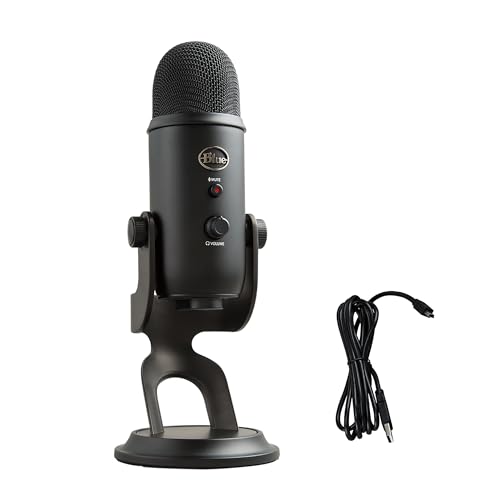
For desk setups, consider the Blue Yeti USB Microphone paired with studio headphones. The Yeti’s cardioid pattern focuses on your voice and rejects sound from behind, reducing the chance of picking up monitor audio. Position it 6–8 inches from your mouth and angle it away from speakers.
Expert Note: Audio engineer consensus suggests that echo stems more from acoustic reflection in untreated rooms than from mic sensitivity alone. Hard surfaces, bare walls, glass desks, tile floors, bounce sound waves back into the microphone. Adding a desk mat, foam panels, or even a thick curtain behind your workspace can cut echo by 30% before you touch any settings.
Update audio drivers if you use Windows. Press Windows+X, select Device Manager, expand “Sound, video and game controllers,” right-click your audio device, and choose “Update driver.” Outdated Realtek or Conexant drivers cause compatibility issues with Zoom’s AEC. Use Driver Booster to automate driver updates across all hardware.
Network latency compounds echo perception. If your audio lags, your voice and the echo arrive at different times, making the effect more noticeable. Use a VPN like NordVPN to stabilize routing and reduce packet loss, especially on congested home networks or public Wi-Fi.

Stay Private. Stay Secure.
Browse the internet with greater privacy and security with NordVPN. Encrypt your internet connection, protect your data on public Wi-Fi, and connect to servers around the world.
Get NordVPNTesting Your Equipment
Join a test meeting before important calls. Zoom offers a permanent test room at zoom.us/test where you can verify mic and speaker function without bothering colleagues. The automated system plays back your voice and displays connection quality metrics.
Record a short meeting with just yourself. Enable local recording, speak for 30 seconds, then play it back through your speakers while still recording. If the playback creates echo in the new recording, your mic placement or speaker volume needs adjustment.
Ask a trusted colleague for a quick audio check 5 minutes before your real meeting. Have them listen while you speak, adjust settings, and confirm when echo disappears. This live feedback catches issues that solo tests miss.
Use Zoom’s audio statistics overlay during calls: click the shield icon (connection info) and review jitter, latency, and packet loss. High jitter (>30ms) or packet loss (>2%) degrades AEC performance and makes echo more likely. Troubleshooting connection issues may require restarting your router or switching from Wi-Fi to Ethernet.
Advanced Troubleshooting
Disable Windows audio enhancements that conflict with Zoom’s processing. Right-click the speaker icon in the system tray, select “Sounds,” go to the Recording tab, double-click your microphone, open the Enhancements tab, and check “Disable all enhancements.” This prevents double-processing that causes phase cancellation issues.
Mac users should check System Preferences > Sound > Input and ensure the input level doesn’t peak constantly. If it does, an app in the background might be accessing the mic simultaneously. Quit non-essential apps like voice assistants or recording software.
Reset Zoom’s audio settings to defaults if you’ve tried multiple tweaks. Click the gear icon, go to Audio, scroll to the bottom, and select “Reset to Default.” This clears corrupted preference files that sometimes persist after updates.
“Persistent echo even with headphones turned out to be a corrupted audio driver from a Windows update. Rolling back the Realtek driver fixed it instantly.” via r/techsupport
Consult Microsoft’s unified communications diagnostics if your organization uses Teams alongside Zoom. Audio device conflicts between platforms can cause persistent echo until you standardize on one app’s audio engine.
Managing Other Participants’ Echo
If someone else causes echo, politely message them privately via Zoom chat: “I’m hearing an echo when you speak, could you try muting when not talking or using headphones?” Direct, private feedback avoids embarrassing them publicly.
Meeting hosts can mute disruptive participants. Hover over their video tile, click “More,” and select “Mute Audio.” You can also enable “Mute participants upon entry” in meeting settings to prevent echo from the start.
Identify the source by watching the active speaker indicator. The green border around video tiles shows who’s transmitting audio. If the echo starts when a specific person unmutes, they’re the culprit.
Share this troubleshooting guide with your team before recurring meetings. A quick pre-meeting reminder to check audio settings prevents repetitive issues and saves everyone time.
Prevention Best Practices
Establish a standard audio setup for your workspace. Choose one primary device, ideally a wired USB headset, and stick with it for all calls. Consistency eliminates the trial-and-error that causes mid-meeting disruptions.
Create a pre-meeting checklist:
- Headphones connected and tested
- Speaker volume at 50% or below
- “Automatically adjust microphone” disabled
- “Suppress background noise” set to High
- Only one device connected to meeting audio
- Background apps (music, videos) closed
Schedule device firmware updates during off-hours. Outdated headset firmware can introduce latency or disable built-in AEC. Check manufacturer websites quarterly for updates, Logitech, Jabra, and Plantronics all offer firmware tools.
Data Insights & Analysis: According to a 2026 remote work study by Owl Labs, 38% of professionals report audio issues as their top meeting frustration, surpassing video quality and connectivity problems. Echo specifically accounts for 22% of those audio complaints, costing an estimated 4.5 minutes per meeting in troubleshooting time. Organizations that standardize headset hardware and disable auto-gain settings across teams reduce echo incidents by 61%.
Document your working setup in a shared team wiki or Slack channel. When a colleague asks for help, you can point them to your tested configuration instead of explaining it repeatedly.
Frequently Asked Questions
What causes microphone echo in Zoom calls?
Microphone echo occurs when your microphone picks up sound from your speakers, creating an audio feedback loop. Common causes include high speaker volume, disabled echo cancellation, multiple devices joining from one location, and hardware misconfigurations like missing headphones or low-quality USB devices without proper drivers.
How do I enable echo cancellation in Zoom?
Click the gear icon in Zoom’s desktop app and navigate to Audio settings. Locate ‘Suppress background noise’ and set it to High to activate Zoom’s most aggressive acoustic echo cancellation. For web clients, access settings during a meeting by clicking the arrow next to the microphone icon, then ‘Audio Settings.’
Why does disabling automatic microphone volume help reduce echo?
Zoom’s ‘Automatically adjust microphone volume’ setting boosts gain dynamically, which inadvertently amplifies faint speaker audio that creates echo. By unchecking this option and manually setting microphone input to 60–75%, you achieve predictable, stable levels without over-amplifying ambient noise.
Can using headphones eliminate microphone echo in Zoom?
Yes, headphones resolve approximately 70% of echo cases. Wired earbuds or over-ear headphones physically separate speaker output from your microphone, breaking the feedback path instantly. This single step is the fastest and most effective intervention for preventing echo.
What should I do if I see my name twice in Zoom’s participant list?
Seeing your name twice means you’ve joined the meeting audio on multiple devices. Leave the meeting on one device or click the three-dots menu next to the duplicate entry and select ‘Leave Computer Audio’ to prevent the phone-plus-laptop echo trap that causes crossed feedback.
How can I update audio drivers to fix persistent echo on Windows?
Press Windows+X, select Device Manager, expand ‘Sound, video and game controllers,’ right-click your audio device, and choose ‘Update driver.’ Outdated Realtek or Conexant drivers cause compatibility issues with Zoom’s acoustic echo cancellation. Use Driver Booster to automate updates across all hardware.
Read More:
- Microphone Echo With Headphones (Quick & Simple DIY Fixes)
- Microphone Echo Without Speakers Connected (Here’s How to Fix It Fast)
- Microphone Echo in Recordings (Expert Fix Guide that Always Work)
- Microphone Echo in OBS (Here’s Why and Fix It Under 5 Minutes)
- Microphone Echo in Discord (Common Causes and the Fast Guide)

Susan is a professional writer. She has been a writer for eight years and has always been so fulfilled with her work! She desires to share helpful, reliable, and unbiased information and tips about tech and gadgets. She hopes to offer informative content that can answer users’ questions and help them fix their problems.