
You join a Zoom meeting, unmute yourself, and within seconds someone says, “We can hear ourselves talking back.” That feedback loop is microphone echo, and it’s one of the most common complaints in remote work.
Microphone echo on laptop occurs when your built-in microphone picks up sound from your speakers, creating an audio feedback loop. The primary causes include speaker-to-mic bleed, missing or disabled echo cancellation drivers (Realtek AEC, Waves MaxxAudio), Windows microphone boost levels set too high, or OS audio enhancements that amplify internal chassis vibration and speaker output back into the mic array.
Most modern laptops ship with dual-array or quad-array microphones paired with OEM acoustic echo cancellation software. When those drivers fail, conflict, or disable themselves after a Windows update, the built-in hardware loses its ability to isolate outgoing audio from incoming speaker sound.
Key Takeaways
- Microphone echo on laptop occurs when your built-in mic picks up sound from speakers, creating a feedback loop that’s most easily fixed by using headphones or earbuds.
- Disable Windows audio enhancements and reduce microphone boost to 0–10 dB to prevent internal speaker bleed from being amplified through your laptop’s chassis.
- Update audio drivers directly from your laptop manufacturer’s website rather than Windows Update, as generic Microsoft drivers lack acoustic echo cancellation (AEC) capabilities that OEM drivers provide.
- Enable echo cancellation settings manually in Zoom, Microsoft Teams, Discord, and Google Meet before joining calls, as app-level protection works independently of Windows configuration.
- Lower speaker volume to 30–40% and place your laptop on a soft surface like a mousepad to reduce mechanical vibration that contributes to microphone echo.
- Check that ‘Listen to this device’ is disabled in microphone properties, as this Windows feature creates instant audio feedback when enabled.
What Causes Microphone Echo
Audio Feedback Loop Between Speakers and Microphone
Laptop speakers sit millimeters away from the internal microphone array. When you play audio through those speakers, sound waves travel through air and through the laptop chassis itself. The built-in mic captures both airborne sound and mechanical vibration transmitted through the aluminum or plastic frame.
This is called chassis audio bleed. High speaker volume increases the amplitude of vibration. If your laptop lacks proper acoustic dampening foam between the speaker chamber and microphone cavity, you’ll hear every word spoken by meeting participants echoed back to them.
Beamforming microphones are designed to focus pickup on your mouth while rejecting off-axis noise. But when the speaker source is inside the laptop, beamforming cannot distinguish between your voice and internal audio playback.
Incorrect Audio Settings and Enhancements
Windows ships with a “Listen to this device” feature buried in Sound Control Panel. When enabled, it routes microphone input directly to speakers in real time, creating instant feedback. This setting activates accidentally during audio troubleshooting or driver reinstalls.
Realtek Audio Console and OEM utilities like Waves MaxxAudio or Lenovo Vantage include acoustic echo cancellation (AEC) algorithms. These use digital signal processing to subtract known speaker output from microphone input. But Windows updates often disable these enhancements or replace OEM drivers with generic Microsoft HD Audio drivers that lack AEC entirely.
Microphone boost is another culprit. Windows allows you to amplify mic sensitivity by +10 dB, +20 dB, or more. This boost amplifies everything, including faint speaker bleed. A 20 dB boost can turn inaudible chassis vibration into full-volume echo.
“My Lenovo’s internal mic echoed every Discord call. Turned out Windows Update replaced Waves drivers with generic Realtek.” via r/Lenovo
Driver conflicts, missing OEM software, and aggressive mic boost combine to turn a well-engineered laptop into an echo chamber.
Quick Fixes Stop Echo
Use Headphones or Earbuds
Plugging in wired headphones or connecting Bluetooth earbuds breaks the speaker-to-microphone feedback path instantly. Your laptop disables internal speakers when it detects a 3.5 mm jack or Bluetooth audio device. The microphone still picks up your voice, but it no longer hears meeting audio because sound goes directly into your ears.
This works with any headset, cheap earbuds, gaming headsets, or true wireless buds. Even basic Apple EarPods eliminate echo by isolating playback.
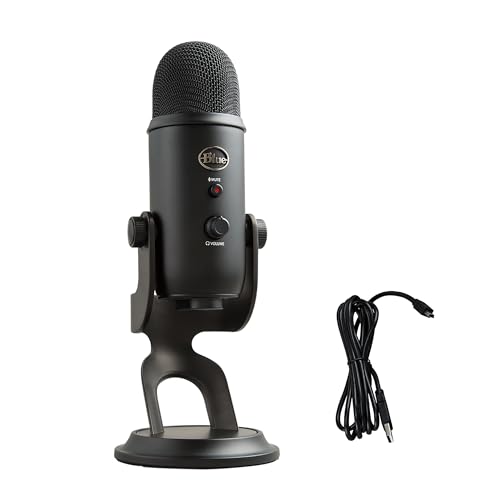
If your laptop microphone quality is poor, upgrade to a USB condenser microphone with built-in monitoring, which bypasses the internal array entirely and delivers studio-grade audio to Zoom, Discord, or Microsoft Teams.
Lower Your Speaker Volume
If you can’t use headphones, reduce speaker volume to 30–40%. Lower volume decreases the amplitude of sound waves and chassis vibration reaching the microphone. You’ll still hear participants clearly, but the mic won’t pick up enough speaker output to create noticeable echo.
Combine this with positioning your laptop on a soft surface, like a mousepad or thin towel, to dampen mechanical vibration. Hard desks amplify chassis resonance.
Adjusting Windows Audio Settings
Disable Audio Enhancements
Windows Audio Enhancements can introduce latency or processing artifacts that worsen echo. Right-click the speaker icon in the taskbar, select Sounds, then navigate to the Playback tab. Double-click your default speaker device, go to the Enhancements tab, and check Disable all enhancements.
Repeat this for the Recording tab. Select your microphone, open Properties, go to Enhancements, and disable all effects. Click Apply.
If you see a Communications tab, set Windows to “Do nothing” when it detects communication activity. This prevents automatic volume ducking that can trigger echo.
Configure Microphone Properties
Open Sound Control Panel > Recording > Microphone > Properties > Listen. Confirm “Listen to this device” is unchecked. This single checkbox routes mic input to speakers and guarantees instant feedback.
Next, click the Levels tab. If Microphone Boost is above +10 dB, lower it to 0 dB or +10 dB max. High boost amplifies internal speaker bleed picked up through the laptop chassis.
In the Advanced tab, try different sample rates: start with 16-bit, 44100 Hz, then test 24-bit, 48000 Hz. Some Realtek drivers handle echo cancellation better at specific sample rates.
For OEM utilities:
- Realtek Audio Console: Open the app, go to Microphone Effects, enable Acoustic Echo Cancellation and Noise Suppression.
- Waves MaxxAudio (Dell, Lenovo): Launch the app, navigate to the Recording tab, enable Echo Cancellation.
- Lenovo Vantage: Go to Hardware Settings > Audio, ensure Smart Audio is enabled.
Update your Realtek or OEM audio drivers from the manufacturer’s website, not Windows Update. Generic Microsoft drivers lack AEC. Visit Dell Support, Lenovo Support, or HP Support and download the latest audio driver package specific to your laptop model.
“Installing Dell’s official Realtek driver restored echo cancellation. Windows auto-driver destroyed it.” via r/Dell
Fixing Echo in Apps
Zoom, Microsoft Teams, Discord, and Google Meet include app-level echo cancellation that works independently of Windows drivers. But you must enable these settings manually.
Zoom:
- Open Settings > Audio.
- Check Suppress background noise (set to Auto or High).
- Enable Echo cancellation.
- Test your mic and speaker. Zoom’s echo test plays audio and records your mic to detect feedback.
Microsoft Teams:
- Go to Settings > Devices.
- Enable Noise suppression and Echo cancellation.
- Disable Automatically adjust mic sensitivity, manual control prevents boost overdrive.
Discord:
- User Settings > Voice & Video.
- Enable Echo Cancellation and Noise Suppression.
- Turn off Automatic Input Sensitivity and set the input slider manually.
Google Meet enables echo cancellation by default, but you can verify under Settings > Audio. If echo persists, switch your audio input/output devices and test again.
App-level echo cancellation is less aggressive than hardware AEC but works when OEM drivers are missing. Always test your microphone inside the app’s settings panel before joining a live call.
Advanced Solutions for Echo
If standard fixes fail, the issue may involve driver conflicts, BIOS audio settings, or hardware damage.
1. Use Driver Booster to scan for audio driver conflicts:
Outdated or conflicting drivers prevent OEM echo cancellation from working. IObit Driver Booster scans your system and updates audio drivers automatically, including Realtek HD Audio, Intel Smart Sound Technology, and OEM utilities.
2. Install a VPN for secure remote meetings:
Network latency and jitter can worsen echo by delaying audio packets, causing your mic to pick up delayed playback. A quality VPN like NordVPN stabilizes routing and reduces packet loss on unreliable Wi-Fi, especially for Zoom and Teams.

Stay Private. Stay Secure.
Browse the internet with greater privacy and security with NordVPN. Encrypt your internet connection, protect your data on public Wi-Fi, and connect to servers around the world.
Get NordVPN3. Check BIOS audio settings:
Some laptops allow you to disable internal speakers or microphone arrays in BIOS/UEFI. Restart your laptop, press F2/Del to enter BIOS, navigate to Advanced > Audio Configuration, and confirm internal audio devices are enabled. Disabling the mic in BIOS will prevent Windows from detecting it.
4. Run Windows audio troubleshooter:
Type “troubleshoot” in the Start menu, select Recording Audio, and let Windows detect and fix microphone issues automatically.
5. Perform a clean Windows audio driver reinstall:
Open Device Manager, expand Sound, video and game controllers, right-click your audio device, select Uninstall device, check Delete driver software, restart your laptop, then install the latest OEM driver.
6. Test with a different user account:
Corrupted Windows user profiles can break audio settings. Create a new local admin account and test your microphone there.
Preventing Microphone Echo
Best practices to avoid echo:
- Always use headphones during video calls. This eliminates speaker-to-mic feedback entirely.
- Keep mic boost at 0 dB to +10 dB max. Higher values amplify chassis vibration.
- Update audio drivers quarterly. Windows Update often replaces OEM drivers with generic ones that lack AEC.
- Enable app-level echo cancellation in Zoom, Teams, and Discord. These provide redundant protection when hardware AEC fails.
- Place your laptop on a soft surface during calls. Hard desks transmit vibration: mousepads and towels dampen resonance.
- Disable “Listen to this device” permanently. This Windows feature serves no purpose for most users and guarantees feedback.
- Test your mic before important meetings. Use Zoom’s audio test or Online Mic Test to confirm clarity.
- Consider an external USB microphone. Devices like the Blue Yeti bypass faulty internal arrays and deliver superior audio quality.
By isolating your laptop’s internal speakers from its microphone, either physically with headphones or digitally with echo cancellation, you’ll join every call with clear, professional audio.
Frequently Asked Questions
What causes microphone echo on a laptop during video calls?
Microphone echo occurs when your built-in microphone picks up sound from your laptop speakers, creating an audio feedback loop. Common causes include speaker-to-microphone bleed due to proximity, disabled echo cancellation drivers, excessive microphone boost, and Windows audio enhancements that amplify internal chassis vibration back into the microphone array.
How do I quickly fix microphone echo on my laptop?
The fastest solution is to use headphones or earbuds, which breaks the speaker-to-microphone feedback path instantly. If headphones aren’t available, reduce speaker volume to 30–40% and place your laptop on a soft surface like a mousepad to dampen vibration. You can also disable microphone boost in Windows Sound settings.
How do I disable microphone echo in Windows audio settings?
Open Sound Control Panel, go to Recording, select your microphone, and check the Levels tab. Reduce Microphone Boost to 0 dB or +10 dB max. Next, open the Enhancements tab and disable all effects. Confirm ‘Listen to this device’ is unchecked in the Listen tab to prevent instant feedback.
Can I enable echo cancellation in Zoom, Teams, or Discord?
Yes. In Zoom, go to Settings > Audio and enable Echo cancellation. In Microsoft Teams, navigate to Settings > Devices and enable Echo cancellation plus Noise suppression. In Discord, open User Settings > Voice & Video and toggle Echo Cancellation on. These app-level settings work independently of Windows drivers.
Why does microphone echo return after a Windows update?
Windows updates often replace OEM audio drivers (like Realtek AEC or Waves MaxxAudio) with generic Microsoft HD Audio drivers that lack acoustic echo cancellation algorithms. To restore echo cancellation, download the latest audio driver directly from your laptop manufacturer’s support site instead of using Windows Update.
Is a USB external microphone better than a laptop’s built-in mic?
Yes. USB condenser microphones bypass faulty internal microphone arrays entirely, delivering studio-grade audio without echo issues. Devices like the Blue Yeti include built-in monitoring and work reliably across Zoom, Discord, and Teams. They’re ideal if your laptop’s internal mic is permanently problematic.
Read More:
- Microphone Echo in OBS (Here’s Why and Fix It Under 5 Minutes)
- Microphone Echo in Discord (Common Causes and the Fast Guide)
- Microphone Echo in Zoom (Here’s How to Fix Clear Audio Solutions)
- Microphone Echo in Teams (Causes and Pro Fixes to Eliminate It)
- Microphone Echo When Streaming (Here’s What Usually Fixes It)

Susan is a professional writer. She has been a writer for eight years and has always been so fulfilled with her work! She desires to share helpful, reliable, and unbiased information and tips about tech and gadgets. She hopes to offer informative content that can answer users’ questions and help them fix their problems.