
Your latest stream started strong, viewers were rolling in, and then chat exploded with complaints. “Why does your mic sound like a cave?” “Anyone else hearing double?” One notification later, your top subscriber has left the stream.
Microphone echo when streaming happens when audio plays back through your speakers or stream output, gets picked up by your microphone again, and creates a delayed, hollow, or doubled effect that loops continuously, usually caused by browser source audio capture, capture card HDMI audio passthrough, virtual mixer routing errors in software like Elgato Wave Link or VoiceMeeter, or chat application overlay capture duplicating audio channels.
This guide walks you through broadcast-proven diagnostics and routing fixes to eliminate mic echo from your live stream permanently. You’ll audit every audio source, configure virtual submixes correctly, and apply the right VST filters to deliver clean, crisp voice stream audio setup that keeps viewers engaged.
Key Takeaways
- Microphone echo when streaming typically stems from audio feedback loops caused by browser source audio capture, virtual mixer routing errors, or HDMI passthrough duplication—not room acoustics.
- Isolate the echo source by muting all audio inputs except your microphone in OBS Settings > Audio, then unmute sources one by one to identify the culprit.
- Switch to closed-back headphones like the Audio-Technica ATH-M50x to eliminate speaker bleed and prevent your microphone from picking up streamed audio.
- Position your microphone 2–4 inches from your mouth, lower gain to 50%, and disable audio monitoring to reduce feedback loops and room reflections.
- Disable audio capture on browser sources (chat overlays, alerts, Spotify players) and configure virtual mixer outputs to prevent your mic channel from routed back into itself.
- If routing fixes don’t work, upgrade to an XLR dynamic microphone with a dedicated audio interface like the Focusrite Scarlett Solo or GoXLR for precise gain control and better echo rejection.
What Causes Microphone Echo During Livestreams?
Echo in live broadcasts stems from two core problems: audio feedback loops and physical room reflections. Understanding the difference between these two issues is critical because each requires a completely different fix. Most streamers assume echo is always a room problem, but nine times out of ten, it’s actually a signal routing nightmare inside your broadcast software.
Audio Feedback Loops Explained
Feedback loops occur when your microphone picks up sound that’s already been processed and sent to your stream output. The most common culprit? Browser sources in OBS or Streamlabs. When you add a chat overlay, donation alerts, or music player as a browser source and forget to disable its audio capture, that source plays audio through your system. Your speakers or headphones leak that audio. Your mic captures it again. The cycle repeats with a slight delay, creating the classic hollow echo.
Capture card HDMI audio passthrough is another silent killer. If you’re capturing console gameplay, your capture card might be feeding game audio into OBS twice, once through the HDMI input and again through your PC’s system audio. Both signals hit your stream at slightly different times, and the result sounds like you’re broadcasting from a tunnel.
Virtual mixer routing errors in tools like GoXLR Wave Link virtual submix configurations or VoiceMeeter are devastating. If you accidentally route your stream output back into your mic channel (for example, mapping “Stream Mix” to “Microphone Input” in Wave Link), you’ve created a perfect feedback loop. Discord chat audio looping in live stream scenarios happens the same way, your Discord output gets captured by OBS, but it’s also routed into your mic channel, so viewers hear themselves with a delay.
Room Acoustics and Sound Reflections
Physical echo from your room is less common but still possible. Hard surfaces, bare walls, windows, desks, reflect sound waves. When you speak into your mic, some of that sound bounces off surfaces and returns to the mic milliseconds later. This creates a natural reverb or slap-back echo, especially in small, untreated rooms.
Unlike digital feedback loops, room echo doesn’t have the same hollow, delayed quality. It sounds more like a subtle doubling or a “boxy” tone. If your mic is too far from your mouth or has its gain cranked too high, it’ll pick up more reflected sound. Dynamic mics (like the Shure SM7B or Rode PodMic) reject room noise better than condenser mics, which capture everything in a wide polar pattern.
Distance matters. If your mic is more than 6–8 inches from your mouth, you’re inviting room reflections. Pair that with a highly sensitive condenser mic, and you’ve got a recipe for subtle but noticeable echo. Acoustic treatment, foam panels, bass traps, even heavy curtains, can dampen reflections, but routing fixes solve 90% of stream echo problems.
How to Diagnose Your Echo Problem
Before you start ripping cables out or buying acoustic foam, isolate the source. Open OBS or Streamlabs and go to Settings > Audio. Look at every audio input and output device listed. If you see duplicate devices, like “Desktop Audio” and “Wave Link Stream”, you’re likely routing the same signal twice.
Next, mute every audio source except your microphone. Start a test recording. If the echo disappears, you’ve confirmed it’s a software routing issue, not a room or hardware problem. Unmute sources one by one and record short clips after each change. The moment echo returns, you’ve found the culprit. Common offenders: browser sources with audio enabled, game capture devices with duplicate audio tracks, and virtual cables feeding back into themselves.
Check your audio monitoring setting in OBS. Click the gear icon next to your mic source and look at “Audio Monitoring.” If it’s set to “Monitor and Output,” your mic audio plays through your speakers or headphones and goes to the stream. If those speakers are on (not headphones), your mic picks up its own output. Set this to “Monitor Off” unless you specifically need to hear yourself.
If you’re using a hardware mixer (GoXLR, Rodecaster Pro, Wave Link), open the companion software. Check every fader and routing assignment. Make sure your “Stream Mix” channel doesn’t include the mic channel routed back into itself. In Wave Link, for example, verify that the “Stream” output (what OBS captures) doesn’t have “Stream” listed as an input source. That’s a classic circular route.
Still stuck? Disconnect your capture card or console temporarily. If echo vanishes, your HDMI audio passthrough is duplicating game audio into your stream.
Quick Hardware Fixes for Streaming Echo
Adjusting Microphone Placement and Distance
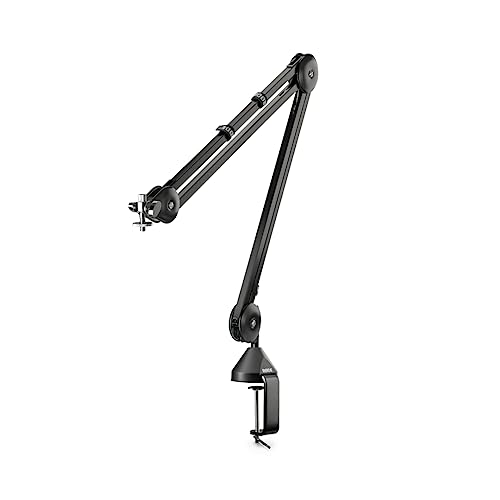
Move your mic closer to your mouth, ideally 2–4 inches for dynamic mics, 4–6 inches for condensers. This increases your direct voice signal while reducing the mic’s sensitivity to room reflections and speaker bleed. Use a boom arm like the Rode PSA1+ Professional Studio Arm to position your mic at mouth level without cluttering your desk.
Lower your mic gain. High gain amplifies everything, your voice, room noise, and audio leaking from your headphones. Start at 50% gain in your audio interface or mixer software, then increase gradually until your voice peaks around -12 to -6 dB in OBS. This keeps your signal clean without over-capturing ambient sound.
Angle your mic away from speakers or monitors. Cardioid and super-cardioid polar patterns reject sound from the rear and sides. Point the “dead zone” (usually the back of the mic) toward your speakers to minimize bleed. If you’re using a side-address condenser, make sure the front capsule faces your mouth, not your monitors.
Using Headphones to Eliminate Feedback
Headphones are the fastest fix for mic feedback loop live broadcasting problems. When sound plays through speakers, your mic picks it up. Closed-back headphones like the Audio-Technica ATH-M50x isolate audio completely, so zero stream output leaks into your mic.

Make sure your headphones are plugged into the correct output. If you’re using a GoXLR or Wave Link, route your headphones to the “Monitor Mix” output, not the same mix that includes your mic. In OBS, set your mic’s audio monitoring to “Monitor Off” if you’re hearing yourself in your headphones with a delay. That’s not echo: it’s monitoring feedback.
Test with earbuds if you suspect headphone bleed. High-volume headphones can leak enough sound for sensitive mics to capture. Lower your headphone volume or switch to in-ear monitors for complete isolation.
Software Settings to Remove Echo in OBS and Streaming Platforms
Configuring Audio Monitoring Options
In OBS, click the gear icon next to each audio source and check “Audio Monitoring.” Set your microphone to Monitor Off unless you need to hear yourself. Set game audio, Discord, and music sources to Monitor Only (mute output) if you want to hear them in your headphones but not send them to the stream. This prevents accidental doubling.
For browser sources, alerts, chat overlays, Spotify players, right-click the source, go to Properties, and scroll to “Control audio via OBS.” Uncheck this box to disable audio capture entirely. Most browser sources don’t need audio: you’re just embedding visuals. This single step fixes eliminate double voice live stream broadcast issues caused by alert sounds playing twice.
If you’re using Streamlabs OBS, the same principle applies. Go to Settings > Audio and confirm “Desktop Audio” isn’t set to the same device as your virtual mixer output. For example, if Wave Link sends audio to “Wave Link Stream,” don’t also capture “Speakers (Wave Link)” as Desktop Audio.
Enabling Noise Suppression and Echo Cancellation Filters
Right-click your mic source in OBS, select Filters, then click the + icon. Add Noise Suppression (use NVIDIA Noise Removal if you have an RTX GPU, or Speex if not). Set suppression level to -30 dB to start. This cuts background hum and low-level room reflections without making your voice sound robotic.
Next, add a Noise Gate VST plugin. Set the Close Threshold to -40 dB and Open Threshold to -35 dB. This setup silences your mic when you’re not speaking, preventing feedback from building during quiet moments. Adjust attack and release times to 10 ms and 150 ms respectively for natural speech gating.
For stubborn echo, enable AEC (Acoustic Echo Cancellation) in your virtual mixer software. In VoiceMeeter, turn on the “A1” echo cancellation toggle. In Discord, go to Voice & Video > Echo Cancellation and enable it. This uses algorithmic filtering to detect and remove delayed copies of your voice.
“Fixed my stream echo by disabling browser source audio in OBS and routing Discord through a separate virtual submix. Viewers said it sounded like I upgraded my whole setup.” via r/Twitch
If you’re running a VPN for security or geo-unlocking, make sure it’s not interfering with audio drivers. Some VPN clients reroute system audio devices. Consider NordVPN for stable, low-latency connections that won’t disrupt your audio routing. For outdated or corrupt audio drivers, IObit Driver Booster can scan and update all your sound card and USB interface drivers automatically, eliminating driver-level conflicts that cause echo or latency spikes.

Stay Private. Stay Secure.
Browse the internet with greater privacy and security with NordVPN. Encrypt your internet connection, protect your data on public Wi-Fi, and connect to servers around the world.
Get NordVPNAdvanced Solutions for Persistent Echo Issues
Treating Your Streaming Space Acoustically
If you’ve fixed all routing issues but still hear subtle room reverb, treat your space. Mount acoustic foam panels on the wall behind your mic and the wall you face. This absorbs mid-to-high frequency reflections that cause the “boxy” sound. Bass traps in room corners tame low-frequency rumble.
Don’t overkill it. Two 2×2-foot panels behind you and one in front (if you’re facing a bare wall) are enough for most small rooms. Heavy curtains over windows and a rug under your desk also help. You don’t need a professional studio: you just need to break up hard, parallel surfaces.
Position your desk away from corners. Corner placement amplifies bass frequencies and creates standing waves that muddy your voice. If possible, set up in the center of the room or at least a foot away from walls.
Upgrading Your Audio Interface and Equipment
Budget USB mics often lack proper gain staging and noise rejection. Upgrading to an XLR dynamic mic (like the Rode PodMic or Shure SM58) paired with a dedicated audio interface (Focusrite Scarlett Solo, GoXLR Mini) gives you precise gain control and better feedback rejection.
If you’re serious about broadcast-quality audio, the Elgato Wave DX Dynamic Microphone paired with the Wave XLR interface is the ultimate hardware workaround. It combines plug-and-play USB connectivity with professional XLR dynamics, plus built-in Clipguard and Wave Link routing software to prevent feedback loops.

“Switched to a dynamic XLR mic and GoXLR, and my echo issues disappeared overnight. The problem wasn’t my room: it was my cheap condenser picking up everything.” via r/OBS
For multi-PC streaming setups, use a hardware mixer to separate game audio, chat audio, and mic channels into dedicated submixes. The TC-Helicon GoXLR routes four independent audio sources, applies real-time EQ and compression, and sends a clean, echo-free mix to your broadcast software.
Check your capture card audio settings. In OBS, right-click your capture card source, go to Properties, and set “Audio Output Mode” to Capture audio only. Disable “Use custom audio device” unless you specifically need it. This prevents HDMI audio passthrough from duplicating game audio already captured by your PC.
Frequently Asked Questions
What causes microphone echo when streaming?
Microphone echo occurs when audio from your stream output gets picked up by your microphone again, creating a delayed, hollow effect. Common causes include browser source audio capture, capture card HDMI passthrough duplicating audio, virtual mixer routing errors in Wave Link or VoiceMeeter, and room reflections bouncing off hard surfaces.
How do I diagnose microphone echo in OBS or Streamlabs?
Open Settings > Audio and check for duplicate audio devices. Mute every source except your microphone and record a test clip. If echo disappears, it’s a software routing issue. Unmute sources one by one to identify the culprit. Also check ‘Audio Monitoring’ settings—set your mic to ‘Monitor Off’ to prevent playback feedback.
Can using headphones fix streaming echo?
Yes. Closed-back headphones like Audio-Technica ATH-M50x eliminate feedback by preventing stream audio from leaking into your microphone. Route headphones to your monitor mix output, not the stream mix. This is the fastest fix for microphone echo caused by speaker bleed and audio feedback loops.
What microphone placement and gain settings reduce echo?
Position your dynamic mic 2–4 inches from your mouth, or 4–6 inches for condensers. Keep mic gain at 50% initially, then adjust until voice peaks at -12 to -6 dB in OBS. Point cardioid mics away from speakers to minimize bleed. Closer placement increases direct voice signal while reducing room reflection capture.
How do I disable audio on browser sources to prevent echo?
Right-click your browser source in OBS, select Properties, scroll to ‘Control audio via OBS,’ and uncheck this box. This stops chat overlays, alerts, and music players from capturing audio twice. Most browser sources only need visuals, so disabling audio is the single most effective fix for doubling issues.
Should I enable echo cancellation filters in OBS?
Yes. Add Noise Suppression (NVIDIA Noise Removal or Speex) at -30 dB and a Noise Gate VST with Close Threshold at -40 dB. For stubborn echo, enable Acoustic Echo Cancellation (AEC) in your virtual mixer software like VoiceMeeter or Discord Voice & Video settings. These filters detect and remove delayed copies of your voice algorithmically.
Read More:
- Microphone Echo in Recordings (Expert Fix Guide that Always Work)
- Microphone Echo in OBS (Here’s Why and Fix It Under 5 Minutes)
- Microphone Echo in Discord (Common Causes and the Fast Guide)
- Microphone Echo in Zoom (Here’s How to Fix Clear Audio Solutions)
- Microphone Echo in Teams (Causes and Pro Fixes to Eliminate It)

Susan is a professional writer. She has been a writer for eight years and has always been so fulfilled with her work! She desires to share helpful, reliable, and unbiased information and tips about tech and gadgets. She hopes to offer informative content that can answer users’ questions and help them fix their problems.