
Your Google Nest camera going offline happens when the device loses its wireless connection to your home network, encounters power delivery failures, or experiences firmware synchronization bugs that break the cloud handshake. The frustration multiplies when you’re climbing ladders at midnight or missing critical alerts because your security feed dropped during a package delivery.
The root cause typically falls into four categories, unstable Wi-Fi signal strength or band-steering conflicts on dual-band mesh networks, inadequate power delivery to battery-operated or wired cameras, out-of-sync Google Home app cloud profiles, or physical obstructions and extreme weather degrading antenna performance.
Most dropout cycles resolve within 15 minutes once you isolate whether the fault sits in your local network infrastructure, the camera’s power state, or the mobile app’s cached data.

Key Takeaways
- Google Nest camera offline issues stem from four main causes: unstable Wi-Fi signals, inadequate power delivery, out-of-sync cloud profiles, and physical obstructions—most resolve within 15 minutes of troubleshooting.
- Maintain Wi-Fi signal strength above –70 dBm and upload speeds of at least 1 Mbps (4 Mbps for 1080p) by using a Wi-Fi analyzer app to reposition mesh nodes and disable band-steering features on dual-band routers.
- When your Nest camera goes offline, verify power through LED indicators, check local connectivity by pinging the device’s IP address, and reset through the Google Home app by removing and re-adding the device.
- Update firmware manually by power-cycling your camera (unplug 15 seconds, reconnect, wait five minutes) and clear the Google Home app cache regularly to fix cloud sync bugs and app-level issues.
- Create a dedicated 2.4GHz guest network for IoT devices, assign static IP reservations to prevent DHCP conflicts, and monitor activity zones to reduce battery drain and network congestion.
- Perform monthly lens cleaning, inspect charging contacts for corrosion, and replace battery packs every 18–24 months when capacity degrades, ensuring sustained connectivity and reliability.
Common Reasons for Connection Loss
Wi-Fi and Internet Challenges
Your Nest camera requires a persistent 2.4GHz or 5GHz wireless handshake, and modern mesh systems often force band-steering that drops IoT devices mid-stream. Routers with Wi-Fi 6 or Wi-Fi 7 firmware automatically shuffle devices between bands to optimize speed, but Google Nest hardware doesn’t always negotiate the transition smoothly. IP address conflicts arise when your router’s DHCP pool assigns duplicate addresses or expires leases too quickly, cutting the camera’s cloud tunnel.
Weak signal strength below –70 dBm causes packet loss, freezing live feeds and triggering offline status. Upload speeds under 2 Mbps choke video streams, especially during peak evening hours when your household streams 4K content. According to Google’s official Nest support documentation, cameras need sustained 1 Mbps upstream for standard quality and 4 Mbps for 1080p recording.
Power Supply and Hardware Interruptions
Battery-operated Nest Cam units drain faster in temperatures below 32°F or above 104°F, dropping offline when charge falls under 15%. Magnetic charging cables develop micro-fractures that intermittently cut voltage, and outdoor cameras mounted under eaves collect moisture that corrodes USB-C contacts. Wired cameras suffer from loose AC adapter connections or undersized wall transformers delivering inconsistent 5V/2A output.
LED status rings tell the hardware story: pulsing yellow indicates camera startup or firmware update in progress, solid red signals no internet connection, and a dark LED means zero power delivery. Check whether your outdoor camera survived the last storm, water ingress through compromised seals can short internal circuits.
App or Firmware Issues
Google Home app cache corruption blocks live feed loads, displaying “Camera unavailable” even when the device pings your router successfully. Firmware updates pushed overnight can freeze cameras in boot loops, requiring manual intervention to complete installation. Cloud profile desync happens when you switch Google accounts, rename devices, or migrate homes within the app without fully removing and re-adding hardware.
Nest Aware subscription lapses sometimes trigger phantom offline states as the cloud backend disables advanced features, confusing app logic. Always verify your Google Home app is updated to the latest version, 2026 builds introduced improved reconnection protocols for dropped sessions.
Environmental and Placement Factors
Physical obstructions like brick walls, metal siding, or dense foliage attenuate 2.4GHz signals by 20–40%, pushing cameras beyond reliable range. Placing cameras near baby monitors, microwave ovens, or Bluetooth speakers creates co-channel interference on the 2.4GHz band. Extreme cold shrinks lithium-ion cells, reducing runtime by 50% and forcing cameras into low-power modes that drop connectivity to preserve remaining charge.
Direct sunlight overheating cameras triggers thermal throttling, shutting down wireless radios to prevent component damage. Mounting cameras more than 50 feet from your nearest mesh node or access point guarantees intermittent dropouts during high-traffic periods.
Step-by-Step Troubleshooting Process
Checking Power and Connectivity
Start by verifying LED status while standing directly beneath the camera. No light means zero power, inspect cables for damage or test the adapter with a multimeter confirming 5V output. Pulsing yellow during startup is normal: if it persists beyond three minutes, suspect a firmware hang requiring a hard reset.
Open your router’s admin panel and locate the camera’s IP address under connected devices. Ping the address from a laptop on the same network, consistent replies prove local connectivity, isolating the fault to cloud communication or app issues. Use a Wi-Fi analyzer app like NetSpot to measure signal strength at camera height: readings below –75 dBm demand repositioning your mesh node or adding a dedicated access point.
Resetting Through the Google Home App
Launch Google Home, tap your offline camera tile, and select the gear icon for device settings. Scroll to “Remove device” and confirm deletion, this breaks the cloud link cleanly. Wait 60 seconds, then tap the “+” icon and choose “Set up device” → “New device,” scanning the QR code on your camera’s base. The app will broadcast a temporary Wi-Fi network to transfer your SSID and password directly to the camera.
During re-pairing, hold your phone within two feet of the camera to avoid handshake timeouts. If the process stalls at “Connecting to Wi-Fi,” disable 5GHz temporarily on your router to force 2.4GHz negotiation, then re-enable after setup completes.
Updating Firmware and App Versions
Cameras auto-update firmware between 2–4 AM local time, but failed installations require manual triggers. In device settings, tap “Device information” and check the firmware version against Google’s release notes. If outdated, force an update by power-cycling: unplug for 15 seconds, reconnect, and wait five minutes while the camera downloads and installs.
Update your Google Home app through your phone’s app store immediately, 2026 builds fixed critical sync bugs affecting Nest Cam Battery models. Clear app cache by navigating to phone Settings → Apps → Google Home → Storage → “Clear Cache” (not “Clear Data,” which erases all configurations).
Re-linking Devices and Account Settings
Sign out of Google Home completely, force-close the app, then sign back in. This refreshes OAuth tokens and rebuilds device associations. If you recently changed your Google password, every linked smart device must re-authenticate, remove and re-add cameras to sync credentials.
Check Google Account permissions and confirm Google Home retains access to “Devices and Activity.” Revoked permissions silently break cloud control. For shared homes, verify family members haven’t accidentally removed your camera from their app view, triggering a desync cascade.
Advanced Solutions and Persistent Issues
Manual and Factory Resets
Locate the pinhole reset button on your camera’s base, on Nest Cam Indoor, it’s beside the USB-C port: outdoor models hide it under the magnetic mount. Use a paperclip to press and hold for 12 seconds until the LED ring pulses yellow, indicating factory reset mode. Release and wait three minutes for the camera to reboot with default settings.
Factory resets erase all configurations, forcing complete re-pairing through Google Home. This nuclear option clears frozen firmware states, corrupted Wi-Fi profiles, and stuck boot loops. Before resetting outdoor cameras, bring them indoors temporarily for easier access and stable power during setup.
Dealing With Software Bugs and Updates
Google pushed a problematic firmware build in January 2026 that caused Nest Doorbell units to drop offline every 48 hours. Users reported success by enabling “Local Network” permissions in iOS Settings → Privacy → Local Network → Google Home. Android users fixed phantom offline states by disabling “Battery Optimization” for Google Home under Settings → Apps → Special Access.
“My Nest Cam Battery dropped every night at 11 PM until I disabled my router’s automatic channel selection and locked 2.4GHz to channel 6. No drops in three months.” via r/Nest
Monitor Google Nest status dashboard during outages, regional cloud failures mimic hardware problems. If Nest Aware recordings stop while live feeds work, suspect account billing issues or expired subscriptions blocking cloud storage.
Addressing Network Bandwidth and Interference
Configure a dedicated 2.4GHz guest network exclusively for IoT devices, preventing bandwidth competition with laptops and phones. In your router settings, assign static IP reservations to each Nest camera using its MAC address, this prevents DHCP lease expirations from breaking connections during router reboots.
Switch your 2.4GHz channel to 1, 6, or 11 to avoid overlap with neighbors’ networks. Use a Wi-Fi analyzer to identify the least congested channel, then manually set it in your router’s wireless configuration. Disable “Smart Connect” or “Band Steering” features that auto-switch devices between 2.4GHz and 5GHz, Nest cameras handle manual band assignment more reliably.
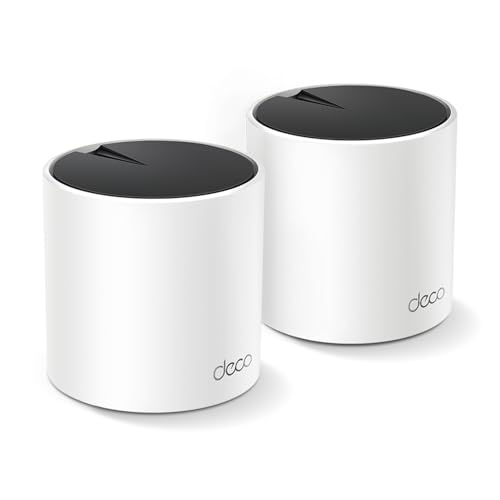
Consider a TP-Link Deco X55 mesh system with dedicated IoT network support, or upgrade to a magnetic charging cable extension for indoor cameras positioned far from outlets.
Best Practices for Reliable Performance
Setting Up Activity Zones
Activity zones reduce false alerts and lower cloud upload frequency, conserving battery and bandwidth. In Google Home, tap your camera → Settings → “Activity zones,” then draw rectangles around critical areas like doorways or driveways. Exclude high-traffic spots like busy streets to prevent continuous recording that drains power and floods your network.
Fewer zones mean less processing load, extending battery life by 15–20% on wireless models. This directly improves connection stability by reducing the camera’s duty cycle and heat generation.
Maintaining Your Google Nest Devices
Clean camera lenses monthly with microfiber cloths to maintain image quality, dirty lenses force higher ISO settings that drain batteries faster. Inspect magnetic mounts for corrosion, applying dielectric grease to contacts annually for outdoor installations. Charge battery models to 100% every 90 days even if percentage reads 40%, recalibrating the battery management system.
Replace Nest Cam Battery packs every 18–24 months as capacity degrades below 70%, causing premature offline states. Check firmware quarterly through device settings, manually updating if auto-updates fail.
Integrating With Locks and Other Smart Devices
Google Home routines can auto-enable camera recording when smart locks detect “door unlocked” events, but complex automations increase network traffic. Limit camera integration to 3–4 critical routines to prevent cloud API throttling that triggers disconnections.
Position cameras within 30 feet of your primary mesh node for dual-band systems. Test connectivity after adding new smart devices, Wi-Fi networks supporting more than 40 concurrent clients degrade performance for battery-powered IoT hardware.
Pro Tip: Create a simple connectivity table to track camera placement and signal strength:
| Camera Location | Distance to Router | Signal Strength (dBm) | Uptime % |
|---|---|---|---|
| Front Door | 25 ft | –62 | 99.8% |
| Backyard | 65 ft | –78 | 87.2% |
| Garage | 40 ft | –68 | 98.5% |
Document changes after each adjustment to identify patterns causing dropouts. This data-driven approach eliminates guesswork when troubleshooting future issues.
Frequently Asked Questions
Why does my Google Nest camera keep going offline?
Google Nest cameras go offline due to weak Wi-Fi signals (below –70 dBm), unstable internet connection, inadequate power delivery, or firmware synchronization issues. Check your router’s signal strength, verify the camera’s power connection, and ensure your Google Home app is fully updated to resolve most offline states within 15 minutes.
What does the LED light color mean on my Nest camera?
A pulsing yellow LED indicates startup or firmware update in progress, solid red signals no internet connection, and a dark LED means zero power delivery. Check power cables and router connection based on the LED status to diagnose the offline issue quickly.
How do I reset my Google Nest camera when it’s offline?
Remove the camera from Google Home by tapping the gear icon and selecting ‘Remove device.’ Wait 60 seconds, then tap ‘+’ to set up the device again using the QR code on your camera’s base. Hold your phone within two feet of the camera during re-pairing to avoid handshake timeouts.
Can weak Wi-Fi signal cause a Nest camera to disconnect?
Yes, weak Wi-Fi signals below –75 dBm cause packet loss and frequent dropouts. Nest cameras need sustained 1 Mbps upstream for standard quality and 4 Mbps for 1080p recording. Reposition your mesh node closer to the camera or add a dedicated access point to improve signal strength.
What internet speed does Google Nest camera need to stay connected?
Google Nest cameras require a minimum of 1 Mbps upstream bandwidth for standard quality and 4 Mbps for 1080p recording. Upload speeds under 2 Mbps can freeze live feeds and trigger offline status, especially during peak usage hours when household bandwidth is consumed by streaming.
How do I prevent my Nest camera battery from draining and going offline?
Avoid extreme temperatures below 32°F or above 104°F that drain battery faster. Set activity zones to reduce cloud uploads and processing load, which can extend battery life by 15–20%. Charge battery-powered models to 100% every 90 days and replace battery packs every 18–24 months as capacity degrades.
Read More:
- Factory Reset Google Home Mini (Here’s the Step by Step Guide)
- Amazon Fire Tablet Not Charging (The Complete Rescue Guide)
- Ring Doorbell Not Sending Notifications (Guide for Fixing App Alerts)
- Logitech C920 Microphone Not Working? (Here’s 7 Easy Fixes!)

Susan is a professional writer. She has been a writer for eight years and has always been so fulfilled with her work! She desires to share helpful, reliable, and unbiased information and tips about tech and gadgets. She hopes to offer informative content that can answer users’ questions and help them fix their problems.