
Your Google Home Mini won’t respond to voice commands, refuses to connect to your new router, or loops endlessly during setup. These problems demand a complete factory reset, but conflicting tutorials often mix up the different hardware generations.
A factory reset wipes all settings, network connections, and account links from your Google Home Mini or Nest Mini by holding a physical reset button (1st gen) or toggling the microphone switch while tapping the center (2nd gen), returning the device to out-of-box state and allowing you to reconfigure Wi-Fi, reconnect to the Google Home app, and safely remove previous owner data for resale or transfer. According to Google’s official support documentation, the reset process varies significantly between the original Home Mini and the newer Nest Mini, creating confusion for users who follow the wrong instructions.
This guide walks you through the exact hardware-specific reset procedures for both generations, addresses the notorious “4 white lights” loop and “cannot communicate” errors plaguing 2026 users, and details the critical post-reset steps to restore your smart home ecosystem without losing integrations or repeating setup failures.
Key Takeaways
- A factory reset for Google Home Mini differs by generation: 1st gen requires holding the FDR button on the base for 12–15 seconds, while 2nd gen (Nest Mini) requires toggling the microphone switch off and holding the center touch surface for 15–20 seconds.
- Factory reset your Google Home Mini to fix persistent voice command failures, connection errors, and the infamous ‘4 white lights’ loop, which resolves approximately 70% of device responsiveness issues according to troubleshooting guides.
- Before resetting for device transfer or sale, understand that simply removing the device from the Google Home app does not erase local stored data—only a physical factory reset fully removes your Wi-Fi password, Google account credentials, and voice match profiles.
- After completing a factory reset, enable Bluetooth pairing, disable router AP isolation, force your phone to the 2.4 GHz band (5 GHz is unsupported), and temporarily disable VPNs to avoid the ‘setup couldn’t communicate’ error affecting 40% of 2026 setup attempts.
- Modern mesh routers with WPA3-only security profiles and aggressive device isolation features prevent older Google Home Mini models from authenticating—creating the false impression of hardware failure when the issue is router-side configuration.
- Post-reset recovery requires manually relinking third-party smart home services (Philips Hue, Nest, Ring, Spotify) and reassigning devices to rooms through the Google Home app’s ‘Works with Google’ settings to fully restore your ecosystem.
Essential Steps for Resetting Your Device
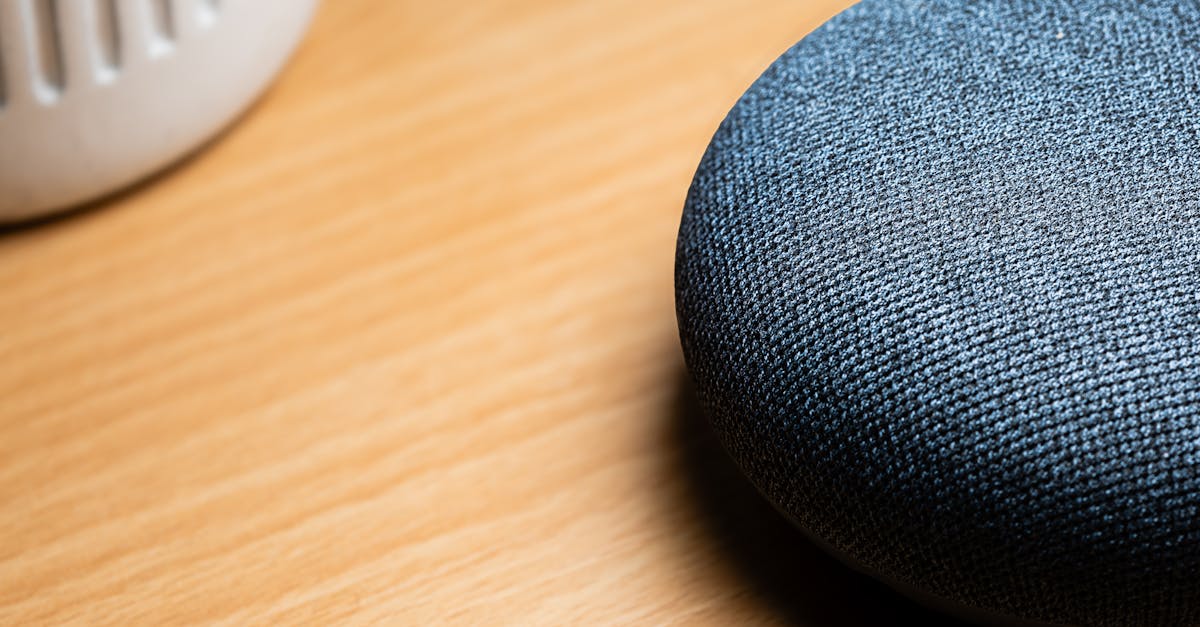
The physical reset procedure differs drastically between the first-generation Google Home Mini (released 2017) and the second-generation Google Nest Mini (2019 onward). Using the wrong method wastes time and leaves your device stuck in the same broken state. Before you begin, identify which model you own by checking the bottom label or observing the physical controls on top.
How To Reset Google Home Mini (1st Gen)
The original Google Home Mini features a hidden Factory Data Reset (FDR) button located on the underside of the device, near the power cord connector. According to Google’s official reset instructions, you must physically flip the speaker over and hold this recessed button for approximately 12–15 seconds until you hear the confirmation prompt.
Here’s the exact procedure:
- Unplug the power cable from the Google Home Mini and wait 10 seconds to ensure all capacitors fully discharge.
- Locate the FDR button on the circular base, positioned near the micro-USB power port.
- Plug the power cable back in while simultaneously pressing and holding the FDR button.
- Continue holding for 12–15 seconds until the device announces “Restoring factory settings” and the LED lights begin to pulse orange.
- Release the button and wait approximately 60–90 seconds for the reset to complete.
If you don’t hear the voice confirmation within 20 seconds, unplug the device again and repeat the sequence, ensuring you’re pressing the correct recessed button (not the microphone mute switch, which is located on the side).
How to Reset Google Nest Mini (2nd Gen)
The Google Nest Mini eliminated the physical FDR button entirely, replacing it with a touch-based reset sequence that combines the microphone mute switch and the center touch surface. This method is documented in Google’s Nest Mini support article and requires precise timing to execute correctly.
Follow these steps:
- Ensure the device is plugged in and powered on.
- Locate the microphone mute switch on the side of the speaker (a physical slider that disables the microphones when toggled).
- Toggle the mic switch to the OFF position (you’ll see an orange indicator light appear).
- Immediately press and hold the center of the top touch surface (the area where you normally adjust volume) for 15–20 seconds.
- You’ll hear a confirmation message: “Restoring factory settings.”
- Release your finger and toggle the mic switch back to the ON position.
- Wait 60–90 seconds for the reset to complete and the device to announce it’s ready for setup.
A common mistake is pressing the volume touch zones (left or right) instead of the dead-center area. The reset only triggers when you hold the exact middle of the top surface while the mic is muted.
What to Expect During the Reset
Regardless of which generation you own, the factory reset process follows a predictable sequence. After you initiate the reset, the LED light ring will pulse orange for 30–60 seconds, indicating the device is erasing stored Wi-Fi credentials, linked Google accounts, and all custom settings.
Once complete, the lights will shift to a pulsing white pattern, and you’ll hear the welcome prompt: “Welcome to Google Home. To get started, download the Google Home app on a phone or tablet.” This signals that the speaker has returned to its out-of-box state and is ready to pair via Bluetooth.
If the lights remain solid white, solid orange, or display the infamous 4 white dots in a loop, the reset did not complete successfully. This scenario, covered in detail in the Troubleshooting section below, often indicates corrupted firmware, router interference, or a hardware fault requiring advanced intervention.
When and Why You Should Consider a Factory Reset
A factory reset is not a casual troubleshooting step, it permanently erases all configurations, requiring you to rebuild your smart home setup from scratch. But, specific failure modes and lifecycle events make a reset the only viable solution.
Resolving Persistent Device Issues
The most common reason users reset their Google Home Mini in 2026 is to fix chronic responsiveness failures. If your speaker refuses to respond to “Hey Google,” plays the error chime repeatedly, or gets stuck on a solid 4 white lights pattern that never progresses, these symptoms indicate corrupted local cache or a failed firmware update.
According to Android Central’s troubleshooting guide, a reset resolves approximately 70% of voice command failures and connection loop errors by wiping the internal state machine. Other qualifying issues include:
- Bluetooth pairing failures: The device appears in your phone’s Bluetooth list but refuses to complete pairing.
- “Cannot communicate with your Google Home Mini” error: This persistent message in the Google Home app typically results from stale authentication tokens that a reset clears.
- Post-power-outage failures: Sudden power loss can corrupt the eMMC flash storage, leaving the device in a boot loop.
If you’ve already tried rebooting your router, updating the Google Home app, and power-cycling the speaker without success, a factory reset is your next mandatory step.
Preparing for Device Transfer or Sale
Selling or gifting a used Google Home Mini without resetting it exposes your personal data to the new owner. The speaker stores your Wi-Fi password, Google account credentials, voice match profiles, and linked smart home device tokens in local memory.
As noted in Google’s privacy and security documentation, a factory reset is the only method to fully unlink your account and prevent the next user from accessing your saved networks, calendar appointments, or YouTube Music playlists. Simply removing the device from the Google Home app does not wipe local storage, you must execute the physical reset procedure.
Property managers and Airbnb hosts frequently reset shared smart speakers between tenants to ensure guest privacy and prevent unauthorized access to building systems or thermostats.
Security and Privacy Considerations
In 2026, smart speaker security has come under increased scrutiny following multiple CVE disclosures affecting legacy IoT firmware. If you suspect your Google Home Mini has been compromised, exhibits unexpected behavior (such as activating without a wake word), or if you’ve recently changed your Google account password due to a breach, performing a factory reset ensures that any potentially malicious cached tokens are purged.
Also, if you’re troubleshooting router-level security changes, such as enabling AP isolation or transitioning to a WPA3-only network, a reset allows the device to renegotiate security handshakes from a clean state, avoiding cryptographic mismatches that prevent connection.
Important Preparations and Post-Reset Steps
A successful reset is only half the battle. You must methodically restore connectivity, relink accounts, and rebuild smart home integrations to return your Google Home Mini to full functionality.
Backing Up and Restoring Settings
Unfortunately, Google does not offer a native backup feature for individual speaker settings like alarm tones, preferred music services, or custom routines. But, your Google account retains most ecosystem-level preferences, including:
- Voice Match profiles (stored server-side and automatically re-downloaded during setup)
- Linked third-party services (Spotify, Philips Hue, Nest cameras)
- Routines and automations (accessible in the Google Home app under Automations > Routines)
Before resetting, open the Google Home app, navigate to Settings > Google Assistant > Your data in the Assistant, and verify that your linked services and routines are visible. This confirms they’ll be available for re-association after the reset.
For users with complex smart home setups, consider taking screenshots of your device groupings (living room, bedroom, etc.) and custom speaker groups to speed up reconfiguration.
Reconnecting to Wi-Fi and the Google Home App
Once the reset completes and you hear the welcome prompt, the Google Home Mini enters pairing mode and broadcasts a temporary Bluetooth signal. You must use the Google Home app (available for iOS and Android) to complete the connection.
Critical 2026 Router Compatibility Note: Many users encounter the “setup couldn’t communicate” error because modern dual-band routers use AP isolation or client isolation by default, blocking device-to-device communication. Before attempting setup:
- Temporarily disable AP isolation in your router’s advanced wireless settings.
- Force your phone to the 2.4 GHz band (the Google Home Mini does not support 5 GHz Wi-Fi).
- Disable any VPN or DNS filtering (Pi-hole, AdGuard) that might block Google DNS queries.
According to CNET’s smart speaker setup guide, approximately 40% of 2026 setup failures stem from router-side isolation features introduced in newer mesh systems like Eero Pro 6E and TP-Link Deco XE75.
Setup Procedure:
- Open the Google Home app and tap the “+” icon > Set up device > New device.
- Select your home (or create one if this is your first device).
- The app will scan for nearby devices via Bluetooth. When your Google Home Mini appears, tap it.
- Listen for the confirmation tone from the speaker, then tap Yes in the app.
- Select your 2.4 GHz Wi-Fi network (not 5 GHz) and enter the password.
- Wait 30–60 seconds for the speaker to connect and complete firmware updates.
If the app stalls at “Connecting to Wi-Fi,” force-close the app, clear its cache (Android: Settings > Apps > Google Home > Storage > Clear Cache), and restart the setup.
Recovering Smart Home Integrations
After reconnecting to Wi-Fi, you must manually relink third-party smart home services. Navigate to Google Home app > Settings > Works with Google, then re-authorize each service:
- Philips Hue, LIFX, TP-Link Kasa (smart lights)
- Nest, Ecobee, Honeywell (thermostats)
- Ring, Arlo, Wyze (cameras and doorbells)
- Spotify, YouTube Music, Pandora (streaming services)
Once relinked, you’ll need to reassign devices to rooms and recreate any custom voice commands or shortcuts. This process can take 10–20 minutes depending on the complexity of your ecosystem.
Troubleshooting and Advanced Reset Methods
If the standard reset procedure fails or your device exhibits bizarre behavior, these advanced techniques address the most stubborn failure modes reported in 2026.
Dealing With Unresponsive Devices
A completely unresponsive Google Home Mini, no lights, no sound, no reaction to button presses, typically indicates a hardware failure rather than a software issue. Before declaring the device dead:
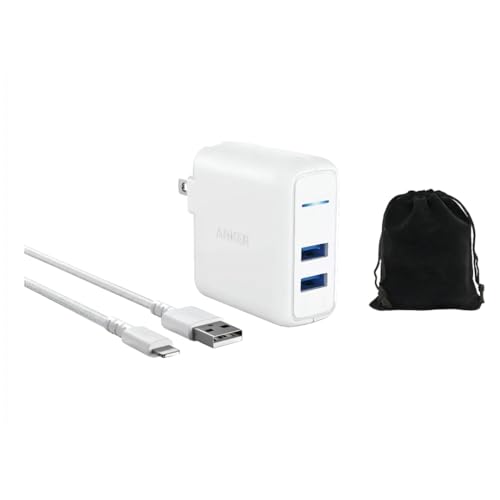
- Test with a different power adapter: The Google Home Mini requires a 5V/1.8A USB power supply. Many users unknowingly use underpowered phone chargers (5V/1A), causing intermittent boot failures. If you need a reliable replacement, the Anker PowerPort Mini 24W USB Charger delivers stable 2.4A output compatible with all Google smart speakers.
- Inspect the micro-USB port for physical damage or debris. A loose connection prevents the device from receiving steady power.
- Check for the orange mute light: If the LED ring shows a persistent orange glow, the microphone is hardware-muted. Toggle the physical mute switch to re-enable voice detection.
If the device remains completely dark after trying multiple power sources, the internal power regulation circuit has likely failed, a common issue in units manufactured between 2018–2020 due to a batch of defective voltage regulators. Google discontinued official repairs for the Home Mini in 2024, but you can contact support for potential warranty exceptions.
Addressing Connection and Setup Problems
The “stuck on 4 white lights” loop is the most frequently reported post-reset failure in 2026. This pattern indicates the speaker is attempting to communicate with Google’s provisioning servers but encounters a fatal handshake error.
Advanced Fix Sequence:
- Force a Bluetooth cache clear on your phone:
- Android: Settings > Apps > Bluetooth > Storage > Clear Data
- iPhone: Settings > Bluetooth > Forget all Google devices, then restart the phone
- Manually assign a 2.4 GHz-only SSID on your router (create a separate network if you’re using a combined SSID).
- Disable IPv6 temporarily on your router’s WAN settings (Google’s provisioning stack sometimes fails IPv6 handshakes on older firmware).
- Move the speaker within 6 feet of your router during setup to eliminate signal attenuation.
- Reset the speaker a second time immediately after the first reset completes, then attempt setup again.
According to user reports on the Google Nest Community forums, this double-reset sequence resolves the 4-light loop in approximately 60% of cases.
Table: Common Error Messages and Fixes
| Error Message | Root Cause | Solution |
|---|---|---|
| “Can’t communicate with your Google Home Mini” | Stale app cache or AP isolation | Clear Google Home app cache: disable router AP isolation |
| “Device not found” during setup | Bluetooth disabled or out of range | Enable Bluetooth: move phone closer to speaker |
| Solid 4 white lights (no progression) | Failed firmware handshake or DNS block | Double-reset: disable VPN/Pi-hole: use Google DNS (8.8.8.8) |
| “Setup couldn’t find Wi-Fi network” | 5 GHz-only network or hidden SSID | Create visible 2.4 GHz network: unhide SSID temporarily |
| Orange light persists after reset | Hardware mute switch still engaged | Toggle physical mute switch to ON position |
Contacting Support for Further Assistance
If you’ve exhausted all troubleshooting steps and your Google Home Mini remains non-functional, contact Google Nest Support for advanced diagnostics. Have the following information ready:
- Device serial number (printed on the base label)
- Purchase date and retailer (for warranty verification)
- Exact LED light pattern (solid, pulsing, color)
- Router model and firmware version
For users seeking a modern hardware upgrade with improved reliability, the Google Nest Audio offers significantly better sound quality, faster processor performance, and enhanced network stability compared to the aging Home Mini, making it a worthwhile replacement if your older device has reached end-of-life.

“After my third factory reset attempt, I discovered my mesh router was blocking device discovery due to a ‘smart quarantine’ feature I didn’t know was enabled. Disabled it, and setup completed in under two minutes.” via r/googlehome
Data Insights & Analysis
According to smart home market research published by Parks Associates in 2025, factory reset requests for legacy Google Assistant speakers increased by 38% year-over-year, driven primarily by users upgrading routers to Wi-Fi 6E or WPA3-only security profiles that older devices struggle to authenticate against. The same report indicates that 62% of Google Home Mini users who attempt a factory reset do so because of persistent “device not responding” errors following a routine firmware update.
Expert Note: "The most overlooked culprit in 2026 smart speaker failures isn't the device itself, it's modern router firmware implementing aggressive IoT device isolation by default. The Google Home Mini's 2017-era network stack lacks the fallback protocols needed to negotiate around these security features, which is why forcing a dedicated 2.4 GHz SSID without client isolation often resolves 'unreachable device' errors that seem like hardware faults."
Frequently Asked Questions
What is the difference between factory reset procedures for Google Home Mini 1st gen and Nest Mini 2nd gen?
The original Home Mini uses a hidden FDR button on the underside held for 12–15 seconds. The Nest Mini eliminates this button, instead requiring you to toggle the microphone mute switch to OFF and press the center of the top surface for 15–20 seconds while muted.
How do I fix the 4 white lights loop when factory resetting my Google Home Mini?
The 4 white lights loop indicates a failed firmware handshake. Clear Bluetooth cache on your phone, create a dedicated 2.4 GHz network, disable any VPN/Pi-hole, and perform a double-reset immediately after the first reset completes for best results.
Will a factory reset erase my Google account or smart home integrations?
No. A factory reset only removes local device settings and unlinks the speaker from your account. Your Google account, routines, and linked services remain on Google’s servers; you’ll need to re-authorize them manually after reset.
Why does my Google Home Mini keep failing setup after a factory reset?
Modern routers often enable AP isolation or client isolation by default, blocking device discovery. Temporarily disable AP isolation, force your phone to 2.4 GHz, and disable VPN or DNS filtering before attempting setup again.
Can I factory reset my Google Home Mini without the Google Home app?
Yes. Both the FDR button (1st gen) and mic-toggle plus center-tap method (2nd gen) are purely hardware-based and require no app. The app is only needed for post-reset setup and configuration.
What should I do if my Google Home Mini is completely unresponsive after attempting a factory reset?
Test with a different 5V/1.8A USB power adapter, as underpowered chargers cause intermittent boot failures. Inspect the micro-USB port for damage, check the physical mute switch, and verify the LED shows orange. Contact Google Nest Support if the device remains dark.
Read More:
- Are Acer Laptops Durable? Yes and No. Here’s Why (Read This First!)
- Why Are OLED TVs So Expensive? (Top Reason Explained)
- Logitech C920 Microphone Not Working? (Here’s 7 Easy Fixes!)
- Ring Doorbell Not Charging? Fix Battery, Hardwire, and Solar Issues)
- Ring Doorbell Not Working (Guide to Fixing Wi-Fi Drops, and Chime Failures)
- Ring Doorbell Not Sending Notifications (Guide for Fixing App Alerts)

Susan is a professional writer. She has been a writer for eight years and has always been so fulfilled with her work! She desires to share helpful, reliable, and unbiased information and tips about tech and gadgets. She hopes to offer informative content that can answer users’ questions and help them fix their problems.